
MSBA-220 · Lesson 9 of 12 · 19 min
Teams clients and devices
▶ Video coming soon A video version of this lesson is on the way.
Ama's help desk handled more Teams tickets about clients and devices than about anything else. Laptops at head office still had an old Teams client lingering in user profiles. The branch meeting rooms had a mix of a webcam on a television, a borrowed speakerphone and, in one branch, nothing at all. Felix wanted two proper meeting rooms per branch by spring, and Northlight AV, the integrator, had sent a quote that mentioned Teams Rooms Pro licences, resource accounts and device tags. Ama needed to understand all of it before the devices arrived.
The MS-700 study guide groups these skills under managing Teams clients and devices: identifying licensing for Teams Phone accounts, resource accounts and Teams devices, managing configuration profiles, configuring accounts for Teams Rooms, managing device settings and firmware, managing device tags, provisioning and remote sign-in for new devices, and planning Teams for virtual desktops. This lesson covers the desktop and mobile clients as well.
Deploying the Teams desktop client
The new Teams client is the only supported Teams desktop app on Windows and macOS. On Windows it is packaged as MSIX, and administrators deploy it to many computers using the Teams bootstrapper (teamsbootstrapper.exe), which downloads and provisions the app for all users of a machine, or by deploying the MSIX package with a management tool such as Intune or Configuration Manager. Microsoft 365 Apps installations can also include Teams. Updates are automatic and come from Microsoft; administrators influence timing mainly through update policies and the Microsoft 365 Apps update channels.
# Provision the new Teams client for all users on a Windows PC (run as administrator)
.\teamsbootstrapper.exe -p

# Remove the provisioned package from the PC
.\teamsbootstrapper.exe -x
Ama packaged the bootstrapper as an Intune Win32 app assigned to all Corvallin PCs, then used Intune to remove leftover copies of the retired classic client. Within two weeks, the help desk's most common ticket, "my Teams looks different from yours", disappeared.
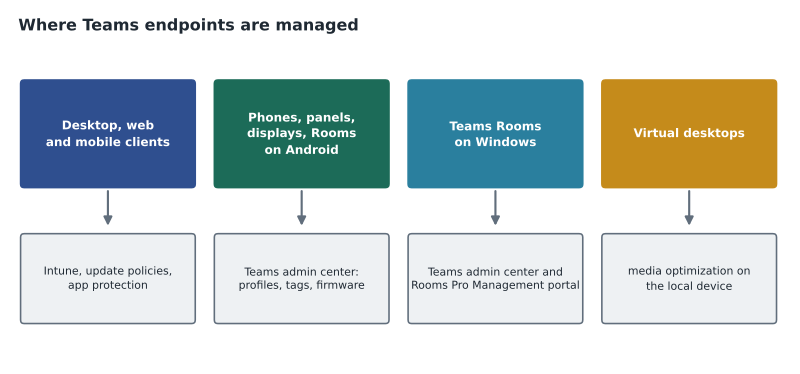
The web client works in current versions of Edge, Chrome, Firefox and Safari, and is useful on shared or borrowed computers. The mobile apps for iOS and Android are what Corvallin's home-care staff use most; lesson 7 described how app protection policies protect them. Teams also runs on Teams phones, Teams Rooms, Teams panels outside meeting rooms and Teams displays, each managed in the Teams admin center.
Licensing for phones, resource accounts and devices
Devices that are not tied to one person sign in with their own accounts, and those accounts need their own licences.
| Account or device | What it is | Licence |
|---|---|---|
| User with Teams Phone | A person who makes and receives phone calls in Teams | Teams Phone Standard (included in E5) plus a calling plan, Operator Connect or Direct Routing |
| Resource account for an auto attendant or call queue | A disabled user object that owns a phone number for a call flow | Teams Phone Resource Account licence, available at no cost |
| Teams Rooms device | A shared meeting room system signed in with a room resource account | Teams Rooms Basic (free for up to 25 rooms) or Teams Rooms Pro |
| Common area phone or shared desk phone | A shared phone in a hallway, reception or warehouse | Teams Shared Devices |
| Teams panel | A small display outside a room for booking and room status | Uses the room's Teams Rooms licence |
Teams Rooms Basic covers core meetings, content sharing and basic management, and is free for up to 25 rooms in a tenant. Teams Rooms Pro adds features such as intelligent cameras and audio, dual-screen front-of-room support, advanced device management and the Teams Rooms Pro Management portal, which monitors rooms and can be used by a partner such as Northlight AV. Corvallin planned 10 rooms, so Basic would have been free, but Felix chose Pro for the two larger head office rooms because of dual displays and remote monitoring.
Worked problem
Counting licences for the room project
Corvallin will install 8 branch meeting rooms and 2 head office boardrooms, plus 4 common area phones at branch reception desks. The branch rooms need only core meetings; the boardrooms need Pro features. How many of each licence are needed?
Show solution
- Branch rooms: 8 rooms with core features. Teams Rooms Basic is free for up to 25 rooms, so 8 Basic licences cost nothing.
- Boardrooms: 2 Teams Rooms Pro licences.
- Reception phones: 4 Teams Shared Devices licences, plus phone numbers through the chosen calling option.
- Total rooms on Basic: 8, well under the limit of 25.
Answer: 8 Teams Rooms Basic, 2 Teams Rooms Pro and 4 Teams Shared Devices licences.
Accounts for Teams Rooms
Each Teams Rooms device signs in with a resource account: a room mailbox in Exchange Online, with a matching user account in Entra ID that is enabled for sign-in and holds the room licence. The mailbox makes the room bookable in Outlook and Teams, and calendar processing settings control how it responds to invitations, for example automatically accepting meetings, deleting the subject for privacy, or adding an organizer's name.
# Create a room mailbox for a branch meeting room (Exchange Online PowerShell)
New-Mailbox -Name 'CHC-North-Huddle' -Room -EnableRoomMailboxAccount $true -MicrosoftOnlineServicesID 'room.north.huddle@corvallin.example' -RoomMailboxPassword (Read-Host -AsSecureString)

# Accept invitations automatically and keep the subject visible
Set-CalendarProcessing -Identity 'CHC-North-Huddle' -AutomateProcessing AutoAccept -AddOrganizerToSubject $false -DeleteSubject $false -DeleteComments $false
Security policies must allow these accounts to work unattended. Microsoft's guidance for Teams Rooms is to exclude room accounts from multifactor authentication that needs a person, and instead protect them with Conditional Access that requires a compliant device or a trusted location, and to set their passwords not to expire or to rotate them in a managed way. Ama created a security group for room accounts so that Conditional Access policies could treat them consistently, and documented the exclusion in the security register.
Managing devices in the Teams admin center
The Teams devices area of the Teams admin center lists Teams phones, Teams Rooms on Android and Windows, panels and displays, with their health, firmware and assigned users or accounts. From there administrators can restart devices, collect logs, apply updates and change settings in bulk.
| Task | How it works |
|---|---|
| Configuration profiles | A named set of settings, such as screen lock, language, time zone, network and device lock PIN, applied to many Android-based devices at once |
| Device settings and firmware | View firmware versions, schedule or apply updates automatically, and choose update timing for each device type |
| Device tags | Labels such as North-Branch or Boardroom used to filter, group and act on devices together |
| Remote provisioning and sign-in | Add a device by its MAC address, then sign it in from the admin center with a verification code shown on the device |
| Health and alerts | Monitor online status, peripherals and call quality for each device |
Configuration profiles apply to Android-based Teams devices such as phones, panels and Teams Rooms on Android. Teams Rooms on Windows devices are configured mainly through an XML settings file on the device and through the Teams Rooms Pro Management portal. Device tags proved most useful at Corvallin: Ama tagged every device with its branch, so that when the North Branch moved offices she could find and update all of its devices in one view.
Remote provisioning and sign-in
Signing in a dozen phones at a branch reception desk used to mean typing credentials on a tiny screen. Remote provisioning lets an administrator add a device in the Teams admin center using its MAC address, then generate a verification code. A technician at the branch enters the code on the device, and the administrator completes the sign-in remotely from the admin center. The credentials never have to be typed on the device. Northlight AV used this method for every branch phone, and Ama signed them in from head office.
Teams on virtual desktops
Many organizations run Teams inside virtual desktop infrastructure (VDI), such as Azure Virtual Desktop, Windows 365 or Citrix. Running Teams media inside the virtual machine would be slow and costly, so Teams supports media optimization, which redirects audio and video processing to the user's local device while the Teams interface runs in the virtual desktop. Microsoft's newer VDI architecture for the new Teams client uses a media engine on the local endpoint, installed as a plug-in alongside the virtual desktop client, and supports features closer to the full desktop client. Without optimization, Teams still works, but calls and meetings use far more server resources and quality suffers.
Planning Teams for VDI covers which VDI platform and client versions are supported, whether the virtual machines are persistent or non-persistent, how the new Teams client is installed into the image, and which features are available with the optimization in use. Corvallin's payroll contractor accessed a Windows 365 Cloud PC, so Teodor confirmed that the contractor's devices could run the required plug-in before promising that calls would work well. The network rule from lesson 3 also applies: VDI clients need UDP to destination ports 49152 to 53247 for media.
Mobile devices in the field
Most of Corvallin's staff spend their days in clients' homes. Their main Teams device is a phone. Three settings made the most difference for them: the app setup policy from lesson 4, which pinned the branch team and the Approvals app to the bottom of the mobile app; quiet hours, which each user can set so that Teams notifications pause outside shifts; and the app protection policy from lesson 7, which kept client information inside managed apps. Ama's support article for new nurses fitted on one page and covered exactly those three things.
Teams phones and shared devices
Not every Corvallin worker needed a computer. Reception desks at each branch answered the main line, and the warehouse that stored medical supplies had a phone on the wall. Teams phones are certified desk phones that run Teams natively, sign in with a user account or a shared account, and show the user's calendar, voicemail and call history. A phone used by one person signs in with that person's account and licence. A phone in a common area, such as a lobby or warehouse, signs in with a dedicated account that holds a Teams Shared Devices licence, and administrators apply a common area phone policy that keeps it in a simple shared mode.
Teams phones and other certified devices appear in the Teams admin center as soon as they sign in. Microsoft publishes a list of certified devices for Teams, and choosing from that list matters: certified devices receive firmware updates through the admin center and are tested for audio quality and compatibility, while uncertified devices may work but cannot be managed the same way. Northlight AV's quote listed only certified models for that reason.
Peripherals for people
For most users, the device that matters most is a headset. Teams works with any standard headset or speakerphone, but devices certified for Teams add features such as a dedicated Teams button, reliable mute status and better echo cancellation. Ama's team standardized on two certified headset models, one wired and one wireless, after a survey found that a large share of call quality complaints came from laptop microphones in noisy branch offices. The headsets cost less than one week of the time staff were losing to repeated calls.
Planning the room rollout
Felix and Northlight AV planned the room project in the same phases as the Teams rollout. They started with a survey of each room: its size, its seating, its displays and its network jack. They chose a device class for each room size, with simple video bars for huddle rooms and a dual-display system for the boardrooms. They created the resource accounts and licences in advance, tagged each device with its site when it was provisioned, and assigned a configuration profile that set the time zone and language. The first room went live in the North Branch, where the huddle problem had started, and its call quality in the Call Quality Dashboard became the benchmark for the rest.
| Room type | Typical seats | Corvallin choice | Licence |
|---|---|---|---|
| Huddle room | 2 to 6 | Video bar on Teams Rooms on Android, wall display, touch console | Teams Rooms Basic |
| Branch meeting room | 6 to 12 | Video bar with separate microphones, touch console, panel outside | Teams Rooms Basic |
| Boardroom | 12 to 20 | Teams Rooms on Windows, dual displays, ceiling microphones | Teams Rooms Pro |
One decision surprised Ama: the agency did not need Pro in every room. Basic covered meetings, content sharing and basic management for the smaller rooms, and the free allowance of 25 rooms easily covered all eight branch rooms. Pro was worth paying for where its features were used, such as dual screens, intelligent cameras and remote monitoring for rooms that hosted board meetings.
Common mistakes
MistakeLeaving the classic Teams client on machines after deploying new Teams.
InsteadUse the bootstrapper or MSIX deployment for new Teams and remove the retired classic client.
MistakeLicensing a Teams Rooms device with a user's Microsoft 365 licence.
InsteadAssign Teams Rooms Basic or Pro to the room's resource account.
MistakeApplying the same MFA policy to room accounts as to people.
InsteadExclude room accounts from interactive MFA and protect them with compliant-device or location conditions.
MistakeRunning Teams in VDI without media optimization.
InsteadUse the supported optimization so media is processed on the local device.
Summary and key terms
- The new Teams client is deployed machine-wide with the Teams bootstrapper or MSIX through tools such as Intune.
- Resource accounts for call queues and auto attendants use the free Teams Phone Resource Account licence; Teams Rooms use Basic (free up to 25 rooms) or Pro; shared phones use Teams Shared Devices.
- Teams Rooms sign in with a room mailbox and an enabled account, with calendar processing and Conditional Access tuned for unattended use.
- The Teams admin center manages devices with configuration profiles, firmware updates, device tags and remote provisioning.
- Teams on VDI needs media optimization so audio and video are processed on the user's local device.
- For mobile users, app setup policies, quiet hours and app protection policies matter most.
- Teams bootstrapper
- A Microsoft tool that provisions or removes the new Teams client for all users of a Windows PC.
- Resource account
- An account that represents a room, an auto attendant or a call queue rather than a person.
- Teams Rooms Pro
- The Teams Rooms licence with advanced room features and Pro Management portal monitoring.
- Configuration profile
- A set of settings applied to many Android-based Teams devices from the Teams admin center.
- Device tag
- A label used to group Teams devices for filtering and bulk actions.
- Media optimization
- Redirecting Teams audio and video processing from a virtual desktop to the local device.
Practice problems
Work each problem on paper first, then reveal the answer to check.
How many rooms can a tenant license with Teams Rooms Basic at no cost?
Show answer
Up to 25.
What two objects make up a Teams Rooms resource account?
Show answer
A room mailbox in Exchange Online and a matching enabled user account in Entra ID with the room licence.
Why does Teams on VDI need media optimization?
Show answer
To process audio and video on the local device instead of the virtual machine, which improves quality and saves server resources.
Lesson quiz · 5 questions
Score 60% or more to complete this lesson.
Create a free account to save your progress, take quizzes and earn a certificate.