
MSBA-220 · Lesson 3 of 12 · 18 min
Network readiness and bandwidth planning
▶ Video coming soon A video version of this lesson is on the way.
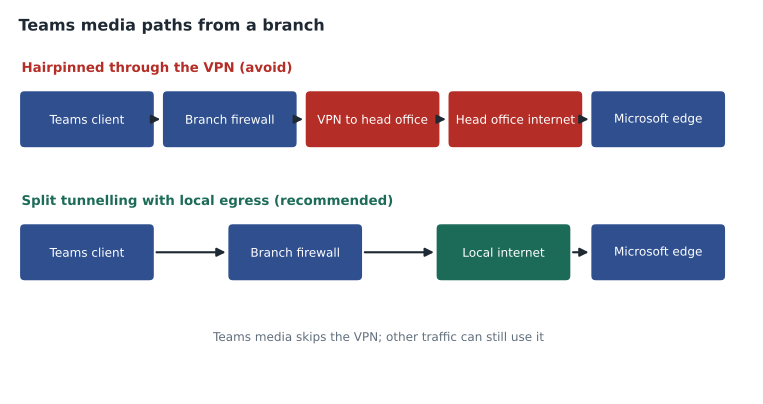
Felix Okonkwo-Reyes had a folder of complaints about Teams calls, and almost all of them came from the North Branch. Voices froze, video turned into blocks, and screens shared during case conferences arrived seconds late. The branch shared a single business internet connection with the building's security cameras, and every connection from the branch went through the agency's VPN to head office before reaching the internet. "Teams didn't fail," Felix said. "We sent real-time media the longest possible way round."
Network readiness is the largest single topic in the first domain of the MS-700 exam. The current study guide, with skills measured as of October 27, 2026, asks administrators to calculate bandwidth for voice, video, meetings and events, analyze network impact with the Network Planner, specify the ports and protocols Teams uses, and assess readiness with the Microsoft Teams Network Assessment Tool and the Microsoft 365 network connectivity test. This lesson covers each of those skills.
How Teams traffic behaves
Teams sends two very different kinds of traffic. Signalling and content traffic, such as chat messages, presence updates, file uploads and the commands that set up a call, uses HTTPS over TCP port 443. Teams keeps long-lived WebSocket connections open for this; if WebSockets fail, it falls back to slower HTTP long-polling, which adds bandwidth and delay. Real-time media, meaning audio, video and screen sharing, prefers UDP, because a voice packet that arrives late is useless and it is better to lose it than to wait for a retransmission.
Media normally travels from the client to the nearest Microsoft media relay or conference server. In a one-to-one call between two people in the same building, media can flow directly between their computers. In a meeting, every participant sends media to Microsoft's conferencing service, which mixes and forwards it. That is why the path from each user to the Microsoft network matters more than the link between offices.
Bandwidth requirements
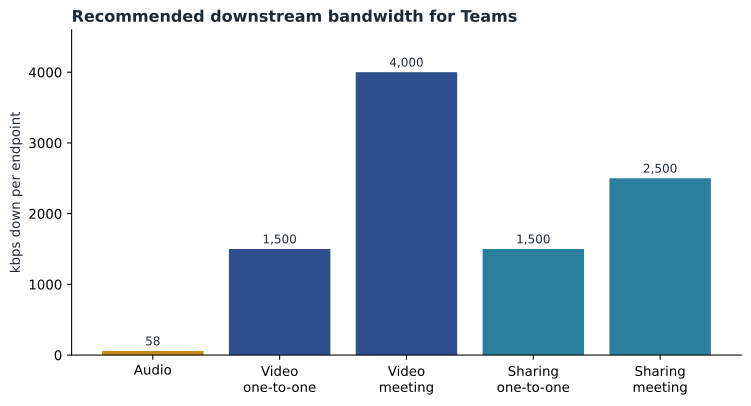
Microsoft publishes bandwidth figures per endpoint for each kind of media, in three levels. Minimum keeps a call working at low quality. Recommended gives good quality for most work, including video up to 1080p. Best performance gives higher fidelity for large meetings, high-motion content and lossy networks. Teams adapts constantly: when bandwidth is short it reduces video quality first and protects audio.
| Modality (kbps up/down) | Minimum | Recommended | Best performance |
|---|---|---|---|
| Audio, one-to-one or meeting | 10/10 | 58/58 | 76/76 |
| Video, one-to-one | 150/150 | 1,500/1,500 | 4,000/4,000 |
| Video, meetings | 150/200 | 2,500/4,000 | 4,000/4,000 |
| Screen sharing, one-to-one | 200/200 | 1,500/1,500 | 4,000/4,000 |
| Screen sharing, meetings | 250/250 | 2,500/2,500 | 4,000/4,000 |
At minimum levels, video is limited to about 240p and screen sharing to a few frames a second. At recommended levels, video can reach 1080p and screen sharing runs at 7.5 to 30 frames a second. For large Teams events such as town halls, Microsoft advises planning about 2 megabits a second per viewer at each location, or 3 for 1080p, unless the organization uses an enterprise content delivery network (eCDN), which shares one stream among many viewers in the same building.
Worked problem
Estimating the North Branch peak
At the North Branch daily huddle, 12 people join from their own laptops in the office, all with video on at the recommended level for meetings, while 3 other staff are on audio-only calls. Using the recommended figures, estimate the peak download and upload bandwidth for Teams media.
Show solution
- Meeting video at recommended level: 4,000 kbps down and 2,500 kbps up per endpoint.
- Download for 12 video users: 12 x 4,000 = 48,000 kbps, or 48 Mbps.
- Upload for 12 video users: 12 x 2,500 = 30,000 kbps, or 30 Mbps.
- Audio calls: 3 x 58 = 174 kbps each way, which barely changes the totals.
- Peak: about 48.2 Mbps down and 30.2 Mbps up, before any other traffic such as file uploads or cameras.
Answer: About 48 Mbps down and 30 Mbps up. The branch's 50/10 connection cannot carry that upload, so the huddle should use one meeting room device or ask most people to join with video off.
Felix's answer to the North Branch problem was partly technical and partly practical. The huddle moved to a single meeting room device on the branch's display, which needed only one video stream instead of twelve, and the branch connection was upgraded to a symmetric service at the next contract renewal.
Network performance targets
Bandwidth is not the only thing that matters. A link with plenty of capacity can still give poor calls if packets are delayed, arrive unevenly or go missing. Microsoft publishes targets for two segments of the path: from the Teams client to the Microsoft network edge, which includes Wi-Fi, the local network and the internet connection, and from the customer's network edge to the Microsoft edge, which isolates the internet service provider's part.
| Metric | Client to Microsoft edge | Customer edge to Microsoft edge |
|---|---|---|
| Latency, one way | Under 50 ms | Under 30 ms |
| Latency, round trip | Under 100 ms | Under 60 ms |
| Packet loss in any 15-second interval | Under 1 percent | Under 0.1 percent |
| Burst packet loss in any 200-millisecond interval | Under 10 percent | Under 1 percent |
| Jitter in any 15-second interval | Under 30 ms | Under 15 ms |
| Packet reorder | Under 0.05 percent | Under 0.01 percent |
Latency is delay. Jitter is variation in delay, which forces the client to buffer and can make speech choppy. Packet loss removes pieces of audio or video. Wi-Fi is often the worst segment: a crowded wireless network can add jitter and loss even when the internet connection is excellent, which is why Felix tested from staff laptops at their desks rather than from the server room.
Ports, protocols and firewall rules
Teams media works best on UDP ports 3478 to 3481, which Microsoft lists as the preferred range for Teams media to its relays. If UDP is blocked, Teams falls back to TCP and then to TCP port 443, which works but gives worse quality under load. For VDI and some other environments, Microsoft also asks organizations to allow UDP from Teams clients to destination ports 49152 to 53247. Everything else Teams needs is in Microsoft's published list of Microsoft 365 URLs and IP address ranges, which is updated regularly and can be read automatically through a web service so firewall rules stay current.
| Traffic | Protocol and ports | Notes |
|---|---|---|
| Signalling, chat, files, presence | TCP 443 (HTTPS and WebSocket) | Allow WebSocket; long-polling fallback is slower |
| Media to Microsoft relays and conferencing | UDP 3478 to 3481 preferred | Falls back to TCP if UDP is blocked |
| Media from VDI and some other clients | UDP to destination ports 49152 to 53247 | Blocking it can stop media from connecting |
| Federation with Skype for Business users | SRV record _sipfederationtls._tcp on port 5061 to sipfed.online.lync.com | Only needed for interoperability with older systems |
Two firewall details cause many hard-to-find problems. First, NAT session persistence: the firewall must not change the mapped public address or port for an active UDP session, or calls drop mid-conversation. Second, NAT pool exhaustion: if too few public IP addresses serve too many users, new connections fail. Microsoft also recommends letting Microsoft 365 traffic through intrusion detection and prevention systems without deep inspection, because inspection adds delay and can break encrypted media.
Quality of Service
Quality of Service (QoS) lets network devices prioritize real-time traffic over less urgent traffic. Teams clients can mark their packets using DSCP values, and the network can then queue them accordingly. Microsoft's recommended approach assigns each media type its own client source port range and a DSCP value, so routers can recognize the traffic even when the marking cannot be applied at the client.
| Media type | Client source ports | DSCP value | Class |
|---|---|---|---|
| Audio | 50000 to 50019 | 46 | Expedited Forwarding |
| Video | 50020 to 50039 | 34 | Assured Forwarding 41 |
| Application and screen sharing | 50040 to 50059 | 18 | Assured Forwarding 21 |
QoS only helps on networks the organization controls, such as the office LAN and private WAN links. It has no effect once traffic reaches the public internet. At Corvallin, Felix turned on QoS in the Teams admin center meeting settings and configured the branch switches and Wi-Fi to honour the markings, so a large file upload at the office could no longer push the huddle's audio aside.
VPN, proxies and local egress
For remote and branch users, Microsoft's guidance is consistent: give Teams media a direct path to the internet. Split tunnelling sends Microsoft 365 media traffic straight to Microsoft while other traffic still uses the VPN. Microsoft lists four reasons: many VPNs are not designed for real-time media and some cannot carry UDP; the VPN adds a second layer of encryption to media that is already encrypted; hairpinning through a central site makes routes long; and traffic may reach a distant Microsoft entry point instead of the nearest one.
Local internet egress applies the same idea to offices: each location should reach Microsoft from its own internet connection rather than backhauling through head office. Proxy servers should be bypassed for Teams media, because proxies add delay and many cannot handle UDP. Finally, every Teams client must be able to resolve external DNS names so that it finds the nearest Microsoft service.
Corvallin's VPN vendor supported split tunnelling by published Microsoft 365 address lists. Felix enabled it for the categories Microsoft marks as Optimize, which include Teams media, and kept everything else on the tunnel. The privacy officer approved the change once she understood that Teams media is encrypted in transit between the client and Microsoft and that the change did not affect where Corvallin's stored data lives.
Planning and assessment tools
Microsoft provides four tools that appear by name in the study guide or the Teams admin center.
| Tool | What it does | When to use it |
|---|---|---|
| Network Planner (Teams admin center, Planning) | Models each site with its users, personas and links and calculates bandwidth needs | Before rollout and when sites or headcounts change |
| Microsoft Teams Network Assessment Tool | A downloadable tool that tests connectivity to Teams relays, packet loss, jitter, latency and reorder from a given computer | At each site, from representative user locations |
| Microsoft 365 network connectivity test | A browser-based test that checks the path to Microsoft 365, including egress location, DNS and proxy, and gives recommendations | For remote users and branches without IT staff |
| Call Quality Dashboard and call analytics | Report the quality of real calls after deployment, by site, network and device | After rollout, to find problem locations (lesson 11) |
The Network Planner uses personas to describe how different kinds of users consume bandwidth. Microsoft supplies three: Teams Room system, Office worker and Remote worker, and administrators can add custom personas. After Felix entered the head office and four branches with their headcounts and link speeds, the planner showed which links would be over capacity at peak and by how much. The North Branch showed red before anyone had to complain.
# Run from a command prompt in the folder where the tool is installed
NetworkAssessmentTool.exe
# The tool reports its results and saves them to a file for review
Home and mobile users
About half of Corvallin's staff joined Teams calls from home or from a car outside a client's house, over home internet or mobile data. The organization cannot apply QoS on those networks or upgrade them, so planning focuses on what it can control: split tunnelling so the VPN does not get in the way, guidance to staff on using a wired connection or sitting near the router when they can, and headsets that reduce the need to resend audio. Felix wrote a one-page guide for home workers that explained how to run the Microsoft 365 network connectivity test in a browser and send him the result, which turned vague complaints into evidence he could act on.
Mobile data generally works well for audio calls, which need very little bandwidth, but video meetings on a weak signal will drop to low resolution quickly. Corvallin's guidance to nurses in the field was simple: audio first, video only when needed, and switch off incoming video if the connection struggles, which Teams lets each participant do in a meeting.
Common mistakes
MistakeSizing a link only by internet download speed.
InsteadCheck upload capacity too; meeting video at the recommended level sends about 2,500 kbps up per endpoint.
MistakeSending Teams media through the corporate VPN and proxy.
InsteadUse split tunnelling, local egress and proxy bypass for Teams media.
MistakeExpecting QoS to fix problems on the public internet.
InsteadQoS works only on networks you manage; outside them, rely on capacity and short paths.
MistakeTesting only from the server room.
InsteadTest from where users actually sit, including over Wi-Fi and home connections.
Summary and key terms
- Teams signalling uses TCP 443 with WebSockets; real-time media prefers UDP 3478 to 3481 to Microsoft relays.
- Recommended meeting video needs about 2,500 kbps up and 4,000 kbps down per endpoint; audio needs about 58 kbps.
- Targets from client to Microsoft edge are under 50 ms one-way latency, under 1 percent loss and under 30 ms jitter.
- NAT session persistence, enough public addresses and no deep inspection of Microsoft 365 traffic prevent many call failures.
- QoS with DSCP 46, 34 and 18 prioritizes audio, video and sharing on managed networks.
- Split tunnelling, local egress and proxy bypass give Teams media the shortest path.
- The Network Planner, Network Assessment Tool, connectivity test and Call Quality Dashboard cover planning, testing and follow-up.
- Jitter
- Variation in packet arrival times, which makes audio choppy.
- Split tunnelling
- Sending selected traffic, such as Teams media, directly to the internet while other traffic uses the VPN.
- Local egress
- Letting each site reach the internet from its own connection instead of through head office.
- Quality of Service (QoS)
- Network prioritization of real-time traffic using packet markings such as DSCP.
- Persona
- A profile in the Network Planner describing how a type of user consumes bandwidth.
- eCDN
- An enterprise content delivery network that shares event video streams among viewers at a site.
Practice problems
Work each problem on paper first, then reveal the answer to check.
Which UDP port range does Microsoft prefer for Teams media to its relays?
Show answer
UDP 3478 to 3481.
Why does Microsoft recommend split tunnelling for Teams?
Show answer
VPNs add delay and extra encryption, may not carry UDP, hairpin traffic and can route it to a distant Microsoft entry point.
What does the Network Planner use personas for?
Show answer
To estimate how much bandwidth different kinds of users need at each site.
Lesson quiz · 5 questions
Score 60% or more to complete this lesson.
Create a free account to save your progress, take quizzes and earn a certificate.