
MSBA-220 · Lesson 7 of 12 · 19 min
Security for Teams
▶ Video coming soon A video version of this lesson is on the way.
Two weeks into the pilot, a North Branch nurse received a chat from someone outside the agency. The display name looked like a supplier, the message urged her to open a link to "update her payroll details", and the link led to a convincing sign-in page. She asked a champion before clicking, and the champion forwarded a screenshot to Ama. "Email has had years of phishing protection," Ama said to Teodor. "Teams chat is just as easy to abuse, and our staff trust it more."
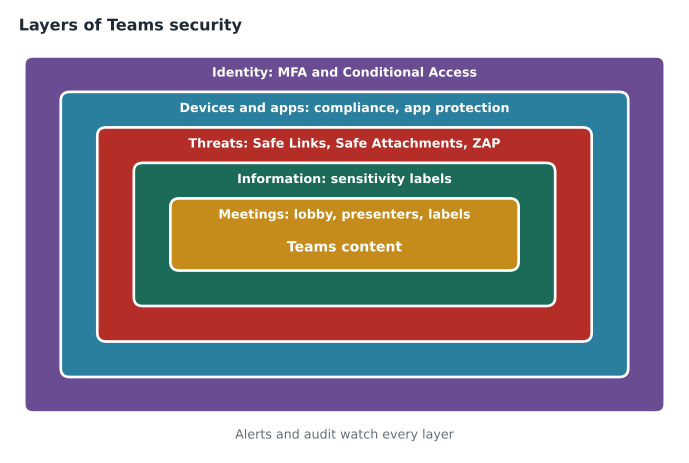
Securing Teams means applying the same security layers that protect the rest of Microsoft 365, plus some controls that are specific to chat and meetings. The MS-700 study guide groups these skills under managing security and compliance settings: identifying licensing requirements, specifying alert policies, choosing administrator roles, configuring threat policies in Microsoft Defender for Office 365, specifying sensitivity labels including for meetings, and specifying Conditional Access policies for Teams. This lesson covers the security side; lesson 8 covers compliance.
Licensing for security features
Many Teams security features depend on licences beyond Teams itself. Before designing controls, Teodor mapped Corvallin's licences against the features he wanted.
| Feature | Typical licensing |
|---|---|
| Multifactor authentication with security defaults | Included with every Microsoft 365 tenant |
| Conditional Access policies | Microsoft Entra ID P1 (included in Microsoft 365 E3, E5 and Business Premium) |
| Risk-based Conditional Access with Entra ID Protection | Microsoft Entra ID P2 (included in Microsoft 365 E5) |
| Safe Links and Safe Attachments protection in Teams | Microsoft Defender for Office 365 Plan 1 or Plan 2 |
| Zero-hour auto purge (ZAP) for Teams messages and automated investigation | Microsoft Defender for Office 365 Plan 2 |
| Sensitivity labels for teams, groups and sites | Microsoft 365 E3, Business Premium or equivalent Purview Information Protection licensing |
| Sensitivity labels for meetings, watermarking and end-to-end encrypted meetings | Teams Premium |
| Intune app protection policies for the Teams mobile app | Microsoft Intune Plan 1 (included in Microsoft 365 E3, E5 and Business Premium) |
Identity: MFA and Conditional Access
The most important Teams security control is not in Teams at all. Most attacks on collaboration tools start with a stolen password, so strong sign-in is the foundation. Corvallin already required multifactor authentication for head office, but many branch staff signed in to Teams on personal phones with passwords alone. Fixing that was the first security task in the relaunch.
Conditional Access policies in Microsoft Entra ID decide whether a sign-in is allowed, and under what conditions, based on signals such as the user, the application, the device, its location and the sign-in risk. Teams relies on SharePoint, OneDrive and Exchange Online, so a policy that protects Teams but not those services leaves gaps, and a policy on SharePoint can affect Teams unexpectedly. Microsoft's guidance is to target the Office 365 application group in Conditional Access, which includes Teams and the services it depends on, rather than Teams alone.
| Policy | Assignments | Controls |
|---|---|---|
| Require MFA for all users | All users, excluding break-glass accounts; Office 365 apps | Require multifactor authentication |
| Require compliant devices for Teams desktop on company PCs | Head office staff; Office 365 apps; Windows and macOS | Require device to be marked as compliant |
| Protect mobile access | Branch staff; Office 365 apps; iOS and Android | Require an approved client app with an app protection policy |
| Block legacy authentication | All users; all apps | Block |
For branch staff using personal phones, Ama paired the mobile Conditional Access policy with an Intune app protection policy for the Teams, Outlook and OneDrive apps. Without enrolling the phone, the policy required a PIN to open the apps, blocked copying client information into personal apps and allowed the agency to wipe only its own data if a phone was lost. Lesson 9 and the endpoint courses in this program go further into device management.
Threat protection with Defender for Office 365
Microsoft Defender for Office 365 extends email protections to Teams. The study guide expects administrators to plan and configure these threat policies.
| Protection | What it does in Teams |
|---|---|
| Safe Links | Checks URLs in Teams chats, channel posts and meetings when users click them, and blocks known malicious sites |
| Safe Attachments for SharePoint, OneDrive and Microsoft Teams | Detects malicious files uploaded to team sites and OneDrive and blocks them from being opened or shared |
| Zero-hour auto purge for Teams | Removes chat messages later found to be malware or high-confidence phishing, and quarantines them |
| User reported messages | Lets users report suspicious Teams messages to administrators, who review them in the Defender portal |
| Built-in protection and preset security policies | Standard and Strict preset policies apply recommended settings quickly |
Corvallin had Microsoft 365 E3 at head office and F3 in the branches, neither of which includes Defender for Office 365. After the phishing chat, Ines approved Defender for Office 365 Plan 1 for all users, which brought Safe Links and Safe Attachments to Teams. Teodor applied the Standard preset security policy to everyone and the Strict preset to payroll and finance staff, who were the most likely targets. He also turned on reporting of suspicious Teams messages, so that the next nurse who received an odd chat could report it with two taps.
Teams has its own protections too. External access settings, covered in lesson 5, limit who can message users in the first place. Teams flags messages from external senders with a banner, and administrators can review settings that warn users or block messages from people outside the organization that are likely to be spam.
Sensitivity labels for teams
Sensitivity labels from Microsoft Purview classify content and apply protection. When labels are enabled for groups and sites, a label can be applied to a whole team as a container label. A container label does not encrypt messages; instead, it sets the team's privacy (public or private), whether guests can be added, and sharing settings for its SharePoint site, such as whether external sharing is allowed and whether unmanaged devices get limited web-only access.
Labels reach users through label publishing policies, which decide which labels each user can see and apply, whether a label is required and which one is the default. Corvallin created three container labels and published them to everyone.
| Label | Privacy | Guests | Site sharing |
|---|---|---|---|
| General | Public or private, chosen by owner | Allowed | Existing guests |
| Partner Work | Private | Allowed | New and existing guests in allowed domains |
| Clinical Confidential | Private | Blocked | Only people in the organization; limited web-only access on unmanaged devices |
Container labels also apply when a team is created, so the label becomes the main governance control for sensitive teams: a care coordinator who picks Clinical Confidential cannot later add a guest by accident. Labels for files and emails, which do encrypt content, are a separate use of the same labels and are configured in the same Purview portal.
Sensitivity labels for meetings
With Teams Premium, sensitivity labels can also apply to meetings. A label set as a meeting label can enforce options such as who can bypass the lobby, who can present, whether the meeting can be recorded, whether chat is allowed, whether watermarks appear on shared content and video, and whether the meeting is end-to-end encrypted. Organizers pick the label when scheduling, and the settings follow it. Meeting templates in Teams Premium can apply a label automatically.
Corvallin bought Teams Premium for the 20 clinical leads who ran case conferences with physicians. Their Case Conference meeting template applied a Clinical Confidential meeting label that sent everyone outside the organization to the lobby, allowed only the organizer to present, blocked recording unless the organizer turned it on with client consent, and added watermarks to shared screens. Dr. Ostrander-Bey said it was the first time she could explain meeting protections to a client's family in one sentence.
Worked problem
Matching protections to licences
Teodor wants three things for case conferences: watermarks on shared content, Safe Links protection for links posted in the meeting chat, and a rule that blocks the Teams app on phones without an app protection policy. Corvallin's clinical leads have Microsoft 365 E3, Defender for Office 365 Plan 1 and Teams Premium. Which licence provides each control?
Show solution
- Watermarks in meetings are a Teams Premium feature, applied through a meeting label or template.
- Safe Links in Teams comes from Defender for Office 365 Plan 1.
- Requiring an app protection policy combines Entra ID P1 Conditional Access, included in E3, with an Intune app protection policy, also included in E3.
Answer: Teams Premium for watermarks, Defender for Office 365 Plan 1 for Safe Links, and Microsoft 365 E3 (Entra ID P1 and Intune) for the mobile app rule.
Meeting security without Premium
Every Teams meeting has options that improve security without extra licences. Meeting policies and per-meeting options control the lobby, who can bypass it, who can present, whether attendees can unmute or use cameras, whether anonymous users can join, and whether chat is on. Teams encrypts media in transit, and one-to-one Teams calls can use end-to-end encryption when an administrator allows it in an enhanced encryption policy and both people turn it on. Corvallin's global meeting policy kept anonymous join off and sent people from outside the organization to the lobby by default.
Alert policies and monitoring
Microsoft 365 alert policies, managed in the Microsoft Defender portal and the Purview portal, raise alerts for risky activity. Default policies cover events such as suspicious email sending patterns and elevation of admin privileges; administrators can create custom policies based on audited activities, including Teams activities such as adding a guest to a team, changing a team setting or deleting many teams in a short time. The study guide asks administrators to specify alert policies for Teams.
Teodor created three custom alerts: when a guest is added to any team carrying the Clinical Confidential label, when more than five teams are deleted by one person within an hour, and when the external access configuration changes. Alerts went to a shared security mailbox that Ama's team checked twice a day.
Admin roles and privileged access
Lesson 1 introduced the Teams admin roles. Security depends on using them well. Corvallin's rules were that nobody does everyday work while signed in with an admin role, that Global Administrator is held by two break-glass accounts and one named person, and that roles such as Teams Administrator are made eligible through Privileged Identity Management, so that they must be activated with a reason and expire after a few hours. Privileged Identity Management needs Microsoft Entra ID P2 or Entra ID Governance for the users it covers, so the agency licensed the IT team accordingly.
Security for third-party apps
Apps add capability to Teams and also add risk, because an app may read messages, files or profile information once a user installs it. Administrators control apps through app permission policies or, in tenants that have moved to app-centric management, through availability settings on each app in the Manage apps page of the Teams admin center. Each app's details page shows the permissions it requests and whether its publisher is verified, and some apps have completed Microsoft 365 Certification, which reviews their security and compliance practices.
Corvallin's rule was to allow Microsoft apps and a short list of reviewed third-party apps, and to block the rest until someone requested them and Teodor had checked the permissions and the publisher. Requests came through the app store's request feature, which sends the request to administrators. MSBA-221 covers app management in more detail; from a security point of view, the key idea is that an app is another identity with access to data, and it deserves the same scrutiny as a guest.
A security baseline for the relaunch
By the end of the security work, Corvallin had a short baseline that every new setting had to respect. Teodor kept it on one page so it could be reviewed quickly:
| Area | Baseline |
|---|---|
| Sign-in | MFA for all users; legacy authentication blocked; Conditional Access targeting Office 365 apps |
| Devices | Compliant devices for desktop access; app protection policies for mobile apps |
| Threats | Defender for Office 365 Standard preset for all, Strict for payroll and finance; message reporting on |
| Information | Container labels on every team; Clinical Confidential blocks guests |
| Meetings | Lobby for people outside the organization; anonymous join off; Premium labels for case conferences |
| Apps | Allowed list only; requests reviewed |
| Admin access | Least-privilege Teams roles; eligible assignments through Privileged Identity Management |
| Monitoring | Custom alert policies for guest additions, mass deletions and external access changes |
Ines reviewed the baseline every quarter with the privacy officer. Two changes came out of the first review: adding the Strict preset for the IT team itself, since administrators are prime targets, and shortening the activation time for the Teams Administrator role from eight hours to four.
Common mistakes
MistakeWriting Conditional Access policies that target only the Teams app.
InsteadTarget the Office 365 application group so Teams and the services it depends on are protected together.
MistakeExpecting a container sensitivity label to encrypt chat messages.
InsteadContainer labels set privacy, guest access and site sharing; file and email labels apply encryption.
MistakeAssuming Teams chat has the same phishing protection as email by default.
InsteadSafe Links and Safe Attachments for Teams need Defender for Office 365; turn on message reporting too.
MistakePromising watermarked, labelled meetings to every user.
InsteadMeeting labels and watermarks need Teams Premium for the organizer.
Summary and key terms
- Strong identity comes first: MFA, Conditional Access targeting Office 365 apps, and app protection policies for mobile access.
- Defender for Office 365 brings Safe Links, Safe Attachments, zero-hour auto purge and message reporting to Teams.
- Container sensitivity labels set team privacy, guest access and site sharing; publishing policies decide who can use each label.
- With Teams Premium, meeting labels and templates enforce lobby, presenter, recording, watermark and encryption options.
- Meeting policies and options secure meetings without extra licences.
- Alert policies, least-privilege roles and Privileged Identity Management complete the picture.
- Conditional Access
- Entra ID policies that allow, block or add requirements to sign-ins based on signals.
- App protection policy
- An Intune policy that protects organization data inside mobile apps without enrolling the device.
- Safe Links
- A Defender for Office 365 feature that checks URLs when users click them, including in Teams.
- Zero-hour auto purge (ZAP)
- Removal of messages later identified as malicious after delivery.
- Container label
- A sensitivity label applied to a team, group or site to control privacy, guests and sharing.
- Meeting label
- A sensitivity label that applies meeting options, available with Teams Premium.
Practice problems
Work each problem on paper first, then reveal the answer to check.
Why should Conditional Access for Teams target the Office 365 app group?
Show answer
Because Teams depends on SharePoint, OneDrive and Exchange, and the group protects them together.
What does a container label control for a team?
Show answer
Privacy, whether guests can be added, and the SharePoint site's sharing and unmanaged device access.
Which licence brings Safe Links to Teams?
Show answer
Microsoft Defender for Office 365 Plan 1 or Plan 2.
Lesson quiz · 5 questions
Score 60% or more to complete this lesson.
Create a free account to save your progress, take quizzes and earn a certificate.