
MSBA-220 · Lesson 10 of 12 · 20 min
Managing Teams with PowerShell
▶ Video coming soon A video version of this lesson is on the way.
By the end of the pilot, Teodor had clicked through the same Teams admin center pages so many times that Felix started timing him. Assigning a policy to forty new branch staff, listing every team without two owners, checking which users still had a direct meeting policy that should have been removed: each task took twenty minutes of clicking and was easy to get wrong. "You need scripts," Ines said. "Not because clicking is beneath you, but because a script does the same thing every time and leaves a record."
The MS-700 study guide asks administrators to perform operations for Teams by using PowerShell and Microsoft Graph. This lesson covers the modules involved, how to connect interactively and unattended, the main cmdlet families, common scripts for reporting and bulk changes, and where Microsoft Graph fits.
The modules
Teams administration touches several services, so scripts often use more than one module.
| Module | Used for |
|---|---|
| MicrosoftTeams | Teams, channels and members; Teams policies (Cs cmdlets); voice, call queues and auto attendants; tenant settings |
| Microsoft Graph PowerShell (Microsoft.Graph) | Microsoft 365 groups, users, licences, deleted items, directory settings and Teams through the Graph API |
| Exchange Online PowerShell (ExchangeOnlineManagement) | Room mailboxes, calendar processing, group mailboxes and some compliance tasks |
| SharePoint Online Management Shell or PnP PowerShell | Team sites, sharing settings and site-level controls |
Older modules that some online articles still mention, such as MSOnline and AzureAD, have been retired. Microsoft Graph PowerShell and Microsoft Entra PowerShell replace them. The older Skype for Business Online Connector was folded into the MicrosoftTeams module years ago, which is why Teams policy cmdlets still carry the Cs prefix.
Installing, updating and connecting
The MicrosoftTeams module installs from the PowerShell Gallery and runs in Windows PowerShell 5.1 and PowerShell 7. Microsoft releases new versions frequently: version 8.0.0 became generally available in September 2026, and version 7.9.0 in July 2026 made Web Account Manager the default sign-in broker for Connect-MicrosoftTeams on Windows, with a temporary DisableWAM switch for environments that need the old behaviour. Version 7.9.0 also removed the Teams Shifts Connection cmdlets, a reminder that scripts can break when modules change. Teodor pinned a tested module version on the admin workstation and reviewed the release notes before each upgrade.
# Install or update the module
Install-Module MicrosoftTeams -Scope CurrentUser
Update-Module MicrosoftTeams
Get-Module MicrosoftTeams -ListAvailable | Select-Object Name, Version

# Sign in interactively (Web Account Manager on Windows by default)
Connect-MicrosoftTeams

# Sign in unattended with an app registration and certificate
Connect-MicrosoftTeams -TenantId $tenantId -ApplicationId $appId -CertificateThumbprint $thumb
Interactive sign-in uses the administrator's own account and roles, including multifactor authentication and any Privileged Identity Management activation. Application-based sign-in uses an app registration in Entra ID with a certificate, so scheduled scripts can run without a person present. Microsoft documents which cmdlets support application-based authentication and which permissions and roles the app needs; not every cmdlet supports it. Corvallin used interactive sign-in for changes and an app with read-only permissions for its nightly reports.
The main cmdlet families
Teams cmdlets fall into two broad families, and recognizing them makes the module much easier to navigate.
| Family | Examples | Works on |
|---|---|---|
| Team cmdlets | New-Team, Get-Team, Set-Team, Add-TeamUser, Get-TeamUser, New-TeamChannel, Set-TeamArchivedState | Teams, channels, owners and members |
| Cs policy cmdlets | New-CsTeamsMeetingPolicy, Grant-CsTeamsMessagingPolicy, Get-CsTeamsAppSetupPolicy | Teams policies and their assignment |
| Cs user and tenant cmdlets | Get-CsOnlineUser, Get-CsTenant, Get-CsUserPolicyAssignment | User configuration and tenant information |
| Group and batch assignment | New-CsGroupPolicyAssignment, New-CsBatchPolicyAssignmentOperation, Get-CsBatchPolicyAssignmentOperation | Assigning policies to groups or many users |
| Voice cmdlets | New-CsCallQueue, New-CsAutoAttendant, Set-CsPhoneNumberAssignment | Calling features (MSBA-222 and MSBA-230) |
Get-Help works for every cmdlet, and Get-Command -Module MicrosoftTeams lists them all. Teodor encouraged Felix to read the examples section of the help before running any Set or Remove cmdlet, and to try changes with a test user first.
Common tasks
Creating a team from a script. New-Team creates the Microsoft 365 group and the team together. Corvallin used it to rebuild the branch teams consistently, adding channels and owners in the same script.
$team = New-Team -DisplayName 'CHC-North Branch' -Visibility Private -Description 'North Branch care team'
Add-TeamUser -GroupId $team.GroupId -User 'branchmanager.north@corvallin.example' -Role Owner
Add-TeamUser -GroupId $team.GroupId -User 'champion1.north@corvallin.example' -Role Owner
'Huddles','Scheduling','Clinical Updates','Staff Room' | ForEach-Object {
    New-TeamChannel -GroupId $team.GroupId -DisplayName $_
}
Reporting teams with fewer than two owners. This was the governance check from lesson 6 that Teodor had been doing by hand.
$report = foreach ($t in Get-Team) {
    $owners = @(Get-TeamUser -GroupId $t.GroupId -Role Owner)
    if ($owners.Count -lt 2) {
        [pscustomobject]@{ Team = $t.DisplayName; Owners = $owners.Count }
    }
}
$report | Sort-Object Owners | Export-Csv .\teams-under-two-owners.csv -NoTypeInformation
Bulk policy assignment. For many users at once, New-CsBatchPolicyAssignmentOperation submits one operation that Teams processes in the background, which is faster and more reliable than looping over Grant cmdlets. Get-CsBatchPolicyAssignmentOperation reports progress and any users that failed.
$users = Import-Csv .\new-branch-staff.csv | Select-Object -ExpandProperty UserPrincipalName
$op = New-CsBatchPolicyAssignmentOperation -PolicyType TeamsMessagingPolicy -PolicyName 'Frontline-Messaging' -Identity $users -OperationName 'Frontline messaging November'
Get-CsBatchPolicyAssignmentOperation -OperationId $op
Worked problem
Choosing between loops, batches and groups
Forty new nurses start next month, and more will join every month after that. Each needs the Frontline-Messaging policy. Teodor can loop over Grant-CsTeamsMessagingPolicy, submit one batch operation, or create a group policy assignment. Which is the best long-term choice, and when would the batch still be useful?
Show solution
- A loop of Grant cmdlets works but is slow for many users and must be rerun every month.
- A batch operation is efficient for the forty users now but does not cover next month's staff.
- A group policy assignment to the branch care staff security group covers everyone added to that group automatically, through HR onboarding.
- A batch is still useful for one-off corrections, such as fixing users who were missed before the group existed.
Answer: Use a group policy assignment for the long term; use a batch operation for one-time bulk fixes.
Microsoft Graph for Teams
Microsoft Graph is the API behind much of Microsoft 365, and it exposes teams, channels, members, chats, messages, apps and many settings. Microsoft Graph PowerShell wraps the API in cmdlets such as Get-MgTeam, New-MgTeam and Get-MgTeamChannel, and developers and automation tools call the API directly. Graph is often the better choice when a script also needs group, user or licence information, when it runs from an automation service, or when a task is newer than the Teams module.
Connect-MgGraph -Scopes 'Group.Read.All','Channel.ReadBasic.All'
# List teams in the tenant through their Microsoft 365 groups
Get-MgGroup -Filter "resourceProvisioningOptions/Any(x:x eq 'Team')" -All | Select-Object DisplayName, Id
# Read channels of one team
Get-MgTeamChannel -TeamId $teamId | Select-Object DisplayName, MembershipType
Graph uses permissions, called scopes, that the signed-in user or the app must consent to. Delegated permissions act as the signed-in user, limited by that user's roles; application permissions act as the app itself across the tenant and need an administrator's consent. Corvallin's nightly report app had read-only application permissions for groups and teams, and nothing that could change data.
Running scripts safely
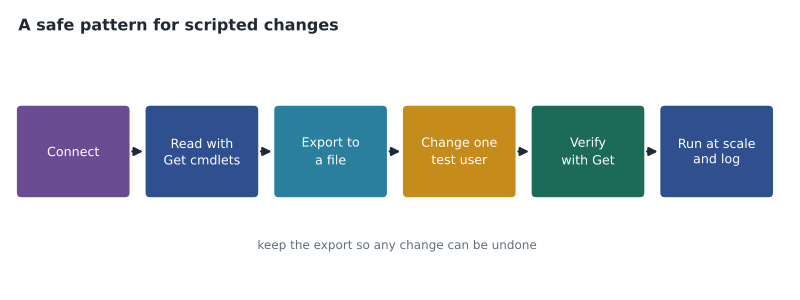
Scripts make mistakes faster than people do. Corvallin's rules were simple: read before you write; export the current state to a file before any change; test on one user or one team; use -WhatIf where a cmdlet supports it; log what the script changed; and keep scripts in a shared repository with a short description at the top. When Felix's first bulk change accidentally assigned a meeting policy to the IT team instead of the branch, the exported file from before the change let him undo it in five minutes.
Reading and filtering output
Most Get cmdlets return objects, not text, and that is what makes PowerShell useful for administrators. Each object has properties that can be selected, filtered, sorted and exported. Get-Team, for example, returns objects with properties such as DisplayName, GroupId, Visibility and Archived. Piping them to Where-Object keeps only the teams that match a condition, Select-Object keeps only the properties you care about, and Export-Csv writes the result to a file that opens in Excel.
Teodor's first useful one-line report listed every archived team, because Ines wanted to know how many projects had been closed properly during the relaunch. Felix's first was a list of users whose effective meeting policy came from a direct assignment, because direct assignments were supposed to be rare. Both were short pipelines that read data and changed nothing, which made them safe practice for someone new to the module.
# Archived teams, sorted by name
Get-Team -Archived $true | Sort-Object DisplayName | Select-Object DisplayName, GroupId

# Private teams with 'Test' in the name, exported for review
Get-Team -Visibility Private | Where-Object DisplayName -like '*Test*' |
    Select-Object DisplayName, GroupId | Export-Csv .\test-teams.csv -NoTypeInformation

# Users with a directly assigned meeting policy
Get-CsOnlineUser | Where-Object TeamsMeetingPolicy -ne $null | Select-Object UserPrincipalName, TeamsMeetingPolicy
A few habits make these reports more reliable. Filter on the server side where a cmdlet supports it, as Get-Team does with its Archived and Visibility parameters, because pulling every object and filtering afterwards is slow in a large tenant. Include an identifier such as GroupId or UserPrincipalName in every export, so that a follow-up script can act on exactly the right objects. And date-stamp the file name, so that next month's report does not overwrite this month's and trends can be compared.
Scheduling scripts
Reports are most useful when they run without anyone remembering to start them. Corvallin ran its nightly reports as scheduled tasks on a hardened management server at first, and later moved them to Azure Automation, where a runbook signs in with the app registration's certificate, runs the script on a schedule and writes the output to a SharePoint library that Ines could open. Other organizations use similar services or their existing job schedulers. Whatever the tool, three rules apply: the account or app that runs the script should have only the permissions the script needs; the certificate or secret it uses should be stored securely and rotated; and failures should send an alert, because a report that silently stops running is worse than no report at all.
Felix asked whether scheduled scripts should ever make changes. Ines's answer became policy: scheduled scripts may report, and may perform pre-approved, reversible maintenance such as archiving teams that met the cleanup rules; anything that removes access or deletes data needs a person to review the list first. That rule meant the year-end archive of project teams could run automatically, while the deletion of archived teams a term later always waited for Teodor's approval.
Error handling and logging
Scripts that change many objects will meet errors: a user who has left, a team that was deleted between the read and the write, a throttling message from the service when too many requests arrive at once. A script that stops at the first error leaves the job half done; a script that ignores errors leaves no record of what failed. Wrapping each change in try and catch, writing a line to a log for every success and failure, and retrying throttled requests after a short wait gives a result that can be trusted and an exact list of what to fix by hand.
$log = foreach ($u in $users) {
    try {
        Grant-CsTeamsMessagingPolicy -Identity $u -PolicyName 'Frontline-Messaging' -ErrorAction Stop
        [pscustomobject]@{ User = $u; Result = 'OK' }
    } catch {
        [pscustomobject]@{ User = $u; Result = $_.Exception.Message }
    }
}
$log | Export-Csv (".\policy-log-{0:yyyyMMdd}.csv" -f (Get-Date)) -NoTypeInformation
Microsoft services limit how many requests a client can make in a period, a practice called throttling. Batch assignment avoids most throttling for policy changes, which is another reason to prefer it for large jobs. For Graph-based scripts, the SDK retries some throttled requests automatically, but long-running jobs should still pace themselves.
Choosing the right tool for a task
After a few months, Corvallin's IT team had an informal rule for when to use which tool. The Teams admin center was best for one-off changes, for exploring settings and for anything a less experienced person might do, because it shows the options and their descriptions. PowerShell was best for repeatable work, bulk changes, reports and anything that needed a record. Microsoft Graph was best for automation that mixed Teams with users, groups and licences, or for tasks the Teams module did not cover. All three act on the same tenant, so a change made in one is visible in the others; the choice is about reliability and effort, not about what is possible.
Documentation tied the three together. Every script in Corvallin's repository began with a comment block giving its purpose, the module versions it was tested with, the permissions it needed and an example of how to run it. Every change made through a script was summarized in the same change record used for admin center changes. When an auditor later asked how the agency controlled bulk changes to Teams, Ines could show the repository, the logs and the change records side by side, and the answer took ten minutes instead of a week. For a small IT team, that kind of evidence is one of the strongest arguments for scripting at all: it turns good intentions into a record that someone else can check.
Common mistakes
MistakeUsing retired modules such as MSOnline or AzureAD in new scripts.
InsteadUse Microsoft Graph PowerShell or Microsoft Entra PowerShell with the MicrosoftTeams module.
MistakeUpgrading the Teams module on a production admin workstation without reading the release notes.
InsteadTest new versions first; releases can remove cmdlets or change parameters.
MistakeLooping Grant cmdlets over thousands of users.
InsteadUse batch policy assignment or group policy assignment.
MistakeGiving an unattended reporting app broad write permissions.
InsteadGrant only the read permissions the report needs.
Summary and key terms
- Teams scripts use the MicrosoftTeams module, often alongside Microsoft Graph, Exchange Online and SharePoint modules; MSOnline and AzureAD are retired.
- The MicrosoftTeams module changes often: 7.9.0 made Web Account Manager the default sign-in and removed Shifts Connection cmdlets; 8.0.0 arrived in September 2026.
- Connect interactively for changes and with an app registration and certificate for unattended scripts.
- Team cmdlets manage teams, channels and members; Cs cmdlets manage policies, users and voice.
- Batch policy assignment handles many users at once; group policy assignment handles ongoing membership.
- Microsoft Graph and its PowerShell SDK expose teams, channels and members alongside groups and users.
- MicrosoftTeams module
- The PowerShell module for managing Teams, its policies and voice features.
- Cs cmdlets
- Teams policy and user cmdlets whose names start with Cs, inherited from Skype for Business Online.
- Batch policy assignment
- A single background operation that assigns a policy to many users.
- Application-based authentication
- Signing in to a module as an app registration with a certificate instead of as a person.
- Microsoft Graph
- The Microsoft 365 API that exposes users, groups, teams and much more.
- Delegated permission
- A Graph permission that acts as the signed-in user within that user's rights.
Practice problems
Work each problem on paper first, then reveal the answer to check.
Which cmdlet connects to the MicrosoftTeams module?
Show answer
Connect-MicrosoftTeams.
Why might a script that worked last year fail after a module update?
Show answer
Releases can remove cmdlets or change parameters, as 7.9.0 did with the Shifts Connection cmdlets.
What is the difference between delegated and application permissions in Graph?
Show answer
Delegated permissions act as the signed-in user; application permissions act as the app across the tenant and need admin consent.
Lesson quiz · 5 questions
Score 60% or more to complete this lesson.
Create a free account to save your progress, take quizzes and earn a certificate.