
JS-101 · Lesson 2 of 12 · 25 min
The browser console and Node.js
▶ Video coming soon A video version of this lesson is on the way.
On the Thursday after her first JavaScript lesson, Mira arrived at Gareth's desk with a question. "Where do I actually type it?" she asked. "In the course pages there is a Run button. On a real project there isn't." Gareth turned his monitor towards her. "There are two places you will use every day," he said. "The console in the browser, for code that belongs to a web page, and Node.js in a terminal, for code that runs on your own computer. Today you learn both."
This lesson shows you how to open the developer tools in each major browser, type JavaScript straight into the console, load a script into a page, install Node.js, use its interactive prompt and run a JavaScript file from the terminal. It ends with the way this course reads input, so that your programs can ask a question and use the answer.
The browser developer tools
Every modern desktop browser includes a set of developer tools, usually called DevTools: panels for inspecting a page's HTML and CSS, watching network requests, measuring performance and running JavaScript. You used the Elements or Inspector panel in Web Development Fundamentals to check your CSS. The panel for JavaScript is the Console.
| Browser | Open the console (Windows and Linux) | Open the console (macOS) |
|---|---|---|
| Chrome, Edge, Opera, Brave | Ctrl+Shift+J, or F12 then the Console tab | Cmd+Option+J |
| Firefox | Ctrl+Shift+K, or F12 then the Console tab | Cmd+Option+K |
| Safari | Not available | Turn on Show features for web developers in Settings, Advanced; then Cmd+Option+C |
You can also right-click anywhere on a page, choose Inspect, and then click the Console tab. The console opens attached to the page you are looking at. Anything you type runs inside that page, with access to its HTML through the document object, so the console is also the fastest way to experiment with a page you are building.
The console as a calculator and scratch pad
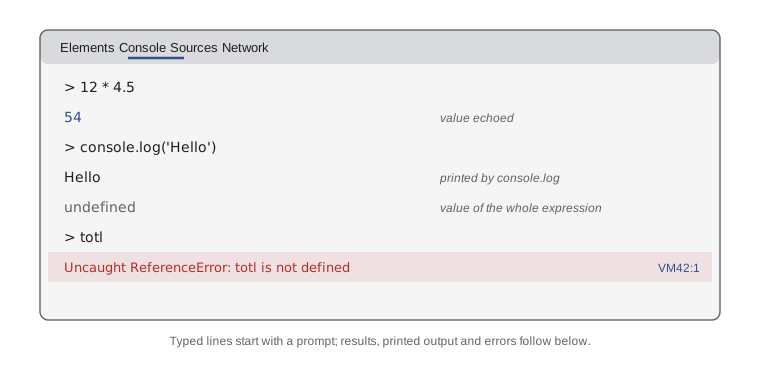
The console is an example of a REPL, short for read, evaluate, print, loop. It reads one line of JavaScript, evaluates it (works out its value), prints the result and waits for the next line. Type 12 * 4.5 and press Enter, and the console shows 54. Type 'Food Hub'.length and it shows 8. You do not need console.log, because the console prints the value of each expression automatically.
That automatic echo explains a puzzle that confuses most beginners. If you type console.log('Hello') into the console, you see Hello and then, on the next line, undefined. The first line is what console.log printed. The second is the console reporting the value of the whole expression you typed. console.log prints its arguments but gives back no value, and in JavaScript "no value" is written undefined. Nothing has gone wrong.
A few habits make the console much easier to use. Press the up arrow to bring back the last line you typed, edit it and press Enter again. Press Shift+Enter to start a new line without running the code, which lets you type several statements before running them together. Type clear() or press Ctrl+L to clear the screen. And remember that the console forgets everything when you reload the page: anything you want to keep belongs in a file.
Chrome also prints a warning the first time you try to paste code into the console, asking you to type a phrase such as *allow pasting* before it accepts pasted text. This protects people who are tricked into pasting harmful code into a page where they are signed in. The rule behind it is a good one for everybody: never paste code into a console unless you understand what it does and you wrote it or trust where it came from.
The console methods
console.log is one of several methods on the console object. Each one prints a message; they differ in how the browser displays it and how easily you can filter it. In a browser, console.warn messages have a yellow background and console.error messages a red one, and the console's filter buttons let you hide everything except errors. In the course runner and in Node.js the four methods all print plain lines.
console.log('Shift sign-up page loaded');
console.info('Open shifts this week:', 14);
console.warn('Saturday kitchen shift is almost full');
console.error('Could not reach the volunteer list');Shift sign-up page loaded Open shifts this week: 14 Saturday kitchen shift is almost full Could not reach the volunteer list
What this code does
Four messages are printed, one by each console method. In a browser, log and info appear as normal lines, warn appears with a yellow background and error with a red one. In this runner all four appear as plain text in the order they were called.
Developers use these levels to make their messages easier to sort. A page might log normal progress with console.log, mark something unusual with console.warn and report a real failure with console.error. When a page is finished, most of the logging is removed or switched off, because visitors never open the console.
Browsers and Node.js offer more console methods for special jobs. console.table prints a list of records as a grid, console.count keeps a running count of how many times a line was reached, console.group indents related messages, and console.time with console.timeEnd measures how long something took. The course runner prints console.table as an ordinary value and does not include the others, so try them in your browser's console instead.
// Try these in your browser's console, not in the course runner
console.table([{ day: 'Mon', open: 3 }, { day: 'Tue', open: 5 }]);
console.count('shift checked');
console.count('shift checked');
console.time('loading');
console.timeEnd('loading');
Loading JavaScript into a page
Typing into the console is perfect for experiments, but a real page keeps its JavaScript in a file. An HTML page loads a script with the script element. The src attribute gives the address of the file, in the same way as href on a stylesheet link.
<!DOCTYPE html>
<html lang="en">
<head>
  <meta charset="utf-8">
  <title>Volunteer shifts</title>
  <link rel="stylesheet" href="css/site.css">
  <script src="js/shifts.js" defer></script>
</head>
<body>
  <h1>Volunteer shifts</h1>
  <p id="status">Loading shifts</p>
</body>
</html>// js/shifts.js
console.log('shifts.js has started');
console.log('Page title:', document.title);When Mira opened that page and the console, she saw both messages, the second one ending with Volunteer shifts. The script could read the page's title because it ran inside the page, with the browser's document object available. This is the link between the two halves of web development: HTML builds the page, and JavaScript reaches into it.
The defer attribute matters. Without it, the browser stops reading the HTML when it reaches the script element, downloads and runs the script, and only then carries on with the rest of the page. A script in the head that tries to find an element in the body would fail, because the body has not been read yet. With defer, the browser downloads the script while it keeps reading, and runs it after the whole page has been parsed. Putting defer on scripts in the head is the simplest safe default.
You will also see type="module" on many script elements. A module is a JavaScript file that can import code from other files and export its own. Module scripts are deferred automatically and run in strict mode, a safer version of the language. JavaScript Programming II covers modules properly; for now, defer is all you need. You may also meet older pages with a script element at the very end of the body instead. That works too, for the same reason: by then the page has been read.
Scripts can also be written directly between <script> and </script> tags, without a src. These inline scripts are handy for a quick test but become hard to manage as a site grows, and many sites block them with a security policy that only allows script files. Keep your JavaScript in separate files, just as you kept your CSS in a stylesheet.
Installing Node.js
The browser console is tied to a page. To run JavaScript on its own, as a program on your computer, you need Node.js. Gareth had Mira install it on her studio laptop that afternoon. The steps are the same on Windows, macOS and Linux.
Go to the official site, nodejs.org, and download the installer marked LTS. As of November 2026 that is Node.js 26, which entered long-term support in October 2026. Run the installer and accept the defaults; it installs two programs, node itself and npm, the Node package manager, which you will use in later courses. Then open a terminal (Terminal on macOS, Windows Terminal or PowerShell on Windows) and check that both are installed by asking for their versions.
node --version
npm --version
Each command prints a version number. If the terminal says the command is not found, close the terminal and open a new one so that it picks up the new installation, and if that does not help, run the installer again. Developers who need several versions of Node.js at once use a version manager such as nvm or fnm, but one LTS version is all you need for this course.
The Node.js REPL
Type node on its own in the terminal and press Enter. Node.js starts its own REPL, with a > prompt. It works like the browser console: type an expression, press Enter and see its value. Type .help to list the special commands, .exit to leave, or press Ctrl+C twice.
node
Welcome to Node.js v26.1.0.
Type ".help" for more information.
> 12 * 4.5
54
> 'Food Hub'.length
8
> console.log('Hello')
Hello
undefined
> .exit
The same undefined appears after console.log, for the same reason as in the browser. What is missing is a page. Type document in the Node.js REPL and you get a ReferenceError, because there is no page and therefore no document. In return, Node.js offers objects the browser does not have, such as process, which describes the running program, and modules for reading files and running servers.
Running a JavaScript file with Node.js
Most of the time you will write code in a file and run the whole file. Create a folder for this course, open it in your code editor, and save a file called hours.js. Any text editor works, but Visual Studio Code, which Mira used for her HTML, colours the code and points out simple mistakes as you type.
// hours.js
const shiftHours = 3.5;
const shiftsThisMonth = 6;
console.log('Volunteer hours this month:', shiftHours * shiftsThisMonth);cd js-course
node hours.jsNode.js reads the file, runs every statement from top to bottom and prints Volunteer hours this month: 21. Unlike the REPL, it does not echo the value of each line; a file only prints what it explicitly prints. When the last statement has run, the program ends and the terminal prompt returns.
While you are editing a file, node --watch hours.js saves you from retyping the command. Node.js runs the file, then watches it and runs it again each time you save. Press Ctrl+C to stop watching. The flag has been a stable part of Node.js since version 22.
const shiftHours = 3.5;
const shiftsThisMonth = 6;
console.log('Volunteer hours this month:', shiftHours * shiftsThisMonth);
console.log('Is there a page here?', typeof document);Volunteer hours this month: 21 Is there a page here? undefined
What this code does
The first line printed is the same result Node.js gives for hours.js: 6 shifts of 3.5 hours make 21 hours. The second line asks what kind of thing document is, and the answer undefined means there is no page in this runner, exactly as in Node.js. Run the same line in a browser console and the answer is object.
| Browser console or page script | Node.js | |
|---|---|---|
| How you start it | Open DevTools, or load a page with a script element | node in a terminal, or node file.js |
| Has a page (document, window) | Yes | No |
| Can read files on your computer | No, only files the user chooses | Yes, with the fs module |
| Global object | window (also globalThis) | globalThis |
| Typical use | Interactive pages | Servers, scripts and tools |
Both runtimes share one name for the global object, the object that holds everything available everywhere: globalThis. In a browser it is the same as window; in Node.js it is the object that holds console, setTimeout and friends. You will rarely need it directly, but it is the portable way to refer to the global scope.
Reading input in this course
Programs become far more useful when they can ask questions. In a web page, input usually comes from a form; in Node.js it comes from the keyboard through a module. Both need tools that the lessons have not reached yet, so this course uses two simple functions that work the same in the runner, in every exercise and in the browser.
prompt(text) shows the text, reads the next line of input and gives it back to your program as a string. In the runner, the input comes from the Input box below the editor, one line for each prompt, and the prompt text and the answer are both printed so that the output reads like a conversation. In a real browser page, prompt opens a small dialog box with a text field. It is fine for experiments but annoying for visitors, so real pages use forms instead.
const name = prompt('Volunteer name: ');
const shift = prompt('Shift: ');
console.log('Thanks, ' + name + '. You are booked for ' + shift + '.');Volunteer name: Amara Shift: Saturday kitchen Thanks, Amara. You are booked for Saturday kitchen.
What this code does
The program asks two questions and stores each answer under a name. In this example the Input box supplies Amara and Saturday kitchen, so the output shows each question followed by its answer. The last line joins the pieces of text with + to build a confirmation sentence.
readline() reads the next line of input without printing anything, which is useful when the input is data rather than an answer to a question, such as a list of shift lengths. When there is no more input, readline() gives back null, a value that means "nothing here". Lesson 7 uses that to process a list of any length.
const first = readline();
const second = readline();
const third = readline();
console.log('First shift:', first);
console.log('Second shift:', second);
console.log('After the last line:', third);First shift: Monday grocery Second shift: Tuesday kitchen After the last line: null
What this code does
Each readline call takes the next line from the Input box, which holds two shift names here. The first two calls get Monday grocery and Tuesday kitchen. The third finds nothing left and gives back null, which is printed as the word null.
Everything prompt and readline give back is text. If a volunteer types 3, your program receives the string '3', not the number 3. Lesson 3 explains the difference and Lesson 4 shows how to convert text to a number with Number(). In Node.js the equivalent tool is the readline module, which reads lines from the keyboard; you will see it in JavaScript Programming II, and the habits you learn here carry straight over.
Try it yourself
A shift confirmation
Lucy wants every sign-up to end with a clear confirmation. Write a program that uses prompt twice: first with the text Name: , then with the text Day: . Then print one line in the form Booked: Amara on Saturday, using the two answers.
The Input box already contains Amara and Saturday. Your output should show both prompts with their answers, followed by the confirmation line.
const name = prompt('Name: ');
// Ask for the day, then print the confirmation
Try it yourself
Three lines of data
The Input box holds three volunteer names, one per line. Read them with readline() and print them back in reverse order, each on its own line, followed by the line 3 volunteers.
Use three constants, one for each name, and four console.log statements.
const a = readline();
// Read the other two names, then print them in reverse order
Common mistakes
MistakeThe console printed undefined, so my console.log is broken.
InsteadThe console echoes the value of every expression. console.log prints its arguments and then has no value of its own, which the console shows as undefined.
MistakeA script in the head can always find elements in the body.
InsteadWithout defer, the script runs before the body has been read. Add defer, use type="module" or put the script at the end of the body.
Mistakedocument works in Node.js.
Insteaddocument belongs to a web page. Node.js has no page, so document is not defined there.
MistakeThe value from prompt is a number if the user types digits.
Insteadprompt and readline always give back text. Convert it with Number() before doing arithmetic.
MistakeIt is safe to paste any code from a web forum into the console.
InsteadCode in the console runs with your access to the page. Only run code you understand and trust.
Summary and key terms
- The browser developer tools include a Console where you can type JavaScript and see the value of each expression.
- The console is a REPL: it reads, evaluates, prints and loops. console.log, console.info, console.warn and console.error print messages at different levels.
- A page loads JavaScript from a file with a script element; defer runs it after the page has been read.
- Node.js runs JavaScript outside the browser: node starts a REPL, node file.js runs a file and node --watch reruns it on each save.
- The browser offers document and window, Node.js offers process and file modules, and both share globalThis.
- In this course prompt reads a line and echoes it, readline reads a line silently and returns null at the end, and both always give back text.
- developer tools
- Panels built into a browser for inspecting and debugging pages, including the Console.
- REPL
- Read, evaluate, print, loop: an interactive prompt that runs one piece of code at a time and shows its value.
- evaluate
- To work out the value of an expression.
- undefined
- The value JavaScript uses for no value, such as the result of console.log.
- script element
- The HTML element that loads or contains JavaScript for a page.
- defer
- A script attribute that runs the script after the whole page has been parsed.
- LTS
- Long-term support: a Node.js version that receives fixes for an extended period.
- npm
- The package manager installed with Node.js.
- globalThis
- The standard name for the global object in every JavaScript runtime.
- prompt
- In this course, a function that shows text, reads the next input line and returns it as a string.
Practice problems
Work each problem on paper first, then reveal the answer to check.
Why does the console print undefined after console.log('Hi')?
Show answer
console.log prints Hi but returns no value, and the console echoes the value of the expression, which is undefined.
What does the defer attribute do on a script element?
Show answer
The browser downloads the script while it keeps reading the page and runs it only after the whole page has been parsed.
Which command runs a file called totals.js with Node.js?
Show answer
node totals.js, typed in a terminal in the folder that contains the file.
What does readline() return when there is no input left?
Show answer
It returns null.
A volunteer types 4 at a prompt. What kind of value does the program receive?
Show answer
A string, '4'. It must be converted with Number() before arithmetic.
Lesson quiz · 5 questions
Score 60% or more to complete this lesson.
Create a free account to save your progress, take quizzes and earn a certificate.