
JS-101 · Lesson 11 of 12 · 26 min
Debugging JavaScript
▶ Video coming soon A video version of this lesson is on the way.
On Tuesday, November 10, Lucy tested Mira's sign-up script with real data from October and sent back three screenshots. In the first, the page said a volunteer had worked 3.543 hours, which was not a number anyone had typed. In the second, the monthly total for Dev was 0. In the third, the console was red with a message that began TypeError: Cannot read properties of undefined. Mira's heart sank. Gareth just pulled up a chair. "Good," he said. "Now you get to learn the skill that takes up half of every developer's day. Nobody writes code without bugs. The difference between beginners and professionals is how calmly and quickly they find them."
A bug is any way in which a program behaves differently from what was intended. Debugging is the work of finding and fixing bugs. This lesson covers the three kinds of bugs, how to read error messages, a step-by-step method for finding a cause, logging, the browser's debugger, handling errors in code with try and catch, and the most common JavaScript mistakes and their fixes.
Three kinds of bugs
Syntax errors break the rules of the language: a missing bracket, a stray comma, a quotation mark that never closes. The engine finds them before running anything, while it reads the code, and refuses to run the program at all. They are the easiest bugs to fix, because the message points straight at them, and your editor usually underlines them as you type.
Runtime errors happen while the program is running, when a statement asks for something impossible: calling a function that does not exist, reading a property of undefined, asking toFixed for 200 decimal places. The engine stops at that statement and reports an error, which in JavaScript is called throwing an exception.
Logic errors are the hardest. The program runs to the end without complaint, but the answer is wrong: 3.543 hours instead of 3.5, a total of 0 instead of 14. Nothing tells you where the mistake is. You have to notice that the output is wrong, which is why testing with known answers, as in Lesson 8, is so valuable, and then track down the cause yourself.
| Kind | When it appears | Example | How you find it |
|---|---|---|---|
| Syntax error | Before the program runs | console.log('Hi'; | The error message and your editor point to the line |
| Runtime error | While the program runs | undefined.name | The message gives the type, the cause and the line |
| Logic error | Never reported | a + b / 2 for an average | Compare the output with a known correct answer |
Reading an error message
An error message has three parts, and each one is useful. The type says which kind of problem it is. The message describes it in words. The location says where it happened: in this course's runner, the line number in your code; in a browser or Node.js, a file name and line number, often followed by a stack trace, the list of function calls that led to the error, most recent first.
Uncaught TypeError: Cannot read properties of undefined (reading 'hours')
    at totalHours (shifts.js:14:23)
    at showReport (shifts.js:31:17)
    at shifts.js:40:1
Read it from the top. The error is a TypeError: the program tried to read a property called hours from something that was undefined. It happened in the function totalHours, on line 14, column 23 of shifts.js. That function was called by showReport on line 31, which was called from line 40. In the browser console, each location is a link that opens the file at that line. The line named first is where the problem showed up; the real cause is often a little earlier, in the code that produced the undefined.
| Error type | What it usually means | Typical cause |
|---|---|---|
| SyntaxError | The code breaks the language rules, or JSON.parse got invalid JSON | Missing bracket, quote or comma |
| ReferenceError | A name is used that does not exist here | A typo, wrong capitals, or a variable used outside its scope |
| TypeError | A value is the wrong type for the operation | Reading a property of undefined or null; calling something that is not a function; reassigning a const |
| RangeError | A number is outside the allowed range | toFixed(200), or a function that calls itself forever |
The examples below cause each kind of runtime error on purpose. Each one is wrapped in try and catch, explained later in this lesson, so that the program can print the error's type and message and carry on, instead of stopping at the first one.
try {
  shiftTotal(4);
} catch (e) {
  console.log(`${e.name}: ${e.message}`);
}

try {
  const volunteer = undefined;
  console.log(volunteer.name);
} catch (e) {
  console.log(`${e.name}: ${e.message}`);
}

try {
  console.log((3.5).toFixed(200));
} catch (e) {
  console.log(`${e.name}: ${e.message}`);
}

try {
  JSON.parse('{ name: Amara }');
} catch (e) {
  console.log(`${e.name} while reading JSON`);
}ReferenceError: shiftTotal is not defined TypeError: Cannot read properties of undefined (reading 'name') RangeError: toFixed() digits argument must be between 0 and 100 SyntaxError while reading JSON
What this code does
Four small blocks each make one mistake and print the error that results. Calling a function that was never written gives a ReferenceError, reading a property of undefined gives a TypeError and asking for 200 decimal places gives a RangeError. Parsing text that is not valid JSON gives a SyntaxError, even though the program itself is valid.
The wording of messages differs slightly between browsers and Node.js, but the types are the same everywhere. When a message puzzles you, searching for its first few words, together with the word JavaScript, almost always finds an explanation.
A method for finding bugs
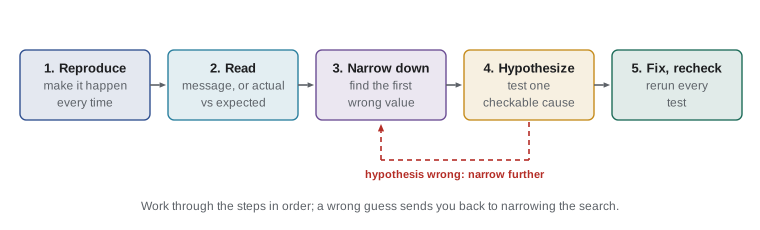
Guessing at fixes, changing things until the output looks right, is the slowest way to debug and often creates new bugs. Professionals follow a method, even if they no longer think about it. Mira wrote these steps on a card and kept it by her keyboard.
1. Reproduce the bug. Find a set of inputs that makes it happen every time. Lucy's screenshot of a 0 total for Dev was the clue; running the report for Dev alone reproduced it reliably. A bug you cannot reproduce cannot be shown to be fixed.
2. Read the evidence. Read the error message slowly, or, for a logic error, write down exactly what the output is and what it should be. "Total is 0, should be 14" is precise. "The report is broken" is not.
3. Narrow it down. Find the first place where a value is wrong. Print values at points along the path, or use the debugger, and work out where they stop being what you expect. Halving the search area each time, by checking the middle of the suspect code, finds the spot quickly.
4. Form a hypothesis and test it. State a cause you can check: "the names in the data have trailing spaces, so 'Dev ' === 'Dev' is false". Then check it with one targeted test. If it is wrong, go back to step 3.
5. Fix the cause, not the symptom, and check again. Make the smallest change that removes the cause, rerun the case that failed, then rerun your other tests to make sure nothing else broke. Adding a test for the bug means it can never quietly return.
One more technique deserves mention because it works so often. Rubber duck debugging means explaining your code, line by line, out loud, to someone who knows nothing about it, even a rubber duck on the desk. Saying what each line is supposed to do forces you to notice where it does something else. Gareth admitted that half of his questions to colleagues are answered by himself before they have finished listening.
Debugging with console.log
The simplest debugging tool is the one you already know. Printing values at key points shows you what the program is really doing, as opposed to what you think it is doing. A few habits make logging far more useful. Label every value so you know which line printed it. Print the type as well as the value when types might be wrong. Wrap strings in quotation marks, or use JSON.stringify, so that hidden spaces and empty strings become visible.
const shifts = [
  { name: 'Dev ', hours: 4 },
  { name: 'Amara', hours: 3.5 },
  { name: 'Dev', hours: 10 },
];
function totalFor(name) {
  let total = 0;
  for (const s of shifts) {
    console.log('checking', JSON.stringify(s.name), 'match: ' + (s.name === name));
    if (s.name === name) {
      total += s.hours;
    }
  }
  return total;
}
console.log('Total for Dev:', totalFor('Dev'));checking "Dev " match: false checking "Amara" match: false checking "Dev" match: true Total for Dev: 10
What this code does
The function should total Dev's hours, which are 4 and 10, but it reports 10. The temporary log line prints each name in quotation marks with the result of the comparison, and the first record shows Dev with a trailing space, which does not match. The fix is to compare trimmed names, and the log line is then removed.
That is exactly the bug behind Lucy's second screenshot. Some names had come from a form with a space after them. Mira's fix was to trim every name as it came in, which is better than trimming in every comparison, because the data is cleaned once, at the edge of the program.
Remove or comment out debugging logs when you have finished. Left in, they clutter the console for the next developer and can even reveal information to curious visitors who open the developer tools on a live site.
The browser debugger
For harder bugs, the browser's built-in debugger is more powerful than logging. In Chrome or Edge it is in the Sources panel; in Firefox, the Debugger panel. Open your script there and click a line number to set a breakpoint. When the page next runs that line, it pauses before running it, and you can look around: the Scope section shows the current value of every variable, you can hover over any name in the code to see its value, and the console works inside the paused code.
While paused, the toolbar buttons control what happens next. Step over runs the current line and pauses on the next one. Step into follows a function call inside the function. Step out finishes the current function and pauses where it was called. Resume carries on until the next breakpoint. Watching the variables change one line at a time is often the fastest way to see where a value goes wrong.
function totalHours(shifts) {
  let total = 0;
  for (const s of shifts) {
    debugger; // the page pauses here when the developer tools are open
    total += s.hours;
  }
  return total;
}
Writing the statement debugger; in your code has the same effect as a breakpoint whenever the developer tools are open, and does nothing otherwise. It is handy when the line is hard to find in the Sources panel. Remove it before the code goes live. Node.js has a debugger too: run node --inspect-brk file.js and connect from Chrome's chrome://inspect page, or use the built-in debugging in Visual Studio Code.
Handling errors with try and catch
Some errors are not bugs but facts of life: a visitor pastes text that is not valid JSON, a value from another system is missing. For these, a program should handle the error rather than stop. A try...catch statement runs the code in its try block; if any statement there throws an exception, JavaScript jumps straight to the catch block, giving it the error object. An optional finally block runs afterwards in every case, whether there was an error or not.
function readSavedOrder(text) {
  try {
    const order = JSON.parse(text);
    return order;
  } catch (e) {
    console.log(`Could not read the saved order (${e.name}). Starting a new one.`);
    return { items: [] };
  } finally {
    console.log('Finished reading');
  }
}
const good = readSavedOrder('{"items":["soup","tea"]}');
console.log(good.items.length, 'items');
const bad = readSavedOrder('not json');
console.log(bad.items.length, 'items');Finished reading 2 items Could not read the saved order (SyntaxError). Starting a new one. Finished reading 0 items
What this code does
The function tries to turn saved text back into an order object. The first call succeeds and the order has 2 items, while the second text is not valid JSON, so catch prints a short explanation and returns an empty order instead of crashing. The finally block prints its message after both calls.
Catch only what you can handle. Wrapping a whole program in one try and printing "something went wrong" hides real bugs and makes them harder to find. Use try...catch around the specific step that can fail for reasons outside your control, such as parsing input, and let genuine bugs show up as errors so that you see and fix them.
Your own functions can throw errors too, with the throw statement and the built-in Error type. Throwing is the right response when a function is called with input it cannot sensibly deal with: it stops at once with a clear message, instead of carrying on and returning a nonsense answer that causes a confusing problem somewhere else. ES2026 added Error.isError(value), a reliable way to check whether a caught value really is an error object.
function tipCents(subtotalCents, rate) {
  if (!Number.isFinite(subtotalCents) || subtotalCents < 0) {
    throw new RangeError(`Subtotal must be a number of cents, got ${subtotalCents}`);
  }
  return Math.round(subtotalCents * rate);
}
console.log(tipCents(2000, 0.15));
try {
  console.log(tipCents('20.00', 0.15));
} catch (e) {
  console.log(`${e.name}: ${e.message}`);
}300 RangeError: Subtotal must be a number of cents, got 20.00
What this code does
The function checks its input before calculating. A subtotal of 2000 cents passes the check and gives a tip of 300 cents. Passing the text 20.00 instead of a number fails the check, so the function throws a RangeError with a message that names the bad value, and the caller catches and prints it.
Strict mode, linters and other early warnings
The best bugs are the ones caught before the code runs. Strict mode is a safer version of JavaScript that turns some silent mistakes into errors, such as assigning to a variable that was never declared, which in old-style code quietly creates a global variable. Modules and classes are always in strict mode; in a plain script you switch it on by putting the string 'use strict'; on the first line.
A linter is a tool that reads your code and warns about likely mistakes and inconsistent style without running it: unused variables, == where === was probably meant, a missing break in a switch. The most widely used JavaScript linter is ESLint, and code editors such as Visual Studio Code show its warnings as you type. TypeScript, mentioned in Lesson 3, goes further by checking types. Professional teams use both, so that whole families of bugs never reach the browser.
Common JavaScript bugs and their fixes
| Symptom | Likely cause | Fix |
|---|---|---|
| A total like 3.5410 or 0.30000000000000004 | Text joined with + instead of added; or decimal drift | Convert input with Number(); work in cents; round for display |
| A condition is always true | if (x = 5) assigns instead of comparing | Use === to compare |
| ReferenceError: x is not defined | Typo or wrong capitals; variable out of scope | Check spelling and case; declare the variable where it is needed |
| TypeError: cannot read properties of undefined | A missing property, a find() that found nothing, an index past the end | Check the value just before; use ?. where missing data is normal |
| A loop runs once too often or misses the last item | Off-by-one: <= where < was needed | Check the first and last iteration by hand |
| A function gives undefined | Missing return, or braces in an arrow function | Add return, or remove the braces for an implicit return |
| NaN appears in a result | A value that could not be converted, often empty or missing input | Validate input before calculating; print the inputs |
| A change to one list also changes another | Two names for the same array or object | Copy with spread or structuredClone |
| Numbers sort as 1, 10, 2 | sort() compares as text | Pass (a, b) => a - b |
Lucy's first screenshot, the 3.543 hours, was the first bug in that table. The form sent the hours and the extra minutes of each shift as two pieces of text, and Mira's code joined them with +, so '3.5' and '43' became the text '3.543'. Converting both with Number() and adding the minutes divided by 60 fixed it. The third screenshot was a find() that returned undefined for a volunteer who had been removed from the list, followed by .hours. She added a check for a missing volunteer and a test for that case. By Thursday all three bugs were fixed, each with a test so that it could not come back.
Try it yourself
Fix the average
The function below should return the average shift length for a list of shift lengths in hours, rounded to two decimal places as a number. It runs without errors, but it gives the wrong answers. Find and fix the two logic errors.
With the fixes, the three test lines print 3.5, 4.17 and 0. An empty list should give 0, not NaN.
function averageHours(hours) {
  let total = 0;
  for (let i = 1; i < hours.length; i++) {
    total += hours[i];
  }
  const avg = total / hours.length;
  return Math.round(avg * 100) / 100;
}
console.log(averageHours([3, 4, 3.5]));
console.log(averageHours([5, 4, 3.5]));
console.log(averageHours([]));
Try it yourself
Safe settings
The lunch counter keeps its settings as JSON text. Write loadSettings(text) that returns the parsed object, or, if the text is not valid JSON, returns the default { tipRate: 0.15 }. Use try and catch.
The starter's lines read the first line of the Input box, which holds valid JSON, and the second, which does not, and print the tip rate from each. The expected output is 0.18 and 0.15.
function loadSettings(text) {
  // Parse text, or return the defaults if it is not valid JSON
  return JSON.parse(text);
}
const first = loadSettings(readline());
console.log(first.tipRate);
Common mistakes
MistakeThe line in the error message is always where the bug is.
InsteadIt is where the problem showed up. The cause is often earlier, in the code that produced the bad value.
MistakeChanging code until the output looks right is debugging.
InsteadReproduce, read, narrow down, test a hypothesis and fix the cause; then rerun your tests.
MistakeWrap the whole program in try and catch to be safe.
InsteadThat hides real bugs. Catch only the specific steps that can fail for reasons outside your control.
MistakeNo error message means no bug.
InsteadLogic errors are never reported. Test with inputs whose correct answers you know.
MistakeDebugging logs can stay in finished code.
InsteadRemove them, or they clutter the console and may reveal information on a live site.
Summary and key terms
- A bug is behaviour that differs from what was intended.
- Syntax errors stop a program before it runs, runtime errors throw exceptions while it runs, and logic errors give wrong answers silently.
- An error message has a type, a message and a location, and a stack trace lists the calls that led there.
- SyntaxError, ReferenceError, TypeError and RangeError are the common types.
- Debug with a method: reproduce, read the evidence, narrow it down, form and test a hypothesis, then fix the cause and recheck.
- Log labelled values, types and quoted strings.
- The browser debugger pauses at breakpoints or a debugger statement and lets you step through code and inspect variables. try runs code that may fail, catch handles the error and finally always runs; throw new Error reports bad input from your own functions.
- Strict mode, linters such as ESLint and TypeScript catch mistakes before the code runs.
- bug
- Behaviour of a program that differs from what was intended.
- syntax error
- Code that breaks the rules of the language, found before the program runs.
- runtime error
- An error that happens while the program is running.
- logic error
- A mistake that makes a program give a wrong answer without any error message.
- exception
- An error object thrown when something goes wrong, which stops the program unless it is caught.
- stack trace
- The list of function calls that led to an error, most recent first.
- breakpoint
- A marked line where the debugger pauses the program.
- try...catch
- A statement that runs code and handles any exception it throws.
- throw
- A statement that raises an exception, usually with new Error(message).
- linter
- A tool that reads code and warns about likely mistakes without running it.
Practice problems
Work each problem on paper first, then reveal the answer to check.
A program prints a total of 0 instead of 14 and reports no error. What kind of bug is this?
Show answer
A logic error. The program runs but gives the wrong answer.
What does TypeError: Cannot read properties of undefined (reading 'name') usually mean?
Show answer
The code tried to read .name from a value that was undefined, such as a missing record or a find() that found nothing.
Why should you reproduce a bug before fixing it?
Show answer
So that you can see it happen reliably and later prove that your fix works.
When does a finally block run?
Show answer
After the try block, and after catch if there was an error; it runs in every case.
Why print strings with JSON.stringify while debugging?
Show answer
It shows quotation marks around the text, so hidden spaces and empty strings become visible.
Lesson quiz · 5 questions
Score 60% or more to complete this lesson.
Create a free account to save your progress, take quizzes and earn a certificate.