
MSBA-212 · Lesson 7 of 12 · 21 min
Windows Hello for Business
▶ Video coming soon A video version of this lesson is on the way.
In the September phishing incident, the attacker had relayed a coordinator's password and push approval through a fake sign-in page. Phase 1 of the Zero Trust roadmap answered that with phishing-resistant methods: passkeys in Microsoft Authenticator for staff with work phones and FIDO2 security keys for the 60 or so home-care staff without them. But most sign-ins at Corvallin did not happen on a phone. They happened at a Windows laptop, many times a day, after the lid was opened in a client's hallway. Ama wanted that sign-in to be as strong as the others and faster than a password. That is what Windows Hello for Business gives.
What Windows Hello for Business is
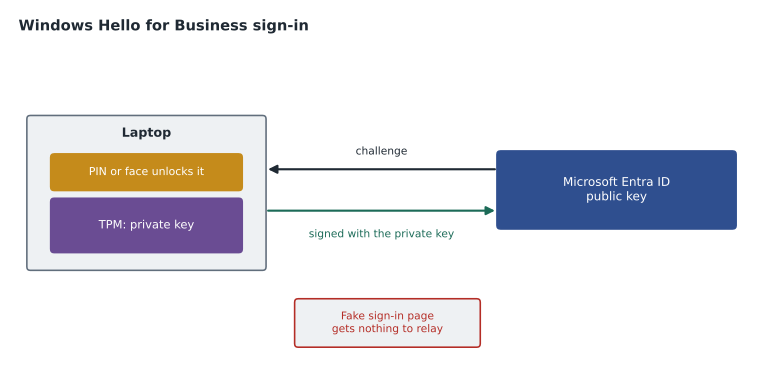
Windows Hello for Business replaces the password at Windows sign-in with a credential that is tied to the device. When a user sets it up, the device creates a key pair: the private key is stored in the TPM and never leaves it, and the public key is registered with Microsoft Entra ID. To sign in, the user unlocks the private key with a PIN or a biometric gesture, such as a face or fingerprint, and the device proves to Entra ID that it holds the key.
The PIN is not a short password. It works only on the device where it was set up, is checked locally by the TPM, and is never sent anywhere; a stolen PIN is useless without the laptop, and a stolen laptop is protected by the TPM's anti-hammering, which locks out repeated guesses. Because the credential is bound to the device and to Entra ID, it cannot be relayed through a fake sign-in page, which makes it phishing resistant. Entra Conditional Access recognizes Windows Hello for Business as satisfying the phishing-resistant MFA authentication strength, the same strength Corvallin required for administrators in phase 1.
Two places to configure it
Intune can configure Windows Hello for Business in two places, and knowing which wins matters. The tenant-wide setting is under Devices, Enrollment, Windows Hello for Business. It applies to every Windows device as it enrolls and is the simplest way to switch the feature on or off for everyone. An account protection policy under Endpoint security, or a settings catalog profile, configures it for specific groups after enrollment. Settings from a policy assigned to a device override the tenant-wide defaults for that device.
Corvallin enabled Windows Hello for Business tenant-wide, so every new laptop offered setup at the first sign-in, and used one account protection policy to set the details.
| Setting | Corvallin value | Reason |
|---|---|---|
| Use Windows Hello for Business | Enabled | The default sign-in for every Windows device |
| Require TPM | Enabled | Keys must be hardware-protected |
| Minimum PIN length | 6 | Long enough with TPM lockout, short enough for gloves-off typing at a door |
| PIN complexity | Digits allowed; letters optional | Numeric PINs are fine with TPM protection |
| PIN expiration | Never | Expiring PINs leads to weaker, predictable PINs |
| Allow biometric authentication | Enabled | Faster sign-in on laptops with suitable cameras or readers |
| Enhanced sign-in security | Enabled where hardware supports it | Keeps biometric data in a secure enclave |
Shared devices and the help desk
Windows Hello for Business is per user and per device. On the twelve shared training tablets, each new member of staff would set up their own PIN during their first week, which was fine because the tablets were reset between cohorts. On the nursing station desktops at head office, shared by several people on each shift, Ama chose security keys instead, because a key travels with the person, and enabled sign-in with FIDO2 keys at the Windows sign-in screen through the same account protection policy.
Forgotten PINs are the main help desk call. Windows offers PIN reset, which lets users reset their PIN from the sign-in screen after authenticating with Entra ID. It needs the Microsoft PIN reset service to be allowed in the tenant and the setting to be enabled in policy, and it works without the help desk. Ama turned it on, and the number of PIN calls in the pilot fell to almost none.
Hybrid environments and cloud Kerberos trust
Corvallin was cloud-only, so a Windows Hello sign-in only had to satisfy Entra ID. The partner network Ama had advised still had Active Directory and on-premises file servers. Its users needed a Windows Hello sign-in to give them access to those servers as well. The recommended model for that is cloud Kerberos trust: Entra ID issues a partial Kerberos ticket that the on-premises domain controllers accept, so on-premises resources work without certificates or a public key infrastructure. It requires a Kerberos server object created in Active Directory by a PowerShell module, and devices that are Entra joined or hybrid joined. Older models, key trust and certificate trust, still exist but are more work to deploy.
Windows LAPS
The second half of account protection is the device's local administrator account. Every Windows device has one. If every laptop shares the same local administrator password, an attacker who learns it on one laptop can use it on all of them. Windows Local Administrator Password Solution (Windows LAPS) gives each device a unique, random, regularly rotated password for its local administrator account and backs it up to Microsoft Entra ID, where authorized administrators can read it.
Setting it up at Corvallin took three steps. First, Teodor turned on the device setting in the Entra admin center that enables Microsoft Entra LAPS for the tenant. Second, Ama created a Local admin password solution (Windows LAPS) profile under Endpoint security, Account protection, with the backup directory set to Microsoft Entra ID, a password age of 30 days, a length of 20 characters with full complexity, and the post-authentication action set to reset the password and sign out the account a few hours after it is used. Third, she checked that only the Intune Administrator and Helpdesk roles, through PIM, could read passwords.
Worked problem
How long is a password valid after use?
A technician reads a laptop's LAPS password at 9:40 and signs in with it at 9:45. The post-authentication action is set to reset the password and sign out after a grace period of 8 hours. At what time is the password changed?
Show solution
- The grace period starts when the account is used, at 9:45.
- 9:45 plus 8 hours is 17:45.
Answer: At 17:45 the device creates a new password, backs it up to Entra ID and signs the account out. The password the technician read cannot be reused. If the work is finished earlier, the help desk can trigger the Rotate local admin password remote action at once.
The MD-102 outline also includes the Rotate local admin password remote action, which forces a new password immediately, for example after a technician has used it on a device at a client's home. Reading a LAPS password is recorded in the Entra audit log.
Who is an administrator
Unique passwords help only if few people have administrator rights at all. Intune's local user group membership policy, also under account protection, sets the members of local groups such as Administrators on Windows devices. Corvallin used it to make the Administrators group contain only the built-in administrator account managed by LAPS and the Entra Microsoft Entra Joined Device Local Administrator role, which was eligible through PIM for Ama and the help desk. Everyone else was a standard user, and the Windows 11 project had already confirmed that nothing staff needed required administrator rights.
| Account | Administrator? | How managed |
|---|---|---|
| Staff user accounts | No | Removed from Administrators by the group membership policy |
| Built-in local administrator | Yes, for emergencies | Unique password from Windows LAPS, rotated every 30 days and after use |
| Help desk and IT | When needed | Entra Joined Device Local Administrator role, eligible through PIM |
Rolling out Windows Hello
Turning Windows Hello for Business on tenant-wide affects new enrollments at once, but existing devices offer setup only at the next sign-in, and some users skip it. Ama used three steps for existing laptops. The account protection policy went to the rings in turn. A short message explained what the PIN was and why it was not "just another password". And for the home-care staff, the branch coordinators helped people set up their PIN and face sign-in during the weekly team meeting, which took about five minutes each. In the pilot, 19 of 20 users set up Windows Hello on the first day; the twentieth had a laptop whose camera driver needed an update.
Worked problem
How many devices still use passwords?
After the rollout, Intune shows 523 Windows devices. 12 are shared training tablets and 3 are nursing station desktops using security keys, 1 is the kiosk with no user sign-in, and 2 are the pharmacy devices whose vendor requires a local account. Of the remaining devices, 489 have at least one user with Windows Hello set up. How many devices still rely on passwords only?
Show solution
- Special cases: 12 + 3 + 1 + 2 = 18.
- Remaining personal devices: 523 - 18 = 505.
- With Windows Hello: 489.
- Still password only: 505 - 489 = 16.
Answer: Sixteen devices. The help desk called each user, and most turned out to be laptops of staff on leave.
Removing the password from daily use
Windows Hello removes the password from Windows sign-in, but the password still exists. Corvallin's phase 1 had made sign-ins to Microsoft 365 phishing resistant; with Windows Hello on every laptop, most users never typed their password at all from week to week. Microsoft offers a further step, the passwordless experience setting for Windows, which hides the password option at Windows sign-in for Entra-joined devices so that users are guided to Windows Hello. Corvallin planned to turn it on after six months, once the help desk was confident about PIN resets.
LAPS on the shared and special devices
Windows LAPS applied to every Windows device, including the kiosk and training tablets. The pharmacy devices were the exception that proved the rule: their vendor support process needed a local account, so LAPS managed that account's password too, and the vendor was given access to read it through a time-limited request to the help desk. Every read was logged, and the password rotated automatically after use.
Windows Hello and Conditional Access
Phase 1 had created Conditional Access policies requiring phishing-resistant authentication for administrators and multifactor authentication for everyone. Windows Hello for Business satisfied both. When a user signed in to Windows with Windows Hello, the device received a primary refresh token that carried the strong authentication, so apps such as Outlook and the visit verification app could sign the user in without asking again, while still meeting the policies. That is why Windows Hello made sign-in faster as well as safer: fewer prompts after the first one.
Teodor checked the Entra sign-in logs for the pilot users after the rollout. Sign-ins from their laptops now showed Windows Hello for Business as the authentication method, and the number of MFA prompts per user per day had fallen from several to about one.
| Before | After Windows Hello |
|---|---|
| Password at Windows sign-in | PIN or face, unlocked locally |
| Separate MFA prompts in apps | Strong authentication carried by the device token |
| Password could be phished | Credential cannot be relayed |
| Password resets through the help desk | PIN reset from the sign-in screen |
Security keys at the nursing stations
The three nursing station desktops at head office were used by many people across shifts. For them, Ama turned on sign-in with FIDO2 security keys at the Windows sign-in screen through the account protection policy, and staff used the same keys they already carried for Microsoft 365 from phase 1. A nurse touched her key to the desktop, entered the key's PIN and was signed in; when she left, she removed the key and the session locked. The same key worked on any of the three desktops, which was what made it better than Windows Hello for shared machines.
Security keys also covered the rare case of a laptop whose camera or fingerprint reader failed. Windows Hello's PIN still worked on such a laptop, but staff who preferred a key could use theirs instead, and the help desk did not need to treat either as an emergency.
Common mistakes
MistakeTreating the Windows Hello PIN as a weak password and requiring long, expiring PINs.
InsteadRely on the TPM and anti-hammering; use a reasonable minimum length and no expiry.
MistakeConfiguring Windows Hello tenant-wide and in a policy with different values without knowing which applies.
InsteadUse the tenant-wide setting to switch it on and one policy for the details.
MistakeDeploying a LAPS profile before enabling Entra LAPS in the tenant.
InsteadTurn on the Entra device setting first, then deploy the profile.
MistakeLeaving staff as local administrators because "it is easier".
InsteadUse the local user group membership policy and a PIM-eligible device administrator role.
Summary and key terms
- Windows Hello for Business replaces the password with a TPM-protected key unlocked by a PIN or biometric, and is phishing resistant.
- It can be enabled tenant-wide at enrollment and tuned with account protection policies, which override the tenant-wide defaults.
- PIN reset reduces help desk calls; security keys suit shared devices; cloud Kerberos trust gives hybrid users on-premises access.
- Windows LAPS gives each device a unique, rotated local administrator password backed up to Entra ID.
- The local user group membership policy keeps staff out of the Administrators group.
- Windows Hello for Business
- A device-bound, key-based Windows sign-in credential unlocked with a PIN or biometric.
- PIN reset service
- A Microsoft service that lets users reset a Windows Hello PIN after Entra authentication.
- Cloud Kerberos trust
- A Windows Hello model in which Entra ID issues Kerberos tickets accepted on-premises.
- Windows LAPS
- Automatic management and backup of each device's local administrator password.
- Post-authentication action
- What Windows LAPS does after the local administrator password is used, such as resetting it.
Practice problems
Work each problem on paper first, then reveal the answer to check.
Why is a Windows Hello PIN safer than a password of the same length?
Show answer
It works only on that device, is checked by the TPM with lockout, and is never sent over the network.
What must be turned on in Entra ID before a Windows LAPS profile backs passwords up there?
Show answer
The device setting that enables Microsoft Entra LAPS for the tenant.
Which policy keeps standard users out of the local Administrators group?
Show answer
The local user group membership policy under account protection.
Lesson quiz · 5 questions
Score 60% or more to complete this lesson.
Create a free account to save your progress, take quizzes and earn a certificate.