
MSBA-212 · Lesson 5 of 12 · 19 min
Firewall policies
▶ Video coming soon A video version of this lesson is on the way.
Felix Okonkwo-Reyes ran Corvallin's networks: the head office link, the four branch links, the guest Wi-Fi and the LTE routers in the home-care cars. When Ama asked him what he thought of the laptops' firewalls, he laughed. "Which ones? Half of them have whatever the factory set. A few have rules a vendor added in 2019. And our nurses spend most of their day on clients' home Wi-Fi, which is about as trustworthy as a coffee shop." The network firewall at head office protected devices only while they were at head office. For a workforce that was mostly somewhere else, the Windows Firewall on each laptop was the firewall that mattered.
Windows Firewall and its profiles
Windows Firewall, also called Windows Defender Firewall, filters network traffic in and out of the device. It applies one of three profiles depending on the network the device is connected to. The domain profile applies when the device can reach a domain controller for its Active Directory domain, which never happens on Corvallin's cloud-only devices. The private profile applies to networks the user or administrator has marked as private, such as a home network. The public profile applies to everything else and is the default for new networks.
| Profile | When it applies | Corvallin's inbound default |
|---|---|---|
| Domain | The device can authenticate to its Active Directory domain | Block (set for completeness; not used) |
| Private | A network marked as private | Block |
| Public | Any other network, including clients' homes and hotels | Block, with stealth mode on |
Felix's first decision was that the three profiles should behave almost the same. A nurse's laptop on a client's Wi-Fi and the same laptop on the nurse's home network faced similar risks, and users could not be relied on to mark networks correctly. So every profile blocked unsolicited inbound connections, and only a small list of rules allowed what Corvallin needed.
The firewall profile in Intune
Under Endpoint security, Firewall, Intune has two Windows profile types. The Windows Firewall profile sets the global behaviour of each network profile. The Windows Firewall Rules profile holds individual rules. Keeping them separate lets the global settings stay stable while rules are added for new needs.
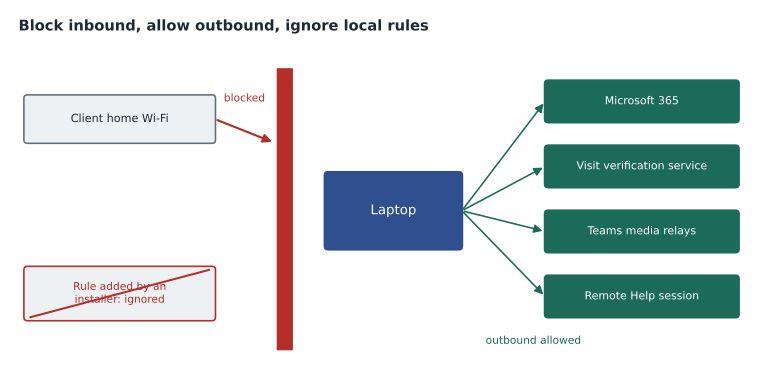
Corvallin's Windows Firewall profile turned the firewall on for all three network profiles, set the default inbound action to block and the default outbound action to allow, and turned on logging of dropped packets for troubleshooting. Two settings mattered more than the rest. Allow local policy merge, when set to false, means that firewall rules created locally on the device, by a user, an app installer or malware, are ignored; only rules from the management service apply. Allow local IPsec policy merge does the same for IPsec rules. Felix set both to false. Several old vendor rules on the laptops disappeared from effect the next time the policy applied, which was exactly the point.
Firewall rules
A firewall rule describes traffic and what to do with it. The main fields are the same whether the rule is created in Intune or in Windows.
| Field | Example |
|---|---|
| Name and description | CHC - Allow visit verification local discovery |
| Direction | Inbound or outbound |
| Action | Allow or block |
| Network types | Domain, private, public, or a combination |
| Protocol | TCP, UDP or another protocol number |
| Local and remote ports | A port, a range or a list |
| Remote addresses | IP addresses, ranges, or a reusable settings group |
| Application or service | A program path or a Windows service name |
| Interface types | Wired, wireless, remote access |
Intune also supports reusable settings groups for firewall rules. A group holds a list of remote IP address ranges or fully qualified domain names, and several rules can refer to it. When Corvallin changed the address range of its call recording servers, Felix edited one group instead of four rules.
Because outbound traffic is allowed by default, Corvallin needed very few rules. The visit verification app on the tablets used a small inbound UDP port for discovering a Bluetooth printer bridge, so that got an inbound allow rule limited to the app's path and the private and public profiles. The help desk's remote support tool, Remote Help, makes an outbound connection from the device, so it needed no inbound rule at all. Felix added one outbound block rule as a defence in depth: block outbound traffic from the old remote desktop client to the internet, since nothing at Corvallin should use it.
Worked problem
How many rules does the design need?
An old vendor document lists 14 inbound allow rules "required" by its software. Testing shows the software is installed only on the 2 pharmacy devices and uses only 3 of those ports. Felix creates rules for those 3 ports, limited to the vendor's executable and assigned to a group containing the 2 devices. How many rule entries does the pharmacy rule profile contain, and how many devices get them?
Show solution
- The vendor listed 14, but only 3 are used, so the profile needs 3 rules.
- They are assigned to a group of 2 devices, not to everyone.
- Each rule is limited to the vendor executable, so even on those 2 devices nothing else can use the ports.
Answer: Three rules, on two devices. The other 518 Windows devices get none of them, and the 11 unused ports stay closed everywhere.
Intune limits how many rules a single Windows Firewall Rules profile can hold, so large rule sets are split across several profiles. Microsoft documents the current limit; Corvallin's handful of rules never came near it.
Firewall and network protection are different
The firewall filters by address, port, protocol and program. It does not know whether a website is malicious. Network protection, part of Defender and set in the antivirus profile in lesson 2, blocks connections from any app to domains and addresses that Microsoft's threat intelligence rates as malicious, and to indicators the organization adds in the Defender portal. The two work together: the firewall shrinks what can talk at all, and network protection stops talk with known bad places.
Hyper-V and macOS
Windows 11 devices that run containers or the Windows Subsystem for Linux also have a Hyper-V firewall, which filters traffic for those virtual environments, and Intune can configure it. Corvallin's only use was on Teodor's test laptop.
For the eight Macs, Intune's macOS firewall profile under Endpoint security, Firewall turns on the built-in application firewall, can block all incoming connections, can turn on stealth mode so the Mac does not answer probing traffic, and can list apps allowed or blocked from receiving connections. Felix set the Macs to block incoming connections except for apps signed by an identified developer, with stealth mode on.
Checking the result
Intune's firewall reports show which devices have the firewall on for each profile. On a device, the built-in PowerShell module shows what is actually in effect, including rules that came from the management service rather than from local settings.
Get-NetFirewallProfile | Select-Object Name, Enabled, DefaultInboundAction, DefaultOutboundAction, AllowLocalFirewallRules
# Rules delivered by MDM appear in the ActiveStore with a policy store source
Get-NetFirewallRule -PolicyStore ActiveStore |
    Where-Object DisplayName -like "CHC*" |
    Select-Object DisplayName, Direction, Action, Enabled
One branch laptop showed the public profile with inbound set to allow. The cause was a leftover Group Policy setting from before Corvallin went cloud-only, written into the registry in 2022 and never cleared. Once Intune's policy applied, the management service setting took precedence for the settings it managed, and the help desk removed the leftover keys so that the report and the device agreed.
Firewall and Teams media
Felix had one worry: Teams calls. Teams uses outbound connections to Microsoft's media relays, and outbound traffic was allowed, so calls worked. But when two people on the same network call each other, Teams may try a direct peer-to-peer media path, which needs inbound UDP traffic from the other device. With inbound blocked, Teams simply falls back to the relay, which works but adds a little delay. Felix tested calls between two laptops at head office and between a laptop and a phone on LTE, compared quality, and decided the relay path was good enough; he did not open any inbound media ports. MSBA-222 and MSBA-232 cover Teams media in more depth.
Logging and troubleshooting
The firewall can log dropped packets and successful connections to a file on the device. Ama turned on logging of dropped packets only, with a modest maximum file size, so that the help desk could check whether the firewall was blocking something an app needed. When the visit verification app's printer bridge stopped working on one tablet, the log showed dropped inbound UDP on the bridge's port from an address outside the range in the rule; the bridge had been moved to a new network segment. Felix updated the reusable settings group, and every tablet picked up the change at its next check-in.
| Symptom | Likely cause | Check |
|---|---|---|
| An app cannot receive connections | No inbound allow rule, or the rule is limited to the wrong program or profile | Firewall log for dropped packets; rule scope |
| A rule from Intune does not apply | Policy error or conflict, or the device has not checked in | Policy status page; ActiveStore rules on the device |
| A local rule an installer added has no effect | Local policy merge is off, as intended | Create the rule in Intune if it is really needed |
| The firewall appears off on one profile | Leftover registry settings or an old policy | Firewall status report; remove leftovers |
Firewall settings in security baselines
The Windows security baseline also contains firewall settings. Following the rule from lesson 1, Corvallin left the baseline's firewall section at "Not configured" and let the firewall profile own it, so that the firewall design lived in one place and no device received conflicting values.
The guest and branch networks
Felix also looked at the networks Corvallin controlled. Branch Wi-Fi had a staff network and a guest network on separate segments, and the staff network was marked as private on the laptops by a Wi-Fi profile from Intune. Because the firewall profiles behaved almost identically, marking a network private changed little, but it meant that if Corvallin ever needed a rule only at the branches, the private profile was the place for it. The guest network was isolated so that guests' devices could not reach staff devices at all, which is a network control rather than a device one; the two layers protected each other.
On LTE, the laptops connected through a cellular modem and received a public address from the mobile carrier. The firewall treated that network as public, which was exactly right. Felix confirmed with the carrier that inbound connections to the laptops were blocked at the carrier's side as well, but he did not rely on it: the laptop's own firewall was the control Corvallin could see and manage.
| Network | Firewall profile on the laptop | Other protection |
|---|---|---|
| Head office and branch staff Wi-Fi | Private, set by an Intune Wi-Fi profile | Network firewall at the office |
| Branch guest Wi-Fi | Not used by Corvallin devices | Isolated segment |
| Client's home Wi-Fi | Public | None that Corvallin controls |
| LTE modem | Public | Carrier blocks most inbound traffic |
Firewall policy and change control
Firewall rules are easy to add and hard to remove, because nobody is sure what will break. Felix kept Corvallin's rule set small with a simple process. Every rule had an owner and a reason in its description. A new rule needed a ticket that said which devices needed it, which program, which ports and which direction, and it went to the IT ring before anyone else. And every six months, at the same review as the antivirus exclusions, each rule was checked against the firewall log and the app inventory: a rule for software that was no longer installed was deleted. In the first review, one of the three pharmacy rules turned out to be unused after a vendor update, and it went.
He also wrote down the things Corvallin deliberately did not do. There were no inbound rules for remote desktop, file sharing or remote management on any laptop, because Remote Help and Intune covered support and nothing at Corvallin needed laptops to accept connections. Writing that down mattered, because the next person to look at the firewall would otherwise wonder whether something had been forgotten.
Common mistakes
MistakeRelying on the office network firewall for laptops that work from clients' homes.
InsteadTreat the device firewall as the main firewall for mobile staff.
MistakeLeaving local policy merge allowed, so installers and malware can add their own rules.
InsteadSet local policy merge to false so only managed rules apply.
MistakeCopying every port from a vendor document into a rule for all devices.
InsteadTest what is used, limit rules to the program, and assign them only to the devices that need them.
MistakeAdding inbound rules for tools that connect outbound, such as Remote Help.
InsteadCheck the direction of the connection before adding any rule.
Summary and key terms
- Windows Firewall applies domain, private or public profiles depending on the network; mobile devices mostly use public.
- Intune's Windows Firewall profile sets global behaviour; the Windows Firewall Rules profile holds individual rules.
- Turning off local policy merge makes the device ignore locally created rules.
- Rules should be few, specific to a program and port, and assigned only where needed; reusable settings groups simplify address lists.
- Network protection complements the firewall by blocking connections to known malicious destinations; macOS has its own firewall profile.
- Firewall profile
- The set of firewall behaviour applied for a domain, private or public network.
- Local policy merge
- Whether firewall rules created locally on the device are applied alongside managed rules.
- Reusable settings group
- A named list of addresses or domains that several firewall rules can share.
- Stealth mode
- A setting that stops the device answering unsolicited probing traffic.
- Network protection
- Defender feature blocking connections to malicious domains and addresses from any app.
Practice problems
Work each problem on paper first, then reveal the answer to check.
Which firewall profile does a laptop on a client's home Wi-Fi most likely use?
Show answer
The public profile, unless the network has been marked private.
What happens to a rule a software installer adds locally after local policy merge is set to false?
Show answer
It is ignored; only rules from the management service apply.
Why did Remote Help need no inbound rule?
Show answer
The session is started by an outbound connection from the device, and outbound traffic is allowed.
Lesson quiz · 5 questions
Score 60% or more to complete this lesson.
Create a free account to save your progress, take quizzes and earn a certificate.