
MSBA-112 · Lesson 8 of 12 · 18 min
Creating images and visuals
▶ Video coming soon A video version of this lesson is on the way.
Quillfield's marketing coordinator, Pernille Brannstrom, worked alone. She produced the firm's newsletter, its social media posts, its seminar flyers and the occasional client brochure, and her budget for stock photography and design help was small. When Daria's team scheduled a wildfire preparedness seminar for rural homeowners, Pernille needed a flyer, a banner for the firm's social media accounts and an illustration for the invitation email, all within a week. She asked Hamish for a desk session on Copilot's image tools, and she came with a firm opinion: "I don't want fake photos of fires." That instinct turned out to be the best starting point for the whole lesson.
Where Copilot creates images
Image generation appears in several places in Microsoft 365, and Microsoft has been reorganizing it during 2025 and 2026. The main places at the time of writing are these.
| Where | What you can make | Notes |
|---|---|---|
| Create, in the Microsoft 365 Copilot app | Images, posters, banners, infographics, forms, drafts and stories, starting from a description or a template; image editing; brand kits | Videos require a work account with Clipchamp turned on by an administrator; forms and brand kits need a Copilot licence |
| Copilot Chat | Images generated from a prompt in the conversation, including through the built-in image-creation agent | Useful for quick illustrations and concepts |
| Word and PowerPoint | Images generated and inserted into the document or slide from a prompt | Microsoft's Word support article lists generating and inserting an image among Copilot's editing options |
Microsoft's support article for Create, updated in November 2026, says that work and school users without a Copilot licence can still use Create, but that quality and performance may vary with service availability, and that brand kits require additional access granted by the organization. The article also notes that the Copilot app's home experience was still rolling out, so screens may look different from one user to the next. As with other Copilot features, the specific buttons matter less than the skills: describing an image clearly, choosing when an image should be generated at all, and checking what you get.
Describing an image
Image prompts work differently from text prompts. The model has to decide on a subject, a setting, a style, a composition, colours and lighting, and every detail you leave out is chosen for you. Hamish suggested a six-part description for business images, which Pernille wrote on a sticky note.
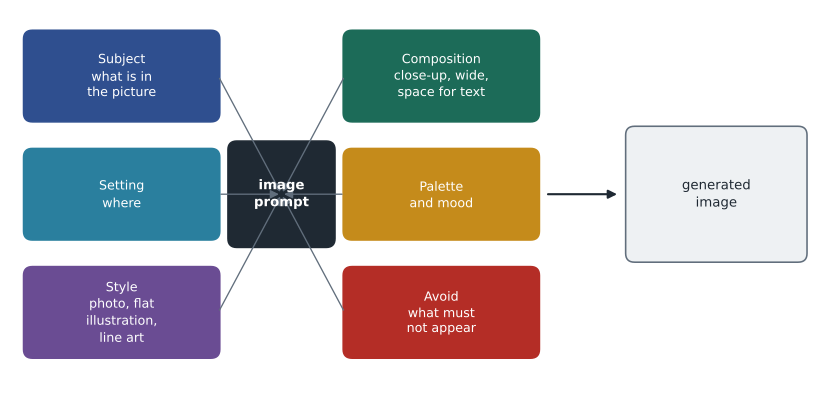
Pernille's first prompt was "wildfire safety". The result was a dramatic photograph-style image of a burning forest at night, exactly what she did not want. Her second prompt used all six parts: "A flat vector illustration of a rural house with a green, well-trimmed yard, gravel around the foundation and a cleared gutter, on a calm summer day. Wide composition with empty sky at the top for a headline. Soft greens, blues and a warm yellow. No flames, no smoke, no people." The result was calm, clear and on message: the seminar was about preparation, and the picture showed a prepared home.
Two lessons came out of the comparison. First, style is a decision. A photorealistic image of a scene that never happened can mislead, while an obvious illustration communicates an idea without pretending to be evidence. Second, saying what to avoid is often as important as saying what to include, especially for sensitive topics such as fire, flooding, illness or accidents.
When not to generate an image
Pernille's instinct about fake fire photos has a serious basis in an insurance firm. Generated images can be indistinguishable from photographs. In a business that handles claims, a realistic image of damage that never happened is not a design choice; it is the raw material of fraud, and an insurer that saw such an image in a broker's marketing would rightly ask questions. Quillfield's rule, added to the AI-use policy after Pernille's session, was blunt: no generated images that look like real damage, real places that can be identified, or real people.
More generally, a generated image is the wrong choice when the picture needs to be true. A photo of a sump pump in a guide about basements should show a real sump pump. A chart of claim trends should be built from data in Excel, not drawn by an image model, because image models do not calculate and may produce plausible-looking but meaningless axes. A portrait of a staff member should be a photograph of that person. Generated images are best for concepts and illustrations: an idea, a mood, a simple scene that everyone understands is illustrative.
| Need | Better choice | Why |
|---|---|---|
| Show a real product, place or person | A real photograph you have rights to | The image must be accurate and permitted |
| Show numbers or trends | A chart built from the data in Excel or PowerPoint | Image models do not calculate |
| Show an idea or a mood | A generated illustration | Concepts do not need to be literally true |
| Show the organization's logo or approved assets | The brand kit or asset library | Logos and brand elements must be exact |
| Show damage, injury or an incident | Usually no image, or a clearly illustrative drawing | Realistic generated images can mislead |
Text, logos and details
Image models have improved quickly, but text inside generated images is still a common weak point: letters can be misspelled or garbled, especially in longer phrases. Pernille's practice was to generate images without text and add the headline, date and venue in PowerPoint or Word, where the text is real, editable and accessible to screen readers. Logos should never be generated: use the real file from the brand kit. Small details, such as the number of windows on a house or the shape of a hand, are also where generated images go wrong, so look closely before publishing.
Worked problem
Building the seminar flyer
Pernille needs a one-page flyer for the wildfire seminar with an image, a headline, the date, the venue and the firm's logo. How should she use Copilot?
Show solution
- Generate the illustration from a six-part prompt with space at the top for a headline and no text in the image.
- Open Quillfield's flyer template in Word, which uses the brand fonts and colours, and insert the image.
- Add the headline, date, venue and registration details as real text, and the logo from the brand kit.
- Write alt text describing the image's purpose, ask Daria to check the facts, and run the accessibility checker.
Answer: Copilot makes the illustration; the template, the real text and the logo come from the firm's own assets; a colleague checks the facts. The finished flyer is accurate, on-brand and accessible.
Editing and adapting images
Microsoft's Create experience includes image editing, and Pernille used it to adapt the same illustration for different formats: a wide banner for social media, a square version for the invitation email and a tall version for the printed flyer. Asking for the same image in different proportions often works better than cropping, because the model can extend the scene. She kept a short record of the prompt and settings so she could recreate the style for future seminars, which gave the firm's materials a consistent look over time.
Brand kits, introduced in lesson 4, help here too. A brand kit can include approved colours, imagery guidance and voice, and Create can use a brand kit when your organization has published one and you have access. Pernille was the brand manager for Quillfield's kit, which made her one of the few people who could change it.
Rights, honesty and accessibility
Three questions belong at the end of every image task. Do we have the right to use it? Microsoft's terms for its business AI services, and its Customer Copyright Commitment for commercial customers, address some intellectual property questions, but your organization may have its own rules about generated images, and you should never prompt for an image "in the style of" a living artist or that copies a recognizable character or brand. Is it honest? An illustration that represents an idea is fine; an image that could be mistaken for evidence, or that shows a product doing something it cannot do, is not. Some organizations label AI-generated images, and Microsoft attaches provenance information, sometimes called content credentials, to images from some of its tools; follow your organization's policy. Is it accessible? Every meaningful image needs alt text that explains why it is there, and decorative images should be marked as decorative so screen readers skip them.
Visuals that are not images
Not every visual is a picture. Copilot can turn content into tables, which are often the clearest visual of all; into charts in Excel and PowerPoint, built from real numbers; into diagrams described in words and then drawn with SmartArt or shapes; and into infographics through Create. For the seminar's handout, Daria's team asked Copilot in Word to turn a dense paragraph on clearing space around a house into a three-row table of zones and actions, which was more useful to homeowners than any illustration.
How AB-730 tests this
Questions about images usually test judgement more than buttons: choosing between a generated image and a real photo, writing an image prompt with enough detail, avoiding misleading or infringing images, and making images accessible. Expect a scenario in which the right answer is not to generate an image at all.
Refining an image
Image generation rarely gets everything right on the first attempt, and refining an image is a skill of its own. The most effective approach is to change one thing at a time. Pernille's second illustration was close to what she wanted, but the house looked suburban rather than rural. Instead of rewriting the whole prompt, she asked for one change: "Same image, but with a gravel driveway, a wooden fence and open fields behind the house." When the colours then looked too bright, she asked for "softer, slightly muted colours" and nothing else. Changing several things at once makes it hard to know which change helped.
Keeping a record of what worked matters for a small marketing team. Pernille saved her final prompt, the style words she had settled on ("flat vector illustration, soft greens and blues, warm yellow accents, no people") and the proportions she used for each format in a note in the marketing team's site. Later that month, a colleague producing a winter driving flyer reused the style description and got images that clearly belonged to the same family as the wildfire set.
Images of people
Images of people raise particular questions. A generated image of a person is not a photograph of anyone, but it can still reinforce stereotypes about who does what job, who is a homeowner or who has an accident. Generated people are also prone to small errors that look odd to viewers, such as extra fingers or mismatched features. Pernille's practice was to avoid generated people in client materials unless the people were clearly illustrated rather than photographic, and to check that any group of people shown reflected the range of clients Quillfield actually served.
For staff photos, testimonials and anything presented as a real person, Quillfield used real photographs with the person's consent. A generated image presented as a real client, or a generated face beside a real testimonial, would be misleading even if the words were genuine.
A quick test before publishing
Before any generated image went out, Pernille asked one question of herself and one of a colleague. Herself: would anyone looking at this image believe something false? The colleague: what do you see in this picture? If the colleague described something different from what she intended, such as reading the calm house as a house for sale, the image needed another round. Five seconds of fresh eyes caught more problems than any checklist.
Common mistakes
MistakePrompting with a topic, such as "wildfire safety", and accepting a dramatic default.
InsteadDescribe subject, setting, style, composition, colour and what to avoid.
MistakeGenerating a realistic image of damage or of a real person for business use.
InsteadUse illustrations for ideas and real photographs for real things.
MistakePutting headlines, dates or logos inside a generated image.
InsteadAdd text and logos afterward from real fonts and brand files.
MistakePublishing an image without alt text.
InsteadWrite alt text that explains the image's purpose, or mark it decorative.
Summary and key terms
- Copilot can generate images in the Copilot app's Create experience, in Copilot Chat, and in Word and PowerPoint.
- A good image prompt decides subject, setting, style, composition, colour and what to avoid.
- Use generated images for concepts and illustrations; use real photographs and real charts when the visual must be true.
- Add text and logos with real fonts and brand assets rather than inside generated images.
- Check rights, honesty and accessibility before publishing any generated image.
- Image generation
- Creating a new image from a text description with an AI model.
- Photorealistic
- An image style that looks like a photograph.
- Illustration
- A drawn or designed image that represents an idea without claiming to show a real scene.
- Content credentials
- Provenance information attached to some digital images to show how they were made.
- Alt text
- A written description of an image for people who use screen readers.
- Create
- The part of the Microsoft 365 Copilot app for making images, posters, banners, infographics and other visual content.
Practice problems
Work each problem on paper first, then reveal the answer to check.
What was missing from Pernille's first prompt?
Show answer
Almost everything: setting, style, composition, colour, mood and what to avoid; "wildfire safety" is only a topic.
Why should claim trend visuals come from Excel rather than an image model?
Show answer
Image models do not calculate; a chart must be built from real data.
Name the three checks before publishing a generated image.
Show answer
Rights, honesty and accessibility.
Lesson quiz · 5 questions
Score 60% or more to complete this lesson.
Create a free account to save your progress, take quizzes and earn a certificate.