
MSBA-112 · Lesson 11 of 12 · 18 min
Building a personal AI workflow
▶ Video coming soon A video version of this lesson is on the way.
By the last week of the desk sessions, Hamish had noticed a pattern. The people who saved the most time with Copilot were not the ones who knew the most features. They were the ones who had worked out, for their own job, which few tasks Copilot helped with, how to do those tasks the same way every time, and how to move their work smoothly from one app to the next. Dolores, who had been a sceptic in September, was saving more time than anyone in commercial lines, using perhaps six features. This lesson is about building that kind of personal workflow, and about the AB-730 thread of moving data and insights between Microsoft 365 apps.
Step 1: Take an inventory of your week
A workflow starts with your work, not with Copilot. Hamish asked each person at the final sessions to list the tasks they did in a typical week, roughly how long each took, and how often it recurred. Dolores's list had twenty-two items. Most were not good candidates for Copilot: phone calls with clients, site visits, negotiation with underwriters, coaching a junior colleague. Six were excellent candidates, because they involved reading or writing a lot of text, they recurred, and they had a predictable shape.
| Task | Time per week before | Copilot approach | Oversight level |
|---|---|---|---|
| Preparing for client renewal meetings | 3 hours | Prepare for meeting in Outlook, plus a saved prompt in Copilot Chat referencing the client folder | Level 2 |
| Reading revised insurer wordings | 2 hours | Table-of-changes summary prompt in Word (lesson 2) | Level 3 for anything shared |
| Renewal letters and proposals | 4 hours | Draft from referenced files in Word | Level 3 |
| Catching up on long email threads | 2 hours | Thread summaries in Outlook | Level 2 |
| Monday team meeting notes and follow-up | 1 hour | Facilitator and Copilot in Teams | Level 2 |
| Monthly portfolio review for her manager | 2 hours | Excel analysis, then a short Word summary | Level 2 |
The table is invented in its numbers but typical in its shape. Notice that Dolores did not try to use Copilot for everything, and that each use had an oversight level from lesson 10 attached to it. A workflow that does not include its checks is not finished.
Step 2: Pick the right tool for each task
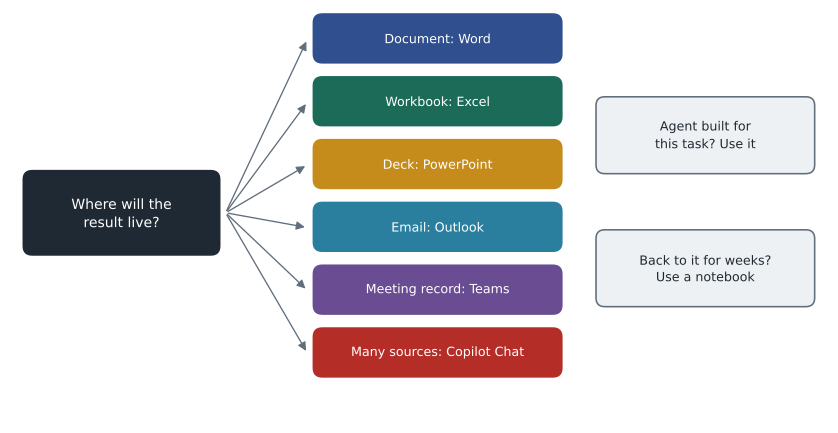
Microsoft 365 offers several ways to use Copilot, and the same task can often be done in more than one. A simple rule helps: work in the app where the result will live. If the result is a document, start in Word; if it is a spreadsheet change, use Copilot in Excel; if it is a reply, use Outlook. Use Copilot Chat when the task draws on many sources or the result does not belong in a single file, such as a briefing that pulls from email, files and meetings. Use an agent, such as Researcher or Analyst from MSBA-111 or an organizational agent, when the task matches what the agent was built for. And use a notebook for a project you will return to over weeks.
Licensing affects the choice. People with a Microsoft 365 Copilot licence get Copilot grounded in work data inside the apps. People with only Copilot Chat have a web-grounded assistant and, since Microsoft's early-2026 rollout of Agent Mode to Copilot Chat users, standard access to some in-app editing with web grounding only. A workflow written for a licensed colleague may not work in the same way for someone without a licence, which matters when you share prompts.
Step 3: Move work between apps
Much of the value of Copilot comes from moving content between apps without retyping it. Published summaries of the AB-730 skill area include moving data and insights between Microsoft 365 apps, and there are several reliable patterns.
| From | To | How |
|---|---|---|
| A Word document | A PowerPoint deck | Create a presentation from the referenced Word file (lesson 4) |
| An Excel analysis | A Word report or an email | Ask Copilot in Excel for a short written summary, then reference the workbook when drafting in Word or Outlook |
| A Teams meeting | A Word document or Excel table | Open Copilot's meeting response in Word or Excel, where labels allow it (lesson 6) |
| A Copilot Chat answer | A shared draft | Move the response to a Copilot page (lesson 7) |
| Meeting tasks | Planner | Sync Facilitator action items to Planner, a preview capability (lesson 6) |
| Email threads and files | A briefing | Reference them together in Copilot Chat and ask for a structured summary |
Two cautions apply to every move. First, meaning can change in transit: a figure that was correct in Excel can become wrong in a summary, and a qualified statement in a meeting can become a firm one in a recap. Check the specifics again at the destination, especially when the destination is client-facing. Second, protection travels, or should: content from a labelled file should carry the right sensitivity label into its new home, and Microsoft's apps apply or inherit labels in many cases, but not every copy-and-paste does. If the content is confidential, check the label on the new file.
Worked problem
Dolores's monthly portfolio review
Each month Dolores reviews her restaurant portfolio for her manager: renewals due, premium changes and claims. Design a workflow that moves the work through the apps.
Show solution
- In Excel, with the monthly export cleaned into a table, use chat mode to ask for renewals due in 60 days, average premium change and new claims, and edit mode to build a summary sheet.
- Check one figure in each output by a method she controls.
- Ask Copilot in Excel for a four-sentence written summary of the month.
- In Word, draft a one-page review referencing the workbook and last month's review, and check the figures at the destination.
- In Outlook, send it to her manager with a two-line cover note.
Answer: The review now takes about forty minutes instead of two hours. Every figure is checked once in Excel and again in the Word summary, and the workflow is the same every month.
Step 4: Save what works
A workflow you have to reinvent each time is not a workflow. MSBA-111 covered saving prompts in the Copilot Prompt Lab, where saved prompts are private to you and can be shared by copying a link. Dolores saved five prompts, one for each Copilot task in her inventory, written as templates with placeholders such as [client] and [wording file]. She also contributed two to Quillfield's shared prompt library in OneNote, which recorded an owner and the date each prompt was last checked.
For recurring tasks, MSBA-111 also explained scheduled prompts and the change Microsoft announced in November 2026: scheduled prompts are moving to native Copilot scheduling, with a limit of ten active and fifty total schedules per user, rolling out worldwide between November 30 and December 31, 2026, when the older Power Platform-based version retires. Dolores scheduled one prompt for Monday mornings: a summary of renewals due in sixty days from her client folder. She treated the result as a reminder, not a report, and still checked it against the management system.
Step 5: Measure, then adjust
Hamish asked everyone to measure two things for a month: time spent on each Copilot task, including checking, and errors found. The measurements matched what MSBA-110 described for the pilot group: meaningful savings on a handful of tasks. They also turned up surprises. Gus found that drafting claim explanations with Copilot saved little time, because the checking and approval steps dominated, but that the explanations were clearer and produced fewer follow-up calls from clients. Tomasz found that his Monday Excel hour fell to fifteen minutes. Pernille found that image generation saved money more than time. Measuring showed each person where Copilot actually helped, and where it was a habit rather than a gain.
Step 6: Keep it current
Copilot changes quickly. Features move, are renamed, are added and, as the COPILOT function in Excel showed, are retired. A personal workflow needs a light review every few months: are the saved prompts still working, has a new feature made a step easier, has a policy changed? Hamish suggested putting a quarterly reminder in the calendar to spend thirty minutes on this, and reading the release notes or the organization's Copilot updates channel when they arrive.
Habits of effective users
Hamish closed the final desk sessions with five habits he had seen in the people who got the most from Copilot. They start with the task, not the tool. They give complete prompts with named sources. They work where the result will live. They check in proportion to the consequences, every time. And they keep improving their saved prompts and their workflow, while keeping their own skills sharp. None of these is about a particular button, which is why they will still be true when the buttons have moved.
How AB-730 tests this
Expect scenario questions that combine apps: a user who needs to turn an analysis into a report, a meeting into tasks, or a set of emails into a briefing. The best answers choose the app where the result belongs, use Copilot's built-in ways of moving content between apps, and include a review step at the destination.
A day in Dolores's workflow
To make the idea concrete, here is how Dolores used Copilot on an ordinary Wednesday in November. At 8:30 she opened Outlook, where prioritization had marked eleven new messages as high priority; she read those first and used thread summaries for two long ones. At 9:15 she prepared for a 10 a.m. renewal call with a food producer using Prepare for meeting, then opened two of the files it found and checked the premium figures. At 11:00 she drafted the renewal proposal in Word from the quote and her call notes, using her saved prompt, and spent twenty minutes checking coverage statements against the wording before sending it to a colleague for the level 3 second read.
After lunch she used the table-of-changes prompt on a revised insurer endorsement and briefed two colleagues in a Teams chat with the five-bullet version. At 3:00 she joined a meeting she was not organizing, where Facilitator kept notes, and at 4:30 she checked the recap for actions assigned to her. She did not use Copilot for her two client calls, her negotiation with an underwriter about a difficult risk, or the half hour she spent coaching a junior colleague. Those were the parts of the job that were most clearly hers.
Sharing workflows with a team
Personal workflows become more valuable when they are shared. Dolores presented hers at a commercial lines team meeting, and three colleagues adopted her renewal preparation prompt within a week. Hamish encouraged sharing, with three conditions. Shared prompts go in the team library with an owner and a last-checked date, so outdated prompts can be found and fixed. Shared workflows state their oversight level, so a colleague does not adopt the drafting step without the checking step. And shared workflows note any licensing assumptions, because a workflow that relies on Microsoft 365 Copilot will not work the same way for a colleague who has only Copilot Chat.
When the workflow stops working
Workflows break. A feature moves, a saved prompt starts producing worse results after a product update, an organization changes its policy. The signs are usually small: a summary that misses things it used to catch, a draft that needs more editing than before. Hamish's advice was to treat a drop in quality as a signal to look again at the prompt and the sources, rather than to push harder on the same request, and to check the organization's Copilot updates for changes. Sometimes the fix is a better prompt; sometimes it is a different feature; occasionally it is going back to doing the task by hand for a while.
Common mistakes
MistakeTrying to use Copilot for every task.
InsteadInventory your week and pick the recurring, text-heavy tasks with a predictable shape.
MistakeDoing a document task in Copilot Chat and pasting the result into Word.
InsteadWork in the app where the result will live, unless the task needs many sources.
MistakeChecking figures only at the source when content moves between apps.
InsteadCheck the specifics again at the destination.
MistakeSaving prompts once and never reviewing them.
InsteadReview saved prompts and workflows every few months as features change.
Summary and key terms
- A personal AI workflow starts with an inventory of your own recurring tasks.
- Work in the app where the result will live; use Chat, agents and notebooks for cross-app or long-running work.
- Moving content between apps saves retyping, but meaning and labels must be checked at the destination.
- Save prompts as templates, schedule recurring ones within the limits, and measure time including checking.
- Review your workflow regularly, because features and policies change.
- Personal AI workflow
- A repeatable way of using AI tools for your own recurring tasks, including the checks.
- Task inventory
- A list of the tasks in a typical week, with time and frequency, used to choose where AI helps.
- Copilot Prompt Lab
- The place where Copilot users find, save and share prompts.
- Scheduled prompt
- A saved prompt that Copilot runs automatically at set times.
- Planner
- Microsoft 365's task management app, which can receive action items from Teams meetings.
- Sensitivity label
- A classification applied to content that controls how it can be accessed and shared.
Practice problems
Work each problem on paper first, then reveal the answer to check.
Why were phone calls and site visits not on Dolores's Copilot list?
Show answer
They are not text-heavy tasks with a predictable shape that Copilot helps with.
State the simple rule for choosing where to use Copilot.
Show answer
Work in the app where the result will live.
What two things should you check when content moves between apps?
Show answer
That the meaning and specifics survived, and that the right sensitivity label applies at the destination.
Lesson quiz · 5 questions
Score 60% or more to complete this lesson.
Create a free account to save your progress, take quizzes and earn a certificate.