
MSBA-112 · Lesson 4 of 12 · 19 min
Building presentations in PowerPoint
▶ Video coming soon A video version of this lesson is on the way.
Daria Velikova, Quillfield's head of personal lines, had agreed to speak at a community seminar on protecting homes from water damage, one of the most common home insurance claims in both the Prairies. She had a well-organized Word guide on the subject, written by her team the previous spring, and two days to turn it into a twenty-minute presentation. She had built decks the slow way for years: copy a heading, paste it into a slide, shorten the text, look for a picture, repeat. At her desk session she asked Hamish whether Copilot in PowerPoint could do the copying and leave her the thinking.
Where Copilot lives in PowerPoint
Microsoft's support article on creating a presentation with Copilot describes opening a new presentation and selecting the Copilot icon in the bottom-right corner of the window, then describing the deck in the prompt box. The same Copilot pane is available in an existing presentation, where you can ask it to add slides, summarize the deck, reorganize content or make changes. Microsoft lists Copilot in PowerPoint for PowerPoint for Microsoft 365 on Windows and Mac, PowerPoint on Microsoft365.com, PowerPoint for iPad and the Microsoft Office app on iPhone, with the usual condition that it appears only if your subscription includes it and your organization allows it.
As in Word and Excel, Microsoft has made the pane more active over 2025 and 2026. It describes Agent Mode, in which Copilot works through edits alongside you and shows its steps, as rolling out for PowerPoint on the web to licensed users from February 2026. The underlying pattern is the same as in the other apps: describe what you want, let Copilot do the work in the file, and review what changed.
Three ways to start a deck
| Starting point | How it works | Best for |
|---|---|---|
| A prompt | Describe the presentation; Copilot may ask follow-up questions about audience, length, template and imagery, which you can answer or skip | Simple decks on familiar topics, first ideas, internal updates |
| A Word document | Reference a Word file; Copilot builds slides from its structure and can include relevant images from it | Turning a report, guide or proposal into a presentation |
| Your organization's template or brand kit | Start from the corporate template or choose a brand kit so Copilot uses approved layouts, colours, fonts and logos | Anything external or anything that must look like the organization |
These starting points combine. The approach Hamish recommended for Daria was all three: open Quillfield's standard template, choose the Quillfield brand, and ask Copilot to create the presentation from her Word guide with a prompt that set the audience and length.
Starting from a Word document
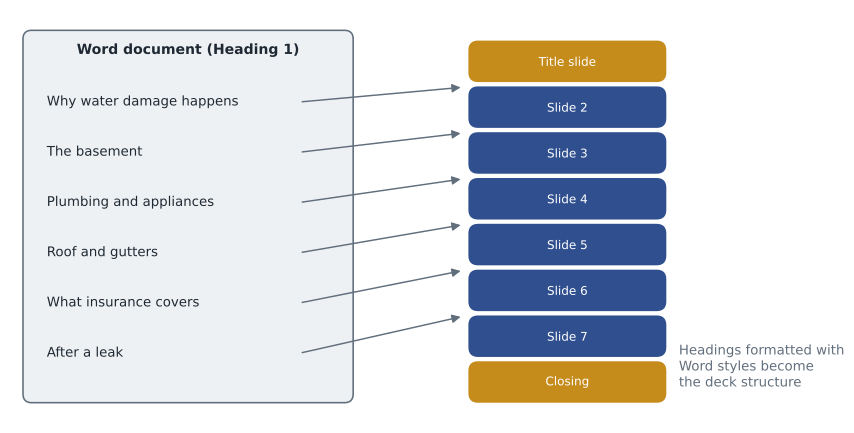
Microsoft's guidance for creating a presentation from a Word document is practical. Copilot works best with Word files under 24 MB. It uses the document's structure, so Word styles matter: headings formatted as Heading 1 and Heading 2 become the skeleton of the deck, while a document that uses bold text for headings gives Copilot less to work with. Relevant images in the document can be carried into the slides. This is why lesson 1 ended with applying heading styles: a well-structured document is half of a well-structured presentation.
Daria's guide used proper styles, with six main sections: why water damage happens, the basement, plumbing and appliances, the roof and gutters, what insurance covers, and what to do after a leak. Her prompt read: "Create a presentation from the attached water damage guide for a community seminar of homeowners, most of whom are not insurance experts. Twenty minutes, about twelve slides. Use short bullet points, one idea per slide, and add speaker notes with the detail from the guide." Copilot produced a thirteen-slide deck in Quillfield's template, with a title slide, an agenda, slides for each section, a closing slide and notes under most slides.
Branding and templates
Most organizations care about how their presentations look, and PowerPoint gives two ways to keep Copilot inside the lines. The first is the organization's template: Microsoft's guidance notes that starting from your standard template helps Copilot keep the theme and design by using its existing layouts. The second is a brand kit. Microsoft describes brand kits that can include logos, templates, fonts, colours, images, icons and guidance on brand voice and style, managed by people with the right access and published for others to use, and selected in Copilot under an option to select a brand. A brand kit gives Copilot more than a slide master: it can steer imagery and wording as well as layout.
Quillfield's marketing team had published a brand kit in September, with the firm's navy and gold colours, its logo, two approved fonts and a short voice guide ("plain, warm, never alarmist"). The voice guide turned out to matter for Daria's topic. Water damage can be frightening, and the first draft of one slide, built without the brand kit, had the heading "A disaster waiting to happen". With the brand selected, the same slide was regenerated as "Small leaks, big costs", which was both on-brand and more accurate.
Reviewing the draft deck
A generated deck is a draft in the same sense as a generated document. Hamish walked through it with Daria slide by slide using four questions. Is the story right: does the order build from problem to action? Is each slide one idea: or has Copilot crammed two sections onto one slide? Are the facts right: have claim figures, coverage statements and advice come across accurately from the guide? And are the images appropriate: relevant, inclusive, licensed, and not misleading?
Two slides needed work. Copilot had combined the roof and the gutters into one crowded slide; Daria asked it to split them. And the slide on insurance coverage said, "Home insurance covers water damage from burst pipes and sewer backup." Her guide said something more careful: sudden pipe bursts are generally covered, while sewer backup usually needs an optional endorsement. Copilot had compressed two sentences into one and lost the distinction. In an insurance seminar, that error is exactly the kind that produces complaints a year later. She rewrote the slide herself and asked Copilot to update the matching speaker note.
Worked problem
Fixing a slide that lost a distinction
A generated slide says "Policies cover sudden leaks and gradual seepage." The source guide says sudden, accidental leaks are usually covered and gradual seepage usually is not. What should Daria ask?
Show solution
- Select the slide and open Copilot.
- Prompt: "Rewrite this slide so it matches the guide: sudden and accidental leaks are usually covered, gradual seepage usually is not. Add a line telling homeowners to check their own policy."
- Compare the new slide and its speaker note with the guide.
- Keep the change only when both the slide and the note say the same thing as the source.
Answer: The corrected slide reads "Sudden, accidental leaks: usually covered. Slow seepage over time: usually not. Check your own policy." The note gives the guide's fuller explanation.
Adding to and changing an existing deck
Copilot is just as useful on a deck that already exists. In the pane you can ask it to add a slide on a topic, to add a slide from a file (Microsoft has a support article on adding a slide from a file), to rewrite the text on a slide, to reorganize the deck into sections, or to summarize the presentation so you can see whether it says what you think it says. A summary is a surprisingly good review tool. Daria asked: "Summarize the key messages of this presentation in five bullet points." If the five bullets did not match the five things she wanted the audience to remember, the deck needed restructuring, not polishing.
Speaker notes deserve the same attention. When a deck is built from a document, notes are often where the detail goes, and a presenter who reads notes aloud will say exactly what is written there. Daria read every note and shortened most of them to prompts for herself rather than scripts.
Images and design
Copilot in PowerPoint can suggest images, and lesson 8 covers image generation in more depth. For a presentation, three rules apply. Use images that support the point, not decoration. Prefer real photographs from your organization's library or licensed stock for factual content, such as what a sump pump looks like, and reserve generated images for illustrations and concepts. And check every image for accuracy and inclusiveness: a picture of a basement full of water should not show anything that contradicts the advice on the next slide.
PowerPoint's own design features, such as Designer layout suggestions, continue to work alongside Copilot. If a slide is crowded, the fix is usually to split it, not to shrink the font.
Accessibility
An accessible presentation is one that people with disabilities can use: slides with real titles, a logical reading order, enough colour contrast, and alternative text on images. Copilot can help draft alt text, but the presenter should check it, because a description that is technically correct may miss why the image is there. Daria ran PowerPoint's accessibility checker before the seminar and fixed two slides whose titles were missing because Copilot had placed the heading in a text box rather than the title placeholder.
How the seminar went
Daria spent about ninety minutes on the deck instead of the half day she would normally have needed, and most of that time was spent on the coverage slide, the notes and rehearsal. At the seminar, a homeowner asked the question she had nearly got wrong: "Am I covered if the sewer backs up?" Her answer matched the slide, and the slide matched the guide. She told Hamish afterward that the time saved was welcome but that the error she caught was the real lesson.
How AB-730 tests this
Questions in this area tend to ask how to create a presentation from an existing document, how to keep branding consistent (templates and brand kits), and how to review and refine generated slides. The best answers ground the deck in an existing document, use organizational templates or brands, and keep a human review of facts and images before presenting.
Structuring the story before the slides
Experienced presenters know that the hardest part of a deck is not the slides but the story. Copilot can help with that too, before any slides exist. Daria asked Copilot Chat, referencing her guide: "Suggest three different ways to structure a twenty-minute talk on preventing water damage for homeowners, each with five or six main points, and say which audience each structure suits best." Copilot offered a structure by area of the home, one by season, and one by "before, during and after a leak". She chose the third because it ended with what the audience would actually do if a pipe burst, and then asked Copilot in PowerPoint to build the deck in that order rather than in the order of her Word guide.
That choice illustrates an important limit. Copilot builds a deck from the structure it is given or the structure it finds. If the document is organized for reading, the deck will be organized for reading too, and a presentation usually needs a different shape: a hook at the start, fewer points, a clear call to action at the end. Deciding that shape is the presenter's job. Copilot can propose options; it cannot know which one will land with a particular room.
Rehearsal and timing
Copilot can also help with rehearsal. Daria asked: "Estimate how long it will take to present this deck at a relaxed pace, slide by slide, based on the speaker notes." The estimate came to twenty-six minutes, six over her slot. She cut two slides and shortened the notes on three more, then ran PowerPoint's own rehearsal tools, which time an actual run-through. An estimate based on word counts is a rough guide; a real rehearsal is the only reliable timer.
Finally, she asked Copilot to list the three questions the audience was most likely to ask, based on the deck. One of them was the sewer backup question. Preparing for it in advance, with the correct answer from the guide, was the last step in making a generated deck her own presentation.
Updating last quarter's deck
Not every presentation starts from nothing. Many decks are updated versions of last month's or last quarter's. In that case, the safest approach is to open a copy of the previous deck, reference the new source data or document, and ask Copilot to update specific slides: "Update the figures on slides 4 to 6 from the attached October report and flag any slide where the old text no longer matches the new figures." The flagging instruction matters, because a slide whose numbers change may also need its headline changed, and a model asked only to update figures may leave a headline such as "Claims fell again" above figures that now show a rise.
Common mistakes
MistakeCreating a deck from a Word file whose headings are just bold text.
InsteadApply Word heading styles first so Copilot can see the structure.
MistakeBuilding an external presentation without the organization's template or brand kit.
InsteadStart from the template and choose the brand so layouts, colours and voice are approved.
MistakePresenting generated coverage statements without checking them.
InsteadCheck every factual slide and its speaker note against the source.
MistakeShrinking text to fit a crowded slide.
InsteadSplit the slide so each one carries one idea.
Summary and key terms
- Copilot in PowerPoint can create a presentation from a prompt or from a Word document, and work on an existing deck.
- Word heading styles become the deck's structure; Microsoft recommends Word files under 24 MB.
- Organizational templates and brand kits keep generated slides on-brand in layout, imagery and voice.
- Review a generated deck for story, one idea per slide, facts, images and speaker notes.
- Asking Copilot to summarize the deck's key messages is a quick test of whether the structure works.
- Brand kit
- A published set of logos, templates, fonts, colours, images and voice guidance that Copilot can apply.
- Template
- A presentation file with the organization's approved layouts and theme.
- Speaker notes
- Text under each slide for the presenter, not shown to the audience.
- Endorsement
- An addition to an insurance policy that changes its coverage, such as adding sewer backup.
- Alt text
- A written description of an image for people who cannot see it.
Practice problems
Work each problem on paper first, then reveal the answer to check.
Why did Daria's Word guide convert well into a deck?
Show answer
It used proper heading styles, so Copilot could see its structure.
What did the brand kit change on the water damage slide?
Show answer
It steered the wording to the firm's calm voice, replacing an alarmist heading.
What is a quick way to test a deck's structure with Copilot?
Show answer
Ask it to summarize the key messages and compare them with what you want the audience to remember.
Lesson quiz · 5 questions
Score 60% or more to complete this lesson.
Create a free account to save your progress, take quizzes and earn a certificate.