
MSBA-112 · Lesson 7 of 12 · 19 min
Working with Loop and Pages
▶ Video coming soon A video version of this lesson is on the way.
Some work does not belong in a single document. A team planning an event, a group agreeing on wording for a client notice, or a project that collects research over several weeks needs a shared space where several people can add, edit and see the latest version without emailing files back and forth. Microsoft 365 offers three such spaces that work closely with Copilot: Microsoft Loop, Copilot Pages and Copilot Notebooks. They overlap, and people at Quillfield confused them at first. This lesson explains what each is for and how Copilot works in them, using two pieces of work from October and November 2026.
Three spaces, three purposes
Microsoft's support article comparing Loop, Copilot Pages and Copilot Notebooks, updated in November 2026, gives the clearest summary. Loop is a collaborative workspace with real-time components and pages, made for live collaboration on modular content. Copilot Pages are editable, shareable canvases created from Copilot responses, made for saving and refining content Copilot has generated. Copilot Notebooks are AI-powered spaces that combine files, chats and pages for grounded reasoning and content creation, made for projects where AI summaries and structured thinking help.
| Loop | Copilot Pages | Copilot Notebooks | |
|---|---|---|---|
| Main purpose | Live collaboration on modular content | Saving and refining Copilot output | Grounded project work with AI |
| Where content is stored | OneDrive, SharePoint or SharePoint Embedded, depending on context | SharePoint Embedded; lifetime tied to the creator's account | SharePoint Embedded; lifecycle managed like OneDrive |
| Sharing | Most collaborative: real-time co-authoring with shared cursors | Individual pages can be shared | Only individual pages can be shared; full notebooks are private |
The storage row matters more than it looks. Content that is tied to one person's account behaves like that person's OneDrive: if they leave the organization, their administrator's retention settings decide what happens to it. A page that a whole team depends on is better moved into a shared location, such as a Loop workspace or a document in a team's SharePoint site, once it becomes the team's working copy.
Copilot Pages: from answer to shared draft
MSBA-111 introduced Pages briefly. Here is how they work in practice. When Copilot Chat gives you a response worth keeping, you can move it to a page. The page opens as an editable canvas; you and Copilot can continue to work on it, and you can share the page with colleagues, who see the page content but not the chat that produced it. Microsoft's support article on how Pages work also notes that people with work accounts that have SharePoint or OneDrive can use and edit pages even without a Copilot licence, which makes pages a practical way to bring colleagues into AI-assisted work.
In early November, Wendell needed a set of plain-language answers to questions clients were asking about Quillfield's own use of AI, following a news story about insurers using AI to assess claims. He asked Copilot Chat to draft eight questions and answers based on Quillfield's responsible AI policy and its privacy notice, both referenced as files. The draft was good enough to work with, so he moved it to a page, shared it with Hamish and with Dolores, who represented the account executives on the firm's AI council, and asked them to add the questions their clients actually asked. Over two days the page grew to eleven questions. Dolores rewrote three answers in her own voice. Copilot, working on the page at Wendell's request, checked that every answer was consistent with the policy and flagged one that implied Quillfield never used AI with client data, which was not true: the firm used Copilot with client files every day, within its policy.
When the answers were final, Wendell copied the content into a Word document in the compliance team's SharePoint library for formal approval, because that was where Quillfield kept approved client-facing material. The page had done its job as a working draft; it was not the official record.
Microsoft Loop: live components and workspaces
Loop is built around three ideas. A Loop component is a small piece of live content, such as a table, a checklist, a task list or a set of meeting notes, that can be shared into a Teams chat, an Outlook email or a document and edited wherever it appears; everyone sees the same, current version. A Loop page is a flexible canvas for gathering components, text and links. A Loop workspace is a shared space for a team or project that holds related pages. Microsoft states that storage depends on context: components shared in a Teams chat are stored in the sharer's OneDrive, while workspace content is stored in a SharePoint Embedded container. Access to Loop depends on your Microsoft 365 subscription, as Microsoft's article on Loop access explains.
Copilot in Loop works on the page you are editing. Microsoft's support articles describe drafting and adding content, summarizing a page, rewriting selected text and asking questions about the content. Because Loop content is shared, Copilot's suggestions appear to the person who asked, who decides whether to insert them into the shared page.
Worked problem
Planning a seminar in a Loop workspace
Daria's team is planning a second community seminar, on wildfire preparedness for rural homeowners. Five people need to agree on a date, a venue, a speaker list, a task list and the key messages. How can Loop and Copilot help?
Show solution
- Create a Loop workspace for the seminar and add a page with a task list component, a table of venue options and a section for key messages.
- Ask Copilot in Loop to draft five key messages from the team's existing wildfire guide, referenced as a file, and insert them for discussion.
- Share the task list component in the team's Teams chat, so people can tick off tasks where they already talk.
- Before each planning meeting, ask Copilot to summarize what changed on the page since the last meeting.
Answer: Loop keeps one live version of the plan that everyone edits; Copilot drafts and summarizes; the shared task list appears in the team's chat. Decisions are still made by the team.
Copilot Notebooks: a project's working memory
A notebook gathers references, such as files, chats and pages, around a project and lets Copilot reason over all of them. MSBA-111 described how Microsoft added support for more reference types, file creation, scheduled automations and audio overviews during 2026, many of them first in its Frontier early-access program. The comparison article is clear on sharing: a whole notebook is private, and only individual pages from it can be shared. That makes notebooks a personal workbench. Hamish used one for his AB-730 study, referencing the learning path, his clinic notes and his practice-test results, and asked it each week what he still had not revised.
Choosing the right space
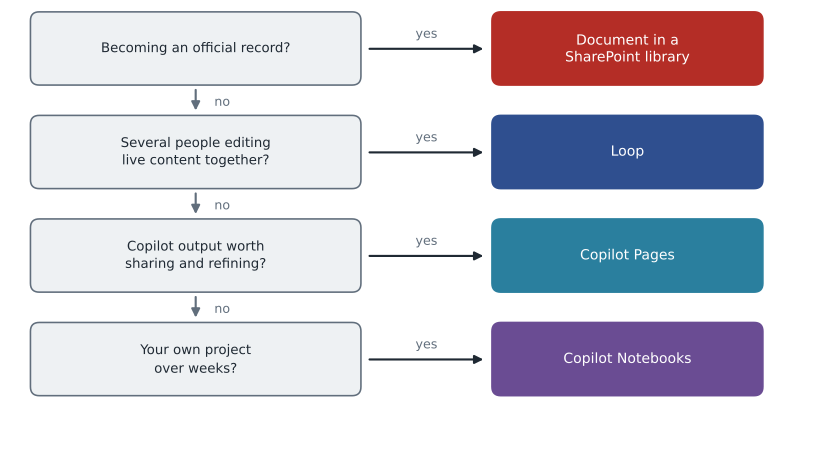
Hamish's rule of thumb at the desk sessions had four lines. If you are working alone with Copilot on a project over weeks, use a notebook. If Copilot has produced something worth sharing and improving, move it to a page. If several people need to edit the same live content, especially lists, tables and plans, use Loop. And if the content is becoming an official record, such as an approved client notice, a policy or a contract, put it in a document in the right SharePoint library, where your organization's retention and approval processes apply.
Collaboration habits
Shared spaces bring shared risks. A Loop component pasted into a large Teams chat is editable by everyone in that chat, which is the point, but also means someone can change a figure without anyone noticing. Loop and pages show who edited what, and it is worth looking before relying on a number. Shared spaces can also leak: a page shared with a colleague can be shared onward if their permissions allow it. Sensitivity labels apply to Loop and pages as they do to documents, and Quillfield applied its "Confidential: client" label to any page or Loop workspace holding client information.
Copilot adds one more consideration. When Copilot drafts content in a shared space, other people may not know which parts were generated. Wendell's suggestion, adopted by the AI council, was not to label every AI-assisted sentence, which would be impractical, but to make sure that whoever moved content from a draft space into an official document had checked it, and to record that in the approval step.
How AB-730 tests this
Published summaries of the AB-730 skill area include using Copilot Pages to collaborate, share content and store knowledge. Expect questions that ask what happens when you share a page (colleagues see the page, not the chat), which space suits a collaborative task, and how Pages, Loop and Notebooks differ in sharing and storage.
Pages in practice: a short guide
Over the desk sessions, a few practical rules for pages emerged. Start in chat, finish in a page. Use Copilot Chat to explore and draft; when a response is worth keeping, move it to a page rather than copying and pasting it into an email. Name pages clearly. A page called "Copilot page 14" will never be found again; "Client AI questions, draft, November 2026" will. Say what the page is. Wendell added a line at the top of his page: "Working draft for the AI council. Not approved for client use." That one sentence prevented a colleague from copying an early answer into a client email. Close the loop. When a page has done its job, move the final content to its proper home and tell collaborators where it went.
Pages also work well for content that would otherwise live in long email chains, such as a list of questions for an insurer meeting that several people add to, or a draft agenda for an event. The advantage over email is simple: there is one version, and everyone edits it.
Loop components in everyday work
The Loop feature most people at Quillfield used was not workspaces but components shared in Teams chats and Outlook emails. Tomasz used a shared table in his team leads' chat to track which agents were trained on the new home insurance products; each team lead updated their own rows, and the table was current whenever anyone looked. Daria's team used a checklist component in a meeting invitation for the seminar, so attendees could see and tick off preparation tasks before the meeting started.
Copilot can help create those components. In a Loop page or workspace, asking Copilot to "create a table of seminar tasks with columns for task, owner, due date and status, based on this plan" produces a starting table that the team then edits. As always, the generated version is a starting point; the people responsible fill in the real owners and dates.
A note on lifecycle
Because pages and notebooks are tied to the person who created them, Quillfield's IT team gave staff one more rule: anything the firm would need if you left tomorrow should not live only in your pages or notebooks. That rule is not unique to Copilot; it applies equally to files saved only on a personal OneDrive. But AI tools make it easy to accumulate useful material quickly in personal spaces, and it is worth moving the important parts to shared locations as a matter of routine.
Copilot in a shared space: who sees what
One question came up at almost every session on Loop and pages: when I ask Copilot something in a shared space, can my colleagues see my question? The general rule is that your prompts and Copilot's suggestions are yours until you insert them. In Loop, Copilot's draft appears for the person who asked, who then decides whether to add it to the shared page; once it is inserted, it is ordinary shared content that anyone with access can read and edit. On a page, the same applies: colleagues see the page, not the conversation you had with Copilot to produce it. This matters for two reasons. You can explore freely without cluttering the shared space, and you remain responsible for what you choose to insert. Wendell's advice to the AI council was to read any Copilot suggestion before inserting it into a shared space with the same care as before sending it in an email, because once inserted, colleagues will reasonably assume it has been checked.
Common mistakes
MistakeTreating a Copilot page as the official version of an approved document.
InsteadUse pages as working drafts and move approved content to a governed library.
MistakeSharing a whole notebook with a team.
InsteadNotebooks are private; share individual pages, or use Loop for team work.
MistakeRelying on a figure in a shared Loop table without checking who changed it.
InsteadCheck the edit history before using live shared content.
MistakeLeaving client information in shared spaces without a sensitivity label.
InsteadApply the organization's labels to pages and workspaces that hold client data.
Summary and key terms
- Loop is for live collaboration on modular content; Pages are for refining and sharing Copilot output; Notebooks are for grounded project work.
- Sharing a page shares its content, not the chat that produced it.
- Whole notebooks are private; only individual pages from them can be shared.
- Pages and Notebooks are stored in SharePoint Embedded and tied to the creator's account, so team-critical content should move to shared locations.
- Official records belong in governed document libraries, not in drafting spaces.
- Microsoft Loop
- A Microsoft 365 app for real-time collaboration through workspaces, pages and live components.
- Loop component
- A live, editable piece of content, such as a table or task list, that stays in sync wherever it is shared.
- Loop workspace
- A shared space in Loop that holds the pages for a team or project.
- Copilot Page
- An editable, shareable canvas created from a Copilot Chat response.
- Copilot Notebook
- A private project space that gathers files, chats and pages for Copilot to reason over.
- SharePoint Embedded
- Microsoft's storage service for app content, used by Loop workspaces, Pages and Notebooks.
Practice problems
Work each problem on paper first, then reveal the answer to check.
What do colleagues see when you share a Copilot page?
Show answer
The page content, not the chat that produced it.
Why did Wendell move the final client questions and answers into a Word document?
Show answer
Approved client-facing material belongs in the compliance library, where the firm's approval and retention processes apply.
Which space suits five people editing a live task list together?
Show answer
Loop.
Lesson quiz · 5 questions
Score 60% or more to complete this lesson.
Create a free account to save your progress, take quizzes and earn a certificate.