
MSBA-112 · Lesson 5 of 12 · 19 min
Managing email in Outlook
▶ Video coming soon A video version of this lesson is on the way.
Solveig came back from a week of holidays at the end of October to 312 unread emails. Before Copilot, her routine was the one most people know: sort by date, scan subject lines, open anything from a client, delete newsletters, and hope nothing important was buried in a long thread with a vague subject. At her second desk session, Hamish suggested trying a different routine with Copilot in Outlook. It did not empty her inbox, but it changed the order in which she read it, and by lunchtime she had answered everything urgent.
What Copilot can do in Outlook
Microsoft's frequently asked questions page for Copilot in Outlook, updated in October 2026, lists a broad set of capabilities. Not every capability is available in every version of Outlook, and the page lists new Outlook for Windows, Outlook for Mac, Outlook on the web and the mobile apps among the versions it applies to. The core capabilities for managing email are these:
| Capability | What it does |
|---|---|
| Prioritize my inbox | Marks incoming email as high, normal or low priority with a reason, and lets you set topics that matter to you |
| Summarize | Pulls the key points out of an email thread |
| Draft with Copilot | Writes a full email from your prompt, using the thread and organizational context, with options for tone and length |
| Coaching by Copilot | Suggests improvements to the tone, sentiment and clarity of your draft |
| Triage from chat | Pins, flags, archives, deletes or otherwise acts on one or many emails from a request in Copilot chat |
| Manage rules | Creates and manages Outlook rules from a plain-language request |
| Schedule meetings | Schedules a meeting with up to two other people, or adds events such as focus time |
| Prepare for meeting | Gathers key information, action items and related messages before a meeting |
The page also lists features that are less central to this course, such as suggesting office days for hybrid teams, voice interaction, and generated visual themes for Outlook itself. Microsoft states that these features require a Microsoft Copilot licence for work, and that eligible users of Microsoft's sales add-on can bring customer relationship data into summaries and drafts.
Step 1: Let Copilot sort, then you decide
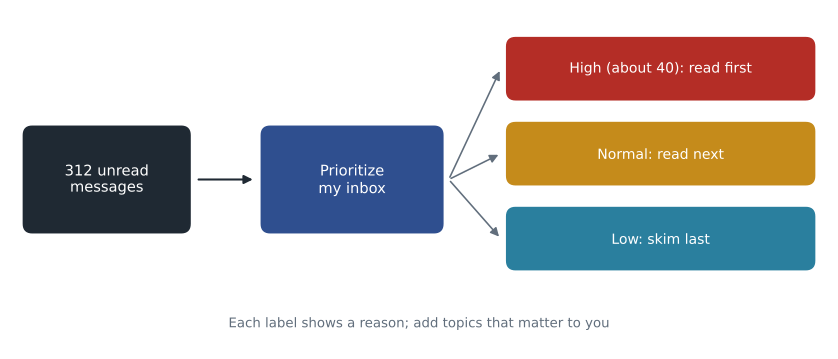
Prioritize my inbox assigns each new message a priority and a short reason, such as "Client is asking for a certificate of insurance needed by Friday" or "Automated newsletter". Solveig had turned it on before her holidays at Hamish's suggestion, and she had added two topics as high priority: certificates of insurance, because contractors cannot start work without them, and anything mentioning a claim. When she returned, about forty of the 312 messages were marked high priority. She read those first.
Two things about prioritization are worth stressing. First, it is a sorting aid, not a filter: low-priority mail is still in the inbox, and Solveig still skimmed it at the end of the morning. Second, the reasons are what make it trustworthy. A priority label without a reason asks you to trust the model; a label with a reason lets you disagree in a second. Solveig found one mistake in her forty: a message from an insurer's underwriter that looked routine but contained a request for information due the same day. It had been marked normal. She added "underwriter requests" to her high-priority topics.
Step 2: Summarize long threads
The most useful single feature for Solveig was Summarize, which Microsoft's support article for summarizing a thread describes as appearing at the top of an email. One thread, "Hendry Logistics renewal", had grown to twenty-three messages while she was away, involving the client, an underwriter, her colleague who covered for her, and the client's lender. The summary listed four points: the underwriter had asked for updated warehouse values; the client had sent them; the lender wanted to be named as loss payee; and Solveig's colleague had promised the client a revised quote "next week", which was now this week.
That last point is exactly what busy people miss in long threads, and exactly what a summary should surface. Hamish's advice was to treat the summary as a map and the thread as the territory. Use the summary to understand what happened and to decide which messages to open; then open the messages that matter, especially any commitments, figures or deadlines. Solveig opened three messages: the one with the new values, the lender's request and the colleague's promise. Each matched the summary.
A summary is only as good as what Copilot can read. Microsoft's FAQ notes that features are not available for signed or encrypted email, messages protected with information rights management, and some messages with certain sensitivity labels. Copilot cannot access messages protected with S/MIME or Double Key Encryption, and group mailboxes and mailboxes not hosted in Exchange Online are not supported. If a thread includes an encrypted message, the summary may simply leave it out, so check whether every message is accounted for.
Step 3: Draft replies with the right context
Draft with Copilot writes an email from a prompt, and when you reply within a thread it uses the thread as context. Solveig's reply to Hendry Logistics began with a prompt: "Reply to the client confirming we received the warehouse values, that the lender will be added as loss payee, and that the revised quote will be with them by Thursday. Apologize briefly for the delay while I was away. Keep it short." Copilot produced a five-sentence draft. She checked one thing, the day she was promising, against her calendar, changed nothing else and sent it.
Two practices make drafting safer. Give Copilot the facts in the prompt when the facts matter, rather than hoping it finds the right ones in the thread; and never let a draft make a promise you have not decided to make. Copilot can only infer what you want to commit to. In one draft Solveig tried, Copilot offered the client "a call at your convenience this week", which was polite but not something she had time for. She deleted it.
Worked problem
A reply that needs careful facts
A contractor client emails asking for a certificate of insurance naming a building owner as additional insured, needed tomorrow. Solveig wants Copilot to draft a reply. What should her prompt include?
Show solution
- Goal: reply confirming the request.
- Facts to state: whether additional insured status is available under the client's policy, which she checks first in the policy file, and when the certificate will be sent.
- Expectation: no promise about coverage beyond what the policy provides.
- Review: check the building owner's legal name in the draft against the client's email before sending.
Answer: Reply to the client confirming that we can issue a certificate naming [owner's legal name] as additional insured, as the policy allows, and that it will be sent by 3 p.m. tomorrow. Do not describe coverage beyond that. Keep it to three sentences.
Step 4: Check tone before sending
Lesson 2 introduced Coaching by Copilot, which reviews a draft for tone, sentiment and clarity. In Outlook it is most valuable for the emails people least want to write. Gus Tremblay-Okoro, the claims advocate, used it on every email that told a client a claim would not be paid in full. He kept the facts, used coaching to check that the opening acknowledged the client's situation, and made sure the next step was clear. Coaching is a second reader, not an editor: it suggests, you decide.
Step 5: Triage, rules and follow-up
Once the urgent mail is handled, Copilot chat in Outlook can help with the rest. Microsoft's FAQ describes triage actions such as pinning, flagging, archiving and deleting one or many emails from a request, and creating Outlook rules from plain language. Solveig asked Copilot to "create a rule that moves insurer marketing newsletters to a folder called Reading" and reviewed the rule it proposed before saving it, because a rule that matches too broadly can hide important mail for months. She also asked Copilot to flag every message in which she had promised something, so she could track her commitments.
Copilot can also schedule meetings, which Microsoft's FAQ limits to meetings with up to two other people, and add focus time to your calendar. And Prepare for meeting gathers key information, action items and related messages before a meeting; Microsoft notes that it may return generic results when a meeting has no shared content or related history. Solveig used it before her Thursday call with Hendry Logistics, and it brought back the thread, the quote and a related Teams chat.
Security habits
Copilot in Outlook works with the email you receive, and some email is hostile. In October, a compromised client mailbox at Birchgrove Smokehouse had sent Quillfield staff a convincing phishing email. A summary of a phishing email can read perfectly reasonably, because the summary describes the message, not its intent. Hamish's rule was that Copilot does not change your security habits: check senders, do not open unexpected attachments, and verify any request to change payment details by calling a number already on file, as Quillfield's rule since October required. Microsoft states that Copilot respects your mailbox permissions and labels, but it is not a phishing filter, and AB-730 questions expect you to know that judgement stays with the user.
How AB-730 tests this
Expect scenarios such as a user returning from leave, a long thread with a hidden commitment, a sensitive reply, or a request to tidy an inbox. The strong answers use summaries to orient and then open the important messages, put the facts into drafting prompts, use coaching for tone, and keep the user's review before sending. You may also be tested on limits: encrypted and protected messages, group mailboxes and non-Exchange Online mailboxes are not supported.
Writing better replies, not just faster ones
Faster email is useful, but Hamish argued that the bigger gain was better email. Three Copilot habits improved the quality of Solveig's replies. The first was asking for a summary of a thread before replying, so her reply answered every open question rather than only the last message. The second was asking Copilot to check a draft for unanswered questions: "Does my reply answer every question in the client's last two emails?" In one case it did not: the client had asked, three paragraphs down, whether a new delivery van needed to be added to the fleet policy, and Solveig's draft had missed it. The third was asking for a version of a long reply that led with the answer: clients read the first two lines and decide whether to read the rest.
Copilot can also help with emails that should not be sent at all. When an angry client wrote a long complaint, Solveig's first instinct was to reply point by point. Hamish suggested asking Copilot for a summary of what the client actually wanted, which turned out to be one thing: a call from someone senior. A two-line reply offering a call that afternoon, followed by the call, resolved what a long email would have prolonged.
Email for a team, not just for you
Many people at Quillfield worked from shared mailboxes, such as the certificates mailbox and the claims intake mailbox. Microsoft's FAQ notes that group mailboxes are not supported, and support for shared mailboxes varies by feature and by Outlook version, so staff could not assume that every Copilot feature would work there. For shared mailboxes, Quillfield kept its existing processes and used Copilot mainly in individual mailboxes, where staff drafted replies that were then sent from the shared address. When a feature is not available in a mailbox type, the right response is to adapt the process, not to forward client email to a personal mailbox to get around the limit, which would break the firm's records rules.
Calendar and meetings from the inbox
Email and calendar are closely connected in Outlook, and so is Copilot. Microsoft's FAQ describes asking Copilot to schedule a meeting with up to two other people, add focus time, or prepare for an upcoming meeting. Solveig's most-used calendar prompt was simple: "Find a 30-minute slot this week when Tobias and I are both free for the Hendry quote review." For anything larger, such as a meeting with several insurers, she used the scheduling assistant as before. The limit of two other people is a reminder that Copilot features have boundaries that change over time, and that the support documentation is the place to check them.
Common mistakes
MistakeTreating low-priority mail as safe to ignore.
InsteadRead high priority first, then skim the rest; prioritization sorts, it does not delete.
MistakeActing on a thread summary without opening the messages with commitments or figures.
InsteadUse the summary as a map, then open the messages that matter.
MistakeLetting a draft offer calls, discounts or coverage you have not decided on.
InsteadPut the facts and commitments in the prompt and delete anything you did not intend.
MistakeSaving a Copilot-generated rule without reading its conditions.
InsteadReview the rule so it cannot hide important mail.
Summary and key terms
- Copilot in Outlook can prioritize, summarize, draft, coach, triage, create rules, schedule small meetings and prepare for meetings.
- Prioritization gives each message a label and a reason; you can add topics that matter to you.
- Thread summaries are maps: use them to find the messages to open, especially commitments and deadlines.
- Drafts should be built from facts you supply, and must not make promises you did not decide on.
- Copilot does not work on encrypted, IRM-protected, S/MIME or Double Key Encryption messages, or on group mailboxes.
- Prioritize my inbox
- An Outlook Copilot feature that labels messages high, normal or low priority with a reason.
- Thread summary
- Copilot's list of key points from an email conversation.
- Draft with Copilot
- Copilot writing an email from your prompt, using the thread as context.
- Outlook rule
- An instruction that automatically acts on messages that match conditions.
- Certificate of insurance
- A document confirming that a policy is in force, often required by a client's customers or landlords.
- Loss payee
- A party, such as a lender, named to receive claim payments for insured property.
Practice problems
Work each problem on paper first, then reveal the answer to check.
Why are the reasons attached to priority labels useful?
Show answer
They let you disagree quickly and spot mislabelled messages.
What did the Hendry Logistics summary surface that Solveig might have missed?
Show answer
Her colleague's promise of a revised quote by this week.
Name two kinds of message Copilot in Outlook cannot work with.
Show answer
Any two of: encrypted or signed messages, IRM-protected messages, S/MIME, Double Key Encryption, group mailboxes, non-Exchange Online mailboxes.
Lesson quiz · 5 questions
Score 60% or more to complete this lesson.
Create a free account to save your progress, take quizzes and earn a certificate.