
MSBA-251 · Lesson 8 of 12 · 20 min
Offline and mobile apps
▶ Video coming soon A video version of this lesson is on the way.
The Lakeshore campus was built in the 1960s, and its plant rooms are concrete boxes below ground. Mobile signal there ranges from one bar to none. The greenhouses at Ridgeview have good signal at one end and none at the other. Arlo's request from lesson 3, "make it not need the signal at all", was not a luxury: about a third of facilities work happens where a phone cannot reach the network. This lesson covers how Power Apps works on mobile devices and how to design apps that keep working offline.
Running apps on phones and tablets
Users run Power Apps on mobile devices through the Power Apps mobile app for iOS and Android, which lists the canvas and model-driven apps shared with them, or through a web browser. Many organizations manage devices with Microsoft Intune, which can require a PIN, encrypt app data and wipe it if a phone is lost. Microsoft also introduced native mobile apps in preview in 2026, letting makers package a Power Apps app as its own mobile app. For Field Tech, Lumenvale chose the Power Apps mobile app on college-managed phones enrolled in Intune.
On a device, canvas apps can use hardware through controls and functions. The camera control and the Add picture control capture photos. The barcode reader scans barcodes and QR codes. The Location signal returns latitude and longitude. The Connection signal reports whether the device is connected and whether the connection is metered. Model-driven apps on mobile support photos and attachments on forms and can be configured for offline use too.
| Capability | How to use it | Field Tech use |
|---|---|---|
| Camera | Camera or Add picture control | Photo of the faulty part |
| Barcode and QR code | Barcode reader control | Scan the asset tag on a boiler |
| Location | Location.Latitude and Location.Longitude | Record where a job was closed |
| Network status | Connection.Connected and Connection.Metered | Show an offline banner |
| Device storage | Offline data in Dataverse offline mode; SaveData and LoadData for small local data | Keep jobs and notes available without signal |
Each Lumenvale asset already had a printed tag with a QR code. Signe added a Scan asset button: the technician scans the tag, the app looks up the asset, and if there is an open job for it on his list, it opens; if not, the app offers to create a new request for that asset. Scanning removed the commonest error in the old spreadsheet, which was work logged against the wrong boiler.
Offline options
There are two main ways to make a Power Apps app work offline, and they suit different situations.
| Approach | How it works | Best for |
|---|---|---|
| Dataverse offline mode for canvas and model-driven apps | The app is enabled for offline use with an offline profile that defines which tables and rows are downloaded; the app reads and writes a local copy and synchronizes with Dataverse when connected | Apps built on Dataverse that need full offline working |
| Manual offline pattern in canvas apps | The app saves collections to the device with SaveData, reloads them with LoadData, checks Connection.Connected and writes changes back with Patch when online | Small amounts of data, or non-Dataverse sources |
For an app built on Dataverse, the built-in offline mode is the better choice, because the platform handles download, local storage, synchronization and conflicts, and the app's formulas work against local data much as they do online. The maker enables offline for the app and assigns an offline profile. The profile lists the tables to make available offline and filters on each, so the device downloads only what the user needs. Signe's profile for Field Tech included Work Orders assigned to the user and not completed, plus those completed in the last seven days; Assets and Locations for the user's campus; and the Category and Parts tables in full, since they are small.
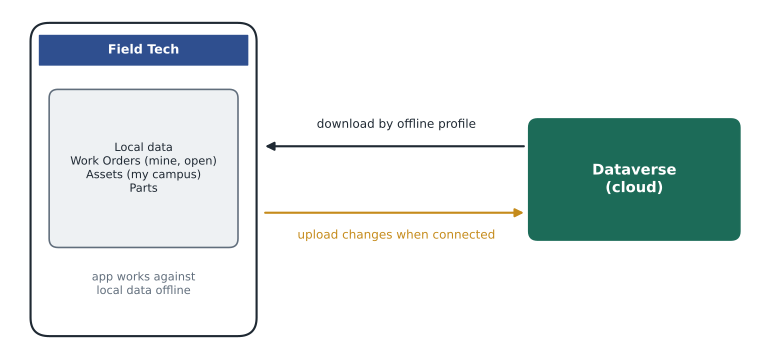
Designing the offline profile
A good offline profile is as small as possible and as large as necessary. Every row downloaded takes time, storage and battery, and every extra table makes the first synchronization slower. A profile that downloads all 6,000 historical work orders to each phone would make the app slow to start and could time out over poor signal. The questions are: which tables does the user need, which rows of each, and how fresh must they be?
Worked problem
Sizing an offline profile
A technician has about 12 open jobs at a time and closes about 15 a week. Each campus has about 400 assets and 900 locations; the colleges have 2,600 assets in total. Parts has 1,100 rows. Estimate how many rows Signe's profile downloads to one Lakeshore technician's phone.
Show solution
- Open work orders assigned to the user: about 12.
- Completed in the last 7 days: about 15.
- Assets for the user's campus: about 400. Locations for the campus: about 900.
- Parts in full: 1,100. Categories: about 10.
- Total: 12 + 15 + 400 + 900 + 1,100 + 10 = 2,437 rows.
Answer: About 2,400 rows, compared with well over 10,000 if every table were downloaded in full.
Images and files need special care. Photos taken offline are stored on the device and uploaded with the record when the device reconnects. Large files slow synchronization over mobile data, so Signe set the camera to a moderate resolution, which was ample for showing a cracked fitting.
Synchronization and conflicts
When the device reconnects, changes made offline are uploaded and new or changed rows are downloaded. A conflict happens when the same row was changed both on the device and in Dataverse while the device was offline: for example, a dispatcher reassigns a job while the technician, offline, marks it in progress. Dataverse offline handles conflicts according to configured rules, and the app should be designed to make conflicts rare: technicians change only their own jobs and only a few columns; dispatchers do not edit jobs that are in progress without calling the technician first.
| Risk | Design response |
|---|---|
| Two people edit the same row offline and online | Give each persona clear ownership of columns and stages |
| A user deletes data needed offline | Prefer status changes such as Canceled over deletion |
| A long time offline means stale data | Show the last sync time and encourage sync at the start of a shift |
| A user does not know changes are waiting | Show a count of unsynced changes in the header |
| Business rules that need the server | Keep critical validation in the app too, or accept that some checks run on sync |
Signe's header component showed a small cloud icon with three states: synced, changes waiting, or offline, each with text for screen readers. Technicians were asked to open the app and let it sync each morning in the workshop, where the signal was good.
The manual pattern
Some apps cannot use Dataverse offline, for example an app built on SharePoint lists. The older manual pattern still works for small data. The app keeps its working data in collections, saves them to the device with SaveData, reloads them with LoadData when the app starts, checks Connection.Connected before writing, and queues changes in a collection that is sent with Patch when the connection returns. The pattern needs careful testing, because the maker is now responsible for everything the platform would otherwise do, including conflicts.
// App.OnStart for the manual pattern (small data only)
LoadData(colPending, "pending", true);

// OnSelect of Submit
If(
    Connection.Connected,
    Patch('Inspection Log', Defaults('Inspection Log'), varInspection),
    Collect(colPending, varInspection);
    SaveData(colPending, "pending");
    Notify("Saved on this device. It will upload when you are back online.")
)
Testing on devices
Offline behavior can only be tested on real devices in real conditions. Signe's test plan included turning on airplane mode in the middle of a job, closing the app while offline and reopening it, taking photos offline, two people changing the same job, and syncing over weak mobile data. Arlo ran the tests in the plant room. They found one serious problem: the app had been set to look up the technician's name from the Technicians table at start-up, and that table was not in the offline profile, so the app opened with a blank header offline. Adding the user's own technician row to the profile fixed it.
Photos, files and storage
Photos were the heaviest data in Field Tech. A modern phone camera produces images of several megabytes, and twenty of them in a day would make synchronization slow over mobile data and fill the Dataverse file capacity faster than necessary. Signe made three choices. The camera control captured at a reduced resolution that still showed detail clearly. Photos were stored in a Dataverse image or file column on a separate Job Photo table related to the work order, rather than as many columns on the work order itself. And the offline profile downloaded photos only for the user's own open jobs, not for history.
Worked problem
Estimating photo upload time
A technician takes 12 photos in a shift. Each is about 0.4 megabytes after the app reduces resolution. Upload over weak mobile signal averages 1 megabit per second. Roughly how long does uploading the day's photos take?
Show solution
- Total size: 12 x 0.4 = 4.8 megabytes.
- Convert to megabits: 4.8 x 8 = 38.4 megabits.
- Time at 1 megabit per second: about 38 seconds, plus overhead.
- At full camera resolution of about 4 megabytes each, the same upload would take about 6 minutes.
Answer: About 40 seconds, compared with several minutes at full resolution.
Security on the device
An offline app keeps business data on the phone, so the phone becomes part of the security boundary. Lumenvale's Intune policies required a device PIN, encrypted storage and the ability to wipe college data remotely. The offline profile limited what was on the device in the first place, which is itself a security control: a lost phone with one technician's jobs and one campus's assets exposes far less than one with every record. Rupert also set a policy so that offline data would be removed if the user had not signed in for a set period.
Model-driven apps offline
Model-driven apps can also be used offline on mobile devices with an offline profile, which suits supervisors who review and update records on a tablet in a building without signal. The same principles apply: filter the profile, include the tables the forms use, and test on real devices. For Lumenvale, managers occasionally used Facilities Hub on tablets during building walk-throughs, and Rupert configured a small offline profile for them containing open work orders for one campus and that campus's assets.
Planning for no signal at all
Signe ran a short exercise with Arlo: imagine the whole day offline. Which tasks would fail? The list was short but important. Looking up an asset that was not on the technician's campus would fail, because the profile included only his campus. Calling the parts request flow would fail, because flows run in the cloud. And the triage prompt would fail, because AI processing happens in the cloud. For each one, the app needed a sensible offline behavior: the asset scan offered to create a new request that would sync later; the parts request was queued with a message; and the Suggest button was hidden when Connection.Connected was false, with a note that suggestions return when online.
Designing these offline paths explicitly, rather than letting features fail with error messages, made the difference between an app technicians trusted underground and one they abandoned there.
Common mistakes
MistakeBuilding a custom SaveData pattern for a Dataverse app.
InsteadUse Dataverse offline mode with an offline profile; reserve the manual pattern for small or non-Dataverse data.
MistakeDownloading whole tables to every phone.
InsteadFilter the offline profile to the user's rows and campus.
MistakeForgetting reference tables that formulas use.
InsteadInclude every table the app reads at start-up and on key screens.
MistakeTesting offline only in the office with Wi-Fi switched off for a minute.
InsteadTest on real devices in real places, including closing and reopening the app offline.
By the second week in test, Arlo had closed nine jobs in the Lakeshore plant rooms without signal. Each one synced when he walked back up the stairs. "That is the first time a college app has known where I work," he said.
Summary and key terms
- Users run apps on phones through the Power Apps mobile app or a browser; native mobile apps were in preview in 2026, and Intune can protect app data.
- Canvas apps use the camera, barcode reader, location and connection signals on devices.
- Dataverse offline mode, with an offline profile that filters tables and rows, is the main way to make Dataverse apps work offline.
- Offline profiles should download only what each user needs; conflicts are reduced by clear ownership and status changes instead of deletion.
- The manual SaveData and LoadData pattern suits small or non-Dataverse data and needs careful testing.
- Offline profile
- The definition of which Dataverse tables and rows are downloaded to a device for offline use.
- Synchronization
- Uploading changes made on the device and downloading changes from Dataverse when connected.
- Conflict
- A situation where the same row was changed both offline on a device and online in Dataverse.
- SaveData and LoadData
- Canvas functions that save a collection to device storage and load it again.
- Connection signal
- A canvas signal that reports whether the device is connected and whether the connection is metered.
Practice problems
Work each problem on paper first, then reveal the answer to check.
Why should an offline profile be filtered?
Show answer
To download only the rows a user needs, which keeps synchronization fast and saves storage and battery.
Name two ways to reduce offline conflicts.
Show answer
Give each persona ownership of particular columns and stages; use status changes instead of deletion; avoid editing in-progress jobs from the office.
When is the SaveData and LoadData pattern appropriate?
Show answer
For small amounts of data or apps whose data source does not support Dataverse offline mode.
Lesson quiz · 5 questions
Score 60% or more to complete this lesson.
Create a free account to save your progress, take quizzes and earn a certificate.