
MSBA-251 · Lesson 3 of 12 · 19 min
Canvas app design and Power Fx
▶ Video coming soon A video version of this lesson is on the way.
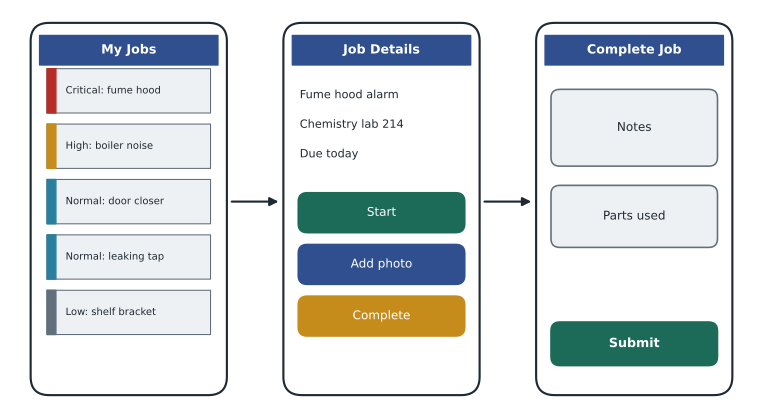
Arlo Hemsworth has worked in college boiler rooms for nineteen years, and he has firm views about phones. "Big buttons, no typing, and it has to work with my gloves on," he told Signe at the first design session for Field Tech, the technicians' app. He also wanted to see only his own jobs, in the order he should do them, and to close a job with a photo and a few taps. That is a canvas app: a task-focused experience designed screen by screen for a particular person and place.
Creating a canvas app from data
AB-410 starts with "create a canvas app using data". A maker can start from a blank canvas, from a template, from a Dataverse table or another data source, or from a description given to Copilot. Starting from data generates a three-screen app: a browse screen with a gallery, a detail screen and an edit screen with a form. That generated app is a useful scaffold, but most production apps are reshaped heavily afterwards. Signe started Field Tech from the Work Order table in the Facilities Dev environment, inside the Facilities Work Orders solution, and chose the phone layout.
A canvas app is made of screens, and each screen holds controls: labels, buttons, text inputs, galleries, forms, images, camera and barcode controls, and containers that arrange other controls. Each control has properties such as Text, Fill, Visible, Items and OnSelect. Properties are set with Power Fx formulas. A data source is added to the app, for example the Work Order and Asset tables, and controls refer to it by name.
Power Fx basics
Power Fx is the low-code formula language of Power Platform. It looks like Excel formulas and behaves like them in one important way: formulas are declarative and recalculate automatically when the values they depend on change. A label whose Text property is a formula over a gallery's selected item updates the moment the user selects a different item. Behavior formulas, set in properties such as OnSelect or OnVisible, run actions when something happens: navigate to a screen, save a record, set a variable.
// Items property of the My Jobs gallery
SortByColumns(
    Filter(
        'Work Orders',
        'Assigned Technician'.'Primary Email' = User().Email,
        Status <> 'Status (Work Orders)'.Completed
    ),
    "cr7a1_priorityrank", SortOrder.Ascending,
    "cr7a1_duedate", SortOrder.Ascending
)
Three ideas carry most canvas work. Filter, Search, Sort and LookUp read data. Patch, SubmitForm and Remove write data. Navigate, Back and Set move the user around and keep track of state. A form control bound to a table simplifies editing: the maker sets its DataSource and Item, adds data cards for columns, and calls SubmitForm to save; errors appear on the form automatically. Patch gives finer control and is used when there is no form, for example a single Start button that changes one column.
// OnSelect of the Start button on Job Details
Patch(
    'Work Orders',
    galJobs.Selected,
    {
        Status: 'Status (Work Orders)'.'In Progress',
        'Started On': Now()
    }
);
Notify("Job started", NotificationType.Success)
Variables and collections
AB-410 lists "manage variables and collections" as a separate skill. Power Fx has three kinds of state. A global variable is created with Set and is available on every screen. A context variable is created with UpdateContext, or passed through Navigate, and exists only on one screen. A collection is an in-memory table created with Collect or ClearCollect, useful for building a list before saving, caching reference data or working offline.
| Kind | Created with | Scope | Field Tech use |
|---|---|---|---|
| Global variable | Set(varName, value) | Whole app | The signed-in technician's record |
| Context variable | UpdateContext({name: value}) | One screen | Whether the photo panel is expanded |
| Collection | Collect or ClearCollect | Whole app, in memory | Parts added before the job is submitted |
| Named formula | App.Formulas | Whole app, recalculated | Today's date range for filters |
Variables are convenient but easy to overuse. A variable holds a copy of a value at the moment it was set, so it can go stale. Where a value can be expressed as a formula, a declarative approach is safer. That is the purpose of named formulas, defined in the Formulas property of the App object: each one is a name equal to a formula that the app recalculates when its inputs change and evaluates only when needed.
// App.Formulas
CurrentTech = LookUp(Technicians, 'Primary Email' = User().Email);
IsSafetyJob(job: Record): Boolean =
    job.Priority = 'Priority (Work Orders)'.Critical;
OpenJobCount = CountRows(galJobs.AllItems);
Reusable components
The exam asks builders to create reusable components, "including named formulas, user-defined functions, and component libraries". A user-defined function takes parameters and returns a value, defined in App.Formulas, so the same logic is written once. A component is a reusable group of controls with input and output properties, for example a header bar with the app title, a back button and a sync indicator. A component library stores components centrally so several apps can use them; when the library is updated, apps that use it are prompted to accept the update. Signe built a Lumenvale header component and a priority badge component in a library so the registrar team could reuse them.
Error handling
Phones lose signal, records are changed by someone else, and validation rules reject bad input. Error handling in Power Fx relies on a few functions. IfError evaluates a formula and, if it fails, runs a fallback. IsError tests a value. The Errors function returns errors from the last operation on a data source. The App object's OnError property catches any unhandled error in the app, which is a good place to log errors and show a friendly message. Notify shows a banner to the user.
// OnSelect of the Submit button on Complete Job
IfError(
    Patch('Work Orders', varJob,
        { Status: 'Status (Work Orders)'.Completed,
          'Completed On': Now(),
          'Technician Notes': txtNotes.Value }),
    Notify("Could not save the job. It is kept on this phone and will retry.",
        NotificationType.Error);
    Collect(colPendingSaves, { Job: varJob, Notes: txtNotes.Value }),
    Navigate(scrMyJobs, ScreenTransition.None)
)
Error messages should tell the user what happened and what to do, not show raw technical text. Signe also wrote errors to a small App Errors table through the OnError property so she could see patterns in the test phase.
Automating processes from canvas apps
Canvas apps often start processes that should continue without the user, such as sending a notification or creating a follow-up job. AB-410 includes "automate business processes from canvas apps". There are two main ways. The app can write data to Dataverse and let a cloud flow trigger on that change, which keeps the app simple and the logic on the server. Or the app can call an instant cloud flow directly, passing parameters and receiving a response, by adding the flow to the app from the Power Automate pane and calling its Run function.
// OnSelect of the 'Request parts' button
Set(
    varPartsResult,
    'Request Parts From Stores'.Run(varJob.'Work Order Number', txtParts.Value)
);
Notify("Stores reference: " & varPartsResult.reference, NotificationType.Information)
Signe preferred the first pattern for anything that must happen whatever the app does, such as escalating unassigned safety jobs, and the second for interactive requests where the technician needs an answer.
Delegation
Every canvas maker eventually meets delegation. When a formula such as Filter or Sort can be translated into a query that the data source runs, the work is delegated and the app can handle large tables. When it cannot, the app downloads only the first rows (500 by default, adjustable up to 2,000) and works on those locally, which can silently give wrong answers on large tables. The formula bar shows a delegation warning for such formulas. Dataverse supports delegation for most common functions and operators; the maker should design filters that delegate and treat warnings as defects.
Worked problem
Spotting a delegation problem
A dispatcher's canvas report counts overdue jobs with CountRows(Filter('Work Orders', DateDiff('Due Date', Today()) > 0)). The table has 6,000 rows. The count is always at most 500. Why?
Show solution
- DateDiff inside a filter is not delegable to Dataverse in this form.
- The app downloads only the first 500 rows and filters them locally.
- Rewrite the condition as 'Due Date' < Today(), which compares a column with a value and delegates.
- Check that the delegation warning disappears.
Answer: The filter was not delegable, so it ran on only the first 500 rows. A simple comparison delegates and counts all rows.
Galleries and forms together
Most canvas screens combine a gallery, which shows a list of records, with a form or a set of labels that shows the selected record. A gallery's Items property returns a table, usually a filtered and sorted query, and its template defines how each row looks. Controls inside the template refer to ThisItem, the row being drawn. When the user taps a row, the gallery's Selected property holds that record, which other screens can use. A form's Item property is often set to the gallery's selected record, and its Mode can be New, Edit or View.
| Property | Control | Typical formula |
|---|---|---|
| Items | Gallery | A Filter or Sort over a table |
| Text inside template | Label in gallery | ThisItem.Title or another column |
| Selected | Gallery | Read by other controls, for example galJobs.Selected |
| DataSource | Edit form | The table being edited |
| Item | Edit form | galJobs.Selected or a LookUp |
| OnSuccess | Edit form | Notify and Navigate after a successful save |
The Job Details screen in Field Tech used labels rather than a form, because technicians only read most details; the Complete Job screen used an edit form for the notes and status, so validation messages appeared next to the fields. OnSuccess of that form showed a confirmation and returned the technician to My Jobs, while OnFailure kept him on the screen with the form's error messages visible.
Writing readable formulas
Power Fx formulas grow quickly, and an app that only its author understands is a risk. Signe set three conventions for the project. Controls are named by type and purpose, such as galJobs, btnStart and txtNotes, so formulas read clearly. Long formulas are split across lines with comments, which Power Fx supports with two slashes or slash-star blocks. And the With function names intermediate values inside a formula, so a calculation used twice is written once.
// Text of the due-date label on each job card
With(
    { daysLeft: DateDiff(Today(), ThisItem.'Due Date', TimeUnit.Days) },
    If(daysLeft < 0, "Overdue by " & Abs(daysLeft) & " days",
       daysLeft = 0, "Due today",
       "Due in " & daysLeft & " days")
)
Maribeth found the conventions tedious for a week and invaluable after that, when she had to change a formula Signe had written and could understand it at once.
Components in more detail
A canvas component has custom properties of two kinds. Input properties pass values in, such as the title text or whether a back button appears. Output properties pass values out, such as whether the user pressed the back button. Components can also have behavior properties, which let the app run its own formula when something happens inside the component. Signe's Lumenvale header component had inputs for Title, ShowBack and SyncState, and a behavior property OnBack that each screen set to Back() or a custom navigation. Because the component lived in a library, a later change to the colleges' colors updated every app that used it after the makers accepted the update.
Saving with forms versus Patch
Both SubmitForm and Patch write to Dataverse, and the choice shapes how errors appear. SubmitForm validates the form's data cards, shows field-level messages and runs OnSuccess or OnFailure, which suits screens where the user fills in several fields. Patch returns the changed record or an error that the maker handles, which suits single-field changes and background saves. Many apps use both. Field Tech used SubmitForm on Complete Job, where notes, outcome and parts were entered together, and Patch for the Start button and for status changes from the job list. Whichever is used, the user must always learn whether the save worked: a banner, a changed status label or a return to the list.
Signe also asked Maribeth to think about what happens if two people save the same record. Dataverse keeps the last save, so if a dispatcher and a technician both changed the same field, one change would quietly replace the other. Clear ownership of fields by persona, which lesson 8 develops for offline use, avoids most of these surprises.
Common mistakes
MistakeStoring everything in global variables.
InsteadUse named formulas where a value can be calculated, context variables for screen state and collections for temporary tables.
MistakeIgnoring delegation warnings because test data is small.
InsteadTreat warnings as defects; production tables grow past the row limit.
MistakeShowing raw error text to users.
InsteadUse IfError and App.OnError to show clear messages and log details.
MistakeCopying the same header controls into every app.
InsteadBuild a component in a component library and reuse it.
At the end of the week Arlo tested Field Tech in the Lakeshore boiler room. The gallery worked, the Start button worked, and the Submit button failed because there was no signal. The app kept his notes and retried as promised. "Good," he said. "Now make it not need the signal at all." That became lesson 8.
Summary and key terms
- A canvas app is built screen by screen from controls whose properties are set with Power Fx formulas.
- Power Fx formulas recalculate automatically; behavior formulas such as OnSelect run actions like Patch, SubmitForm and Navigate.
- Global variables, context variables, collections and named formulas hold state; named formulas and user-defined functions reduce stale copies and repetition.
- Components and component libraries make controls reusable across apps.
- IfError, Errors, Notify and App.OnError handle errors; delegation keeps formulas correct on large tables.
- Power Fx
- The low-code formula language used across Power Platform, similar to Excel formulas.
- Context variable
- A variable that exists only on one screen, created with UpdateContext or Navigate.
- Collection
- An in-memory table in a canvas app, created with Collect or ClearCollect.
- Named formula
- A name defined in App.Formulas that equals a formula and recalculates automatically.
- Delegation
- Passing a query to the data source to run, so the app can work correctly with large tables.
Practice problems
Work each problem on paper first, then reveal the answer to check.
When would you use Patch instead of SubmitForm?
Show answer
When there is no form control, or to change specific columns directly, such as setting Status from a single button.
What is the default number of rows a canvas app retrieves for a non-delegable query?
Show answer
500, adjustable up to 2,000 in the app settings.
Where would you catch any unhandled error in a canvas app?
Show answer
In the OnError property of the App object.
Lesson quiz · 5 questions
Score 60% or more to complete this lesson.
Create a free account to save your progress, take quizzes and earn a certificate.