
MSBA-251 · Lesson 5 of 12 · 18 min
Copilot and agents inside apps
▶ Video coming soon A video version of this lesson is on the way.
Delphine's wish list had always included "Copilot in the app". When Signe opened the documentation to plan that part of the project, she found that the answer had changed twice in a year. Early in 2025 a canvas maker could drop a preview Copilot control onto a screen and connect it to a table. By the autumn of 2026 those preview controls were gone from new apps, Microsoft 365 Copilot had become generally available inside model-driven apps, agents could work through apps, and the formula-writing Copilot in the canvas designer was about to retire. The lesson for the builder track was as much about how to keep up as about any one feature.
What changed in 2026
| Date | Change |
|---|---|
| February 2, 2026 | Preview Copilot features in canvas apps removed for new apps: the Copilot control, the Copilot answer control and custom Copilot. Existing apps keep working without support and will be deprecated later |
| April 2026 | Microsoft 365 Copilot generally available in model-driven apps; in public preview in canvas apps |
| May 4, 2026 | Agent feed generally available in model-driven apps, alongside the Power Apps MCP server (preview) |
| July 2026 | Form and grid experiences in Copilot Chat generally available |
| December 11, 2026 | Retirement of "Use Copilot to create and edit Power Fx formulas" and Power Apps Ideas in canvas apps; existing formulas are unaffected |
The practical consequence was clear. An app built in 2026 should not depend on the retired preview canvas controls. In-app AI now comes mainly from Microsoft 365 Copilot in apps, from built-in AI features on forms and grids, from prompts and models (lesson 6), and from agents.
Microsoft 365 Copilot in model-driven apps
With Microsoft 365 Copilot enabled, users of a model-driven app open a Copilot pane and ask questions in plain language. The answers are grounded in the records on screen and the app's data, and can draw on the user's wider work data through Microsoft 365, such as emails and meetings, where the user has access. Copilot follows the app's existing security, permissions and business logic: it cannot show a dispatcher a row her roles do not allow her to read. Administrators enable the capability at tenant and environment level, and makers configure it for each app.
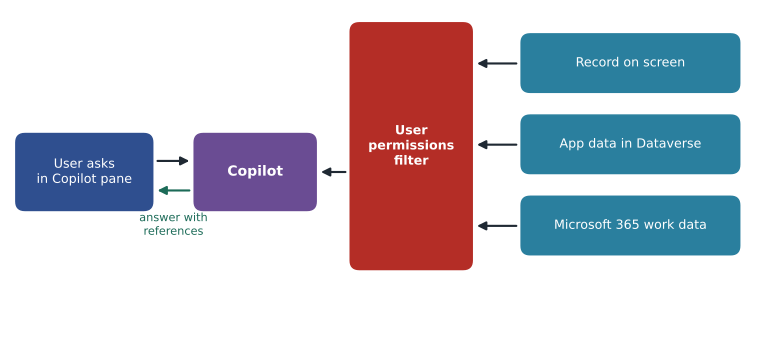
Typical questions in Facilities Hub were "summarize this work order's history", "which boilers at Ridgeview have had more than two jobs since September?" and "what did the contractor say in the last email about the walk-in freezer?". The first two use app data; the third uses Microsoft 365 data the dispatcher already has access to. Signe tested each question with a dispatcher account, not her own administrator account, because answers depend on the asker's permissions.
AI on forms and grids
Alongside the Copilot pane, model-driven apps include AI features built into the form and grid experience. Microsoft describes three in particular. Smart form fill turns the content of an email or document into suggested values for a form, with a review step before saving: a dispatcher pastes a long email from a dean and the app proposes the category, location and description. Natural-language search in grids reshapes a view from a plain-language request, such as "open heating jobs at Lakeshore older than a week". Summaries condense long activity histories on a record. Related features include row summaries configured on a Dataverse table, which AB-410 lists under data models, and prompt columns, covered in the next lesson.
| Feature | Where it appears | Human check |
|---|---|---|
| Smart form fill | Forms | User reviews suggested values before saving |
| Natural-language grid search | Views and grids | User sees the resulting filter and rows |
| Record and activity summaries | Forms and Copilot pane | Summary links back to source records |
| Row summaries | Configured per table, shown on forms | Maker controls the instructions and columns used |
| Copilot chat questions | Copilot pane | Answers include references to the records used |
Copilot in canvas apps
In canvas apps, Microsoft 365 Copilot was in public preview during 2026, and Microsoft pointed makers who had used the retired preview controls toward it as the planned path. For Field Tech, Signe decided not to depend on a preview feature. Technicians would get AI through a prompt that cleaned up their notes and through the agent described below, both of which use generally available capabilities.
Agents and apps
An agent is an AI system that can reason about a goal, use tools and take actions, often with a human approving important steps. Power Apps connects to agents in several ways in 2026.
| Connection | What it does | Status in 2026 |
|---|---|---|
| Create an agent from a canvas app | Starts a Copilot Studio agent that uses the app's data and context | An AB-410 objective |
| App skills and the Power Apps MCP server | Exposes app capabilities, starting with form and grid views, as tools that agents, Copilot and automations can use | Public preview |
| Agent feed | A place inside a model-driven app where users see, review and guide agent activity | Generally available from May 4, 2026 |
| Agents in Copilot Studio calling Dataverse | Agents read and write the same tables the apps use, within security | Generally available |
The important design idea is that an agent built on an app inherits the app's records, rules and controls. The agent feed makes agent work visible to business users: the maker sets an approval threshold so low-risk actions run in the background, while higher-impact actions, such as sending an email to a contractor or closing a job, wait for a person to approve them. The feed shows the proposed action side by side with the current data, with links to the records.
Signe designed a modest first agent for Facilities: each Monday it would look for assets with three or more work orders in the past 60 days, draft a short note for Delphine with the history and the likely cause, and propose a replacement request. Drafting was automatic; creating the replacement request needed Delphine's approval in the feed. AB-410 includes creating a Copilot Studio agent from a canvas app, so Signe also showed Maribeth how a technician-facing agent could be started from Field Tech, though she kept it out of the first release.
Enabling and governing in-app AI
In-app AI features are governed by administrators as well as configured by makers. In the Power Platform admin center, environment settings control whether Copilot and generative AI features are available, and whether data can move across geographic regions for AI processing where the environment's region does not host the model. Managed environment settings and data policies also apply. Rupert reviewed these settings for the Lakeshore Ops environment with the colleges' privacy officer, Dr. Philippa Ondaatje-Ruiz, before turning anything on in production. Their decision: Copilot in Facilities Hub on, smart form fill on, the Monday agent on with approval required for every action that writes data.
Worked problem
Choosing the right AI feature
Dispatchers receive long emails from deans describing several problems at once. They want help creating work requests from them. Which feature fits best, and what control should be in place?
Show solution
- The input is an email; the output is structured fields on a form.
- Smart form fill is designed for exactly this: it proposes form values from an email or document.
- The dispatcher must review the suggested values before saving, especially category and priority.
- For emails with several problems, the dispatcher creates one request per problem, using the suggestions each time.
Answer: Smart form fill on the Work Request form, with the dispatcher reviewing every suggestion before saving.
Keeping up with change
Because Copilot features in Power Apps changed several times in 2025 and 2026, Signe gave Maribeth three habits. Read the Microsoft 365 message center and the Power Platform release plans each month, filtered for Power Apps. Check whether each feature is generally available or in preview before depending on it. And design apps so an AI feature can be removed without breaking the core process: the work order still has to be creatable by hand if smart form fill is turned off.
Designing questions users will ask
Copilot in an app is only as useful as the questions people know to ask. Signe ran a short session with the dispatchers in which they wrote down the questions they asked each other every day. The list became a one-page guide pinned beside each desk and part of the test plan.
| Question dispatchers asked | What Copilot needs | Result in testing |
|---|---|---|
| What is the history of this boiler? | The asset and its related work orders | Accurate summary with links to jobs |
| Which jobs at Lakeshore are overdue? | Work orders with due dates and locations | Correct list; same as the Overdue view filtered by campus |
| Who worked on the Ridgeview freezer last? | Completed work orders with technician | Correct name and date |
| What did the elevator contractor say about the next visit? | Emails the dispatcher can see in Microsoft 365 | Found the email; cited it |
| Should we replace boiler B2? | Judgment, cost and policy | Gave a cautious summary of repairs; the decision stayed with Delphine |
The last question was the most instructive. Copilot summarized the boiler's repair history and noted the frequency of failures, but it could not know the replacement budget, the boiler's age from the manufacturer or the colleges' capital plan. Signe used it to make a point to the team: Copilot is excellent at finding and summarizing what is in the data, and it does not replace the judgment of the person accountable for the decision.
Configuring Copilot for an app
Makers can shape how Copilot behaves in a model-driven app. Microsoft documents options for customizing the Copilot chat experience, such as adding descriptions to tables and columns so Copilot understands the data better, and choosing which tables are available to it. Clear table and column descriptions help: a column named WO_Pri with no description is harder for Copilot to use than one named Priority with a description explaining the four values. Signe and Maribeth wrote descriptions for every custom table and column in the solution, which also helped people reading the data model later.
One more design rule came from Rupert: every AI feature in the solution would have a named owner who reviewed its results and could switch it off. For Copilot in Facilities Hub it was Delphine; for the triage prompt and the Monday agent it was Signe. Naming owners sounds bureaucratic, but when a feature behaves unexpectedly, someone must have both the knowledge and the authority to act quickly.
Explaining AI to users
Users trust AI features more when they understand what the features do and do not do. Signe wrote three sentences for the one-page guide: Copilot can only see what you can see; it summarizes and finds, but you decide; and AI suggestions are marked so you know which values came from AI. In the first training session a dispatcher asked whether Copilot "read everyone's email". The answer, that it uses only data the asking user can already access, settled a worry that could otherwise have stopped people using the feature at all.
Signe also reminded the team that in-app AI features consume capacity in the same way as prompts, so usage of Copilot and the agent would appear in the environment's consumption reports alongside the triage prompt.
Common mistakes
MistakeBuilding a new canvas app around the preview Copilot control.
InsteadThose preview controls were removed for new apps on February 2, 2026; use generally available features or plan for Microsoft 365 Copilot in canvas apps once it is available.
MistakeTesting Copilot answers with an administrator account.
InsteadTest with each persona's account, because answers depend on the user's permissions.
MistakeLetting an agent send messages or close jobs with no approval.
InsteadSet approval thresholds so high-impact actions wait for a person in the agent feed.
MistakeMaking the core process depend on an AI feature.
InsteadDesign so the process still works by hand if the feature is off.
When Copilot went live in the test copy of Facilities Hub, Kofi asked it which job he should do first. It suggested the critical fume hood job in the chemistry lab. He was already on the phone to Arlo about it.
Summary and key terms
- Preview Copilot controls in canvas apps were removed for new apps on February 2, 2026, and formula Copilot in canvas apps retires on December 11, 2026.
- Microsoft 365 Copilot is generally available in model-driven apps and grounds answers in data the user is allowed to see; in canvas apps it was in preview in 2026.
- Form and grid AI features include smart form fill, natural-language grid search and summaries, each with a human check.
- Agents can be created from canvas apps, use app skills through the Power Apps MCP server (preview) and report to users through the agent feed with approval thresholds.
- Administrators control AI features through environment settings, managed environments and data policies.
- Smart form fill
- An AI feature that proposes form values from an email or document for the user to review.
- Agent
- An AI system that reasons about a goal, uses tools and takes actions, often with human approval.
- Agent feed
- A place in a model-driven app where users see, review and approve agent activity.
- Power Apps MCP server
- A preview capability that exposes app skills as tools for agents and automations.
Practice problems
Work each problem on paper first, then reveal the answer to check.
Why should Copilot in a model-driven app be tested with a dispatcher account?
Show answer
Because Copilot respects the user's security, so answers differ by account.
What happened on February 2, 2026 to preview Copilot controls in canvas apps?
Show answer
They could no longer be added to new apps; existing apps keep working without support.
What does an approval threshold in the agent feed do?
Show answer
It lets low-risk agent actions run automatically while higher-impact actions wait for a person to approve them.
Lesson quiz · 5 questions
Score 60% or more to complete this lesson.
Create a free account to save your progress, take quizzes and earn a certificate.