
DCT-310 · Lesson 5 of 12 · 20 min
Storage devices: HDD, SSD and NVMe
Drives are the single most common hardware ticket at Stonebridge. In Halls B and C alone the cloud provider's servers hold about 31,000 NVMe drives, and Hall A's customers run thousands more hard drives and SSDs in their servers and storage arrays. "Drives fail every week," Roz says, handing Jamal a box of sealed bags with serial numbers printed on them. "The trick is replacing the right one, and keeping track of where the old one goes." This lesson covers the kinds of drives in data center servers, how they connect, how they fail, how failures are predicted from their health readings, and why failed drives are handled differently from every other part.
Hard disk drives
A hard disk drive, HDD, stores data magnetically on spinning platters, read and written by heads that float a few nanometers above the surface on arms moved by an actuator. Data center hard drives spin at 7,200 RPM, hold up to about 30 TB each on current models, and are used where large amounts of data must be stored at low cost per terabyte: backups, archives, video, object storage and data lakes.
Hard drives have moving parts, and that shapes how they fail and how they are handled:
- They are sensitive to shock, especially while spinning. A drive knocked or dropped can fail immediately or weeks later. Drives are carried in their trays or in padded boxes, never loose in a pocket or a bag.
- They are sensitive to vibration. Large numbers of drives in one chassis vibrate each other, and drive vendors rate them for use in a given number of bays.
- They wear: bearings, heads and the actuator age, and failure rates rise after several years of service.
- Many failures give warning. Sectors that cannot be read are remapped to spare sectors, and the counts of these events rise before the drive fails outright.
Solid-state drives
A solid-state drive, SSD, stores data in flash memory chips with no moving parts. It is much faster than a hard drive, especially for small random reads and writes, uses less power and is not harmed by vibration. SSDs come in two broad kinds by how they connect:
- SATA and SAS SSDs use the same connections and protocols as hard drives and sit in the same drive bays. They are common in older servers and storage arrays.
- NVMe SSDs connect directly to the CPU over PCIe, without a storage controller in between, and use a protocol designed for flash. They are several times faster than SATA SSDs and are now the standard drive in new servers. The NVMe specification has gone through several versions, the 2.x family being current.
Flash memory wears out as it is written. Each cell can be erased and rewritten only a limited number of times. SSDs spread writes across all their cells and keep spare cells in reserve, and they report how much of their rated endurance has been used, often as a percentage. A drive whose wear indicator approaches 100 percent will soon stop accepting writes; it is replaced before that, not after.
Form factors and connectors
Drives in data center servers come in several shapes, and a technician needs to recognize them because the trays, connectors and release mechanisms differ:
| Form factor | Size and use | Interface |
|---|---|---|
| 3.5 in | Large hard drives in storage servers and arrays | SATA or SAS |
| 2.5 in | Smaller hard drives and SSDs; the classic server drive | SATA, SAS or NVMe (U.2, U.3) |
| M.2 | A small card, often used as the server's boot drive inside the chassis | SATA or NVMe |
| E1.S | A slim ruler-shaped NVMe drive for dense 1U servers | NVMe |
| E3.S | A larger EDSFF drive for high-capacity NVMe storage | NVMe |
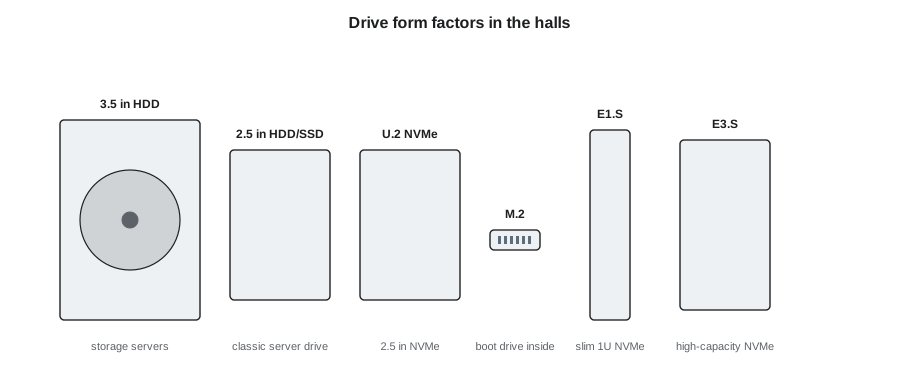
Front-loading drives sit in carriers, plastic or metal trays with a latch and a status LED. The carrier is part of the server's spare parts, not the drive's, and the new drive usually arrives either in a new carrier or bare, to be moved into the old carrier with the screws the procedure specifies. Boot drives on M.2 cards inside the chassis usually mean the server must be powered off and opened to replace them.
Drive status LEDs
Each drive bay has at least two LEDs, an activity LED and a status or fault LED. The exact patterns vary by vendor, but the common ones are:
- Green, flickering: normal activity.
- Solid amber: the drive has failed, or the controller has marked it failed.
- Blinking amber: a predicted failure, or the drive is being identified.
- Blinking blue or amber at a steady rate: a locate request. The customer's administrator or the BMC has turned on the light so that the technician can find the right drive.
- Off: no power, or the bay is empty.
The locate light is the technician's best friend. When a customer asks for a drive to be replaced, Stonebridge's procedure asks them to turn on the locate LED for the drive they want pulled. The technician then pulls the drive that is blinking, and only that one, after checking the bay number and serial against the ticket. This simple step prevents most wrong-drive incidents.
How drives fail, and how often
Drive reliability is measured in two ways. Vendors give a mean time between failures, MTBF, in hours, often one to two and a half million hours for data center drives. That does not mean a drive lasts a century; it describes the failure rate of a large population. The more useful figure for a technician is the annualized failure rate, AFR: the percentage of drives in a population expected to fail in a year.
# From annualized failure rate (AFR) to expected failures, and AFR versus MTBF
import math
fleet = {"Hall A HDDs": (6200, 1.4), "Hall A SSDs": (4800, 0.6), "Hall B/C NVMe": (31000, 0.5)}
for name, (n, afr) in fleet.items():
    per_year = n * afr / 100
    print(f"{name}: {n:,} drives at {afr} % AFR -> about {per_year:.0f} failures a year, {per_year / 52:.1f} a week")
for mtbf_h in (1_000_000, 2_500_000):
    afr = (1 - math.exp(-8760 / mtbf_h)) * 100
print(f"MTBF {mtbf_h:,} h -> AFR about {afr:.2f} %")Hall A HDDs: 6,200 drives at 1.4 % AFR -> about 87 failures a year, 1.7 a week Hall A SSDs: 4,800 drives at 0.6 % AFR -> about 29 failures a year, 0.6 a week Hall B/C NVMe: 31,000 drives at 0.5 % AFR -> about 155 failures a year, 3.0 a week MTBF 1,000,000 h -> AFR about 0.87 % MTBF 2,500,000 h -> AFR about 0.35 %
Real fleets often differ from vendor figures. The cloud backup company Backblaze publishes failure statistics for its own fleet of hundreds of thousands of hard drives each year; for 2025 it reported an overall annualized failure rate of about 1.36 percent, with some models far above that and others well below. Failure rates also change with age: drives that fail early in life, in the first months, then a long period of low failures, then a rise as they wear out. Stonebridge's spares planning (lesson 11) uses the customers' own failure records where they share them.
For the technician, the expected failure rate turns into a number of tickets. At 0.5 percent a year across 31,000 NVMe drives, Halls B and C expect about three drive replacements a week. A week with fifteen is a sign that something is wrong, such as a bad batch of drives, a firmware bug or a cooling problem, and Dmitri raises it with the provider.
Reading drive health
Drives monitor themselves and report health data through a standard interface: SMART for SATA and SAS drives, and the health log in NVMe drives. The readings that matter most are:
- Reallocated sectors: sectors that failed and were remapped to spares. A few are normal; a rising count means the surface is degrading.
- Pending sectors: sectors the drive could not read and is waiting to remap. Any pending sectors suggest data may already be at risk.
- Uncorrectable errors: reads the drive could not correct. These usually mean data loss on that drive unless RAID or replication covers it.
- Percentage used or wear level on SSDs: the share of the drive's rated endurance consumed.
- Temperature: drives run warm, but a drive much hotter than its neighbors may be in poor airflow or failing.
# Checking a drive's health readings against simple replacement rules (illustrative thresholds)
drives = {
    "bay 2": {"reallocated": 0, "pending": 0, "uncorrectable": 0, "wear_used_pct": None, "temp": 38},
    "bay 5": {"reallocated": 184, "pending": 12, "uncorrectable": 3, "wear_used_pct": None, "temp": 41},
    "bay 7": {"reallocated": None, "pending": None, "uncorrectable": 0, "wear_used_pct": 97, "temp": 52},
}
for bay, d in drives.items():
    why = []
    if (d["reallocated"] or 0) > 100: why.append("many reallocated sectors")
    if (d["pending"] or 0) > 0: why.append("sectors pending reallocation")
    if d["uncorrectable"]: why.append("uncorrectable errors")
    if (d["wear_used_pct"] or 0) >= 90: why.append("flash wear nearly used up")
    if d["temp"] > 50: why.append("running hot")
print(f"{bay}: {'replace or raise ticket: ' + ', '.join(why) if why else 'healthy'}")bay 2: healthy bay 5: replace or raise ticket: many reallocated sectors, sectors pending reallocation, uncorrectable errors bay 7: replace or raise ticket: flash wear nearly used up, running hot
The check shows three bays. Bay 2 is healthy. Bay 5 has every sign of a failing hard drive and should be replaced. Bay 7 is an SSD near the end of its endurance and running hot; it should be replaced in the next window, and the airflow in that server should be checked. The thresholds used here are illustrative; each customer sets its own, and many replace drives automatically when their monitoring software flags them.
Why failed drives are different
A failed drive still holds data. Even a drive that will not spin or answer its interface can usually be read by a data recovery laboratory, and a drive that failed because of a few bad sectors still holds almost all its data. Every drive that leaves a server is therefore treated as holding the customer's data until it has been sanitized or destroyed:
- The drive goes straight from the server into a sealed, numbered bag, with its serial recorded against the ticket.
- Bags are kept in the locked drive cabinet in the operations room, never in a toolbox or on a desk.
- Most customers do not allow drives to be returned to the vendor at all. Instead, the drive vendor issues a replacement without the old drive, and the failed drive is destroyed on site, by crushing or shredding, with a certificate recording its serial.
- Customers that do allow returns require the drive to be sanitized first, using a method recognized in standards such as NIST SP 800-88 or the Canadian Center for Cyber Security's guidance, and recorded.
DCT-130 covered decommissioning; the same chain of custody applies to every single failed drive. Ike audits the drive cabinet weekly, matching bags to tickets.
Worked problem
Replacing an NVMe drive in Hall B
The cloud provider's automated system raises a ticket to replace the drive in bay 3 of server B-21-08, with the drive's serial and a note that the locate LED is on. When Jamal arrives, bay 3 is blinking blue and bay 4 is solid amber.
Show solution
- Bay 3 is blinking: the provider has asked for that one. Check its serial on the carrier label against the ticket. It matches.
- Bay 4's amber light is not in the ticket. Photograph it and add a note for the provider.
- The provider's procedure allows hot replacement: press the release on bay 3, wait a few seconds for the drive to stop, then slide it out.
- Seal the drive in a numbered bag, record the bag number and serial in the ticket.
- Insert the new drive. Its LED goes green, then the provider confirms the system has accepted it.
- The provider replies about bay 4: it was replaced yesterday and the amber is a stale indicator that clears after a reboot. No action.
Answer: The locate light, the serial check and the photographs did their job. Jamal pulled only the drive the ticket asked for, reported the one it did not mention, and accounted for the old drive.
Common mistakes
MistakePulling the drive with the amber light because it looks failed.
InsteadPull only the drive the ticket names, confirmed by the locate LED and serial.
MistakeCarrying a hard drive loose in a pocket.
InsteadCarry drives in their carriers or padded boxes; they are shock-sensitive.
MistakePutting a failed drive in the spares box.
InsteadSeal it in a numbered bag and log it under chain of custody.
MistakeIgnoring an SSD's wear indicator because the drive still works.
InsteadReplace SSDs before their rated endurance is used up.
MistakeTreating a sudden rise in drive failures as bad luck.
InsteadReport it; it can point to a batch, firmware or cooling problem.
Summary and key terms
- Hard drives store data on spinning platters; they are cheap per terabyte but sensitive to shock and wear.
- SSDs use flash memory; NVMe SSDs connect over PCIe and are now standard in new servers.
- Drive form factors include 3.5 in, 2.5 in, M.2, E1.S and E3.S.
- AFR, the share of drives failing per year, turns into an expected number of tickets.
- SMART and NVMe health readings warn of failing drives before they stop.
- Failed drives hold customer data and are handled under strict chain of custody.
- HDD
- Hard disk drive: magnetic storage on spinning platters.
- SSD
- Solid-state drive: flash memory storage with no moving parts.
- NVMe
- A protocol and interface for flash storage connected over PCIe.
- AFR
- Annualized failure rate: the percentage of drives expected to fail in a year.
- MTBF
- Mean time between failures, a population reliability figure in hours.
- SMART
- Self-monitoring, analysis and reporting technology: a drive's built-in health data.
- Locate LED
- A blinking light turned on to identify a specific drive or server.
Practice problems
Work each problem on paper first, then reveal the answer to check.
A fleet of 6,200 hard drives has an AFR of 1.4 percent. About how many fail each year?
Show answer
About 87.
What does a rising count of pending sectors on a hard drive suggest?
Show answer
The drive cannot read some data and is degrading; data may be at risk.
Why do most customers have failed drives destroyed on site instead of returned?
Show answer
The drives still hold customer data; destruction on site keeps it from leaving the building.
How does the locate LED prevent wrong-drive incidents?
Show answer
The customer lights the exact drive they want pulled, so the technician pulls only the blinking drive.
Lesson quiz · 5 questions
Score 60% or more to complete this lesson.
Create a free account to save your progress, take quizzes and earn a certificate.