
NET-101 · Lesson 9 of 12 · 25 min
Troubleshooting hardware and boot problems
▶ Video coming soon A video version of this lesson is on the way.
Hardware faults and start-up failures are among the most stressful tickets for users, because the computer seems dead and the work on it seems lost. They are also among the most satisfying for technicians, because careful reasoning about the start-up sequence and the components usually leads straight to the cause. This lesson applies the troubleshooting method from lesson 8 to the hardware and boot problems you will meet most often: computers that will not power on, will not pass POST, will not load the operating system, crash with a stop error, overheat, or slowly fail.
Retracing the start-up sequence
Lesson 1 described what happens when you press the power button: power, POST, the firmware choosing a boot device, the boot loader, the operating system kernel and drivers, and finally the sign-in screen. When a computer fails to start, the first question is how far it gets. Each stage that completes rules out a set of causes, and the stage where it stops points at the next set to investigate.
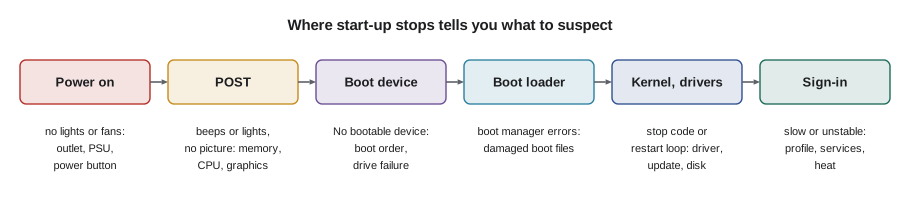
| Symptom | Stage reached | Likely causes | First checks |
|---|---|---|---|
| Nothing at all: no lights, no fans | None | No power at the outlet, power supply switch off, failed power supply, faulty power button connection | Outlet and power strip, power supply switch, a known-good power cable, then a power supply tester |
| Fans spin, no picture, beeps or diagnostic lights | Power, failing POST | Memory not seated or faulty, processor or its power cable, graphics | Look up the beep or light code in the manual; reseat memory; try one module at a time |
| Picture, then No bootable device | POST complete | Wrong boot order, drive not detected, drive failure, boot files missing | Check that the firmware sees the drive and that it is first in the boot order |
| Windows logo, then a stop code or restart loop | Boot loader, kernel loading | Bad driver or update, corrupt system files, disk errors, failing memory | Startup Repair, Safe Mode, uninstall recent updates, memory and disk checks |
| Windows loads but is unstable | Full start-up | Overheating, failing hardware, drivers | Temperatures, event logs, reliability history, hardware diagnostics |
When nothing happens
A computer that shows no sign of life is usually a power problem, and the checks go from the outlet inward. Is the outlet live? Try a lamp or a phone charger in it. Is the power strip switched on and working, or has its overload switch tripped? Is the switch on the back of the power supply on? Is the cable firmly in? On a laptop, does the charger's light come on, and does the laptop start from its charger with a known-good charger? On a desktop, a power supply tester or a known-good spare power supply settles whether the supply has failed. Less commonly, the case's power button or its connection to the motherboard header has failed; technicians can briefly short the two power-button pins on the header with a screwdriver to test, a trick that is safe because those pins carry only a tiny signal.
A related symptom is a computer that starts for a moment and then switches off. That can be a power supply that cannot hold its voltages under load, a short circuit, for example from a loose screw behind the motherboard, or a processor cooler that is not seated, causing the processor to overheat within seconds and the board to cut power to protect it.
POST failures
If the fans spin but nothing appears on screen, the computer is probably failing POST. Because the display may not work at this stage, motherboards report problems in other ways: patterns of beeps through a small speaker, coloured diagnostic lights marked CPU, DRAM, VGA and BOOT, or a two-digit code on a small display on higher-end boards. The meanings vary by firmware maker, so look them up in the motherboard or computer manual rather than guessing. In practice, the most common POST failure after any work inside the case is memory that is not fully seated. Reseating the memory, and if necessary testing with one module at a time in the recommended slot, finds faulty modules quickly. Also check the obvious: is the monitor plugged into the graphics card rather than the motherboard, switched on and set to the right input?
Boot failures
Once POST passes, the firmware looks for a boot device. A message such as No bootable device or Boot device not found means it found nothing it could start from. The causes are a boot order that puts an empty USB drive or the network first, a drive that has failed or come loose, or missing or damaged boot files. Enter the firmware setup and check whether the drive is detected at all. If it is not, the problem is hardware: the drive, its cable or its M.2 slot. If it is detected but will not boot, the problem is the boot files or the boot order.
Windows has a set of recovery tools for start-up problems, called the Windows Recovery Environment, stored on the recovery partition from lesson 5. Windows opens it automatically after start-up fails twice in a row, and it can also be reached from a Windows installation USB drive. Its options include Startup Repair, which diagnoses and fixes common boot problems automatically; uninstalling the latest quality or feature update; System Restore, which rolls system files and settings back to an earlier restore point without touching personal files; a Command Prompt for advanced repairs; Startup Settings, which can start Windows in Safe Mode; and Reset this PC, which reinstalls Windows as a last resort.
Safe Mode starts Windows with a minimal set of drivers and services. If a problem disappears in Safe Mode, it is caused by something that normally loads at start-up, such as a driver, a service or a startup program, which narrows the search considerably. From Safe Mode, a technician can uninstall a problem driver or update, run malware scans and check logs.
Stop codes and crashes
When Windows meets an error it cannot safely recover from, it stops and shows a stop error screen, often called the blue screen of death, with a stop code such as MEMORY_MANAGEMENT, CRITICAL_PROCESS_DIED, INACCESSIBLE_BOOT_DEVICE or DRIVER_IRQL_NOT_LESS_OR_EQUAL, and sometimes the name of the file that caused it. Write the stop code down or photograph it; it is the single most useful clue. A one-off crash may never recur, but repeated crashes need investigating. Stop codes that name a driver point at that driver, often after a recent update. Memory-related codes point at faulty memory, which the Windows Memory Diagnostic tool or a more thorough tool such as MemTest86 can test. INACCESSIBLE_BOOT_DEVICE often follows a change in the storage controller setting in the firmware or a failing drive.
Windows records much more detail than the stop screen shows. Event Viewer holds the system and application logs, where errors and warnings are recorded with the time and the component that reported them. Reliability Monitor presents the same information as a timeline, showing crashes, failed updates and installations day by day, which makes it easy to see whether a problem started on the same day as a change. Lesson 10 shows how to read logs for patterns.
Overheating and throttling
Heat causes a range of symptoms: sudden shutdowns under load, crashes, and computers that get steadily slower as they work, because the processor throttles itself to stay within a safe temperature. Desktop processors typically run at 30 to 50 degrees Celsius when idle and may reach 80 to 90 degrees under heavy load; most begin throttling at around 95 to 100 degrees. Causes include dust clogging heat sinks and fans, failed fans, dried-out thermal paste after many years, blocked vents, and hot surroundings, such as a computer in a cupboard or a laptop on a sofa. ROAST-LT lives in a hot room next to a coffee roaster, which is exactly the kind of setting that shortens hardware life.
Monitoring tools show temperatures, fan speeds and clock speeds. Jordan uses a simple script to read a temperature log exported from one of them and flag readings above a threshold, which makes it easy to show Sam when and how often a computer runs hot.
log = """10:00,52
10:05,61
10:10,78
10:15,96
10:20,98
10:25,84
10:30,71"""

LIMIT = 95
hot = []
for line in log.splitlines():
    time, celsius = line.split(",")
    if int(celsius) >= LIMIT:
        hot.append(time)
print("Readings at or above", LIMIT, "degrees:", ", ".join(hot) or "none")Readings at or above 95 degrees: 10:15, 10:20
Try it yourself
Find the longest hot spell
Kai's laptop logs its processor temperature every five minutes. Write a function longest_hot_run(readings, limit) that takes a list of temperatures and returns the length of the longest unbroken run of readings at or above limit. A long run suggests sustained throttling rather than a brief spike.
For the starter readings and a limit of 95, the answer is 3.
readings = [52, 61, 96, 98, 84, 95, 97, 99, 71, 60]

def longest_hot_run(readings, limit):
    return 0

print(longest_hot_run(readings, 95))
Failing drives
Storage failures deserve special attention because they threaten data. Hard drives often give warning signs: clicking or grinding noises, very slow access to some files, files that will not open, and errors during start-up. SSDs more often fail suddenly, although they may first become read-only or slow. Both kinds report their health through SMART, Self-Monitoring, Analysis and Reporting Technology, a set of counters kept by the drive. Important counters include reallocated sectors, which a hard drive has replaced because they went bad; pending sectors, waiting to be checked; and, for SSDs, the share of its rated life already used. A rising count of reallocated or pending sectors is a strong warning that the drive will fail soon. The moment a drive shows warning signs, the priority changes: copy the user's data off it first, then diagnose.
report = """Reallocated_Sector_Ct 0
Current_Pending_Sector 0
Power_On_Hours 18240
Temperature_Celsius 38
Reallocated_Event_Count 0"""

values = {}
for line in report.splitlines():
    name, value = line.split()
    values[name] = int(value)
warning = values["Reallocated_Sector_Ct"] > 0 or values["Current_Pending_Sector"] > 0
print("Power-on time:", values["Power_On_Hours"] // 24, "days")
print("Status:", "failing: back up and replace" if warning else "healthy")Power-on time: 760 days Status: healthy
Try it yourself
SMART warning check
Write a function drive_status(report) that takes a SMART report as text, one name value pair per line, and returns "replace" if Reallocated_Sector_Ct or Current_Pending_Sector is above 0, "watch" if Temperature_Celsius is above 55, and "healthy" otherwise. Counters missing from the report count as 0.
The starter report is healthy; the test reports include a failing drive and a hot one.
report = "Reallocated_Sector_Ct 0\nCurrent_Pending_Sector 0\nTemperature_Celsius 38"

def drive_status(report):
    return "healthy"

print(drive_status(report))
Other common hardware faults
| Symptom | Likely causes | What to try |
|---|---|---|
| Random restarts | Overheating, failing power supply, faulty memory, unstable driver | Temperatures, event logs, memory test, power supply test |
| Grinding or clicking noise | Failing hard drive or fan | Back up immediately if it is the drive; replace the fan |
| Display flickers or shows lines | Loose or damaged cable, failing monitor, graphics driver | Reseat or swap the cable, try another monitor, update or roll back the driver |
| Dim laptop screen | Brightness setting, backlight failure | Brightness keys; shine a flashlight at the screen to see a faint image, which points to the backlight |
| Keys not working on a laptop | Liquid spill, debris, keyboard connector | Test with an external keyboard; check for spills |
| Smell of burning or visible damage | Failed component, swollen capacitor or battery | Switch off and unplug at once; do not power on again until inspected |
Throughout hardware work, keep safety in mind. Always shut down and unplug a desktop before opening it, and remove a laptop's battery connection before working inside it. Never open a power supply or a monitor: both contain capacitors that can hold a dangerous charge even after unplugging. Lesson 11 covers electrical safety in detail.
Worked problem
A desktop that will not start after cleaning
Over the weekend, Anita's desk was moved and her computer was dusted inside by a well-meaning helper. On Monday, OFFICE-01 powers on, the fans spin and the DRAM diagnostic light stays lit, with nothing on screen. What should Jordan do?
Show solution
- Identify: the computer gets power and starts POST but stops at the memory check, shown by the DRAM light. What changed: the case was opened and cleaned.
- Theory: a memory module was knocked loose during cleaning, the most likely cause after work inside a case. Less likely: a module was damaged by static.
- Test: with the computer unplugged and an anti-static strap on, Jordan presses each module firmly into its slot until the latches click. The computer then passes POST.
- Verify: Windows starts normally and shows 32 GB of memory installed; Jordan runs the Windows Memory Diagnostic overnight to rule out damage. Document the cause and note that internal cleaning should be done by Sam or Jordan.
Answer: A memory module had been dislodged during cleaning; reseating it fixed the POST failure, and an overnight memory test confirmed no damage.
Common mistakes
MistakeAssuming a computer is dead without checking the outlet, power strip and power supply switch.
InsteadCheck power from the outlet inward before suspecting internal parts.
MistakeGuessing what beep codes mean.
InsteadLook the code up in the motherboard or computer manual; meanings vary by maker.
MistakeRunning repair tools on a failing drive before copying the data off.
InsteadBack up the data first; repairs and scans can finish off a failing drive.
MistakeIgnoring the stop code on a blue screen.
InsteadPhotograph it; the code and any file name are the best clues.
MistakeTreating repeated restarts as a software problem only.
InsteadCheck temperatures, the power supply and memory as well.
MistakeOpening a power supply or monitor.
InsteadNever open them; replace the whole unit.
Summary and key terms
- Find how far start-up gets: each completed stage rules causes out and the failed stage points to the next suspects.
- No power: check from the outlet inward, then test the power supply.
- POST failures show as beeps, lights or codes; reseat memory first after work inside the case.
- No bootable device: check that the firmware detects the drive and the boot order.
- The Windows Recovery Environment offers Startup Repair, update removal, System Restore, Safe Mode and reset.
- Stop codes, Event Viewer and Reliability Monitor reveal the causes of crashes.
- Heat causes throttling and shutdowns; SMART counters warn of failing drives, so back up first.
- beep code
- A pattern of beeps the firmware uses to report a POST failure.
- boot order
- The sequence in which firmware tries boot devices.
- Windows Recovery Environment
- Windows' built-in set of start-up repair tools.
- Startup Repair
- A tool that fixes common Windows start-up problems automatically.
- System Restore
- Rolling system files and settings back to a restore point.
- Safe Mode
- Starting Windows with minimal drivers and services.
- stop code
- The error code shown when Windows halts on a serious error.
- Event Viewer
- The Windows tool for reading system and application logs.
- Reliability Monitor
- A timeline of crashes, failures and changes in Windows.
- reallocated sectors
- Bad areas a hard drive has replaced; a sign of wear or failure.
Practice problems
Work each problem on paper first, then reveal the answer to check.
A desktop shows no lights or fans. List the first three checks.
Show answer
The outlet (test with another device), the power strip and its switch, and the power supply switch and cable.
After installing a new graphics driver, Windows crashes on every start. Which tool lets you start with minimal drivers to remove it?
Show answer
Safe Mode, from the Windows Recovery Environment's Startup Settings.
What does the message No bootable device tell you about the start-up?
Show answer
POST completed, but the firmware found nothing it could boot from.
A drive's SMART data shows 40 reallocated sectors, up from 4 last month. What should happen first?
Show answer
Copy the user's data off the drive, then replace it.
A laptop slows down after twenty minutes of heavy use and its fan roars. What is happening?
Show answer
The processor is overheating and throttling; clean the vents and fan and check the thermal paste.
Which Windows tool shows crashes and changes on a day-by-day timeline?
Show answer
Reliability Monitor.
Lesson quiz · 5 questions
Score 60% or more to complete this lesson.
Create a free account to save your progress, take quizzes and earn a certificate.