
NET-101 · Lesson 5 of 12 · 23 min
Installing and configuring operating systems
▶ Video coming soon A video version of this lesson is on the way.
With OFFICE-01 assembled and its firmware set up, the computer still cannot do anything useful. It needs an operating system. Installing, upgrading and configuring operating systems is one of the core jobs in IT support, and it is also where many later problems begin: a computer set up carelessly, with the wrong edition, missing drivers or a local account nobody can recover, causes tickets for years. This lesson covers the operating systems you will meet, how Windows is installed and configured, and how to make a new computer ready for its user.
The operating systems you will support
Windows runs on most business desktops and laptops. Windows 11 is the current version; Windows 10 reached its end of support in October 2025, which means Microsoft no longer provides free security updates for it, and computers still running it are a risk on any network. Windows comes in editions. Home is for personal use. Pro adds features businesses need, including joining a company domain or cloud directory, BitLocker drive encryption, Remote Desktop hosting and Group Policy. Enterprise and Education add further management and security features under volume licensing. All of Ridgeline's computers run Pro, because Sam manages them centrally and encrypts their drives.
Apple's macOS runs only on Mac computers. It is common in design work and among staff who bring their own laptops; Rosa uses a MacBook at home. Linux is a family of operating systems built on the Linux kernel, distributed in versions called distributions, such as Ubuntu, Debian, Fedora and Red Hat Enterprise Linux. Linux runs most of the world's web servers, including, almost certainly, the servers behind Ridgeline's online shop, and inside many devices such as network storage boxes and routers. NET-103 covers Linux administration in depth. ChromeOS, built on Linux, runs on Chromebooks and is popular in schools. On phones and tablets, iOS, iPadOS and Android dominate, as lesson 4 described.
| Operating system | Where you meet it | Typical file system | Notes |
|---|---|---|---|
| Windows 11 | Business desktops and laptops | NTFS | Home, Pro, Enterprise and Education editions |
| macOS | Mac computers | APFS | Updated yearly; runs only on Apple hardware |
| Linux | Servers, network devices, some desktops | ext4, XFS, Btrfs | Many distributions; NET-103 |
| ChromeOS | Chromebooks | ext4 (managed by the system) | Cloud-centred; managed through Google |
| iOS and iPadOS | iPhones and iPads | APFS | Managed through MDM |
| Android | Phones and tablets from many makers | ext4 or F2FS | Update timing depends on the maker |
Every operating system has a life cycle. The maker supports each version with security updates for a set period and then stops. A technician tracks those end-of-support dates for every device in the inventory and plans upgrades or replacements well before they arrive, because an unsupported system gets no fixes for newly discovered security flaws.
Checking requirements
Before installing or upgrading, check that the hardware meets the operating system's requirements. For Windows 11, Microsoft requires a 64-bit processor with at least two cores at 1 GHz or faster from its list of supported processors, at least 4 GB of memory and 64 GB of storage, UEFI firmware with Secure Boot capability, TPM version 2.0, graphics compatible with DirectX 12, and a display of at least 720p. In practice 4 GB of memory is far too little for business use; 16 GB is a sensible standard. Microsoft's PC Health Check app tests a computer against the requirements and says which one fails, and the TPM and Secure Boot failures are usually fixed by switching those features on in the firmware.
# A simple Windows 11 readiness check (not Microsoft's official tool)
pc = {"cores": 4, "ghz": 3.0, "ram_gb": 8, "disk_gb": 256,
      "uefi": True, "secure_boot": True, "tpm": 2.0, "cpu_supported": True}

checks = {
    "processor": pc["cores"] >= 2 and pc["ghz"] >= 1.0 and pc["cpu_supported"],
    "memory": pc["ram_gb"] >= 4,
    "storage": pc["disk_gb"] >= 64,
    "firmware": pc["uefi"] and pc["secure_boot"],
    "TPM": pc["tpm"] >= 2.0,
}
for name, ok in checks.items():
    print(f"{name:<10} {'pass' if ok else 'FAIL'}")
print("Ready for Windows 11" if all(checks.values()) else "Not ready")processor pass memory pass storage pass firmware pass TPM pass Ready for Windows 11
Try it yourself
Which requirements fail?
Write a function failed_requirements(pc) that returns a list of the requirement names that fail, in the order processor, memory, storage, firmware, TPM, using the same rules as the listing. An empty list means the computer is ready.
For an old office PC with TPM 1.2 and Secure Boot switched off, the function should return ["firmware", "TPM"].
def failed_requirements(pc):
    failed = []
    return failed

old_pc = {"cores": 4, "ghz": 3.2, "ram_gb": 8, "disk_gb": 500,
          "uefi": True, "secure_boot": False, "tpm": 1.2, "cpu_supported": True}
print(failed_requirements(old_pc))
Ways to install
There are several ways to put Windows on a computer, and choosing the right one depends on the situation. A clean install erases the drive and installs a fresh copy, which gives the most reliable result and is the right choice for a new build like OFFICE-01 or for a computer badly damaged by malware. An in-place upgrade installs the new version over the old one, keeping files, settings and applications; it is quick and convenient but carries over any existing problems. A repair install reinstalls the same version in place to fix a damaged system while keeping files and apps. Larger organizations rarely install by hand at all: they apply a standard image, a prepared copy of the operating system with the organization's settings and apps, or they ship new computers straight from the maker to users and let a cloud service such as Windows Autopilot configure them automatically on first sign-in.
For a clean install, Sam downloaded the official Windows 11 media from Microsoft and created a bootable USB drive with Microsoft's Media Creation Tool. He set the firmware to boot from the USB drive, started the installer, chose Windows 11 Pro and the custom install option, and selected the NVMe drive. A new drive has no partitions, so the installer creates them automatically.
Partitions and partition tables
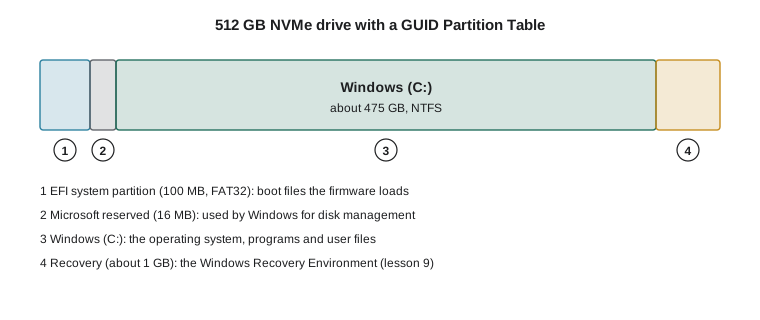
A partition is a section of a drive that the operating system treats as a separate volume. The layout is recorded in a partition table at the start of the drive. The modern standard is the GUID Partition Table, GPT, used with UEFI firmware; it supports drives far larger than 2 terabytes and up to 128 partitions in Windows. The older Master Boot Record, MBR, supports only four primary partitions and drives up to 2 terabytes, and is used with the old BIOS. Windows 11 needs GPT, because it needs UEFI.
A Windows install on a GPT drive creates several partitions: a small EFI system partition holding the boot files the firmware loads, a tiny reserved partition, the main Windows partition, and a recovery partition holding the Windows Recovery Environment, which lesson 9 uses to repair start-up problems. Each partition is formatted with a file system; the Windows partition uses NTFS. Lesson 6 explains file systems.
Drivers and updates
Once Windows finishes installing, it needs drivers for every device. Windows includes drivers for most common hardware and fetches many more through Windows Update. For the rest, such as specialized chipsets, graphics, printers and Kai's USB temperature logger, a technician downloads drivers from the hardware maker's website, never from third-party driver sites, which are a well-known source of malware. Device Manager shows every device and flags any without a working driver with a warning symbol; checking that it is clean is part of every setup.
Windows Update delivers two kinds of update. Quality updates arrive monthly, on the second Tuesday of each month, often called Patch Tuesday, and fix security flaws and bugs. Feature updates arrive once a year and add new features, moving the computer to a new version of Windows 11. Businesses usually test updates on a few computers before letting them reach everyone, and use management tools to control timing so that updates install overnight rather than in the middle of the lunch rush.
Accounts and first sign-in
How a user signs in matters more than it seems. A local account exists only on that one computer, and if its password is forgotten, recovering it is difficult. A Microsoft account is a personal cloud identity used for consumer services. A work account belongs to the organization's directory: at Ridgeline, staff sign in with their Microsoft 365 work accounts, held in Microsoft Entra ID, the cloud directory that comes with the subscription. Joining OFFICE-01 to Entra ID means Anita signs in with her work email and password, protected by multi-factor authentication, and Sam can reset her password, push settings and software, and recover the BitLocker encryption key from the directory if ever needed. Larger organizations with their own servers use Active Directory domains, covered in NET-105.
Every user should work in a standard account, not an administrator account. Administrator rights let a program change system settings and install software, which is exactly what malware wants. When a standard user needs to install something, Windows shows a User Account Control prompt asking for an administrator's credentials, and Sam or Jordan can approve it after checking that the software is legitimate.
Configuring a new computer
Sam keeps a short setup checklist so that every Ridgeline computer is configured the same way. Consistency is what makes support manageable: when every computer has the same settings, the same apps and the same protections, a problem on one is easier to understand and fix.
| Step | Done on OFFICE-01 |
|---|---|
| Name the computer to match its asset tag | Renamed to OFFICE-01 in Settings |
| Install all Windows updates and check Device Manager | Two restarts; no devices with warnings |
| Join the work directory and sign in as the user | Joined to Entra ID; Anita signed in with multi-factor authentication |
| Confirm BitLocker encryption and that the recovery key is stored | Encryption on; key saved in Entra ID |
| Install standard and role-specific apps | Office apps, browser, accounting software, PDF reader |
| Set up printers and mapped storage | OFFICE-MFP added; NAS folders connected |
| Configure backups | Nightly backup to the NAS and cloud (lesson 6) |
| Check security software and firewall | Microsoft Defender on and updating; firewall on |
| Record the computer in the inventory | Specification, serial number, purchase date and warranty |
Most configuration happens in the Settings app, which has gradually replaced the older Control Panel, although some tools still open from Control Panel or from administrative consoles such as Computer Management, Disk Management and Services. Technicians also use the command line constantly. The Windows Terminal app hosts both the traditional Command Prompt and PowerShell. A few commands appear again and again in this course; the listing shows some of them as they would be typed, and they cannot be run in the browser.
> winver
> systeminfo
> ipconfig /all
> sfc /scannow
> chkdsk C: /scan
> shutdown /r /t 0
The commands show the Windows version, list the system's hardware and operating system details, display network settings, check and repair system files, scan the drive for file system errors and restart immediately. Lessons 7, 9 and 10 use them in context.
Worked problem
Planning a Windows 10 replacement
Theo's old shipping computer runs Windows 10, which no longer gets free security updates. PC Health Check reports that its processor is not on the supported list for Windows 11, although it has 8 GB of memory and an SSD. What should Sam recommend?
Show solution
- An unsupported processor cannot be fixed with a firmware setting, unlike a disabled TPM or Secure Boot.
- Running Windows 10 without updates exposes the computer, which handles customer names and addresses, to unpatched security flaws.
- Options: replace the computer; pay for Microsoft's time-limited Extended Security Updates while a replacement is arranged; or move the shipping work to a supported device.
- The shipping software and label printer only need modest hardware, so a small, inexpensive mini PC running Windows 11 Pro is the simplest fix.
Answer: Replace it with a Windows 11 mini PC (which became OFFICE-02), migrating the label printer driver and shipping software, rather than keeping an unsupported system.
Common mistakes
MistakeInstalling Windows Home on a business computer.
InsteadUse Pro or above, which supports directory join, BitLocker and central management.
MistakeDownloading drivers from third-party driver sites.
InsteadGet drivers from Windows Update or the hardware maker's own website.
MistakeSetting up users with local administrator accounts.
InsteadGive users standard work accounts and approve installations through User Account Control.
MistakeDoing an in-place upgrade on a computer full of malware.
InsteadBack up the user's files and do a clean install.
MistakeKeeping computers on an operating system past its end of support.
InsteadTrack end-of-support dates in the inventory and plan upgrades in advance.
MistakeConfiguring each computer differently from memory.
InsteadFollow a written setup checklist so every computer is consistent.
Summary and key terms
- Windows 11 is the current business desktop system; Windows 10 support ended in October 2025.
- Windows Pro adds business features such as directory join and BitLocker; macOS, Linux, ChromeOS, iOS and Android serve other roles.
- Windows 11 needs a supported 64-bit processor, 4 GB memory, 64 GB storage, UEFI with Secure Boot and TPM 2.0.
- Install methods include clean installs, in-place upgrades, repair installs, images and automated cloud provisioning.
- GPT partition tables go with UEFI; Windows creates EFI, reserved, Windows and recovery partitions.
- Drivers come from Windows Update or the maker; updates arrive monthly (quality) and yearly (feature).
- Users sign in with work accounts, as standard users, on computers set up from a consistent checklist.
- edition
- A version of Windows with a particular feature set, such as Home or Pro.
- end of support
- The date after which a maker stops providing security updates.
- clean install
- Installing an operating system on an erased drive.
- in-place upgrade
- Installing a new version over the old one, keeping files and apps.
- image
- A prepared copy of an operating system and settings deployed to many computers.
- partition
- A section of a drive treated as a separate volume.
- GPT
- GUID Partition Table, the modern partition table used with UEFI.
- Device Manager
- The Windows tool listing devices and driver status.
- Entra ID
- Microsoft's cloud directory for work accounts.
- User Account Control
- The Windows prompt that asks for approval before system changes.
Practice problems
Work each problem on paper first, then reveal the answer to check.
A computer fails PC Health Check only on TPM. What is usually the fix?
Show answer
Enable the firmware TPM (PTT or fTPM) in the UEFI settings.
Which install method keeps files and apps but replaces the operating system version?
Show answer
An in-place upgrade.
Why does Windows 11 need a GPT drive?
Show answer
It requires UEFI firmware, which boots from GPT drives.
Name two business features of Windows Pro missing from Home.
Show answer
Any two of: Entra ID or domain join, BitLocker, Group Policy, Remote Desktop hosting.
Where should a technician get a driver for a new label printer?
Show answer
Windows Update or the printer maker's official website.
What day do Windows quality updates normally arrive?
Show answer
The second Tuesday of each month, Patch Tuesday.
Lesson quiz · 5 questions
Score 60% or more to complete this lesson.
Create a free account to save your progress, take quizzes and earn a certificate.