
NET-101 · Lesson 1 of 12 · 27 min
Inside a computer: components and how they fit together
▶ Video coming soon A video version of this lesson is on the way.
Every working day at Ridgeline Coffee Roasters depends on computers, even though nobody there thinks of it as a technology business. Mei rings up lattes on two point-of-sale tablets. Anita reconciles the day's sales on her office desktop. Theo prints shipping labels for the online shop from a small PC in the back room, and Kai records every roast on a laptop wired to the roaster's temperature logger. When any one of those machines stops working, coffee still gets made, but orders go unshipped, receipts go unprinted and the books fall behind.
Ridgeline does not employ a full-time IT department. Its computers are looked after by Sam Ortiz, a support technician from a small local service company, who visits once a week and answers tickets the rest of the time. Jordan Reyes, the barista who has started writing Python tools for the shop, has agreed to become the first person staff turn to when something goes wrong, so Sam is teaching Jordan the basics of IT support. This course follows that apprenticeship. By the end you will understand how computers and devices work, how to set them up, and how to find and fix the problems that real users report.
This first lesson builds the foundation for everything else: what the main parts of a computer are, what each part does, and how they work together when you press the power button and open an application. You will also meet Ridgeline's equipment, which appears throughout the course and in the later IT courses on Linux, networking, security and service management.
The input, processing, output and storage model
Every computer, from a phone to a server in a data centre, does the same four things. It takes in data, called input, through devices such as a keyboard, a touchscreen, a barcode scanner or a network connection. It processes that data, following the instructions in a program. It produces output, through a screen, a printer, a speaker or a message sent over a network. And it stores data, both briefly while it works and permanently so that the data is still there after the power goes off. This input, processing, output and storage model is a simple idea, but it is one of the most useful tools a support technician has, because almost every problem sits in one of those four places.
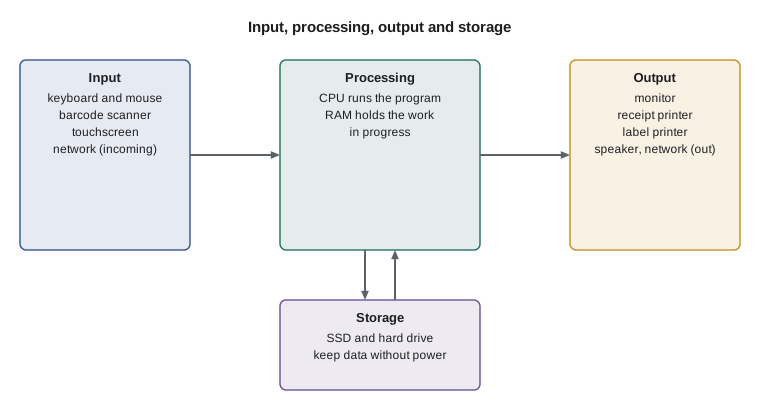
Think about Theo printing a shipping label. The barcode scanner reads an order number, which is input. The shipping software looks up the order and calculates the postage, which is processing. The label printer produces the label, which is output. And the order history is saved to the solid-state drive and to the online shop's servers, which is storage. If the label comes out blank, the fault is probably on the output side: the printer, its driver or the label stock. If the scanner beeps but nothing appears on screen, the fault is between input and processing. Placing a problem in the right part of the model narrows down where to look, before you touch a single cable.
The main components
Open the case of almost any desktop computer and you will find the same set of parts, arranged in much the same way. Laptops, tablets and phones contain the same parts too, but squeezed together, often soldered onto one board, and harder to replace. Learning the parts of a desktop first makes all the other devices easier to understand.
| Component | What it does | Everyday comparison |
|---|---|---|
| Central processing unit (CPU) | Carries out program instructions and coordinates the system | The barista making the drinks |
| Memory (RAM) | Holds the programs and data in use right now; cleared when the power goes off | The counter space in front of the barista |
| Storage (SSD or hard drive) | Keeps programs, files and the operating system permanently | The stockroom shelves |
| Motherboard | Connects every part and carries data and power between them | The cafe floor plan that links every station |
| Power supply unit (PSU) | Converts wall power into the low voltages the parts need | The building's electrical panel |
| Graphics (GPU) | Draws images for the display; built into many CPUs, or a separate card | The menu board artist |
| Expansion cards | Add features such as extra network ports or a faster graphics card | Extra equipment bolted on when needed |
| Cooling | Fans, heat sinks and sometimes liquid loops that carry heat away | The kitchen ventilation |
| Case and front panel | Holds and protects the parts; provides buttons, ports and airflow | The building itself |
The processor is often called the brain of the computer, but the comparison can mislead. A processor does not understand anything; it simply executes a very long list of tiny instructions, such as add these two numbers, copy this value to that location, or jump to a different instruction if a result is zero, billions of times every second. Everything clever a computer does is the result of programs that combine those simple steps. Modern processors have several cores, each able to run its own stream of instructions, which is why a computer can play music, download updates and run a spreadsheet at the same time.
Memory and storage are the two parts beginners most often confuse, partly because both are measured in gigabytes. Memory, usually called RAM for random-access memory, is fast working space. When you open a program, the computer copies it from storage into memory, because the processor can read memory many thousands of times faster than it can read even a fast drive. Memory is volatile, which means it loses its contents when the power goes off. Storage is slower but permanent. That is why an unsaved spreadsheet disappears in a power cut while the saved version survives: the unsaved changes existed only in memory.
The motherboard is the large circuit board that everything plugs into. It has a socket for the processor, slots for memory, connectors for drives, slots for expansion cards, and the ports that appear on the back of the computer. It also holds a small chip of firmware, the UEFI or BIOS, which starts the computer before the operating system loads. The power supply converts the alternating current from the wall into the steady low-voltage direct current the components need, mostly 12 volts, 5 volts and 3.3 volts. A failing power supply causes some of the strangest faults a technician sees, from random restarts to a computer that will not turn on at all.
Hardware, firmware, operating system and applications
The parts you can touch are the hardware. Hardware on its own does nothing; it needs software, which is the instructions that tell it what to do. Software comes in layers, and understanding the layers helps you decide where a problem lives.
At the bottom is firmware: small programs stored on chips inside the hardware itself. The motherboard's UEFI firmware tests the hardware when the power comes on and finds something to start from. Printers, drives, network cards and even keyboards have firmware of their own. Above the firmware sits the operating system, such as Windows, macOS, Linux, iPadOS or Android. The operating system manages the hardware, decides which program gets to use the processor and memory at any moment, keeps files organized, and gives programs a standard way to reach devices through small pieces of software called drivers. At the top are applications: the point-of-sale app, the shipping software, the roast profiler, the web browser and the accounting package.
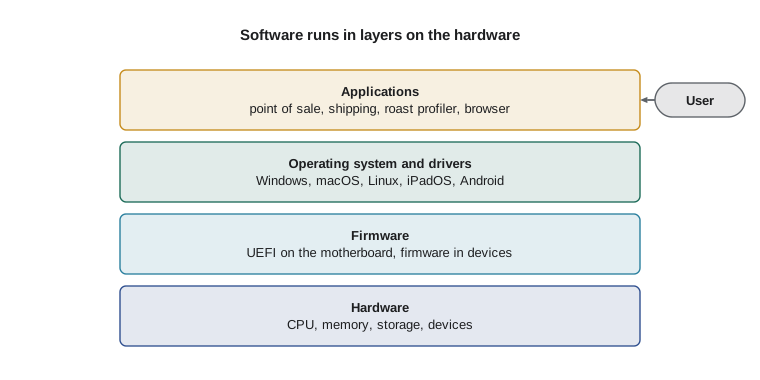
When Mei says the point-of-sale app keeps freezing, the problem could be in any layer. It could be the app itself, which an update might fix. It could be the tablet's operating system running out of memory. It could be a driver for the receipt printer that hangs whenever a receipt prints. Or it could be hardware, such as a tablet that overheats in the afternoon sun. A good technician keeps all the layers in mind and gathers evidence before deciding which one to work on.
Ridgeline's equipment
Sam's first job at Ridgeline was to write an inventory: a list of every device, who uses it, what it is and how it connects. An inventory sounds like paperwork, but it is the most useful document a support team keeps. When a ticket arrives saying that the label printer is broken, the inventory tells you which computer it is attached to, how it connects, how old it is and whether it is still under warranty.
| Asset tag | Device | Main user | Key details |
|---|---|---|---|
| OFFICE-01 | Desktop computer | Anita (bookkeeping) | Windows 11 Pro, 6-core processor, 16 GB RAM, 512 GB NVMe SSD plus 1 TB hard drive |
| OFFICE-02 | Mini PC | Theo (shipping) | Windows 11 Pro, 8 GB RAM, 256 GB SSD; label printer, scanner and scale on USB |
| ROAST-LT | Laptop | Kai (roasting) | Windows 11 Pro, 16 GB RAM, USB-C charging; USB link to the roaster's temperature logger |
| CAFE-POS1, CAFE-POS2 | Tablets on stands | Mei and baristas | Cloud point-of-sale app; Bluetooth card readers |
| CAFE-PRN1 | Receipt printer | Cafe | 80 mm thermal printer on the network; opens the cash drawer |
| OFFICE-MFP | Laser multifunction printer | Office | Print, scan to email and copy; wired network |
| OFFICE-NAS | Network storage | Everyone (backups) | Two 4 TB drives that mirror each other; nightly backups |
| NET-RTR, NET-SW, NET-AP | Router, switch, Wi-Fi access point | Everyone | Internet connection, wired network and staff and guest Wi-Fi |
| UPS-01 | Uninterruptible power supply | Office | Battery backup for OFFICE-01, the NAS, switch and router |
You may have spotted that the online shop does not appear in the inventory as a machine. Ridgeline's shop runs on a hosted e-commerce platform, which means the servers belong to the platform company and live in its data centres; Ridgeline rents the service. The point-of-sale system works the same way: the tablets run an app, but the menu, prices and sales records live in the provider's cloud. This mix of a few local devices and several cloud services is typical of small businesses today, and it changes the support job. When the shop is down, Jordan checks the provider's status page before touching any of Ridgeline's own equipment.
An inventory is also data, and data can be processed. Jordan keeps a copy of the device list in a small Python script so that questions such as how many Windows machines Ridgeline has, or how much memory each office computer has, can be answered in a second. The listing below is a cut-down version. Press Edit and run, then try adding another device to the list.
inventory = [
    {"tag": "OFFICE-01", "kind": "desktop", "os": "Windows 11 Pro", "ram_gb": 16},
    {"tag": "OFFICE-02", "kind": "mini PC", "os": "Windows 11 Pro", "ram_gb": 8},
    {"tag": "ROAST-LT", "kind": "laptop", "os": "Windows 11 Pro", "ram_gb": 16},
    {"tag": "CAFE-POS1", "kind": "tablet", "os": "tablet OS", "ram_gb": 4},
    {"tag": "CAFE-POS2", "kind": "tablet", "os": "tablet OS", "ram_gb": 4},
]

windows = [d["tag"] for d in inventory if d["os"].startswith("Windows")]
print("Windows computers:", ", ".join(windows))
print("Total RAM in these devices:", sum(d["ram_gb"] for d in inventory), "GB")
for d in inventory:
print(f'{d["tag"]:<10} {d["kind"]:<8} {d["ram_gb"]:>3} GB')Windows computers: OFFICE-01, OFFICE-02, ROAST-LT Total RAM in these devices: 48 GB OFFICE-01 desktop 16 GB OFFICE-02 mini PC 8 GB ROAST-LT laptop 16 GB CAFE-POS1 tablet 4 GB CAFE-POS2 tablet 4 GB
Try it yourself
Count devices by kind
Sam wants a quick count of how many devices of each kind Ridgeline owns. Complete the function count_kinds(devices) so that it returns a dictionary mapping each kind to the number of devices of that kind.
For the starter list, count_kinds(inventory) should return {"desktop": 1, "mini PC": 1, "laptop": 1, "tablet": 2}.
inventory = [
    {"tag": "OFFICE-01", "kind": "desktop"},
    {"tag": "OFFICE-02", "kind": "mini PC"},
    {"tag": "ROAST-LT", "kind": "laptop"},
    {"tag": "CAFE-POS1", "kind": "tablet"},
    {"tag": "CAFE-POS2", "kind": "tablet"},
]

def count_kinds(devices):
    counts = {}
    # add one to counts[kind] for each device
    return counts

print(count_kinds(inventory))
What happens when you press the power button
Following a computer from switch-on to a working desktop ties all the parts together, and it is also the sequence you will retrace whenever a computer will not start, which lesson 9 covers in detail.
When Anita presses the power button on OFFICE-01, the button sends a signal to the motherboard, which tells the power supply to turn on its main outputs. Once the voltages are steady, the power supply signals that power is good, and the processor starts running instructions from the UEFI firmware. The firmware runs the power-on self-test, or POST, which checks that the processor, memory and graphics are present and working. If POST finds a serious problem, the computer may beep in a pattern or flash a light, because the screen may not work yet. If everything passes, the firmware looks through its list of boot devices, finds the drive that holds Windows, and hands control to the Windows boot manager. Windows then loads its core, called the kernel, starts its drivers and services, and finally shows the sign-in screen.
The whole sequence takes perhaps fifteen seconds on a computer with a solid-state drive, and every stage depends on the stage before it. A dead power supply stops everything at the first step. A loose memory module stops the process at POST. A corrupted boot file stops it after POST, usually with an error message on screen. Knowing the order lets you look at where the start-up stopped and work out which part to suspect.
Worked problem
Placing a problem in the right part of the system
Mei reports that CAFE-POS2 rings up orders normally, but no receipt prints, even though CAFE-POS1 prints receipts on the same printer without trouble. Use the input, processing, output and storage model and the software layers to decide where to look first.
Show solution
- Input and processing are working: orders are entered and totals are calculated, so the tablet, its touchscreen and the app are basically healthy.
- The fault is on the output side, but the printer itself works, because CAFE-POS1 prints on it. So the printer hardware, its paper and its network connection are unlikely causes.
- The difference between the two tablets is therefore what matters: the printer setting in the app on CAFE-POS2, its network connection to the printer, or an app version that differs.
- First checks: compare the printer settings in the app on both tablets, confirm that CAFE-POS2 is on the staff Wi-Fi rather than the guest network, and compare app versions.
Answer: Start with the configuration of CAFE-POS2, not the printer: the evidence shows the printer and the app in general are fine, and only one tablet is affected.
Why technicians learn the parts
You might wonder why someone supporting a coffee roaster needs to know what a power supply does, when most problems are solved by restarting an app or resetting a password. The answer is that the parts explain the symptoms. A computer that runs slowly when many browser tabs are open is probably short of memory; one that runs slowly all the time and makes clicking noises probably has a failing hard drive; one that shuts down without warning on hot afternoons is probably overheating. Each of those diagnoses comes from knowing what the parts do. Knowing the parts also lets you have sensible conversations with suppliers, judge whether a repair is worth doing, and choose a replacement that will last.
This course is written at the level of the CompTIA A+ certification, the most common entry certification for IT support work in both Canada and the United States. A+ is earned by passing two exams, Core 1 and Core 2. Core 1 covers mobile devices, networking, hardware, virtualization and cloud computing, and hardware and network troubleshooting. Core 2 covers operating systems, security, software troubleshooting and operational procedures. This course covers the foundations of both. The networking topics are covered in much more depth in NET-110, the Linux material in NET-103 and the security material in CYB-101, and the service desk practices in ITSM-201.
Common mistakes
MistakeTreating memory and storage as the same thing because both are measured in gigabytes.
InsteadMemory (RAM) is fast, temporary working space; storage keeps files permanently. A computer short of memory slows down; a computer short of storage cannot save files or install updates.
MistakeStarting to replace parts before working out which part of the system the problem is in.
InsteadUse the input, processing, output and storage model, and the software layers, to place the problem first.
MistakeAssuming a cloud service problem is a local hardware problem.
InsteadCheck the provider's status page and whether other users are affected before working on local devices.
MistakeKeeping no inventory, so every ticket starts with finding out what the device is.
InsteadRecord every device with its asset tag, user, specification, connections, purchase date and warranty.
MistakeCalling the processor the brain and expecting it to understand problems.
InsteadThe processor only executes simple instructions very quickly; the behaviour comes from the software.
MistakeIgnoring firmware because it is invisible.
InsteadFirmware on the motherboard, printers and drives can cause faults and sometimes needs updating, carefully and from the manufacturer only.
Summary and key terms
- Every computer takes input, processes it, produces output and stores data; placing a fault in one of those four areas narrows the search.
- The main parts are the CPU, memory, storage, motherboard, power supply, graphics, expansion cards, cooling and the case.
- Memory is fast and volatile working space; storage is slower and permanent.
- Software runs in layers: firmware, the operating system with its drivers, and applications.
- At power-on the firmware runs POST, finds a boot device and hands over to the operating system.
- A device inventory with asset tags, users, specifications and connections is the foundation of good support.
- Many small-business services, such as online shops and point-of-sale systems, run in the cloud rather than on local machines.
- hardware
- The physical parts of a computer system.
- software
- The programs and instructions that tell hardware what to do.
- CPU
- The central processing unit, which executes program instructions.
- RAM
- Random-access memory: fast, volatile working memory.
- storage
- Permanent data storage such as solid-state drives and hard drives.
- motherboard
- The main circuit board that connects all components.
- firmware
- Software stored on a chip inside hardware, such as UEFI.
- operating system
- Software that manages hardware and runs applications.
- driver
- Software that lets the operating system use a particular device.
- POST
- The power-on self-test the firmware runs at start-up.
- asset tag
- A unique label identifying a device in an inventory.
Practice problems
Work each problem on paper first, then reveal the answer to check.
A receipt prints but shows the wrong prices. Which part of the input, processing, output and storage model is most likely at fault?
Show answer
Processing or stored data: the printer (output) is working, but the app is calculating with, or has stored, the wrong prices.
Anita lost an hour of unsaved work in a power cut, but files saved earlier were fine. Why?
Show answer
Unsaved work existed only in memory, which is volatile. Saved files were on the drive, which keeps data without power.
Name the layer that tests the hardware before the operating system loads.
Show answer
The firmware (UEFI or BIOS), which runs POST.
Why does the online shop not appear as a computer in Ridgeline's inventory?
Show answer
It runs on a hosted platform; the servers belong to the provider, and Ridgeline rents the service.
A computer beeps three times at start-up and shows nothing on screen. Roughly where in the start-up sequence has it stopped?
Show answer
During POST, before the operating system loads; the beeps are the firmware reporting a hardware problem.
List four facts an inventory entry should record about each device.
Show answer
Any four of: asset tag, device type, user or location, specification, operating system, connections, purchase date, warranty.
Lesson quiz · 5 questions
Score 60% or more to complete this lesson.
Create a free account to save your progress, take quizzes and earn a certificate.