
NET-101 · Lesson 7 of 12 · 22 min
Connecting devices: ports, cables and basic networking
▶ Video coming soon A video version of this lesson is on the way.
A computer on its own is of limited use. Its value comes from connections: to monitors, keyboards and printers, to the other computers in the building and to the internet. A large share of support tickets turn out to be connection problems, from a monitor plugged into the wrong port to a laptop that joined the guest Wi-Fi instead of the staff network. This lesson covers the ports and cables you will handle every day and the networking basics every technician needs, which NET-110 then develops in depth.
USB and its many versions
Universal Serial Bus, USB, connects almost everything: keyboards, mice, scanners, drives, phones, docks and chargers. It has two separate things to keep track of: the connector shape and the data speed. The older rectangular USB-A connector is still common on computers and chargers. USB-C is the small, reversible, oval connector now used on almost all new devices, and it can carry data, video and power through one cable. USB-B, a squarer connector, still appears on printers and some audio equipment, and older phones used Micro-USB.
| Version (marketing name) | Maximum speed | Usual connector |
|---|---|---|
| USB 2.0 (Hi-Speed) | 480 Mbps | USB-A, USB-B, Micro-USB, USB-C |
| USB 3.2 Gen 1 (USB 5Gbps) | 5 Gbps | USB-A (often blue inside), USB-C |
| USB 3.2 Gen 2 (USB 10Gbps) | 10 Gbps | USB-A, USB-C |
| USB 3.2 Gen 2x2 (USB 20Gbps) | 20 Gbps | USB-C only |
| USB4 (USB 40Gbps) | 40 Gbps | USB-C only |
| USB4 version 2.0 (USB 80Gbps) | 80 Gbps | USB-C only |
The confusing names come from repeated renaming by the standards body, which now encourages simple labels such as USB 10Gbps. The practical lessons are these. A USB-C port does not guarantee any particular speed or feature: one USB-C port may carry only USB 2.0 data, while another carries 40 Gbps, video and 100 watts of power. Cables matter too: a cheap USB-C charging cable may carry only USB 2.0 data and no video. When a USB-C monitor stays blank or an external SSD copies slowly, check that both the port and the cable support what is being asked of them. Thunderbolt, developed by Intel and Apple, uses the USB-C connector and is closely aligned with USB4; Thunderbolt 4 runs at 40 Gbps and Thunderbolt 5 at 80 Gbps, and Thunderbolt ports are marked with a lightning bolt symbol. Kai's dock connects through Thunderbolt so that one cable carries two monitors, the wired network, USB devices and charging.
Video connections
HDMI is the standard on televisions, monitors and most computers; HDMI 2.1 supports high resolutions and refresh rates. DisplayPort is common on business monitors and graphics cards, supports daisy-chaining several monitors from one port, and is also carried over USB-C in a mode called DisplayPort Alternate Mode. Older connectors still turn up: DVI on older monitors and VGA, an analogue connector with fifteen pins in three rows, on old projectors. Adapters convert between most digital standards, but going from digital to VGA needs an active adapter with electronics inside.
The most common video ticket of all is a monitor that shows no signal because it is set to the wrong input, or because the cable is plugged into the motherboard's video port on a computer that has a separate graphics card, which disables the motherboard port. The second most common is the wrong resolution: a monitor that looks blurry because the computer is not sending its native resolution, which is fixed in the Windows display settings.
Other ports and cables
| Port or cable | Purpose | Where Ridgeline uses it |
|---|---|---|
| RJ45 (Ethernet) | Wired network connection | Office computers, receipt printer, MFP, NAS, access point |
| 3.5 mm audio jack | Headphones and microphones | Headset on OFFICE-01 for video calls |
| RJ11 | Telephone line; also used for cash drawer kick cables | Cash drawer connected to the receipt printer |
| Serial (RS-232, DB9) | Older equipment and industrial devices | The roaster's logger, through a USB-to-serial adapter |
| Barrel power connector | Power for small devices | The mini PC's power adapter |
| SATA and M.2 | Internal storage (lesson 2) | Inside OFFICE-01 |
Network cables are rated in categories. Category 5e supports gigabit Ethernet up to 100 metres; Category 6 supports 10 gigabit Ethernet up to about 55 metres; Category 6a supports 10 gigabit to the full 100 metres. Most cables are unshielded twisted pair, UTP, in which pairs of wires are twisted to cancel interference; shielded twisted pair, STP, adds foil or braid for electrically noisy places, such as near the roaster's motors. Fibre-optic cable carries light instead of electricity, covers much longer distances and is immune to electrical interference; it connects buildings and the internet provider's equipment. The two ends of an Ethernet cable follow a wiring standard, T568A or T568B; using the same standard at both ends makes a straight-through cable, which is what almost every connection needs.
Numbers that networks use
Networks identify devices with numbers, and those numbers are written in binary and hexadecimal as well as ordinary decimal, so a technician needs to read all three. Binary uses only the digits 0 and 1, each place worth twice the one to its right: 1, 2, 4, 8, 16, 32, 64 and 128 for the eight bits of a byte. So binary 11000000 is 128 plus 64, which is 192. Hexadecimal, or hex, uses sixteen digits, 0 to 9 and then A to F for ten to fifteen, so each hex digit stands for exactly four bits and a byte is two hex digits: decimal 192 is hex C0. Python converts between them easily.
for n in (10, 168, 192, 255):
    print(f"{n:>3} decimal = {n:08b} binary = {n:02X} hex")

print(int("11000000", 2), int("C0", 16), int("ff", 16))10 decimal = 00001010 binary = 0A hex 168 decimal = 10101000 binary = A8 hex 192 decimal = 11000000 binary = C0 hex 255 decimal = 11111111 binary = FF hex 192 192 255
Try it yourself
Binary and hex converter
Write a function describe(n) that takes a whole number from 0 to 255 and returns a string such as 192 = 11000000 = C0: the decimal number, its value as eight binary digits and its value as two uppercase hex digits. Raise a ValueError for numbers outside 0 to 255.
Hint: format specifiers 08b and 02X do most of the work.
def describe(n):
    return str(n)

print(describe(192))
print(describe(10))
Addresses on a network
Every network interface has a MAC address, a hardware address set at the factory, written as six pairs of hex digits such as 3C:52:82:1A:9F:04. The first half identifies the maker. MAC addresses are used to deliver data within one local network. To reach devices beyond the local network, including anything on the internet, devices also need an IP address. The familiar IPv4 address is four numbers from 0 to 255 separated by dots, such as 192.168.10.25, which is 32 bits written one byte at a time. A newer system, IPv6, uses much longer addresses written in hex, such as 2001:db8:4a::25, because the world has run out of IPv4 addresses; NET-110 covers it.
Some IPv4 ranges are reserved for private networks inside homes and businesses: 10.0.0.0 to 10.255.255.255, 172.16.0.0 to 172.31.255.255 and 192.168.0.0 to 192.168.255.255. Devices on Ridgeline's network have private addresses in the 192.168.10.x range. The router translates between those private addresses and the single public address the internet provider assigns, a process called network address translation. An address starting with 169.254 is a warning sign: it means the device asked for an address and got no answer, so it gave itself one that works only on the local cable, and it cannot reach the internet.
Try it yourself
Check an IPv4 address
Write a function classify(address) that returns "invalid" if the string is not a valid IPv4 address (exactly four parts, each a whole number from 0 to 255), "self-assigned" if it starts with 169.254, "private" if it is in 10.x.x.x, 172.16.x.x to 172.31.x.x or 192.168.x.x, and "public" otherwise.
For example, classify("192.168.10.25") is "private" and classify("169.254.3.7") is "self-assigned".
def classify(address):
    parts = address.split(".")
    return "public"

for a in ["192.168.10.25", "169.254.3.7", "8.8.8.8", "192.168.10.300"]:
    print(a, classify(a))
How a device joins the network
When Kai docks ROAST-LT in the office, it gets everything it needs automatically through DHCP, the Dynamic Host Configuration Protocol. The laptop broadcasts a request; the router, acting as the DHCP server, offers an IP address from its pool, along with the subnet mask, which says which addresses are on the local network, the default gateway, which is the router's own address for reaching other networks, and the addresses of DNS servers. DNS, the Domain Name System, translates names such as ridgelinecoffee.example into IP addresses, much as a contacts list turns a name into a phone number. When names stop working but addresses still do, the problem is DNS.
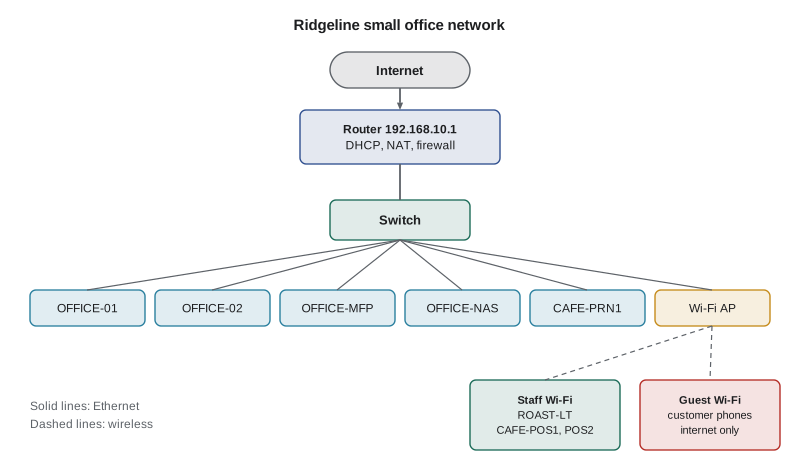
Inside the office, the switch connects the wired devices and forwards each piece of data only to the port where its destination is. The Wi-Fi access point connects wireless devices on two separate networks: a staff network for Ridgeline's own devices and a guest network for customers, which can reach the internet but not the office computers, printers or tablets. Wi-Fi standards are named by generation: Wi-Fi 5 (802.11ac), Wi-Fi 6 (802.11ax), Wi-Fi 6E, which adds the 6 GHz band, and Wi-Fi 7 (802.11be). The 2.4 GHz band reaches further but is slower and more crowded; the 5 GHz and 6 GHz bands are faster but are blocked more by walls.
Two commands check a computer's network connection, and Jordan uses them in nearly every network ticket. They run in Command Prompt or PowerShell, not in the browser.
> ipconfig
   IPv4 Address. . . . . . . . . . . : 192.168.10.42
   Subnet Mask . . . . . . . . . . . : 255.255.255.0
   Default Gateway . . . . . . . . . : 192.168.10.1

> ping 192.168.10.1
Reply from 192.168.10.1: bytes=32 time=1ms TTL=64

> ping ridgelinecoffee.example
Ping request could not find host ridgelinecoffee.example.
Reading that output is a small piece of troubleshooting in itself. The computer has a sensible private address and gateway, so DHCP worked. Pinging the gateway gets replies, so the local network and the router are reachable. But the name could not be found, so the problem is DNS, not the cable, the Wi-Fi or the internet connection. Lesson 8 turns this kind of reasoning into a method.
Worked problem
No internet on the shipping computer
Theo reports that OFFICE-02 says No internet. ipconfig shows the address 169.254.88.12 with no default gateway. Other office computers work. What does this tell Jordan, and what are the next steps?
Show solution
- An address starting with 169.254 is self-assigned: the computer got no answer from the DHCP server.
- Other computers work, so the router and its DHCP service are fine; the problem is between OFFICE-02 and the switch.
- Check the physical connection first: the Ethernet cable at both ends, the link lights on the computer and the switch port. Try a known-good cable and another switch port.
- Once the link light is on, run ipconfig /release and ipconfig /renew to request an address again, then ping the gateway.
Answer: The computer is not reaching the DHCP server, most likely because of the cable or switch port; fix the physical link and renew the address.
Common mistakes
MistakeAssuming every USB-C port and cable supports video, fast data and high-power charging.
InsteadCheck the port's markings or the device specifications, and use a cable rated for the job.
MistakePlugging the monitor into the motherboard when a graphics card is installed.
InsteadConnect the monitor to the graphics card's ports.
MistakeTreating a 169.254 address as a working address.
InsteadIt means DHCP failed; check the connection and renew the address.
MistakeBlaming the internet connection when names fail but IP addresses work.
InsteadThat pattern points to DNS.
MistakePutting customer devices on the same Wi-Fi as the point-of-sale tablets.
InsteadUse a separate guest network that cannot reach business devices.
MistakeRunning a long Category 6 cable 90 metres and expecting 10 gigabit speeds.
InsteadUse Category 6a for 10 gigabit runs up to 100 metres.
Summary and key terms
- USB-C is a connector shape, not a speed; ports and cables must both support the speed, video or power needed.
- Thunderbolt and USB4 carry 40 or 80 Gbps over USB-C; docks use them for one-cable desk setups.
- HDMI and DisplayPort carry digital video; VGA is old and analogue.
- Category 5e, 6 and 6a cables differ in the speeds and distances they support; fibre covers long distances.
- Binary and hexadecimal appear in addresses; one hex digit is four bits.
- MAC addresses identify interfaces locally; IPv4 addresses route traffic; private ranges are used inside buildings.
- DHCP hands out addresses, gateways and DNS servers; a 169.254 address means DHCP failed.
- USB-C
- A small reversible connector carrying data, video and power.
- Thunderbolt
- A high-speed interface using the USB-C connector, aligned with USB4.
- DisplayPort
- A digital video interface, also carried over USB-C.
- twisted pair
- Network cable with twisted wire pairs to reduce interference.
- hexadecimal
- A base-16 number system using 0 to 9 and A to F.
- MAC address
- A hardware address for a network interface.
- IP address
- A logical address used to route data between networks.
- private address
- An IPv4 address reserved for use inside local networks.
- DHCP
- The protocol that assigns IP settings automatically.
- DNS
- The system that translates names into IP addresses.
- default gateway
- The router address used to reach other networks.
Practice problems
Work each problem on paper first, then reveal the answer to check.
Convert decimal 168 to binary and hex.
Show answer
10101000 in binary and A8 in hex.
Is 172.25.4.9 a private or public address?
Show answer
Private: it is in 172.16.0.0 to 172.31.255.255.
A laptop can ping 8.8.8.8 but not open any website by name. What is the likely problem?
Show answer
DNS.
Which cable category supports 10 gigabit Ethernet over 100 metres?
Show answer
Category 6a.
A USB-C external SSD copies at only 40 MB/s. Name two things to check.
Show answer
Whether the port is only USB 2.0, and whether the cable supports only USB 2.0 data.
What four settings does DHCP usually provide?
Show answer
An IP address, subnet mask, default gateway and DNS servers.
Lesson quiz · 5 questions
Score 60% or more to complete this lesson.
Create a free account to save your progress, take quizzes and earn a certificate.