
NET-101 · Lesson 6 of 12 · 24 min
Files, file systems and backups
▶ Video coming soon A video version of this lesson is on the way.
Everything a business cares about on its computers is, in the end, data in files: Anita's accounting records, Kai's roast logs, Theo's shipping history, Rosa's contracts and the photos for the online shop. Hardware can be replaced in an afternoon; lost data often cannot be replaced at all. This lesson explains how operating systems organize files on drives, how file permissions control who can use them, and how to build a backup system that will actually bring data back when a drive fails, a laptop is stolen or ransomware strikes.
Files, folders and paths
A file is a named collection of data stored on a drive. Files are organized in folders, also called directories, which can contain other folders, forming a tree. The location of a file is written as a path. On Windows, a path starts with a drive letter and uses backslashes, as in C:\Users\Anita\Documents\2026-10-sales.xlsx. On macOS and Linux, paths start at a single root, written as a forward slash, as in /home/kai/roasts/B-0412.csv, and there are no drive letters. Network shares on Windows use a UNC path, which starts with two backslashes and the server name, as in \\OFFICE-NAS\Accounts.
The part of a file name after the last dot is its extension, such as .xlsx, .pdf, .csv or .exe. The operating system uses the extension to decide which program opens the file. Windows hides extensions by default, which is a security weakness: a malicious file called invoice.pdf.exe appears as invoice.pdf, looking like a harmless document. Sam turns on file name extensions in File Explorer on every Ridgeline computer for exactly that reason.
Python can work with paths in a way that runs on any operating system, through the pathlib module. Jordan uses it in the backup report scripts he writes for Sam; the listing shows the idea.
from pathlib import PurePosixPath, PureWindowsPath

report = PureWindowsPath(r"C:\Users\Anita\Documents\2026-10-sales.xlsx")
print("Drive:", report.drive)
print("Folder:", report.parent)
print("Name:", report.name, "| extension:", report.suffix)

roast = PurePosixPath("/home/kai/roasts/B-0412.csv")
print("Linux parts:", roast.parts)
print("Same folder, new file:", roast.with_name("B-0413.csv"))Drive: C:
Folder: C:\Users\Anita\Documents
Name: 2026-10-sales.xlsx | extension: .xlsx
Linux parts: ('/', 'home', 'kai', 'roasts', 'B-0412.csv')
Same folder, new file: /home/kai/roasts/B-0413.csvFile systems
A file system is the way an operating system arranges files on a partition: how it records file names, folder structure, sizes, dates, permissions and where each file's data blocks are. A partition must be formatted with a file system before it can store files. Each operating system has its own preferred file systems, and the choice affects maximum file size, security features and which devices can read the drive.
| File system | Used by | Strengths | Limits |
|---|---|---|---|
| NTFS | Windows system and data drives | Permissions, encryption, compression, journaling, very large files | macOS reads it but does not write to it without extra software |
| FAT32 | Small USB drives, the EFI system partition, cameras | Readable by almost every device | Maximum file size 4 GB; no permissions |
| exFAT | Large USB drives and memory cards | Readable and writable on Windows and macOS; huge files | No permissions or journaling |
| ext4 | Linux | Reliable, journaled, permissions | Windows cannot read it natively |
| APFS | macOS, iOS and iPadOS | Snapshots, encryption, fast copying | Windows cannot read it natively |
Two of those features need explanation. Journaling means the file system writes a note of what it is about to change before changing it, so that after a crash or power cut it can finish or undo half-done changes instead of leaving the structure damaged. NTFS, ext4 and APFS are journaled; FAT32 and exFAT are not, which is why pulling a USB drive out without ejecting it can corrupt it. Permissions, covered next, let the file system control who can read or change each file.
When Theo needed a USB drive to move a 6 GB video of a roasting session to the photographer, the drive formatted with FAT32 refused the file, because FAT32 cannot store a file larger than 4 GB. Reformatting it as exFAT, which both Windows and macOS read and write, solved the problem. That kind of everyday question is why technicians learn file systems.
Permissions
On NTFS, every file and folder has an access control list that says which users and groups can do what: read, write, modify, delete or take full control. Permissions are inherited, so a folder's permissions flow down to everything inside it unless changed. On Ridgeline's network storage, the Accounts folder is readable and writable by Anita and Rosa only, the Roasting folder by Kai and the managers, and the Shared folder by everyone. Giving permissions to groups, such as Bookkeeping or Managers, rather than to named individuals, makes changes simple: when a new bookkeeper joins, Sam adds them to the group rather than editing every folder.
Linux and macOS use a simpler model at their core, with read, write and execute permissions for the file's owner, its group and everyone else, often written as letters such as rwxr-x--- or as numbers such as 750. NET-103 covers Linux permissions. The guiding rule on every system is the principle of least privilege: give each person the access their work needs and no more.
Why backups matter
Data can be lost in many ways, and a backup plan must cover all of them. Drives fail, sometimes suddenly. Laptops are dropped, left in cars and stolen. Users delete or overwrite files by mistake, often noticing only weeks later. Software bugs corrupt files. Fires, floods and burst pipes destroy equipment. And ransomware, malicious software that encrypts files and demands payment, can scramble every file a computer can reach, including those on connected drives and network shares. A good backup is the only reliable recovery from all of these.
The most widely used guideline is the 3-2-1 rule: keep at least three copies of important data, on at least two different kinds of storage, with at least one copy off-site. Many organizations now add that one copy should be offline or immutable, meaning it cannot be changed or deleted for a set period, so that ransomware cannot reach it either.
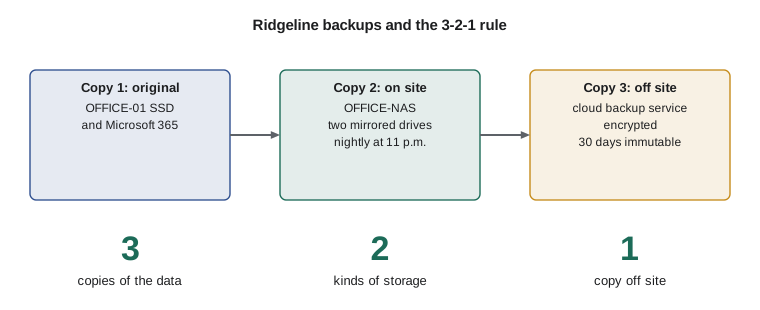
At Ridgeline, the original files live on the computers and in Microsoft 365. Every night, backup software copies OFFICE-01 and the shipping data to OFFICE-NAS, the network storage box in the office. The NAS then sends an encrypted copy to a cloud backup service, which keeps thirty days of versions that cannot be altered. If OFFICE-01's drive fails, Sam restores from the NAS in an hour. If the building burns down, or ransomware encrypts both the computer and the NAS, the cloud copy survives. Microsoft 365 email and files are also backed up by a separate service, because the cloud provider keeps the service running but does not promise to recover everything a user deletes.
Kinds of backup
Backup software can copy data in three ways. A full backup copies everything selected, every time. It is the simplest to restore from but takes the longest and uses the most space. An incremental backup copies only what has changed since the last backup of any kind; it is fast and small, but a restore needs the last full backup and every incremental since, in order. A differential backup copies everything that has changed since the last full backup; each differential grows larger through the week, but a restore needs only the last full backup and the latest differential.
| Type | Copies | Backup speed and size | To restore you need |
|---|---|---|---|
| Full | Everything | Slowest, largest | The one full backup |
| Incremental | Changes since the last backup of any type | Fastest, smallest | The last full backup and every incremental since, in order |
| Differential | Changes since the last full backup | Grows through the cycle | The last full backup and the latest differential |
Try it yourself
Which backups does a restore need?
Ridgeline's backup log is a list of (day, kind) pairs in date order, where kind is "full" or "incremental". Write a function restore_set(log, day) that returns the list of days whose backups are needed to restore the data as it was on day: the most recent full backup on or before that day, then every incremental after it up to and including that day.
With the starter log, restore_set(log, 4) returns [1, 2, 3, 4] and restore_set(log, 9) returns [8, 9].
log = [(1, "full"), (2, "incremental"), (3, "incremental"), (4, "incremental"),
       (5, "incremental"), (6, "incremental"), (7, "incremental"), (8, "full"), (9, "incremental")]

def restore_set(log, day):
    return [day]

print(restore_set(log, 4))
print(restore_set(log, 9))
Modern backup tools blur these categories with techniques such as deduplication, which stores each unique block of data only once, and synthetic full backups, which assemble a full backup from previous ones without copying everything again. The underlying ideas still explain what a restore depends on. Two numbers describe what a business needs from its backups. The recovery point objective, RPO, is how much data, measured in time, the business can afford to lose: Ridgeline's nightly backups give an RPO of one day. The recovery time objective, RTO, is how long the business can be without the system: Anita can manage a morning without OFFICE-01, but not a week.
RAID is not a backup
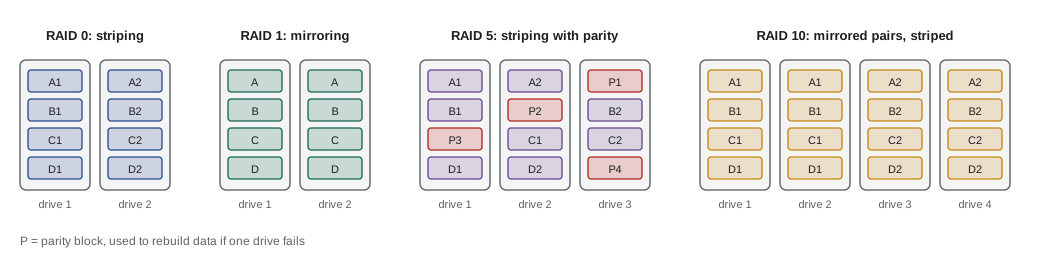
OFFICE-NAS uses two 4 TB drives in a RAID 1 mirror. RAID, a redundant array of independent disks, combines drives to improve speed, protect against a drive failure, or both. It is valuable, but it is not a backup: if a file is deleted, corrupted or encrypted by ransomware, the change is copied to every drive in the array instantly. RAID protects against one kind of failure, a drive dying, and keeps the system running while the failed drive is replaced.
| Level | How it works | Minimum drives | Usable capacity | Survives |
|---|---|---|---|---|
| RAID 0 | Data striped across drives for speed | 2 | All drives | No drive failures |
| RAID 1 | Every drive holds a full copy (mirror) | 2 | One drive | All but one drive failing |
| RAID 5 | Striping with parity spread across drives | 3 | All drives minus one | One drive failure |
| RAID 6 | Striping with two sets of parity | 4 | All drives minus two | Two drive failures |
| RAID 10 | Mirrored pairs, striped together | 4 | Half the drives | One drive per mirrored pair |
Try it yourself
RAID usable capacity
Write a function usable_tb(level, drives, size_tb) that returns the usable capacity in TB for an array of equal drives, using the table: RAID 0 uses all drives, RAID 1 one drive, RAID 5 all but one, RAID 6 all but two and RAID 10 half the drives. Raise a ValueError if there are fewer drives than the level needs (2, 2, 3, 4 and 4).
For the NAS, usable_tb(1, 2, 4) is 4.
def usable_tb(level, drives, size_tb):
    return drives * size_tb

print(usable_tb(1, 2, 4))
Testing restores
A backup that has never been restored is a hope, not a plan. Backup jobs fail silently, drives fill up, passwords change, and the one folder that mattered turns out to have been excluded. Sam's rule at Ridgeline is that backup reports are checked every week and a test restore is done every month: a few files restored to a different folder and opened, and once a year a full restore of a computer to spare hardware. Each test is written down, with how long it took, which helps answer the RTO question honestly.
Worked problem
Recovering from an overwritten file
On a Thursday afternoon Anita discovers she saved over the September sales workbook on Monday morning with the October figures. Backups run nightly at 11 p.m., with a full backup on Sundays and incrementals on other nights. Which backup holds the September version, and what does the restore need?
Show solution
- The file was overwritten on Monday morning, so the last good version was captured by the Sunday 11 p.m. full backup.
- Restoring from Sunday needs only the full backup itself, with no incrementals.
- Restore the file to a different folder, not over the current one, so the October work saved since Monday is kept.
- Ask Anita to open the restored copy and confirm it is the right version, then rename it sensibly.
Answer: Restore the file from Sunday's full backup into a separate folder; nothing else is needed, and the October version is untouched.
Common mistakes
MistakeTreating a RAID array or a sync service as a backup.
InsteadRAID and sync copy deletions and ransomware damage instantly; keep separate, versioned backups.
MistakeKeeping every copy in the same building.
InsteadFollow the 3-2-1 rule with at least one copy off-site, ideally immutable.
MistakeNever testing restores.
InsteadCheck backup reports weekly and restore files on a schedule, recording the results.
MistakeRestoring an old file over the current one.
InsteadRestore to a separate location so newer work is not lost.
MistakeFormatting a USB drive as FAT32 for large video files.
InsteadUse exFAT for large files shared between Windows and macOS.
MistakeGranting folder permissions to individuals one by one.
InsteadGrant permissions to groups and manage group membership.
Summary and key terms
- Files live in folders and are located by paths; Windows uses drive letters and backslashes, Linux and macOS a single root and forward slashes.
- Show file extensions to spot disguised executable files.
- NTFS, FAT32, exFAT, ext4 and APFS differ in file size limits, journaling, permissions and compatibility.
- Permissions follow least privilege and are best granted to groups.
- The 3-2-1 rule: three copies, two kinds of storage, one off-site, ideally one immutable.
- Full, incremental and differential backups trade backup time against what a restore needs.
- RAID protects against drive failure but is not a backup; restores must be tested regularly.
- path
- The location of a file in the folder tree.
- file extension
- The part of a file name after the last dot, used to choose a program.
- file system
- The method an operating system uses to organize files on a partition.
- journaling
- Recording intended changes so a file system can recover after a crash.
- access control list
- The list of permissions on an NTFS file or folder.
- least privilege
- Giving each user only the access they need.
- 3-2-1 rule
- Three copies of data, on two kinds of storage, one off-site.
- incremental backup
- A backup of changes since the last backup of any type.
- differential backup
- A backup of changes since the last full backup.
- RPO and RTO
- How much data and how much time a business can afford to lose.
- RAID
- Combining drives for speed, redundancy or both.
Practice problems
Work each problem on paper first, then reveal the answer to check.
A 5 GB file will not copy to a USB drive with plenty of free space. Why?
Show answer
The drive is formatted FAT32, which cannot store files over 4 GB; use exFAT.
With a full backup on Sunday and differentials nightly, what is needed to restore Thursday's data?
Show answer
Sunday's full backup and Thursday's differential.
Four 6 TB drives in RAID 5 give how much usable space?
Show answer
18 TB: all drives minus one.
Why does Sam show file name extensions on every computer?
Show answer
So disguised files such as invoice.pdf.exe are visible as executables.
Ransomware encrypts OFFICE-01 and the NAS. Which copy saves Ridgeline?
Show answer
The off-site, immutable cloud backup.
What is Ridgeline's recovery point objective with nightly backups?
Show answer
One day: up to a day of changes could be lost.
Lesson quiz · 5 questions
Score 60% or more to complete this lesson.
Create a free account to save your progress, take quizzes and earn a certificate.