
MSBA-222 · Lesson 5 of 12 · 18 min
Live captions, translation and accessibility
▶ Video coming soon A video version of this lesson is on the way.
Three weeks after the first caregiver webinar, Pascale received an email from a family member who is hard of hearing. She had tried to follow the session with captions, but the captions were in English while the presenting nurse had switched to French for part of the session, and the result was unreadable. A second message, from a Corvallin coordinator who is deaf and works with a sign language interpreter, asked why the interpreter's video kept disappearing from view whenever someone shared a slide. Both messages were about features Teams already had, which nobody had set up properly.
Accessibility is not an optional extra for a home-care agency. Corvallin's staff, clients and families include people with hearing, vision, mobility and cognitive disabilities, and provincial and federal accessibility laws set expectations for how organizations communicate. This lesson covers the meeting features that make Teams usable for more people, how administrators turn them on, and how to plan meetings and events so that people do not have to ask.
Live captions
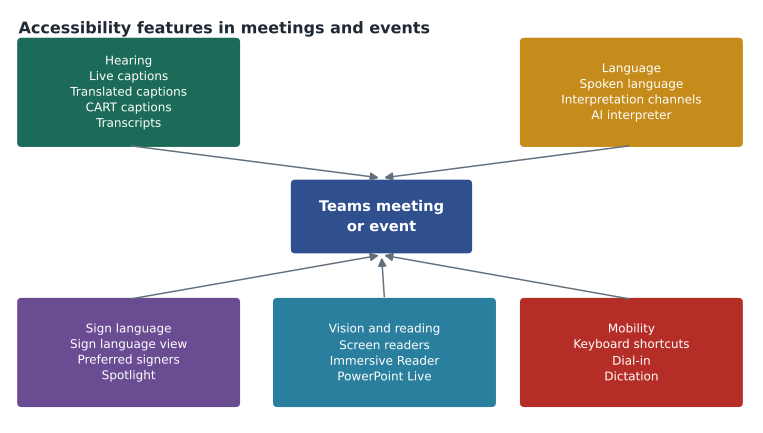
Live captions show the words being spoken as text at the bottom of the meeting window. Each participant turns them on for themselves, and they appear only for that person, so turning them on does not affect anyone else. Captions identify the speaker by name when attribution is allowed, and participants can change the size, colour and position of captions in their own settings. The meeting policy setting for live captions decides whether captions are available; Corvallin's policies all leave them on.
Captions depend on the spoken language of the meeting, which by default is set from the organizer's language. If people are speaking a different language, someone in the meeting has to change the spoken language, otherwise speech recognition produces nonsense. In the caregiver webinar, the nurse had changed language halfway through without changing the spoken language, which is why the captions failed. Pascale added a step to her checklist: confirm the spoken language with the presenter before the event and change it if they switch languages.
Translated captions and transcripts
Live translated captions go a step further: each participant can choose a caption language, and Teams translates the spoken words into it as the meeting runs. Translated captions are a premium capability, available with Teams Premium and with Microsoft 365 Copilot licences, rather than part of standard meetings. Transcripts can also be translated after the meeting in some configurations. Translation quality is good for common languages and clear speech, but it is not a substitute for professional interpretation where accuracy matters, such as explaining a medication change to a family.
| Feature | What it does | Who turns it on |
|---|---|---|
| Live captions | Shows spoken words as text in the meeting language | Each participant |
| Spoken language setting | Tells Teams which language is being spoken | Organizer or a participant |
| Live translated captions | Shows captions in the participant's chosen language | Each participant, with a premium licence |
| Transcription | Saves a text record of the meeting | Organizer or permitted participant |
| CART captions | Shows captions typed by a human captioner | Organizer, who provides the captioner's link |
| Language interpretation | Adds human interpreters with their own audio channels | Organizer, in meeting options |
| Sign language view | Keeps chosen signers' video visible and prominent | Each participant who needs it |
Human captioning and interpretation
For events where captions must be very accurate, Teams supports CART captions (Communication Access Realtime Translation), typed by a trained human captioner who connects through a link that the organizer gets from meeting options. Participants then choose the CART captions instead of the automatic ones. CART is common in formal events and for participants who rely on captions all day.
Language interpretation lets an organizer add professional interpreters to a meeting or webinar. Each interpreter is assigned a pair of languages, and attendees choose which language channel to listen to; they hear the interpreter, with the original speaker quieter in the background. Interpretation is set up in meeting options before the meeting, and the meeting policy must allow it. Microsoft has also introduced an AI interpreter for users with Microsoft 365 Copilot licences that translates speech into the listener's language with a synthetic voice; administrators control it with the meeting policy settings for AI features, and it should be treated as a convenience, not as professional interpretation.
Corvallin's quarterly town hall now uses a French interpreter, because about 30 staff prefer French, and its caregiver webinars use CART captions when a family member asks for them at registration. The registration form gained a question: "Do you need captions, interpretation or any other support to take part?"
Sign language view
The coordinator's problem with her interpreter had a direct fix. In Teams, a participant can turn on sign language view in their accessibility settings and add up to two preferred signers. Their video then stays on the main stage, in a prominent position and at a higher quality, even when content is shared or someone else is speaking. Participants can also mark themselves as signers. Organizers can identify interpreters in meeting options so that the right people are shown. Because sign language view is a personal setting that follows the user into every meeting, it solves the problem once rather than in every meeting.
Ama's help desk added sign language view to the onboarding checklist for staff who use interpreters, and to the guide for the people who organize meetings with them. The coordinator wrote back the next week to say it was the first month in years that she had not had to ask a presenter to stop sharing.
Accessibility for vision, reading and mobility
Teams works with screen readers on Windows, macOS, iOS and Android, supports high contrast themes and keyboard shortcuts, and lets users zoom the interface. Immersive Reader can read chat messages aloud and present them with spacing and highlighting that help people with dyslexia or low vision. PowerPoint Live lets attendees move through slides at their own pace, use high contrast for slides and have the slides read by their own screen reader, which is far more accessible than watching a shared screen.
For people with limited mobility, keyboard navigation and voice dictation help, and dial-in (lesson 4) lets someone join without using the app at all. Meeting organizers can help by sending materials before the meeting, describing visual content aloud, avoiding colour as the only way of giving meaning, and allowing time for captions and interpreters to catch up.
Worked problem
Planning an accessible care planning meeting
A care coordinator is organizing a meeting with a client, her two adult children and a physiotherapist. One child is hard of hearing; the other prefers French and will join by phone from work. The client has low vision and will join from a tablet with help. What should the coordinator arrange?
Show solution
- Send the agenda and any documents in advance, in a format the client's screen reader can read.
- Remind the child who is hard of hearing that live captions are available, and confirm the spoken language at the start.
- Book a French interpreter for the child on the phone, or plan for the physiotherapist to summarize key points in French; dial-in callers cannot use interpretation channels in the same way as app users, so check this with the interpreter in advance.
- Share content with PowerPoint Live rather than screen sharing, so the client can enlarge it.
- Describe any charts aloud and leave pauses for questions.
Answer: Plan captions, language support, accessible documents and a sharing method that the client can enlarge before the meeting, rather than fixing problems once it starts.
Administrator settings
Most accessibility features are on by default, and the administrator's role is to keep them on and to make sure the related settings allow them. In the meeting policy, check that live captions are available, that transcription is allowed where needed, and that language interpretation is allowed. Check the policies for AI features if the organization wants to allow or limit the AI interpreter and translated captions. In the events policy, check that captions and interpretation are available for webinars and town halls. Finally, make sure the guidance for organizers explains how to use these features, because most of them are switched on by individuals rather than by administrators.
# Check captions and interpretation settings in the clinical policy
Get-CsTeamsMeetingPolicy -Identity "Clinical-Meetings" |
    Select-Object Identity, LiveCaptionsEnabledType, AllowTranscription
# Turn on live captions in the Global policy
Set-CsTeamsMeetingPolicy -Identity Global -LiveCaptionsEnabledType DisabledUserOverride
Writing accessible meeting invitations
An invitation can make a meeting more accessible before anyone joins. Corvallin's organizer guide now asks for four things in every invitation for external participants: a plain-language purpose, the agenda, the dial-in number for anyone who cannot use the app, and a sentence inviting people to say what support they need. For internal meetings, the guide asks organizers to attach documents in advance and to use descriptive file names, because screen reader users hear the file name first.
The guide also covers presenting. Speakers should introduce themselves each time they start speaking in a meeting with phone participants, because callers cannot see who is talking. They should read out any question or comment from chat before answering it, describe images and charts, and avoid saying "as you can see". These habits cost nothing and help everyone, not just people with disabilities.
| Before the meeting | During the meeting | After the meeting |
|---|---|---|
| Ask attendees what support they need | Confirm the spoken language | Share the recording or transcript if allowed |
| Book interpreters or CART if requested | Introduce yourself when you start speaking | Send notes in an accessible format |
| Send documents with descriptive names | Read chat questions aloud | Ask for feedback on accessibility |
| Include a dial-in number | Describe visual content | Fix problems for next time |
Measuring whether it works
Pascale added two questions to the feedback survey sent after each webinar: whether the attendee used captions or interpretation, and whether they could follow the session. Over the first three events, the share of attendees who said they could not follow dropped from about one in ten to almost none. The survey also showed that captions were used by many people who had not asked for them, including families watching in noisy homes. Accessibility features benefit more people than those who request them, which is a useful point to make when someone questions the cost of an interpreter.
Accessibility in large events
Webinars and town halls raise the stakes, because the audience is larger and organizers cannot fix problems for each person individually. For events, Pascale books a CART captioner whenever deaf or hard of hearing attendees register, adds sign language interpreters as presenters so they can be spotlighted alongside the speaker, and checks that the recording keeps captions. For the town hall, she also published the slides beforehand, so that people using screen readers or magnifiers could follow at their own pace, and made sure the recording's transcript was available for anyone who prefers reading to watching.
The administrator's checks for events are slightly different from those for meetings. The events policy must allow captions, transcription and interpretation in webinars and town halls; the meeting policy of the organizer must allow transcription if CART or the transcript is used; and anyone producing an event should know how to spotlight two video feeds at once.
Accessibility work also has a habit of revealing other improvements. When the communications team started publishing slides before events, attendees who had nothing to do with accessibility began using them to take notes and to follow along on small phone screens, and the team now publishes slides for every event as a matter of course.
Common mistakes
MistakeAssuming captions will cope when speakers change language.
InsteadChange the spoken language whenever the language of the meeting changes.
MistakeUsing automatic translated captions where accuracy is critical.
InsteadBook professional interpretation or CART for clinical and formal communication.
MistakeLeaving sign language users to ask presenters to stop sharing.
InsteadSet up sign language view and preferred signers once in the user's settings.
MistakeSharing a screen of slides to an audience that includes people with low vision.
InsteadUse PowerPoint Live so attendees can enlarge and navigate slides themselves.
Summary and key terms
- Live captions are personal, free and depend on the correct spoken language.
- Translated captions are a premium capability with Teams Premium or Copilot licences.
- CART captions and language interpretation bring in human captioners and interpreters for accuracy.
- Sign language view keeps preferred signers visible in every meeting.
- Screen reader support, Immersive Reader, PowerPoint Live and dial-in help people with vision, reading and mobility needs.
- Administrators keep the features available in policies; organizers plan their use before the meeting.
- Live captions
- Automatic on-screen text of what is being said in a meeting, shown to each participant who turns it on.
- Live translated captions
- Captions translated into a language each participant chooses, a premium capability.
- CART captions
- Captions typed in real time by a human captioner and shown in Teams through a link.
- Language interpretation
- A Teams meeting feature that gives interpreters their own audio channels for attendees to choose.
- Sign language view
- A personal setting that keeps up to two preferred signers visible and prominent in meetings.
- PowerPoint Live
- A way of presenting slides in Teams that lets attendees view them at their own pace and with their own accessibility tools.
- Immersive Reader
- A reading tool that reads text aloud and formats it for easier reading.
Practice problems
Work each problem on paper first, then reveal the answer to check.
Captions in a meeting are nonsense and the speaker is talking in Spanish. What is the fix?
Show answer
Change the meeting's spoken language to Spanish.
Which feature keeps an interpreter's video visible when slides are shared?
Show answer
Sign language view with the interpreter as a preferred signer.
When should an organizer book CART captions instead of relying on live captions?
Show answer
When very accurate captions are needed, for example for formal events or for participants who rely on captions.
Lesson quiz · 5 questions
Score 60% or more to complete this lesson.
Create a free account to save your progress, take quizzes and earn a certificate.