
MSBA-222 · Lesson 2 of 12 · 19 min
Meeting recordings and transcription
▶ Video coming soon A video version of this lesson is on the way.
Recordings and transcripts are among the most useful features of Teams meetings and among the most sensitive. A recording lets someone who missed a training session catch up; a transcript lets Copilot produce a recap and lets a manager search for the moment a decision was made. The same files can also hold personal health information, confidential plans or words a speaker would rather not have kept. At Corvallin, the question "can we record this?" came up in the first week after the relaunch, and the answer depended on what the meeting was for.
This lesson covers how Teams records and transcribes meetings, where the files are stored, who can see them, how long they are kept, and how an administrator controls all of this through meeting policies and the compliance tools covered in other courses.
What Teams can capture
Teams can produce several artefacts from a meeting. A recording is a video file of the shared content, the active speakers and, depending on settings, participants' video. A transcript is a text record of who said what, generated by speech recognition. Live captions appear on screen during the meeting but are not saved unless transcription is on. Meeting notes, whiteboards and chat are separate items stored in their own locations. Copilot recaps, and the intelligent recap features in Teams Premium, are built from the transcript.
Recording and transcription are separate settings in the meeting policy. A tenant can allow transcription without recording, which suits meetings where a searchable record is useful but a video is not. It can also allow recording without transcription, although most organizations allow both, because a recording without a transcript is hard to search.
| Artefact | Saved after the meeting? | Main control |
|---|---|---|
| Recording | Yes, as a video file | Meeting policy: cloud recording |
| Transcript | Yes, linked to the meeting | Meeting policy: transcription |
| Live captions | No, unless transcription is on | Meeting policy: live captions |
| Meeting chat | Yes, in the chat thread | Messaging and meeting chat settings |
| Copilot recap | Only if a transcript is saved | Copilot meeting setting and organizer options |
Where recordings are stored
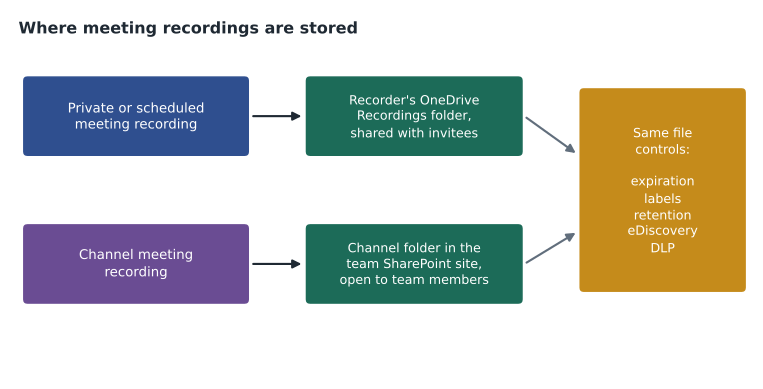
Teams no longer stores meeting recordings in Microsoft Stream classic, which was retired. Recordings are saved to OneDrive or SharePoint. For a meeting that is not a channel meeting, the recording is stored in the OneDrive of the person who started the recording, in a Recordings folder, and it is shared with the people invited to the meeting. For a channel meeting, the recording is stored in the channel's folder in the team's SharePoint site, so team members can find it with the channel's files. Transcripts are stored with the meeting and linked to the recording.
This storage model has consequences that administrators need to explain. Because a private meeting's recording lives in the recorder's OneDrive, it follows that person's OneDrive retention rules. If the recorder leaves Corvallin, the recording stays in their OneDrive until the OneDrive is deleted, which happens after the retention period set for departed users unless the manager is given access. Because recordings are files, they can be found by eDiscovery, labelled with sensitivity and retention labels and protected by data loss prevention policies, which the Purview courses in this programme cover.
Who can record and transcribe
Recording needs permission at two levels. The organizer's meeting policy must allow cloud recording, and the person who starts the recording must also be allowed to record by their own policy. Generally, people in the organization can start a recording, while guests and external or anonymous participants cannot. Transcription follows a similar pattern. If a meeting needs to be recorded automatically, the organizer can turn on automatic recording in meeting options, provided the policy allows it.
When a recording or transcript starts, everyone in the meeting sees a notice, and people joining later see it too. This notice is part of how Teams supports consent and privacy expectations, but it does not replace an organization's own rules. Corvallin's privacy officer asked that every meeting that could include client information follow the Clinical-Meetings policy, where recording and transcription are off, and that training sessions follow the Standard-Meetings policy, where the trainer announces at the start that the session will be recorded.
# Turn off recording and transcription for the clinical policy
Set-CsTeamsMeetingPolicy -Identity "Clinical-Meetings" `
    -AllowCloudRecording $false -AllowTranscription $false
# Allow both in the standard policy and keep recordings for 365 days
Set-CsTeamsMeetingPolicy -Identity "Standard-Meetings" `
    -AllowCloudRecording $true -AllowTranscription $true `
    -NewMeetingRecordingExpirationDays 365
Recording expiration
Teams can set an expiration date on new meeting recordings. The meeting policy sets the default number of days, which Microsoft set to 120 days for new tenants when it introduced the feature, and an administrator can change it or turn expiration off. When a recording expires, it moves to the recycle bin of the OneDrive or SharePoint site, where it can be restored for the normal recycle bin period. The owner of a recording can change its expiration date on the file itself, unless a retention policy prevents deletion.
Expiration is a storage and tidiness tool, not a compliance tool. If Corvallin must keep a recording for a legal reason, a retention policy or label in Purview is the right control, and it overrides expiration: a recording under a retention hold is kept even if its expiration date passes. Corvallin set the Global policy to 60 days, because most recordings were routine and nobody watched them after a few weeks, and set Standard-Meetings to 365 days for training sessions that new staff watch during their first year.
Worked problem
Choosing an expiration period
The education coordinator records a 45-minute orientation session each month for new home-care staff. New staff watch it during their first three months. The recordings are about 500 megabytes each. Which expiration setting fits, and what else should she do?
Show solution
- Each recording is needed for at least three months after it is made; a 60-day expiration would delete it too soon.
- The Standard-Meetings policy (365 days) covers her; she records under that policy.
- Better still, she keeps one current version: when a new orientation is recorded, she replaces the link on the onboarding page and lets older recordings expire.
- Twelve recordings a year at 500 megabytes is about 6 gigabytes in her OneDrive, which is well within its quota.
Answer: Use the 365-day policy and link only the current recording from the onboarding page, so older copies expire on schedule.
Transcription and languages
Transcription uses the spoken language set for the meeting, which the organizer or a participant can change if the meeting is not in English. Transcripts identify speakers by name when they are signed in, and participants can choose in their own settings whether they are identified. Transcripts can be downloaded by the organizer in document or caption formats, and the organizer can delete a transcript, which also removes the Copilot recap that depends on it.
For meetings held in French, which matter to Corvallin's Halifax office because some families prefer it, the organizer sets the spoken language to French before starting transcription. If the language is wrong, the transcript will be poor and Copilot's recap will be worse. This is one of the most common reasons for complaints that "transcription doesn't work".
Recordings, transcripts and Copilot
Copilot in Teams meetings can work in two ways, as lesson 1 explained: with a saved transcript or only during the meeting. If the transcript is saved, Copilot can answer questions and produce a recap after the meeting, and anyone who has access to the transcript and a Copilot licence can use it. If Copilot is allowed only during the meeting, nothing is saved, and once the meeting ends there is no recap. This design choice is the main lever an administrator has for balancing Copilot's usefulness against the risk of keeping sensitive conversations.
Intelligent recap, a Teams Premium feature that remains in Teams Premium after April 2026, builds chapters, speaker timelines and suggested tasks from the recording and transcript. It is useful for long meetings such as board meetings or training sessions, and it depends on transcription being on.
Explaining recordings to staff
Most problems with recordings are not technical; they come from people not knowing where the file went or who can see it. Corvallin's champions shared a one-page guide: if you record a normal meeting, the recording is in your OneDrive and shared with the invitees; if you record a channel meeting, it is in the channel's Files tab; recordings expire after 60 days unless you change the date; and never record a meeting that might discuss a client. The guide also explained how to find a recording through the meeting chat, which is where most people look first.
The help desk added two quick checks to its routine for recording tickets. First, find out whether the meeting was a channel meeting or a private one, because that decides where the file lives. Second, find out who started the recording, because the file is in that person's OneDrive. Ama Owusu-Pratt, who leads the help desk, said those two questions solved most recording tickets in the first minute.
| Ticket | First question | Usual answer |
|---|---|---|
| I cannot find the recording | Was it a channel meeting? | Check the channel Files tab, or the recorder's OneDrive through the meeting chat |
| A colleague cannot open the recording | Was the colleague invited? | Share the file with them from OneDrive |
| The recording disappeared | When was it made? | It expired; restore it from the recycle bin |
| Record is greyed out | Which policy does the organizer have? | Clinical-Meetings turns recording off by design |
When a recording should not exist
Sometimes a meeting is recorded by mistake, for example when an organizer leaves automatic recording on for a recurring series and a sensitive item comes up. The recording is a file, so the organizer or the file owner can delete it, and an administrator can find it through the OneDrive or SharePoint site. If the recording may contain information that has to be handled under a privacy rule, the privacy officer should be told before anyone deletes it, because a deletion can itself need to be recorded. Corvallin added this to its privacy incident steps after one such recording in the pilot.
Recordings in channel meetings and team retention
Channel meetings behave differently in a way that surprises people. Because the recording is stored in the channel's folder, everyone who is a member of the team can open it, whether or not they attended. That is usually what a team wants for a weekly team meeting, but it is the wrong place for a meeting where only some members should hear the discussion. Corvallin's organizer guide tells managers to hold sensitive discussions as private meetings with named invitees, not as channel meetings, so the recording, if any, is shared only with the people invited.
Channel meeting recordings also follow the team's SharePoint retention settings rather than a person's OneDrive. Corvallin's retention policy keeps clinical teams' content for ten years and other channels' content for three years, as set during the relaunch. A recording in a clinical team's channel would therefore be kept for ten years even if its expiration date passed, which is another reason the Clinical-Meetings policy keeps recording off for clinical discussions.
| Meeting type | Recording location | Who can open it by default | Retention that applies |
|---|---|---|---|
| Private scheduled meeting | Recorder's OneDrive | Invitees | OneDrive retention for that user |
| Channel meeting | Channel folder in the team site | All team members | The team site's retention |
| Meet now in a chat | Recorder's OneDrive | Chat members | OneDrive retention for that user |
Ama's team also learned that a recording made by a guest or external participant is not possible in most configurations, which reassured partners who had worried that a visiting pharmacist might record a care discussion. The meeting policy and the guest's tenant settings both play a part, and the safest assumption for staff is that only Corvallin employees can record Corvallin meetings.
Finally, Teodor reminded the IT team that recordings are often the largest files in a OneDrive. A manager who records every weekly meeting for a year can use many gigabytes. Expiration keeps that under control without anyone having to clean up, which is the main reason the feature exists.
Common mistakes
MistakeTelling users that recordings are stored in Stream classic.
InsteadRecordings are stored in OneDrive for private meetings and in SharePoint for channel meetings.
MistakeUsing recording expiration to meet a legal retention requirement.
InsteadUse a Purview retention policy or label; expiration is only a default clean-up.
MistakeExpecting a recap after a meeting where Copilot was allowed only during the meeting.
InsteadWithout a saved transcript there is nothing for Copilot to use afterwards.
MistakeLeaving the spoken language on English for a meeting held in another language.
InsteadSet the spoken language before starting transcription.
Summary and key terms
- Recording and transcription are separate meeting policy settings; live captions are not saved unless transcription is on.
- Private meeting recordings go to the recorder's OneDrive; channel meeting recordings go to the channel folder in SharePoint.
- The organizer's policy must allow recording, and the person recording must also be allowed.
- Recording expiration sets a default lifetime; retention policies override it.
- Transcripts depend on the correct spoken language and feed Copilot recaps and intelligent recap.
- Cloud recording
- A Teams meeting recording saved as a file in OneDrive or SharePoint.
- Transcript
- A text record of a meeting with speaker names, produced by speech recognition.
- Recording expiration
- A date after which a recording moves to the recycle bin, set by default from the meeting policy.
- Spoken language
- The language Teams uses to transcribe a meeting.
- Intelligent recap
- A Teams Premium feature that builds chapters, speaker timelines and tasks from a recorded and transcribed meeting.
- Channel meeting
- A meeting held in a team channel, whose recording is stored in the channel's files.
Practice problems
Work each problem on paper first, then reveal the answer to check.
Where is the recording of a private meeting stored if the organizer did not start it?
Show answer
In the OneDrive of the person who started the recording.
A recording passed its expiration date but has a retention label that keeps it for seven years. What happens?
Show answer
It is kept; retention overrides expiration.
Why might a French meeting produce a nonsense transcript?
Show answer
The spoken language was left on English.
Lesson quiz · 5 questions
Score 60% or more to complete this lesson.
Create a free account to save your progress, take quizzes and earn a certificate.