
MSBA-222 · Lesson 11 of 12 · 19 min
Call quality basics
▶ Video coming soon A video version of this lesson is on the way.
Two weeks into the Teams Phone pilot, the scheduling supervisor reported that calls "kept cutting out" in the afternoons. Some clients had complained that schedulers sounded robotic, and twice a call had dropped completely. The supervisor was sure the problem was Teams. Felix was less sure. Most poor call quality comes from the network between the user and Microsoft's services, from the device and headset the user has, or from something specific to one user, and Teams provides tools that show which. This lesson introduces those tools and the basic thinking behind call quality, which the MS-700 outline includes under monitoring and reporting on voice and meeting quality. The MS-721 course on call quality goes deeper.
What affects call quality
Voice and video in Teams are real-time media. Unlike a web page or an email, they cannot wait for lost data to be sent again, so the network has to deliver packets quickly, in order and without many losses. Four measures describe how well it does. Latency is how long a packet takes to arrive. Jitter is variation in that time, which makes audio sound uneven. Packet loss is the share of packets that never arrive, which causes gaps and robotic sound. Packet reordering is packets arriving out of order. Teams uses codecs that cope with modest problems, but beyond certain levels, quality drops sharply.
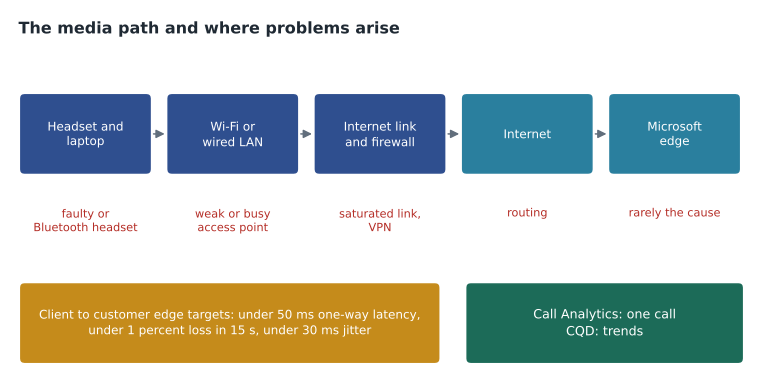
Microsoft publishes network performance targets for Teams. From the client to the edge of the customer's network, the targets include one-way latency under 50 milliseconds (100 milliseconds round trip), packet loss under 1 percent in any 15-second interval, jitter under 30 milliseconds and reordering under 0.05 percent. From the customer's network edge to Microsoft's edge, the targets are tighter. These figures appear in Microsoft's network planning guidance and in the earlier course in this programme on planning Teams.
Common causes
Most problems fall into a small number of causes. Weak or congested Wi-Fi causes loss and jitter, especially at the edge of an access point's range or in busy areas. Saturated internet links cause loss when large uploads, backups or video streams compete with calls. VPNs that force Teams media through a distant data centre add latency; Microsoft recommends split tunnelling, so Teams media goes straight to the internet. Devices matter too: an old laptop under heavy load, a cheap or faulty headset, or a Bluetooth headset with a poor connection can all make a call sound bad even on a perfect network. Microsoft's certified Teams devices are tested to work well with Teams, which removes one source of trouble.
Quality of Service
Quality of Service (QoS) marks Teams media packets so that network equipment can give them priority over less urgent traffic. Teams can be configured to use different port ranges for audio, video and screen sharing, and network devices or Windows policies then mark packets in those ranges with DSCP values, such as Expedited Forwarding for audio. QoS helps most on congested internal networks and links that the organization controls; it does nothing on the public internet, where markings are usually ignored. The port ranges are set in the Teams admin center's org-wide meeting settings, as lesson 1 mentioned, and the planning course covered their values.
Call Analytics
Call Analytics shows detailed information about individual calls and meetings for one user. In the Teams admin center, an administrator opens the user's page and selects Meetings and calls, then chooses a call. The details show the devices, client versions, network type (wired or wireless, and whether a VPN was involved), the media streams and their measurements, and which measures fell outside acceptable values, highlighted for attention. Call Analytics is the right tool for "why was this person's call bad?", because it shows one call from one person's side.
When Felix opened Call Analytics for three of the bad scheduling calls, the pattern was clear. All three schedulers were on Wi-Fi, all were connected to the same access point at the east end of the second floor, and packet loss rose every afternoon. The network team found that the access point was overloaded after lunch, when a training room next to it filled with people streaming video. Moving the schedulers' desks to a wired connection and adding an access point fixed the problem.
| Tool | Best for | Scope |
|---|---|---|
| Call Analytics | Investigating one user's call or meeting | Individual calls |
| Call Quality Dashboard (CQD) | Trends across the organization by building, network and device | All calls, aggregated |
| Real-time analytics | Seeing problems while a meeting is in progress | Live meetings, for selected users |
| Power BI reports for CQD | Prepared reports and charts from CQD data | Aggregated |
| Alert rules | Being told when a measure crosses a threshold | Organization-wide |
The Call Quality Dashboard
The Call Quality Dashboard (CQD) looks at call quality across the whole organization. It aggregates measurements from every call and meeting and lets administrators break them down by building, network, subnet, device, client version and many other dimensions. To make building-level reports meaningful, administrators upload building data, a file that maps subnets to buildings and network names; without it, CQD can only show internal versus external networks and raw subnets. Microsoft also provides Power BI templates for CQD with ready-made reports.
CQD uses the idea of poor calls, streams whose measurements cross Microsoft's thresholds, and reports the percentage of poor streams. A good habit is to review the trend weekly or monthly, looking for buildings, networks or devices whose poor-call rate is higher than the rest, rather than chasing single calls. Felix uploaded Corvallin's building file during the relaunch, so he could compare head office floors and branches. The North Branch, whose 50 megabit link had been upgraded earlier in the relaunch, now showed fewer poor streams than head office.
# Example building data file for CQD (tab-separated in the real upload)
# NetworkIP     NetworkName       NetworkRange  BuildingName     InsideCorp
10.20.1.0       HO-Floor1         24            Head office      1
10.20.2.0       HO-Floor2         24            Head office      1
10.20.3.0       HO-Floor3         24            Head office      1
10.40.0.0       North-Branch      22            North Branch     1
Alert rules and real-time analytics
The MS-700 outline also asks candidates to configure alert rules. In the Teams admin center, administrators can create rules that notify them when a measure, such as the rate of poor calls or meeting join failures, crosses a threshold, and send notifications to people or to a Teams channel. This changes call quality work from reacting to complaints to spotting trends early. Real-time analytics lets administrators see audio, video and network information for a meeting while it is in progress, for users they choose to monitor, which helps during important meetings such as a board meeting or the quarterly town hall.
A simple troubleshooting routine
When a user reports poor quality, a short routine saves time. First, find out when and how: which call, what time, on which device and network, and whether others in the call had problems. Second, look at the call in Call Analytics, noting the network type, the device and which measures were out of range. Third, compare with CQD: is the user's building, network or device type having problems generally, or is it just this person? Fourth, act on the most likely cause: move to a wired connection, change a headset, update the client, ask the network team to look at an access point or link, or check whether a VPN is carrying Teams media.
Worked problem
Robotic audio for one user
An intake nurse reports robotic audio on most calls this week. Others on the same floor are fine. Call Analytics shows wired Ethernet, low latency and low jitter, but high packet loss on her outgoing audio only, and a USB headset model nobody else uses. What is the likely cause?
Show solution
- Network measures from the network side are good, so a network fault is unlikely.
- Loss is on her outgoing audio only, which points to the capture side: the device or headset.
- She uses an unusual USB headset, which no colleague shares.
- Felix swaps her headset for a certified one; the next day her calls are clear.
Answer: A faulty or incompatible headset. One user, one direction and good network measures point to the device.
Before a big meeting
Important meetings deserve preparation. Before the quarterly town hall, Felix checked three things. First, that eCDN was on, so the branches would share video streams rather than each downloading its own. Second, that the presenters were on wired connections, using certified headsets and the latest client. Third, that he had real-time analytics turned on for the producers and presenters, so that if Ishbel's audio started to break up, he would see why while it happened. He also ran a short test call from the room the presenters would use the day before, and checked it in Call Analytics.
This kind of preparation takes less than an hour and avoids the worst outcome: a broken town hall in front of 450 people. It also builds trust in Teams among the people who were most doubtful about the move from the old phone system.
| Check | When | Why |
|---|---|---|
| eCDN on for the event | A week before | Branches share streams instead of saturating links |
| Presenters wired with certified headsets | Day before | Removes the commonest local causes |
| Test call from the presenting room | Day before | Confirms network and device in Call Analytics |
| Real-time analytics for presenters | Day of the event | Shows problems while they happen |
| Help desk briefed | Day of the event | Quick answers for attendees |
Reporting quality to managers
Managers rarely want CQD charts. They want to know whether things are getting better. Felix sends Ines a one-paragraph monthly summary: the poor-stream rate for calls and meetings across Corvallin, the best and worst buildings, any change since last month and what was done about the worst one. After the second-floor access point was fixed, the head office rate dropped to the level of the branches, and the summary said so in one sentence. Short, regular reporting kept call quality on the agenda without turning it into a project of its own.
Measuring quality in the pilot
Felix used the Teams Phone pilot as a chance to set a baseline. For the first month he recorded the poor-stream rate for head office calls each week from CQD, the number of call quality complaints the help desk received, and the actions taken. The poor-stream rate started high because of the overloaded access point, fell after the fix, and stayed low. Complaints followed the same pattern. When the branches move to Teams Phone in 2027, he will be able to show whether their quality matches head office, using the same measures.
He also learned which questions to ask users. "The call was bad" helps nobody; "I was on Wi-Fi in the east meeting room, using my headset, and the client said I sounded robotic about ten minutes in" points straight to a cause. The help desk's call quality form now asks for time, place, network, device and what the other person heard.
Devices and client versions
Device and client problems are common enough to deserve their own checks. Call Analytics shows the client version and the audio devices used in each call. An outdated Teams client may lack fixes for audio problems, so the help desk checks that users are on a current version; Teams updates itself, but some users close it so rarely that updates wait. Headsets matter more than most people think. A wired, certified headset removes echo, background noise and the dropouts that Bluetooth sometimes causes when a laptop's radio is busy with Wi-Fi.
CQD can group calls by device, which helps decide where to spend money. When Felix grouped head office calls by capture device, laptops' built-in microphones had a noticeably higher rate of poor streams than certified headsets, mostly because of echo and background noise in open-plan areas. That evidence persuaded the finance office to buy certified headsets for all pilot users, which cost less than a single month of complaints about poor calls.
| Check in Call Analytics | What it tells you |
|---|---|
| Network type and connection | Wired, Wi-Fi or mobile; whether a VPN was used |
| Capture and render devices | Which microphone and speaker or headset were used |
| Client version | Whether the user is on a current Teams client |
| Stream measurements | Latency, jitter and packet loss for each direction |
Common mistakes
MistakeBlaming Teams whenever calls sound poor.
InsteadCheck the network, the device and the user's situation; most problems are on the customer side.
MistakeUsing CQD to investigate one user's call.
InsteadUse Call Analytics for single calls; use CQD for trends.
MistakeRunning CQD without building data.
InsteadUpload building data so reports show buildings and networks by name.
MistakeExpecting QoS to fix problems on the public internet.
InsteadQoS helps on networks you control; it is usually ignored on the internet.
Summary and key terms
- Call quality depends on latency, jitter, packet loss and reordering along the media path.
- Common causes are weak Wi-Fi, saturated links, VPNs and poor devices or headsets.
- QoS marks Teams media so that managed networks can prioritize it.
- Call Analytics investigates individual calls; CQD shows organization-wide trends and needs building data.
- Alert rules notify administrators when measures cross thresholds; real-time analytics shows live meetings.
- A simple routine of when and how, Call Analytics, CQD and action solves most problems.
- Latency
- The time a network packet takes to travel from sender to receiver.
- Jitter
- Variation in packet arrival times.
- Packet loss
- The share of packets that never arrive.
- Quality of Service
- Marking traffic so that network devices give it priority.
- Call Analytics
- A Teams admin center view of detailed information about one user's calls and meetings.
- Call Quality Dashboard
- An organization-wide view of call and meeting quality, broken down by building, network and device.
- Building data
- A file that maps subnets to buildings and network names for CQD.
- Split tunnelling
- Sending Teams media straight to the internet instead of through a VPN.
Practice problems
Work each problem on paper first, then reveal the answer to check.
Which tool would you open first for one user's bad call yesterday?
Show answer
Call Analytics for that user.
What must be uploaded for CQD to report by building?
Show answer
Building data mapping subnets to buildings.
Why might a VPN cause poor call quality?
Show answer
It can force Teams media through a distant location, adding latency and loss.
Lesson quiz · 5 questions
Score 60% or more to complete this lesson.
Create a free account to save your progress, take quizzes and earn a certificate.