
MSBA-203 · Lesson 9 of 12 · 19 min
Investigating and remediating threats
▶ Video coming soon A video version of this lesson is on the way.
Lesson 8 ended with an incident triaged and its attacker contained. This lesson is the middle of the work: finding out what happened, how far it reached, and removing every trace. The workbook calls this chapter "the long afternoon", because investigation always takes longer than containment, and because the September incident showed what happens when it is rushed. The coordinator's password was reset before anyone looked for the hidden inbox rule, so the attacker's rule kept swallowing replies for another two hours. Order matters, and so does thoroughness.
The investigation tools for email
Defender for Office 365 provides two levels of investigation tool, depending on licence. Real-time detections, in Plan 1, shows recent malicious email, malware and phishing detections with filters for sender, recipient, subject, delivery action and threat type. Threat Explorer, in Plan 2, adds more views and data, longer history, the ability to see all email rather than only detections, campaign views and, most importantly for response, the ability to act on messages in bulk from the results. Both live in the email and collaboration area of the Defender portal.
| Explorer view | What it shows |
|---|---|
| All email | Every message, with its verdict and delivery location, for searching by sender, subject, URL or attachment |
| Malware | Messages with malicious attachments and the detection technology that caught them |
| Phish | Messages identified as phishing, including impersonation and spoofing |
| Campaigns | Groups of messages that Microsoft identifies as one coordinated campaign |
| Content malware | Malicious files detected in SharePoint, OneDrive and Teams |
| URL clicks | Safe Links click data: who clicked what, and whether it was allowed or blocked |
Each message in Explorer opens an email entity page with its headers, authentication results (SPF, DKIM, DMARC and composite authentication), the policy that acted on it, its URLs and attachments with verdicts, its delivery location now and over time, and any related alerts. That page answers most of the first questions in an email investigation in one place: was it really malicious, how did it get through, who received it and where is it now.
Taking action on messages
From Explorer or the entity page, an administrator with the right permissions can take email actions on one message or many: move to the Junk Email folder, move to Deleted Items, soft delete (move to the Recoverable Items folder, where the user cannot see it but an administrator can restore it), hard delete (purge it from Recoverable Items), move to inbox for a false positive, or submit to Microsoft. Actions run asynchronously and are recorded in the Action center, with their status and result, so there is an audit trail of every remediation.
Microsoft recommends soft delete as the default for removing malicious messages from mailboxes during an incident. It removes the threat from the user's view at once, while keeping the message available as evidence and recoverable if the decision proves wrong. Hard delete is for cases where the message must be destroyed, which is rare.
Two other tools handle the email cases Explorer does not. Message trace in the Exchange admin center follows a message's delivery path, including internal messages and those not flagged as threats. Content search in Microsoft Purview, with a purge action, can find and remove messages across mailboxes by content, which is useful when the organization lacks Plan 2, though it is slower and more blunt than Explorer's actions.
Blocking at the edge
While messages are being removed from mailboxes, new copies may still be arriving. The Tenant Allow/Block List stops that. Administrators can add block entries for sender addresses, sender domains, URLs, file hashes and spoofed sender pairs, and the block applies at once to new mail. Entries can be set to expire or never expire. During an incident, Teodor's practice was to block the sending domain and the phishing URL for 30 days, then review: most attack infrastructure is abandoned within days, and a permanent block list grows into a maintenance problem.
Connect-ExchangeOnline
# Block a phishing URL and its sending domain for 30 days
New-TenantAllowBlockListItems -ListType Url -Block -Entries "secure-docsign.example/review" -ExpirationDate (Get-Date).AddDays(30) -Notes "INC 4471 phishing URL"
New-TenantAllowBlockListItems -ListType Sender -Block -Entries "secure-docsign.example" -ExpirationDate (Get-Date).AddDays(30) -Notes "INC 4471 sender domain"
Get-TenantAllowBlockListItems -ListType Url -Block | Format-Table Value, ExpirationDate, Notes
Safe Links and Defender for Endpoint use these URL blocks too: once the URL is in the block list, clicks on old copies of the link are blocked at click time, and on devices with network protection the URL can also be blocked through Defender for Endpoint indicators, as lesson 6 described for unsanctioned apps.
Automated investigation and response for email
With Plan 2, automated investigation and response (AIR) runs playbooks when certain alerts fire or when an administrator starts an investigation manually. A user-reported phishing message, a URL whose verdict changes to malicious after delivery, and a suspected compromised user each have playbooks. AIR examines the message, finds similar messages in other mailboxes, checks URL and file verdicts, looks at the affected users' activity and proposes remediation actions, such as soft-deleting a cluster of messages. Those actions wait in the Action center for approval unless the organization has chosen to let them run automatically.
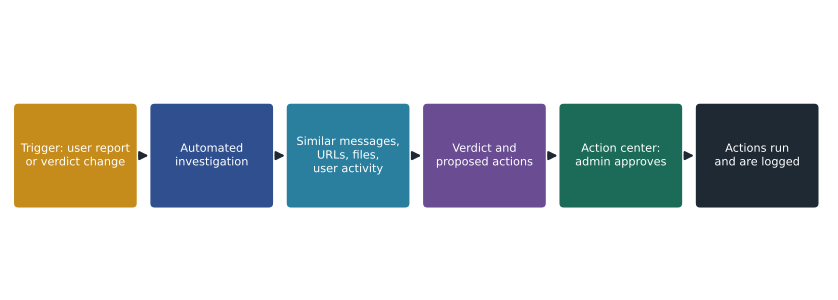
AIR saved Teodor real time even with only the IT team licensed for Plan 2, because its investigations of messages reported by those users often revealed the same campaign in other mailboxes. He still read every proposed action before approving it, a habit the workbook recommends: automation is fast, and an approval click is a decision.
The compromised account procedure
The most common serious email incident is a compromised mailbox, and it has a reliable procedure. The workbook's version is ordered deliberately, so that each step removes the attacker's access before the next step could alert them or be undone.
| Step | Action | Why at this point |
|---|---|---|
| 1. Contain | Revoke the user's sessions; block sign-in; keep the outbound restriction | Stops the attacker's current access before anything else |
| 2. Find persistence | Inbox rules, mailbox forwarding, delegates and mailbox permissions, new MFA methods, OAuth app consents, mobile devices synced | Attackers plant these so they keep access after a password reset |
| 3. Remove persistence | Delete malicious rules and forwarding, remove methods and app grants, remove unknown devices | Closes every back door |
| 4. Scope the damage | Messages sent and read, files accessed, other users who received phishing from the account | Decides who else must be protected or told |
| 5. Clean up | Soft-delete the attacker's messages from other mailboxes; block infrastructure | Protects other recipients |
| 6. Recover | Reset the password, have the user re-register phishing-resistant MFA, unblock sign-in, release the sending restriction | Returns the user to work on clean credentials |
| 7. Close | Classify, document, notify, and record what will change | Turns one incident into better defences |
# Step 1: revoke sessions (Microsoft Graph PowerShell)
Connect-MgGraph -Scopes "User.RevokeSessions.All"
Revoke-MgUserSignInSession -UserId "b.clerk@corvallincare.example"

# Step 2: review persistence (Exchange Online PowerShell)
Connect-ExchangeOnline
Get-InboxRule -Mailbox "b.clerk@corvallincare.example" | Format-List Name, Enabled, Description
Get-Mailbox "b.clerk@corvallincare.example" | Format-List ForwardingAddress, ForwardingSmtpAddress, DeliverToMailboxAndForward
Get-MailboxPermission "b.clerk@corvallincare.example" | Where-Object { -not $_.IsInherited }

# Step 3: remove a malicious rule once it has been recorded as evidence
Remove-InboxRule -Mailbox "b.clerk@corvallincare.example" -Identity "RSS Sync" -Confirm:$false
Two points in the procedure trip up even experienced administrators. Revoking sessions does not end everything instantly: some access tokens remain valid for their lifetime, usually up to an hour, unless continuous access evaluation applies, which is one reason sign-in is also blocked during containment. And the user's own word about what they did is evidence, not a conclusion. The coordinator in September was sure she had not entered her password anywhere; the sign-in logs showed she had, on a page that looked exactly like Microsoft's. Investigators should be kind and should check anyway.
Advanced hunting
Some questions need queries rather than screens. Advanced hunting lets administrators query up to 30 days of raw data across Defender products with Kusto Query Language (KQL). The email tables are especially useful in an investigation: EmailEvents for messages and verdicts, EmailUrlInfo and EmailAttachmentInfo for their contents, EmailPostDeliveryEvents for actions such as ZAP and manual remediation, and UrlClickEvents for Safe Links clicks. Identity and cloud app tables, such as IdentityLogonEvents and CloudAppEvents, connect those messages to what users did next.
// Everyone who received messages from the phishing domain, and where those messages are now
EmailEvents
| where Timestamp > ago(14d)
| where SenderFromDomain == "secure-docsign.example"
| join kind=leftouter (EmailPostDeliveryEvents | project NetworkMessageId, RecipientEmailAddress, Action, ActionResult) on NetworkMessageId, RecipientEmailAddress
| project Timestamp, RecipientEmailAddress, Subject, DeliveryLocation, Action, ActionResult
| order by Timestamp asc
Queries that prove useful can be saved and shared with the team, and some can be turned into custom detection rules that run on a schedule and raise alerts or take actions automatically. Teodor saved six queries in a shared folder called Workbook, so that Ama and the partner ran the same checks in the same way.
Investigating without Plan 2
Most of Corvallin's mailboxes are not covered by Plan 2, and many organizations have no Plan 2 at all, so the workbook described how to run the same investigation with lesser tools. Real-time detections in Plan 1 shows recent detections and their recipients, with fewer views and a shorter window than Threat Explorer, and supports some actions on messages. With Exchange Online Protection alone, the investigation relies on four tools that every tenant has.
| Question | Tool without Plan 2 | Limitation |
|---|---|---|
| Who received the message? | Message trace in the Exchange admin center, searched by sender, subject or time | Shows delivery, not clicks; detail for older messages arrives as a downloadable report |
| Where are the copies now? | Content search in Microsoft Purview | Slower, and searches by content rather than message identity |
| How do I remove them? | Content search with a purge action, or Exchange Online PowerShell | Limited number of items per mailbox per action; no Action center tracking |
| What did the attacker do in the account? | Unified audit log search in Purview, and Entra sign-in logs | Requires knowing what to search for; retention depends on licence |
Teodor rehearsed this path deliberately in November, using a harmless test message sent to his own account and two colleagues, because the frontline mailboxes would need it in any campaign that reached only them. The rehearsal took 40 minutes where Explorer took five, and it showed one gotcha worth writing down: a purge removes messages from mailboxes but leaves no record in the Defender portal, so the investigator must note the search and the purge in the incident comments by hand. The difference in time became another line of evidence in the frontline licensing discussion.
Learning from each investigation
Every investigation should leave the organization slightly better protected. Submitting missed phishing messages to Microsoft improves filtering; adding a block entry stops the same infrastructure; tuning a policy closes the gap the attacker used. Teodor kept a short "what changed" list at the end of each incident, and reviewed the month's list in the Monday meeting. In October that list included the Strict preset for intake, a custom alert for payment-related inbox rules and the QR code question that lesson 12 eventually answered the hard way.
Evidence and documentation
Every investigation produces records that may be needed later: by the privacy officer deciding whether a breach must be reported, by insurers, or by the police in a fraud case. The workbook required three things. Export or note key evidence before removing it, such as a screenshot of an inbox rule's conditions before deleting it. Record every action in the incident's comments, with the time and who did it. And keep the incident open until the closing step is complete. In a home care agency, an email compromise that exposed client information can trigger legal notification duties under provincial health privacy law, so the privacy officer's involvement was mandatory whenever a compromised mailbox held client records.
Worked problem
Scoping a compromise
The billing clerk's account from lesson 8 was compromised for 52 minutes. Sign-in logs show the attacker's session; the mailbox audit log shows 31 messages read and 18 sent. What must Teodor establish before he can close the incident?
Show solution
- Which 31 messages were read, and did any contain client information or payment details? This decides the privacy and finance notifications.
- Who received the 18 messages, and what did they say? Recipients outside Corvallin may need a warning call.
- Were any files in OneDrive or SharePoint accessed or shared during the session?
- Did the attacker create rules, forwarding, delegates, MFA methods or app consents? All must be removed.
- Did the same sender or URL reach other Corvallin mailboxes? Their copies must be soft-deleted.
Answer: Scope covers data read, messages sent, files touched, persistence created and other recipients. Only when each is answered, with actions taken, is the incident ready to close.
Common mistakes
MistakeResetting the password first.
InsteadRevoke sessions and block sign-in first, remove persistence next, and reset credentials during recovery.
MistakeHard-deleting malicious messages from every mailbox at once.
InsteadSoft-delete by default so evidence is preserved and mistakes can be undone.
MistakeApproving every automated action without reading it.
InsteadReview each proposed action; approval is a decision.
MistakeDeleting an inbox rule before recording what it did.
InsteadCapture evidence first, then remove.
Summary and key terms
- Real-time detections (Plan 1) and Threat Explorer (Plan 2) find malicious email, show its path and support bulk actions.
- Soft delete is the default remediation; every action is logged in the Action center.
- The Tenant Allow/Block List stops new copies of a threat at once, with expiry dates to keep it manageable.
- Automated investigation and response proposes remediation that administrators approve.
- The compromised account procedure contains, removes persistence, scopes, cleans up, recovers and closes, in that order, with evidence recorded.
- Threat Explorer
- The Defender for Office 365 Plan 2 tool for investigating and acting on email threats.
- Soft delete
- Moving a message to Recoverable Items, hidden from the user but recoverable by administrators.
- Tenant Allow/Block List
- Organization-wide allow and block entries for senders, URLs, files and spoofed pairs.
- Action center
- The record of pending and completed remediation actions.
- Persistence
- Changes an attacker makes to keep access, such as inbox rules or new MFA methods.
- Custom detection rule
- A saved advanced hunting query that runs on a schedule and raises alerts.
Practice problems
Work each problem on paper first, then reveal the answer to check.
Why does Microsoft recommend soft delete during incidents?
Show answer
It removes the threat from users while keeping evidence and allowing recovery.
Name four places an attacker can leave persistence in a mailbox account.
Show answer
Any four of: inbox rules, forwarding, delegates or mailbox permissions, new MFA methods, OAuth app consents, synced mobile devices.
Which advanced hunting table records ZAP and manual remediation actions on messages?
Show answer
EmailPostDeliveryEvents.
Lesson quiz · 5 questions
Score 60% or more to complete this lesson.
Create a free account to save your progress, take quizzes and earn a certificate.