
MSBA-203 · Lesson 3 of 12 · 19 min
Safe Links and Safe Attachments
▶ Video coming soon A video version of this lesson is on the way.
The coordinator's September compromise began with a link, not an attachment. The message claimed to come from a document-signing service and asked her to review an updated service agreement. The link led to a convincing sign-in page that relayed her password and her multifactor approval to the real Microsoft sign-in in real time, an adversary-in-the-middle attack described in the MSBA-101 course. When Teodor traced it in October, he found that the message had arrived on September 2, that the link had looked harmless when the message was delivered, and that the page behind it had turned malicious a few hours later. Filtering at delivery time had done its job; the attack had simply moved after delivery.
That gap is what Safe Links and Safe Attachments, the two Defender for Office 365 features in this lesson, are designed to close. Safe Links checks links at the moment someone clicks them. Safe Attachments opens attachments in a sandbox to see what they do before anyone can open them.
How Safe Links works
Safe Links protects users when they click a URL in an email message, a Teams chat or channel, or a supported Office app. In email, Safe Links can rewrite each URL so that clicks pass through Microsoft's checking service, and it can also scan URLs at delivery time and hold a message until scanning is complete. When the user clicks, the service checks the destination against current intelligence and, if necessary, detonates it: it visits the page in an isolated environment to see whether it harvests credentials or delivers malware. A clean destination opens normally. A malicious one shows a warning page instead, and the click is logged either way.
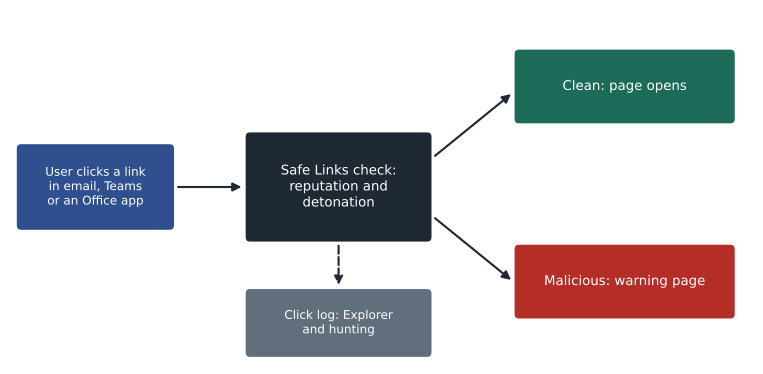
Because the check happens at click time, Safe Links catches the delay tactic that beat the delivery filters in September: a page that is harmless at 9 in the morning and malicious at noon. It also catches links inside documents and in Teams messages, which never pass through the email pipeline at all.
Safe Links policy settings
A Safe Links policy has settings for each place it protects and a few general controls. The Standard and Strict presets set them to Microsoft's recommended values, and Microsoft's built-in protection applies a baseline to licensed users not covered by any other policy.
| Setting | What it does | Recommended |
|---|---|---|
| URL checking in email | Turns on time-of-click protection for links in messages | On |
| Apply to internal messages | Also checks links in mail sent inside the organization | On, because compromised internal accounts send phishing too |
| Real-time URL scanning for suspicious links and file links | Scans and detonates links before the click when they look risky | On |
| Wait for URL scanning to complete before delivering | Holds a message until its links have been scanned | On |
| Do not rewrite URLs | Checks links through the API only, leaving the visible URL unchanged | Off, except for specific needs |
| Teams and Office apps | Extends checks to Teams messages and documents | On |
| Track user clicks | Records every click for investigation | On |
| Let users click through to the original URL | Allows a user to ignore the warning page | Off |
| Do not rewrite the following URLs | An exception list for trusted URLs | Use sparingly and review |
Two settings started an argument in the IT team. Felix wanted to add the agency's scheduling app, VisitWise, to the "do not rewrite" list because rewritten links in scheduling notifications looked long and odd on frontline phones. Teodor pointed out that exempting a domain also exempts every link an attacker might craft on that domain, including look-alike paths. They compromised: VisitWise's exact sign-in URL went on the list after Ines approved it, because its links were generated by a system Corvallin controlled and the app already used single sign-on through Entra ID. Everything else stayed protected. The second argument was about click-through. Ama reported that two branch managers wanted to be able to "just get to the page" after a warning. The answer was no: the setting stayed off for everyone, and a warning that the help desk can investigate is better than a warning that users learn to ignore.
How Safe Attachments works
Safe Attachments opens email attachments in a virtual environment, a sandbox, and watches what they do: whether a document launches a script, downloads another file, changes system settings or contacts a suspicious server. This is called detonation. Attachments that behave maliciously are blocked, even if no antivirus engine has seen them before, which makes Safe Attachments the main defence against new malware. It runs after the anti-malware scan in the filtering pipeline, so known malware never reaches the sandbox.
A Safe Attachments policy chooses one action for unknown attachments that need detonation:
| Action | What the user experiences | When to use it |
|---|---|---|
| Off | No sandbox scanning | Only for specific system mailboxes that must not be delayed, never for people |
| Monitor | Message delivered immediately; malicious results are only recorded | Rarely, to observe before enforcing |
| Block | Message held until scanning finishes; malicious messages go to quarantine | The recommended action |
| Dynamic Delivery | Message delivered at once with a placeholder; the attachment is reattached when it is found safe | Where users cannot wait, if all mailboxes are in Exchange Online |
Dynamic Delivery appealed to the intake team, who did not want a referral delayed while its attachment was detonated. Teodor tested it with the intake coordinators in late October: the message arrived immediately with a note that the attachment was being scanned, and in most cases the attachment appeared within a minute or two. The Strict preset that covered intake uses Block, so to use Dynamic Delivery he would have needed a custom policy for that group, excluded from the preset. He decided the minute was worth the protection and kept the preset. The decision log recorded the reason: a referral delayed by a minute is a nuisance, while a malicious referral opened by an intake coordinator gives an attacker access to client records.
Every Safe Attachments verdict uses a quarantine policy, as described in lesson 2. Microsoft's recommendation is that users cannot release attachments quarantined as malware, and Corvallin followed it.
Safe Attachments for SharePoint, OneDrive and Microsoft Teams
Files do not arrive only by email. A global setting, Safe Attachments for SharePoint, OneDrive and Microsoft Teams, extends detonation to files that people upload or share in those services. When a file is identified as malicious, it is locked so that people can no longer open, move or copy it, though they can still see it in the library and an administrator can delete it. A related setting can stop users from downloading a malicious file anyway. Teodor turned both on in October, after a check showed that the home care teams' channels were full of photos and scanned forms uploaded from phones, a route no email policy would ever see.
Organizations with Microsoft 365 E5-level licensing can also use Safe Documents, which checks files opened in Protected View in the Office desktop apps before letting users leave Protected View. Corvallin's E3 licences do not include it, so Teodor listed it as a feature to reconsider if licensing changed.
Reading the results
Safe Links and Safe Attachments are only as useful as the attention paid to what they find. Both feed the Defender portal in three ways. Their detections become alerts, which join incidents when they relate to other activity. The URL click log and the attachment verdicts appear in Threat Explorer (Plan 2) or real-time detections (Plan 1), where an administrator can see who received a message, who clicked and whether the click was blocked. And the raw events are available in advanced hunting tables such as UrlClickEvents, EmailUrlInfo and EmailAttachmentInfo.
// Who clicked links from a suspicious domain in the last 7 days, and were the clicks blocked?
UrlClickEvents
| where Timestamp > ago(7d)
| where Url has "contoso-sign.example"
| project Timestamp, AccountUpn, Url, ActionType, IsClickedThrough, Workload
| order by Timestamp desc
Teodor ran a version of this query against the September message the day he wrote the chapter. Seven people had received it. Only the coordinator had clicked, at 11:42, and her click had not been checked at all. Branch coordinators, like the home care staff they schedule, had been given frontline F3 licences in 2022, and Defender for Office 365 had reached only the E3 licences during the summer, so no Safe Links policy applied to her. Two office staff had received a near-identical message the same week; one of them clicked, and the built-in protection on her E3 licence showed the warning page and blocked the sign-in page. Built-in protection is a safety net, not a design, so the October presets replaced it with deliberate settings for every E3 user. The first, frontline licensing, went to the board as a cost decision. Ines wanted both findings in writing, and they became the clearest example in the leadership report described in lesson 11: one gap was configuration, which cost nothing to fix, and the other was licensing, which needed a budget decision.
Teams, Office apps and the user experience
Teams is where Corvallin's frontline teams talk most, so Safe Links protection for Teams messages mattered as much as protection for email. In Teams, Safe Links checks URLs in conversations, group chats and channels when they are clicked; the link itself is not visibly rewritten, and a malicious destination produces the same warning page as in email. In the Microsoft 365 apps for Word, Excel, PowerPoint and Outlook on desktops, mobile devices and the web, Safe Links checks links in documents when users are signed in with a licensed work account. Both extensions are part of the presets.
Teodor also wrote a short explanation for staff of what they would see. Links in email might look longer when copied, because they pass through Microsoft's checking service. Occasionally a message would arrive a few seconds later than before, while its links or attachments were scanned. And a red warning page meant "stop and call the help desk", never "find another way to open it". He tested each experience on a frontline phone, a branch laptop and a head office desktop before the presets went live, so that Ama's team had screenshots ready when the first questions arrived.
One more setting completes the picture: organization branding on the warning page. Safe Links can show the organization's own name and logo on its warning pages, which makes them look less like a generic browser error and more like a message from the agency's IT team. Teodor turned it on, because a branded warning is more likely to be believed.
Limits worth knowing
Neither feature is a complete answer. Safe Links cannot help if a user types a URL by hand, reads a link from a QR code on a phone that is not protected, or uses a personal email account. Safe Attachments cannot inspect password-protected archives that it cannot open, although Microsoft has been extending protection to encrypted attachments. And neither feature stops an attacker who has already stolen a session token, which is why identity protections, Conditional Access and phishing-resistant multifactor authentication from the earlier courses matter just as much. The workbook described Safe Links and Safe Attachments as one layer, with the others named beside it.
Worked problem
Choosing a Safe Attachments action
The billing team asks for Dynamic Delivery so supplier invoices are never delayed. All mailboxes are in Exchange Online. The billing team is in the Strict preset group. What must Teodor do to grant the request, and should he?
Show solution
- The Strict preset uses the Block action and cannot be customized.
- Dynamic Delivery would need a custom Safe Attachments policy for the billing group.
- Because presets are evaluated before custom policies, the billing group would have to be excluded from the Strict preset for the custom policy to apply.
- Excluding billing from Strict would also remove its stronger anti-phishing and Safe Links settings, unless they were recreated in custom policies.
- Billing is the team most targeted by invoice fraud.
Answer: It is technically possible with a custom policy and an exclusion from the preset, but it weakens protection for the most targeted team. Keep Block and explain the typical delay instead.
Common mistakes
MistakeExempting whole domains from Safe Links rewriting because the rewritten URLs look untidy.
InsteadExempt only specific, system-generated URLs, with approval, and review the list.
MistakeAllowing users to click through Safe Links warnings.
InsteadKeep click-through off so warnings are acted on, not ignored.
MistakeProtecting email but not files shared in Teams, SharePoint and OneDrive.
InsteadTurn on Safe Attachments for SharePoint, OneDrive and Teams.
MistakeAssuming a licence means protection is active.
InsteadConfirm which policy actually applies to each user; licensing without configuration leaves gaps.
Summary and key terms
- Safe Links checks URLs at the moment of the click in email, Teams and Office apps, and logs every click.
- Safe Attachments detonates unknown attachments in a sandbox; Block is the recommended action and Dynamic Delivery delivers the body first.
- Safe Attachments for SharePoint, OneDrive and Teams locks malicious files that people share.
- Results appear as alerts, in Threat Explorer or real-time detections, and in advanced hunting tables such as UrlClickEvents.
- Both features are one layer; they do not stop typed URLs, personal accounts or stolen session tokens.
- Safe Links
- Defender for Office 365 time-of-click checking of URLs in email, Teams and Office apps.
- Safe Attachments
- Defender for Office 365 sandbox detonation of attachments to detect unknown malware.
- Detonation
- Opening a file or URL in an isolated environment to observe its behaviour.
- Dynamic Delivery
- A Safe Attachments action that delivers the message body immediately and reattaches safe attachments after scanning.
- Built-in protection
- Microsoft's default Safe Links and Safe Attachments policy for licensed users not covered by another policy.
- UrlClickEvents
- The advanced hunting table that records Safe Links clicks.
Practice problems
Work each problem on paper first, then reveal the answer to check.
Why does time-of-click checking catch attacks that delivery-time filtering misses?
Show answer
Attackers can make a link malicious after the message is delivered; the click-time check sees the current destination.
What happens to a malicious file uploaded to a team when Safe Attachments for SharePoint, OneDrive and Teams is on?
Show answer
It is locked so people cannot open, move or copy it, and an administrator can delete it.
Name one threat Safe Links cannot stop.
Show answer
Any one of: a typed URL, a QR code scanned on an unprotected phone, a personal email account, a stolen session token.
Lesson quiz · 5 questions
Score 60% or more to complete this lesson.
Create a free account to save your progress, take quizzes and earn a certificate.