
MSBA-201 · Lesson 9 of 12 · 19 min
SharePoint and OneDrive administration essentials
▶ Video coming soon A video version of this lesson is on the way.
Corvallin's file server had a share called S: that everyone mapped on their first day. Over fifteen years it had collected 1.8 TB of files in about 40,000 folders, including policies, care plan templates, branch rotas, scanned referral letters, photographs from staff parties and, in one memorable folder called "Misc Old", a complete copy of the agency's payroll from 2011. Permissions had been granted folder by folder whenever someone asked, and nobody could say with confidence who could open what.
SharePoint and OneDrive were where those files would go. Before moving a single file, Teodor had to understand how SharePoint is organized, how sharing and permissions work at each level, how OneDrive differs, and what Microsoft 365 Copilot changes about all of it. This lesson covers those essentials, which correspond to the AB-650 skills about creating and managing SharePoint sites and permissions and configuring SharePoint and OneDrive for Copilot.
SharePoint, OneDrive and Teams files
SharePoint stores an organization's shared content in sites. OneDrive gives each licensed user a personal storage area for their own work files; technically it is a special SharePoint site for each person. Files shared in Teams channels are stored in the SharePoint site connected to the team, and files shared in Teams chats are stored in the sender's OneDrive. The simple rule Teodor gave staff: "If it belongs to you, it goes in OneDrive. If it belongs to the team, it goes in the team's site. If it belongs to everyone, it goes on the intranet."
All of this is managed in the SharePoint admin center, reached from the Microsoft 365 admin center, and with the SharePoint Online Management Shell or PnP PowerShell. The SharePoint Administrator role grants control of it.
Sites and how they are organized
SharePoint offers two main kinds of site. A team site is for a group of people working together; when created from SharePoint or Teams it is usually connected to a Microsoft 365 group, so the group's members are the site's members. A communication site is for publishing information to a wide audience, such as policies or news, with a small group of authors and many readers. Both can be associated with a hub site, which gives related sites shared navigation, branding and search, without merging their permissions.
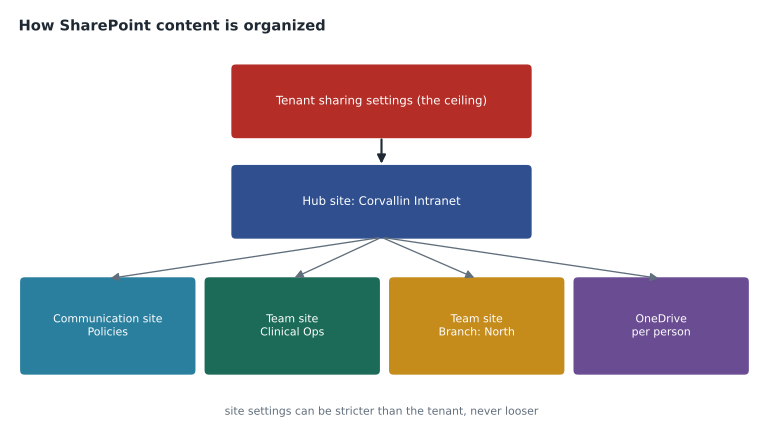
Older SharePoint deployments built deep hierarchies of subsites. Microsoft's current guidance is a flat architecture: many separate sites, each with its own permissions, connected by hubs for navigation. Flat sites are easier to secure, move and delete, and they map cleanly to Microsoft 365 groups and teams. Corvallin's design had one intranet hub with communication sites for policies, human resources and IT, plus team sites for each branch and each department, all associated with the hub.
| Content on the old S: drive | New home | Why |
|---|---|---|
| Policies and procedures | Policies communication site on the intranet hub | Many readers, few authors, needs version history |
| Care plan templates | Clinical Ops team site | Maintained by the clinical team, read by all nurses |
| Branch rotas and local documents | Each branch's team site, connected to its team in Teams | Shared and discussed by the branch |
| Personal drafts | Each person's OneDrive | Belongs to one person until shared |
| Misc Old and other unclaimed folders | Not migrated; archived offline for one year, then deleted | No owner, no business purpose |
Creating and managing sites
Sites can be created by users, from SharePoint or Teams, or by administrators in the SharePoint admin center under Sites, then Active sites, then Create. Administrators can also restrict site creation to certain users, apply site templates, and set default storage limits. The Active sites page lists every site with its storage use, owners, sharing setting, hub association and recent activity, and lets administrators change owners, sharing and storage for each site.
Connect-SPOService -Url https://corvallincare-admin.sharepoint.com
New-SPOSite -Url https://corvallincare.sharepoint.com/sites/policies `
    -Owner teodor.klimaszewski@corvallincare.example -StorageQuota 51200 `
    -Title "Policies and Procedures" -Template "SITEPAGEPUBLISHING#0"
Register-SPOHubSite -Site https://corvallincare.sharepoint.com/sites/intranet
Add-SPOHubSiteAssociation -Site https://corvallincare.sharepoint.com/sites/policies `
    -HubSite https://corvallincare.sharepoint.com/sites/intranet
Storage is pooled at the tenant level. An organization receives a base amount of SharePoint storage plus an additional amount for each licence, and every site draws from the pool. Administrators can let SharePoint manage site storage automatically or set limits per site. OneDrive storage is separate, a per-user allowance that depends on the licence. Corvallin's 1.8 TB of files would fit comfortably, but Teodor still set a quota on each branch site so that no single site could fill the pool with video.
Permissions inside a site
Each site has three default SharePoint groups: Owners, who have full control; Members, who can edit; and Visitors, who can read. For a site connected to a Microsoft 365 group, the group's owners become site owners and its members become site members automatically. Access can be granted to people or groups at the site level, and also to individual libraries, folders and files, which is called breaking inheritance.
Breaking inheritance is sometimes necessary, but it is the main reason permissions become impossible to understand, as the old S: drive proved. Teodor's rule was to give each distinct audience its own site rather than locking down folders inside a shared one. If the Clinical Ops team needed a private area for incident investigations, that became a separate site with its own members, not a locked folder in the main site.
Sharing: the four levels
Sharing in SharePoint and OneDrive is controlled at two levels. The organization-level setting in the SharePoint admin center sets the maximum sharing allowed anywhere in the tenant. Each site can then be set to the same level or a more restrictive one, never a more permissive one. OneDrive has its own organization-level setting, which also cannot exceed the SharePoint setting.
| Sharing level | Who can receive links |
|---|---|
| Anyone | Anyone with the link, including people who do not sign in |
| New and existing guests | Outside people, who must sign in or verify with a code; new guests are added to the directory |
| Existing guests | Only guests already in the directory |
| Only people in your organization | No external sharing |
Corvallin set the organization level to New and existing guests, since staff regularly shared documents with hospitals and families, and turned off Anyone links completely, because a link that works for anyone who has it can be forwarded without limit. Most sites were then set more strictly: the Clinical Ops site to Only people in your organization, the branch sites to Existing guests so that only approved partners could be added. The default link type was set to Specific people, so that a casual share reaches only the people named rather than everyone in the organization, and guest access was set to expire after 60 days unless renewed.
Set-SPOTenant -SharingCapability ExternalUserSharingOnly `
    -DefaultSharingLinkType Direct -ExternalUserExpirationRequired $true -ExternalUserExpireInDays 60
Set-SPOSite -Identity https://corvallincare.sharepoint.com/sites/clinicalops -SharingCapability Disabled
Sharing settings in SharePoint work together with Microsoft Entra ID's external collaboration settings, which decide who may invite guests and from which domains, and with the Microsoft 365 admin center's tenant-wide guest switch from Lesson 3. If any of these blocks guests, guests are blocked. Teodor wrote the three settings on one page so that the help desk could answer "why can't I share this with the hospital?" without guessing.
Worked problem
Which setting wins?
The organization-level SharePoint sharing setting is New and existing guests. The Branch North site is set to Existing guests. A scheduler tries to share a rota with a family member who has never been a guest before. Microsoft Entra external collaboration settings allow invitations to any domain. What happens?
Show solution
- The tenant allows new guests, so the ceiling permits the share.
- The site setting is more restrictive: only existing guests.
- The family member is not an existing guest, so the site setting blocks the share.
- Entra settings would allow the invitation, but the site setting is checked too and wins because it is stricter.
Answer: The share is blocked. The scheduler must ask the site owner, who can request that IT invite the family member as a guest, after which sharing to an existing guest is allowed.
OneDrive essentials
Each licensed user receives a OneDrive the first time they use it, or in advance if an administrator pre-provisions it. OneDrive settings live in the SharePoint admin center: storage per user, sharing level, whether files can be synced on devices outside the organization's domain, and the retention period for deleted users, which decides how long a leaver's OneDrive remains available after the account is deleted. The default is 30 days and it can be raised to as long as ten years. During that period, the leaver's manager receives access automatically if one is set in the directory, which is another reason accurate manager attributes matter.
The OneDrive sync app keeps files available on Windows and macOS computers. With Known Folder Move, an administrator can redirect users' Desktop, Documents and Pictures folders into OneDrive, so that files saved in familiar places are protected without anyone changing their habits. Ama deployed Known Folder Move to every office computer through Intune a week before the file migration, so that personal files were already in OneDrive when the S: drive closed.
Preparing SharePoint and OneDrive for Copilot
Microsoft 365 Copilot changes the stakes of permissions. Copilot can only use content the signed-in user is already allowed to open, but it is very good at finding that content. A forgotten folder shared with "Everyone except external users" years ago, which no one would ever stumble on by browsing, can surface in a Copilot answer in seconds. Oversharing that was once invisible becomes visible.
The AB-650 outline lists several tools for this. In autumn 2026, with a Microsoft 365 Copilot pilot planned for spring 2027 and an oversharing clean-up set as the board's condition for it, Teodor reviewed them before a single Copilot licence was assigned.
| Tool or setting | What it does |
|---|---|
| Data access governance reports | Show sites shared with large groups such as everyone, sites with many sharing links and sites with sensitive content |
| SharePoint Advanced Management (SAM) | A set of governance features, including site access reviews by owners, restricted access control and inactive site policies; included with Microsoft 365 Copilot licences |
| Restricted access control | Limits a site to members of a specified group, regardless of individual sharing |
| Restricted Content Discovery | Keeps a site's content out of organization-wide search and Copilot results for people who have not visited it, without changing permissions |
| Site exclusion from search | A site setting that stops its content appearing in Microsoft Search results |
| Sensitivity labels and data loss prevention | Classify and protect content; covered in the compliance course |
The first data access governance report found 27 sites and folders shared with everyone in the organization, including the "Misc Old" payroll copy that had been migrated by mistake in a pilot. Teodor removed it, applied restricted access control to the human resources and finance sites, enabled Restricted Content Discovery on two archive sites that were rarely used but still needed, and asked every site owner to complete a site access review. Lesson 11 and the MSBA-205 course return to Copilot readiness in more depth.
Moving the files
Microsoft provides Migration Manager in the SharePoint admin center for moving content from file shares and other cloud storage services into SharePoint, OneDrive and Teams, and the SharePoint Migration Tool for some scenarios. Migration Manager installs agents on servers that can reach the file shares, scans them for issues such as long paths and blocked file types, and copies content in tasks that can be scheduled and repeated as incremental runs. Teodor ran a scan first, which found 312 paths longer than SharePoint allows and 40 files with characters that needed renaming, and fixed those before the copy began.
The S: drive was set to read-only on a Friday evening, the final incremental copy ran over the weekend, and on Monday morning every mapped drive in the agency displayed a single file: a shortcut to the new intranet.
Version history and recovery
SharePoint and OneDrive keep version history for files, so a person can restore an earlier version after a bad edit, and each site and OneDrive has a two-stage recycle bin that keeps deleted items for 93 days in total. OneDrive also offers a Restore your OneDrive feature that rolls a whole OneDrive back to a point in the previous 30 days, which is useful after mass deletion or encryption. Administrators can set version history limits at the organization or site level to control storage growth. These features handle most everyday mistakes; Lesson 11 covers Microsoft 365 Backup for larger recoveries.
Common mistakes
MistakeRecreating a deep folder structure with broken permissions inside one big site.
InsteadUse a flat architecture: separate sites for separate audiences, connected by hubs.
MistakeLeaving Anyone links enabled because they are convenient.
InsteadUse guest sharing with sign-in or verification, and choose a safe default link type.
MistakeTrying to make one site more permissive than the tenant setting.
InsteadThe tenant setting is the ceiling; sites can only be equal or stricter.
MistakeAssigning Copilot licences before reviewing oversharing.
InsteadRun data access governance reports, fix broad sharing and use SAM tools first.
Summary and key terms
- SharePoint holds shared content in team and communication sites, connected by hub sites in a flat architecture; OneDrive holds personal work files.
- Sites have Owners, Members and Visitors groups; avoid breaking inheritance by giving each audience its own site.
- Sharing levels run from Anyone to Only people in your organization; the tenant setting is a ceiling that sites cannot exceed.
- OneDrive settings include storage, sharing, sync restrictions and the retention period for deleted users.
- Before Copilot, review oversharing with data access governance reports and SharePoint Advanced Management, restricted access control and Restricted Content Discovery.
- Team site
- A SharePoint site for a group working together, usually connected to a Microsoft 365 group.
- Communication site
- A SharePoint site for publishing information to a wide audience.
- Hub site
- A site that connects associated sites with shared navigation, branding and search.
- Breaking inheritance
- Giving a library, folder or file permissions different from its parent site.
- Known Folder Move
- Redirecting Desktop, Documents and Pictures folders into OneDrive.
- Restricted Content Discovery
- A setting that keeps a site's content out of organization-wide search and Copilot results without changing permissions.
- SharePoint Advanced Management
- A set of SharePoint governance features for access reviews, restrictions and site lifecycle.
Practice problems
Work each problem on paper first, then reveal the answer to check.
Where are files shared in a Teams channel stored?
Show answer
In the SharePoint site connected to the team.
A site is set to allow Anyone links but the tenant allows only existing guests. Which applies?
Show answer
Existing guests; a site cannot be more permissive than the tenant setting.
Why does Copilot make oversharing more urgent?
Show answer
Copilot quickly finds any content a user can technically open, surfacing overshared files that browsing would never reveal.
Lesson quiz · 5 questions
Score 60% or more to complete this lesson.
Create a free account to save your progress, take quizzes and earn a certificate.