
MSBA-201 · Lesson 8 of 12 · 19 min
Exchange Online administration essentials
▶ Video coming soon A video version of this lesson is on the way.
Email is the workload that Corvallin could least afford to get wrong. Referrals from hospitals arrive by email. Families email schedulers about visit times. Payroll questions, incident reports and the weekly rota all travel through mailboxes. When Teodor told the branch managers that email was moving, the first question from every one of them was the same: "Will I lose anything?"
This lesson covers the Exchange Online tasks an administrator performs most often: understanding the kinds of recipient, creating and managing mailboxes, shared mailboxes and resources, controlling mail flow, choosing a migration method and handling the everyday requests that make up most of Exchange administration. The AB-650 skills outline asks candidates to create and manage mailboxes, including shared mailboxes, so this lesson concentrates there, with enough on mail flow and migration to make sense of the rest.
The Exchange admin center and Exchange Online PowerShell
Exchange Online is managed in the Exchange admin center, reached from the Microsoft 365 admin center or directly at its own address, and with Exchange Online PowerShell, connected with the ExchangeOnlineManagement module and the Connect-ExchangeOnline cmdlet. Some tasks, such as creating a mailbox for a new user, also happen automatically when a licence with Exchange Online is assigned in the Microsoft 365 admin center. Others, such as detailed mail flow rules or bulk permission changes, are easier in the Exchange admin center or PowerShell.
Permissions for Exchange administration come from the Microsoft Entra Exchange Administrator role or from Exchange role groups such as Organization Management and Recipient Management, as Lesson 6 described. During the 2022 migration Teodor held the Exchange Administrator role outright; since Corvallin adopted Privileged Identity Management in 2026 he activates it only for the hours he needs it.
Kinds of recipient
Exchange calls anything that can receive mail a recipient. Knowing the kinds of recipient prevents a lot of confusion, because each behaves differently.
| Recipient | What it is | Licence needed? | Corvallin example |
|---|---|---|---|
| User mailbox | A mailbox belonging to one person who signs in | Yes | Every staff member |
| Shared mailbox | A mailbox several people open; nobody signs in to it directly | No, below 50 GB and without archive or hold | intake@corvallincare.example |
| Room mailbox | A bookable meeting room | No | Head office boardroom |
| Equipment mailbox | A bookable item that is not a room | No | The pool car at the North branch |
| Group mailbox | The mailbox of a Microsoft 365 group | No separate licence | The Clinical Quality team |
| Distribution list | A mail-only group | No | All Schedulers |
| Mail contact | An outside address shown in the address book | No | The regional hospital's discharge desk |
| Mail user | An account that signs in to the tenant but receives mail elsewhere | Depends on services used | A contractor with an outside mailbox |
User mailboxes
A user mailbox is created automatically when a user receives a licence that includes Exchange Online. Mailbox size depends on the licence: frontline plans such as F3 include a small mailbox, while E3 and E5 include large mailboxes and an online archive that can grow further. Administrators manage user mailboxes in the Exchange admin center under Recipients, then Mailboxes, where they can change email addresses, set up forwarding, grant delegate permissions, configure automatic replies and convert mailboxes to shared.
Every mailbox has a primary SMTP address and can have additional addresses, called proxy addresses or aliases. Corvallin used the extra addresses during the migration: each mailbox received its corvallincare.example primary address plus an alias on the old merger domain, so mail sent to old addresses still arrived. Email address policies can generate addresses automatically from names, though for synchronized users the addresses usually come from Active Directory.
Shared mailboxes
Shared mailboxes are the workhorse of team email. Corvallin had several: intake for new referrals, schedulers for each branch, payroll questions and the after-hours line. Nobody signs in to a shared mailbox directly. Instead, administrators grant users permissions, and the mailbox appears automatically in Outlook for people with Full Access.
Three permissions matter. Full Access lets a user open the mailbox and read and manage its contents. Send As lets a user send mail that appears to come from the shared mailbox itself. Send on Behalf lets a user send mail that shows "user on behalf of shared mailbox". Most teams want Full Access and Send As, so replies to families come from schedulers.north@ rather than from an individual.
Connect-ExchangeOnline
New-Mailbox -Shared -Name "North Schedulers" -DisplayName "North Branch Scheduling" `
    -Alias "schedulers.north" -PrimarySmtpAddress "schedulers.north@corvallincare.example"

Add-MailboxPermission -Identity "schedulers.north" -User "Scheduling North Team" -AccessRights FullAccess -AutoMapping $true
Add-RecipientPermission -Identity "schedulers.north" -Trustee "Scheduling North Team" -AccessRights SendAs -Confirm:$false
Granting permissions to a mail-enabled security group rather than to individuals, as in the example, means new schedulers get access by joining the group. One caution applies: automatic mapping, the feature that makes the mailbox appear in Outlook without the user adding it, works when permissions are granted to individual users, not when granted through a group. Teodor accepted that schedulers would add the mailbox once by hand in return for group-managed access, and wrote a one-page guide for them.
Shared mailboxes have limits worth remembering. Without a licence, a shared mailbox can hold up to 50 GB and cannot have an online archive or a litigation hold. Microsoft has also tightened enforcement of these rules, so a shared mailbox that grows past the limit or needs those features must be licensed. And because nobody signs in to a shared mailbox, its account should have sign-in blocked; the mailbox still works through delegated permissions.
Rooms and equipment
Room and equipment mailboxes let people book resources through Outlook and Teams. Each has a booking policy: who can book, how far ahead, for how long, whether requests need approval by a delegate, and whether the resource accepts overlapping meetings. Corvallin had three meeting rooms at head office and one at each branch, plus two pool cars. The cars needed approval from the branch manager, because a booking meant someone would drive a client's route; the rooms accepted bookings automatically. Room lists grouped the rooms by building so people could find a free room in the right office.
Mail flow
Every message into or out of Exchange Online passes through Exchange Online Protection (EOP), which filters spam, malware and phishing, and then through the organization's own rules. Administrators control mail flow with three main tools.
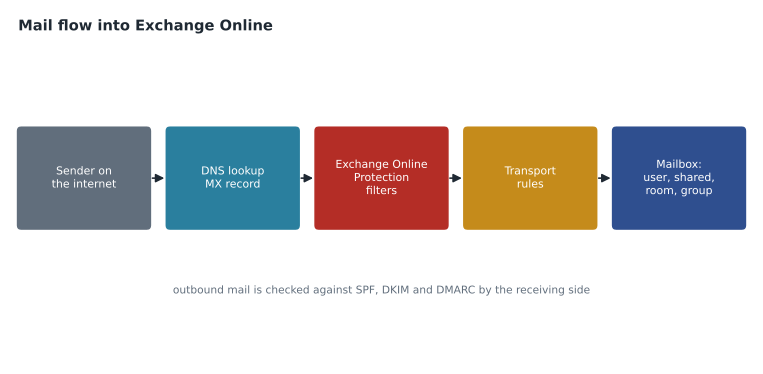
Mail flow rules, also called transport rules, look for conditions in messages and take actions: add a disclaimer, redirect a message, require encryption, block certain attachments or notify a manager. Corvallin used a rule to warn staff when they sent a message containing what looked like a health card number to an outside address, before the more complete data loss prevention policies described in the compliance course were in place.
Connectors control how mail travels between Exchange Online and other systems: on-premises Exchange during a hybrid migration, a partner organization that requires encrypted connections, or a multifunction printer that scans to email. Accepted domains list the domains for which the tenant accepts mail, either as authoritative, where all mailboxes live in the tenant, or internal relay, where some mailboxes for the domain live elsewhere, as during a migration.
Message trace shows what happened to a message: whether it arrived, was filtered, was delivered or bounced. It is the first tool to reach for when someone says "the hospital says they sent it but I never got it". Teodor taught Ama to run message traces in the Exchange admin center within her first week, and it immediately cut the number of email problems that reached him.
Migrating mailboxes
Microsoft supports several ways to move mail into Exchange Online. The right one depends on the source system, the number of mailboxes and how long the old and new systems need to coexist.
| Method | Source | When to use it |
|---|---|---|
| Cutover migration | Exchange Server | Small organizations moving all mailboxes in one go; Microsoft supports up to 2,000 but recommends far fewer |
| Hybrid migration | Exchange Server with Exchange hybrid configured | Organizations that need coexistence, a shared address book and free and busy sharing while mailboxes move in batches |
| IMAP migration | Any IMAP mail system | Moving email only, without calendars or contacts, from other systems |
| Google Workspace migration | Gmail and Google calendars and contacts | Organizations leaving Google Workspace |
| Cross-tenant mailbox migration | Another Microsoft 365 tenant | Mergers and divestitures |
With 450 mailboxes, synchronized identities and a need for staff in different branches to keep seeing each other's calendars during the move, Corvallin used a hybrid migration. The Hybrid Configuration Wizard connected the on-premises Exchange organization to Exchange Online, after which Teodor created migration batches in the Exchange admin center: IT first, then head office, then each branch. Each batch copied mailbox content in the background and was completed, switching users to their cloud mailbox, at a time chosen for each team. Mail kept flowing through the on-premises servers until the final batch, when the MX record was changed as described in Lesson 2.
Worked problem
Planning migration batches
Teodor measures the average mailbox at 6 GB for office staff and 1.5 GB for frontline staff. Observed migration throughput is about 40 GB per hour during the night. He wants each batch to finish copying in one night of 8 hours. Office staff: 120 mailboxes. Frontline: 330 mailboxes. How many night batches are needed for each group?
Show solution
- Capacity per night: 40 GB per hour x 8 hours = 320 GB.
- Office total: 120 x 6 = 720 GB, so 720 / 320 = 2.25, which rounds up to 3 nights.
- Frontline total: 330 x 1.5 = 495 GB, so 495 / 320 = 1.55, which rounds up to 2 nights.
- In total, 5 nights of copying, after which each batch can be completed at a convenient time.
Answer: Three office batches and two frontline batches. Teodor scheduled them over two weeks, leaving room for the slow mailbox that every migration finds.
In the past, organizations that synchronized identities from Active Directory kept at least one Exchange server on-premises after migration, purely to manage mail attributes. Microsoft has since provided management tools that let many such organizations remove their last Exchange server while still managing recipients through Active Directory, and supported on-premises Exchange is now Exchange Server Subscription Edition. Teodor planned to decommission Corvallin's two Exchange 2016 servers a month after the final batch, once he was sure nothing still relayed mail through them.
Everyday Exchange requests
After the migration, most Exchange work at Corvallin fell into a handful of categories, and each has a standard answer.
| Request | Where and how |
|---|---|
| "Give me access to my manager's calendar" | The user shares the calendar in Outlook, or an admin grants folder permissions with PowerShell |
| "Set an out-of-office reply for a colleague who is sick" | Exchange admin center, the mailbox, Automatic replies |
| "Forward a leaver's mail to their manager" | Better: convert to shared and grant access; forwarding to outside addresses is blocked by default |
| "The hospital's mail went to junk" | Message trace, then a tenant allow entry or a mail flow rule if the sender is trusted |
| "We need a new team address" | A shared mailbox, or a Microsoft 365 group if the team also wants files and a team |
Automatic forwarding to outside addresses deserves a special note. Attackers who compromise a mailbox often set up forwarding rules to copy mail to themselves. Exchange Online's outbound spam policy blocks automatic external forwarding by default, and administrators should allow it only for specific, justified cases. When a branch manager asked for a leaver's mail to be forwarded to her personal email "just for a week", the answer was no, and the leaver's mailbox became a shared mailbox instead.
By the end of the migration not one branch manager had lost a message. Three had lost their patience with the speed of the night batches, which Teodor considered a reasonable result.
Retention and recovery for mailboxes
Deleted items in Exchange Online pass through stages: first the Deleted Items folder, then the Recoverable Items folder, from which users can still restore them for a period, 14 days by default and configurable up to 30. Beyond that, retention policies and holds managed in Microsoft Purview decide whether content is kept, which is covered in the compliance course. For administrators, the practical message is that most "I deleted it by accident" requests can be handled by the user in Outlook's recover deleted items option, and only older or larger losses need Purview or the backup tools described in Lesson 11.
Common mistakes
MistakeGiving a shared mailbox a password and letting staff sign in to it.
InsteadBlock sign-in for the shared mailbox account and grant Full Access and Send As instead.
MistakeLeaving a shared mailbox unlicensed after it grows past 50 GB or needs a hold.
InsteadLicense shared mailboxes that exceed the limit or need archiving or holds.
MistakeAllowing automatic forwarding to outside addresses for convenience.
InsteadKeep external forwarding blocked by default and use shared mailboxes or delegation instead.
MistakeUsing a cutover migration when people need calendars across old and new systems for weeks.
InsteadUse a hybrid migration for coexistence and batch moves.
Summary and key terms
- Exchange Online is managed in the Exchange admin center and with Exchange Online PowerShell.
- Recipient types include user, shared, room, equipment and group mailboxes, distribution lists, mail contacts and mail users.
- Shared mailboxes need no licence below 50 GB without archive or hold; grant Full Access and Send As rather than sign-in.
- Mail flow passes through Exchange Online Protection, mail flow rules and connectors; message trace shows what happened to a message.
- Migration methods include cutover, hybrid, IMAP, Google Workspace and cross-tenant; hybrid suits organizations needing coexistence.
- Recipient
- Any Exchange object that can receive mail.
- Shared mailbox
- A mailbox opened by several people through permissions rather than sign-in.
- Send As
- A permission to send mail that appears to come from another mailbox or group.
- Mail flow rule
- A rule that inspects messages in transit and takes actions such as adding disclaimers or blocking content.
- Connector
- A configured route for mail between Exchange Online and another system.
- Message trace
- A tool that shows the delivery path and outcome of a message.
- Hybrid migration
- Moving mailboxes in batches while on-premises Exchange and Exchange Online coexist.
Practice problems
Work each problem on paper first, then reveal the answer to check.
What is the difference between Send As and Send on Behalf?
Show answer
Send As makes mail appear to come from the mailbox itself; Send on Behalf shows the sender acting on behalf of it.
Which tool would you use to find out why a message from a hospital never arrived?
Show answer
Message trace in the Exchange admin center.
Why was a hybrid migration a better fit than cutover for Corvallin?
Show answer
It allowed batches over several weeks with shared calendars and address book during coexistence.
Lesson quiz · 5 questions
Score 60% or more to complete this lesson.
Create a free account to save your progress, take quizzes and earn a certificate.