
MSBA-201 · Lesson 4 of 12 · 20 min
User lifecycle: creating, licensing and removing users
▶ Video coming soon A video version of this lesson is on the way.
Corvallin hires about eight people a month and loses about seven, which is normal for home care, where staff move between agencies, go back to school or retire. Under the old system a new aide waited up to a week for an email account, because a request form had to travel from human resources to IT on paper. Leavers were worse: Ama Owusu-Pratt once found an account belonging to a nurse who had left nineteen months earlier, still signed in on a tablet that had never been returned.
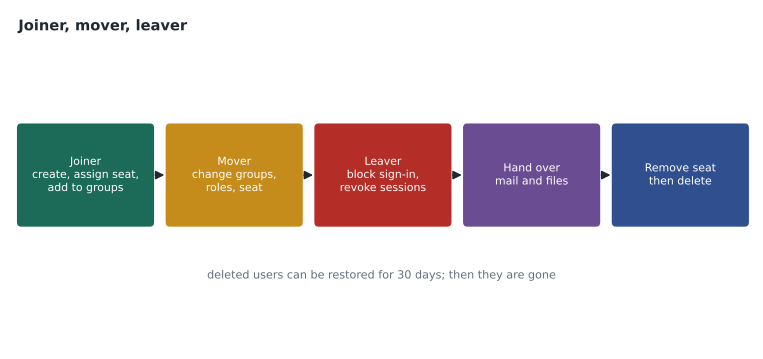
Ines asked Teodor to design the user lifecycle in Microsoft 365 before a single real account was created. "Joiners, movers, leavers," she said. "Every step, who does it and how long it takes." This lesson follows that design: how accounts are created, how licences are assigned and managed, what changes when someone moves role, and what happens, in what order, when someone leaves.
Where accounts come from
In a tenant that synchronizes from on-premises Active Directory, most accounts are created in Active Directory and appear in Microsoft Entra ID after the next synchronization cycle. In a cloud-only tenant, or for cloud-only accounts in a synchronized tenant, accounts are created directly in Microsoft 365. During the 2022 migration Corvallin used both: office staff came from Active Directory, while service accounts and frontline staff were cloud-only. Since synchronization ended later that year, every Corvallin account has been created in the cloud. Lesson 7 covers synchronization; this lesson concentrates on what an administrator does with accounts once they exist, and on creating cloud-only accounts.
Cloud-only accounts can be created in four main ways:
| Method | Good for | Notes |
|---|---|---|
| Microsoft 365 admin center, Users, Active users, Add a user | One or two accounts | A wizard collects names, user name, password, licences, roles and profile details |
| Add multiple users with a CSV file | Dozens of accounts at once | Download the template, fill in one row per user, upload and assign licences |
| Microsoft Entra admin center | Accounts with detailed properties or administrative units | Same directory, more identity options |
| Microsoft Graph PowerShell or the Graph API | Repeatable, automated or very large changes | Scripts can read from HR exports and log every action |
Whichever method is used, every account needs a user principal name (UPN), the sign-in name in the format name@domain. Corvallin's convention was firstname.lastname@corvallincare.example, with a number added for the rare duplicate. The UPN usually matches the primary email address, which avoids confusion for users who type their email address when asked to sign in. The account also needs a usage location, a two-letter country code that must be set before a licence can be assigned, because some services are not available in every country.
Creating users with Microsoft Graph PowerShell
The old MSOnline and AzureAD PowerShell modules, which many older guides still show, were retired in 2025. Microsoft's supported tools are the Microsoft Graph PowerShell SDK and the newer Microsoft Entra PowerShell module, which is built on Graph and offers cmdlets similar to the retired ones. Teodor wrote his scripts with Graph PowerShell. Each script connects with only the permissions it needs, called scopes, which is good practice for the same reason least privilege is good practice for people.
Connect-MgGraph -Scopes "User.ReadWrite.All", "Organization.Read.All"

$loc = "CA"   # usage location: two-letter country code for this office
$password = @{
    Password = "Temp-Kestrel-4417!"
    ForceChangePasswordNextSignIn = $true
}
New-MgUser -DisplayName "Nadia Prevost" -GivenName "Nadia" -Surname "Prevost" `
    -UserPrincipalName "nadia.prevost@corvallincare.example" -MailNickname "nadia.prevost" `
    -Department "Intake" -JobTitle "Intake Coordinator" -UsageLocation $loc `
    -AccountEnabled -PasswordProfile $password
For bulk work, Teodor's script read a CSV export from the human resources system and created each account in a loop, writing a line to a log file for every success or failure. The script also set the department and job title, which matters more than it seems: those attributes drive dynamic groups, described in Lesson 5, which in turn drive licences and access.
Assigning licences
A new account has no access to Exchange, Teams or the Office apps until it has a licence. Licences can be assigned in three ways: directly to a user in the admin center, in bulk to selected users, or through group-based licensing, where a licence is assigned to a group and every member inherits it. Direct assignment is simple but does not scale; group-based licensing is the method Microsoft recommends for organizations of any size, because licences then follow group membership automatically.
Corvallin set up three licensing groups: one each for frontline, office and advanced users. The frontline group was dynamic, filling itself from the job title and department attributes; the other two were managed by the help desk. When Ama moved a scheduler into the office group, the E3 licence arrived within minutes and the F3 licence was removed, with no one opening the licences page.
Group-based licensing brings two kinds of problem worth recognizing. First, if a group has more members than there are available licences, some members do not receive one, and the group shows a licensing error. Second, if two licences that conflict are assigned to the same user, for example two plans that include the same service, assignment fails for that user. The Licences page and the group's licence status in the Entra admin center show these errors, and Teodor added a weekly check to his routine.
Worked problem
Will the licences run out?
Corvallin bought 340 F3 licences. The dynamic frontline group has 326 members. Human resources plans to hire 19 aides next month and expects 6 to leave. Will every frontline member still have a licence at the end of the month?
Show solution
- Members at the end of the month: 326 + 19 - 6 = 339.
- Available licences: 340.
- Spare licences: 340 - 339 = 1.
- If hiring runs even slightly ahead of plan, the next new member will not receive a licence and the group will show an error.
Answer: Yes, with one licence to spare. Teodor asked finance to add 10 more F3 seats before the hiring wave, and set up a licence capacity check so the team would hear about shortages before new staff did.
Licences can also be assigned with PowerShell, which is useful for one-off corrections or for disabling individual service plans inside a licence. Each licence has a SKU identifier; the script looks it up by its part number rather than hard-coding an identifier.
Get-MgSubscribedSku | Select-Object SkuPartNumber, ConsumedUnits,
    @{ Name = "Purchased"; Expression = { $_.PrepaidUnits.Enabled } }

$f3 = Get-MgSubscribedSku | Where-Object SkuPartNumber -eq "SPE_F1"
Set-MgUserLicense -UserId "nadia.prevost@corvallincare.example" `
    -AddLicenses @(@{ SkuId = $f3.SkuId }) -RemoveLicenses @()
One detail in that script trips people up: the part number of a SKU often looks nothing like the product's marketing name. The Microsoft 365 F3 plan, for instance, has historically used the part number SPE_F1. Microsoft publishes a reference table mapping product names to part numbers and identifiers, and checking it is part of writing any licensing script.
Profile, contact details and other properties
A user account carries much more than a name and password: office location, phone numbers, manager, department, job title, employee identifier and custom attributes. These properties appear in Outlook's address book, in Teams profile cards and in the organization chart, and they feed dynamic groups and some policies. For synchronized users they are edited in Active Directory and flow to the cloud; for cloud-only users they are edited in the admin center, the Entra admin center or with PowerShell. Keeping them accurate is mostly a process problem, so Teodor arranged for the human resources system to be the source of truth for job title, department and manager.
Movers
When someone changes role, three things usually change with them: group memberships, licences and sometimes admin roles. A scheduler promoted to branch manager needs to join the managers' groups, may need a different licence, and must lose access to things that belonged to the old job. The last part is the one organizations forget, which is how long-serving staff end up with access to everything they have ever touched. Dynamic groups based on job title and department handle much of this automatically, and periodic access reviews in Microsoft Entra ID, covered in the identity course, catch the rest.
Leavers: the order matters
Removing a user is not one action but a sequence, and the order protects the organization. Teodor wrote it as a checklist, and the help desk followed it for every leaver.
| Step | What to do | Why |
|---|---|---|
| 1 | Block sign-in | Stops new sign-ins immediately |
| 2 | Revoke sessions and reset the password | Ends existing sessions and refresh tokens on all devices |
| 3 | Remove from groups and admin roles | Removes access that might survive in other ways |
| 4 | Wipe or retire company devices and apps | Removes company data from phones and tablets |
| 5 | Hand over mail and files | Give a manager access to the mailbox and OneDrive, or convert the mailbox to shared |
| 6 | Remove licences | Frees the licence for a new hire, after data has been dealt with |
| 7 | Delete the account | Starts the 30-day period during which the account can still be restored |
The Microsoft 365 admin center combines several of these steps in its Delete user and offboarding options, which can ask what to do with the mailbox, the OneDrive files and the licences. Behind the scenes the order still matters. Removing a licence before data has been dealt with starts a countdown: Exchange keeps a mailbox for a limited time after its licence is removed, and OneDrive content of deleted users is kept for a retention period the administrator sets in the SharePoint admin center, 30 days by default and configurable up to ten years.
Converting a leaver's mailbox to a shared mailbox is a common way to keep mail accessible to a team. Shared mailboxes do not need a licence below a size limit, currently 50 GB, unless they need features such as archiving or holds. Teodor converted the mailbox of every leaver who had handled client referrals into a shared mailbox, gave the branch manager access, and set a reminder to review it after six months.
Connect-MgGraph -Scopes "User.ReadWrite.All", "User.RevokeSessions.All"
$upn = "former.aide@corvallincare.example"

# 1 and 2: block sign-in and revoke every session
Update-MgUser -UserId $upn -AccountEnabled:$false
Revoke-MgUserSignInSession -UserId $upn

# 5: convert the mailbox to shared (Exchange Online PowerShell)
Connect-ExchangeOnline
Set-Mailbox -Identity $upn -Type Shared
Add-MailboxPermission -Identity $upn -User "branch.manager.north@corvallincare.example" -AccessRights FullAccess
Deleted users and restoring them
A deleted user goes to Deleted users in the admin center and can be restored, with licences, group memberships and data, for 30 days. After 30 days the account is permanently deleted and cannot be recovered. Synchronized users behave differently: they are deleted by removing them from Active Directory or from the synchronization scope, and restoring them means restoring them on-premises. This was the cause of Corvallin's first lifecycle incident. A supervisor asked the help desk to delete a nurse who was going on long leave; the nurse came back after six weeks to find her account, mail and files gone. Ines changed the procedure that afternoon: long leave means block sign-in and remove the device, never delete.
Guests and contacts
Not everyone who appears in the directory is an employee. Guest users are people from outside the organization invited to collaborate, for example a hospital discharge planner added to a Teams team. They sign in with their own organization's account or email address and appear in the directory with a user type of Guest. Contacts are address book entries for outside people who need to appear in the global address list but never sign in, such as the agency's regular pharmacy. Both are covered in the AB-650 skills outline under managing identities, and both need the same lifecycle discipline: guests in particular should be reviewed regularly and removed when the collaboration ends.
By the end of the month Ines had her answer. A new hire's account was created by a script within an hour of the HR record, licensed through a group, and ready on the first morning. A leaver lost access within fifteen minutes of the call to the help desk, and nothing was deleted until mail and files had a new owner.
Automating the lifecycle
Scripts are a good start, but the strongest lifecycle processes are driven directly by the human resources system. Microsoft Entra ID supports HR-driven provisioning from several popular HR platforms, which creates, updates and disables accounts as HR records change, and lifecycle workflows, which run tasks before a joiner's start date, when someone moves, and on a leaver's last day, such as generating a temporary access pass, adding someone to groups or removing access. These features need Microsoft Entra ID Governance or equivalent licensing for the users they act on. Corvallin's HR system was not yet supported, so Teodor's scheduled script remained the bridge, but he documented the features as the next step.
Whatever the tool, the same principle applies: the HR record decides when someone starts, moves and leaves, and IT systems follow automatically. Manual requests become the exception, used for contractors and unusual cases, and each exception is logged.
Common mistakes
MistakeDeleting a leaver's account first and dealing with mail and files afterwards.
InsteadBlock sign-in and revoke sessions first, hand over data, then remove licences and delete.
MistakeAssigning a licence before setting the usage location.
InsteadSet the usage location first; licence assignment fails without it.
MistakeCopying old scripts that use the MSOnline or AzureAD modules.
InsteadUse Microsoft Graph PowerShell or Microsoft Entra PowerShell; the old modules were retired in 2025.
MistakeDeleting accounts of staff on long leave.
InsteadBlock sign-in instead; deleted accounts can only be restored for 30 days.
Summary and key terms
- Accounts are created in the admin center, by CSV upload, in the Entra admin center, with PowerShell, or by synchronization from Active Directory.
- Every user needs a UPN and a usage location; licences cannot be assigned without the usage location.
- Group-based licensing scales best; watch for licence shortages and conflicting assignments.
- Movers need group, licence and role changes, including removal of old access.
- Leavers follow an order: block, revoke, remove access, wipe devices, hand over data, remove licences, delete. Deleted users can be restored for 30 days.
- User principal name (UPN)
- The sign-in name of an account, in the form name@domain.
- Usage location
- The country code that must be set on a user before a licence can be assigned.
- Group-based licensing
- Assigning a licence to a group so that its members receive it automatically.
- Shared mailbox
- A mailbox several people can use, which needs no licence below a size limit.
- Guest user
- An external person invited into the directory to collaborate.
- Contact
- An address book entry for an outside person who does not sign in.
Practice problems
Work each problem on paper first, then reveal the answer to check.
Why must sign-in be blocked and sessions revoked before deleting a leaver?
Show answer
To stop access immediately, including sessions already open on devices, before data handover and deletion.
What happens to a deleted cloud-only user after 30 days?
Show answer
The account is permanently deleted and cannot be restored.
Name one problem that group-based licensing can show in the admin portals.
Show answer
Not enough licences for all members, or conflicting licences assigned to the same user.
Lesson quiz · 5 questions
Score 60% or more to complete this lesson.
Create a free account to save your progress, take quizzes and earn a certificate.