
MSBA-201 · Lesson 10 of 12 · 19 min
Teams administration essentials
▶ Video coming soon A video version of this lesson is on the way.
Before Microsoft 365, Corvallin's branches coordinated by phone and by a group text message that the North branch manager had started in 2019 and that now had 64 people in it, including at least three who no longer worked for the agency. When a visit was cancelled, a scheduler sent a text, waited, and called whoever had not replied. Felix Okonkwo-Reyes, who looked after the network and would look after Teams, put it simply in the kick-off meeting: "Teams is going to replace that group text. If we set it up badly, it will be a much bigger group text."
This lesson covers what an administrator needs to know to set Teams up well: how a team is built from other Microsoft 365 services, how teams and channels are created and owned, the policies that control what people can do, external and guest access, meeting settings including Copilot in meetings, and the everyday tasks of keeping Teams tidy. The AB-650 outline lists creating and managing teams, channels, owners and members, and configuring settings for Copilot in Teams meetings, including transcription. Deeper Teams topics, such as calling and Teams Rooms, belong to the MS-700 and MS-721 courses in this program.
What a team is made of
A team in Microsoft Teams is not a separate kind of object. It is a Microsoft 365 group with Teams features switched on. Creating a team creates or uses a group, and with it the group mailbox and calendar, a SharePoint team site where channel files are stored, and other group resources such as a Planner plan. The group's owners are the team's owners and its members are the team's members. Deleting the team deletes the group and its resources, which is why the group expiration and deletion settings from Lesson 5 apply to teams as well.
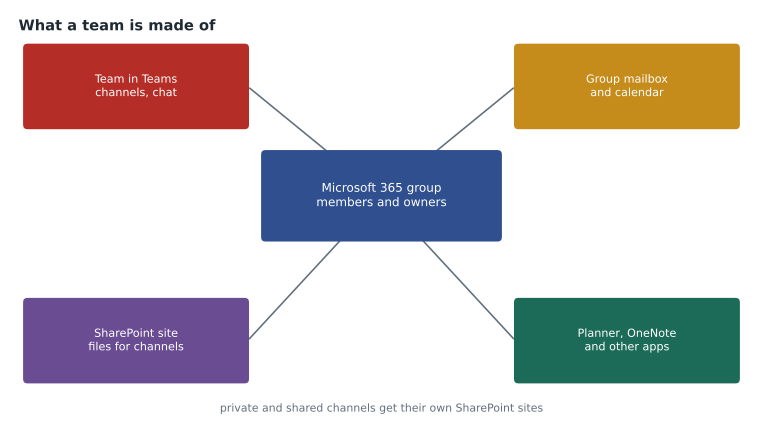
Inside a team, channels organize conversation and files by topic. Every team has a General channel. Additional channels come in three types.
| Channel type | Who can see it | Where its files live | Typical use |
|---|---|---|---|
| Standard | Every member of the team | A folder in the team's SharePoint site | Topics everyone in the team should follow |
| Private | Only the channel's members, a subset of the team | A separate SharePoint site for the channel | Sensitive topics such as staff discipline within a branch team |
| Shared | Its own members, who can include people from other teams and other organizations | A separate SharePoint site for the channel | Working with a partner organization without adding them as guests |
Private and shared channels are useful but add complexity, because each gets its own SharePoint site with its own permissions. Felix recommended creating a separate team when a group of people needed a lot of private space, and keeping private channels for small, genuinely confidential topics.
Creating teams and managing owners
Teams can be created by users in the Teams app, if group creation allows it, or by administrators in the Teams admin center under Teams, then Manage teams, or with the Microsoft Teams PowerShell module. A team can be created from scratch, from an existing Microsoft 365 group, or from a team template that defines channels, apps and settings in advance. Microsoft provides templates for common scenarios, and organizations can create their own.
Corvallin built a branch team template with channels for Scheduling, Visits Today, Clinical Questions and Branch News, and created one team per branch from it. Each branch manager and deputy became owners, so each team had two owners, and staff were added as members through the branch's dynamic group. An org-wide team, which automatically includes every user in the organization, was created for agency-wide announcements, with posting restricted to owners and a few communicators so that it would not become the new group text.
Connect-MicrosoftTeams
$team = New-Team -DisplayName "Branch North" -Visibility Private `
    -Description "Scheduling and coordination for the North branch" -MailNickName "branch-north"
Add-TeamUser -GroupId $team.GroupId -User "manager.north@corvallincare.example" -Role Owner
Add-TeamUser -GroupId $team.GroupId -User "deputy.north@corvallincare.example" -Role Owner
New-TeamChannel -GroupId $team.GroupId -DisplayName "Visits Today"
New-TeamChannel -GroupId $team.GroupId -DisplayName "Staff Matters" -MembershipType Private
Team owners do most day-to-day management: adding and removing members, managing channels, and setting team options such as whether members can create channels or add apps. Administrators step in for things owners cannot do, such as recovering a deleted team, assigning a new owner to an ownerless team, or applying policies. The Teams admin center's Manage teams page lists every team with its member count, owners, privacy and archive status, and an administrator can archive a team that has finished its work, making it read-only while keeping its content, rather than deleting it.
Policies: how Teams settings are applied
Most Teams behaviour is controlled by policies in the Teams admin center. A policy is a named collection of settings for one area, such as meetings or messaging. Every user receives the global (org-wide default) policy for each area unless they are assigned a different one, either directly or through a group. Policy packages bundle several policies for a role, for example frontline workers, so that one assignment sets many things at once.
| Policy type | Controls | Corvallin's choice |
|---|---|---|
| Messaging policies | Editing and deleting sent messages, read receipts, priority notifications, chat features | Priority notifications allowed for schedulers |
| Meeting policies | Who can record, transcribe and use Copilot, lobby behaviour, screen sharing | Recording and transcription on; anonymous join off |
| App permission and app setup policies | Which apps users may use and which are pinned in the Teams app bar | Shifts and Approvals pinned for frontline staff |
| Teams update policies | Which users receive preview features | Preview on for the IT team only |
| Calling policies | Calling features such as forwarding and voicemail | Defaults until Teams Phone is planned |
Policy assignment follows precedence rules. A policy assigned directly to a user wins over one inherited from a group, and among group assignments the group with the highest rank wins. If nothing is assigned, the global default applies. When Ama reported that a nurse could not see the Shifts app, the cause turned out to be a direct assignment of an old app setup policy that overrode the group assignment for frontline staff. Removing the direct assignment fixed it.
Worked problem
Which policy wins?
A scheduler belongs to two groups. The Frontline group has the Frontline Meetings policy assigned with rank 2; the Schedulers group has the Scheduler Meetings policy with rank 1. She also has no direct meeting policy assignment. Which meeting policy applies to her? What would change if an administrator assigned the Global policy directly to her?
Show solution
- With no direct assignment, group assignments are considered.
- Rank 1 is a higher rank than rank 2, so the Schedulers group's policy wins.
- A direct assignment always takes precedence over group assignments.
- If the Global policy were assigned directly, it would apply instead of either group policy.
Answer: Scheduler Meetings applies. A direct assignment of any policy, including Global, would override both group assignments, which is why direct assignments should be rare and documented.
External access and guest access
Teams offers two different ways to work with people outside the organization, and confusing them causes most Teams sharing problems.
External access, also called federation, lets Corvallin's users find, chat with and call people in other Teams organizations, without adding those people to Corvallin's tenant. The outside people stay in their own organization and cannot see Corvallin's teams or files. External access can be open to all domains, limited to an allowed list or blocked. Corvallin allowed external access only with the regional hospital, two partner agencies and the health authority.
Guest access adds an outside person to Corvallin's directory as a guest, so they can be made a member of specific teams, see the channels and files in those teams, and join meetings as a member. Guest access in Teams depends on the Microsoft Entra external collaboration settings and the SharePoint sharing settings described earlier, and on the guest access settings in the Teams admin center. Corvallin enabled guest access but required that guests be invited by IT after a request from a team owner, and set guest access to expire with the 60-day rule from Lesson 9.
Shared channels provide a third option: a shared channel can include people from other organizations through B2B direct connect, without making them guests in the tenant, if both organizations' cross-tenant access settings allow it.
Meeting settings and Copilot in Teams meetings
Meetings are where many organizations feel Teams most, and meeting policies decide how they behave. The main settings cover who can bypass the lobby, whether anonymous people can join, who can present, whether meetings can be recorded and transcribed, and where recordings are stored. Recordings and transcripts are saved to the organizer's OneDrive for scheduled meetings and to the channel's SharePoint site for channel meetings, and they inherit those locations' retention and sharing settings.
For Copilot in Teams meetings, the meeting policy has a Copilot setting in its recording and transcription section, alongside the transcription setting. In the Teams admin center the values are On, On with saved transcript required (the default), On with transcript saved by default, and Off; in PowerShell they correspond to Enabled, EnabledWithTranscript, EnabledWithTranscriptDefaultOn and Disabled. The value decides the default Copilot option organizers see, and whether they may change it. Organizers choose between During and after the meeting, Only during the meeting, and Off. Only during the meeting lets licensed users ask Copilot questions while the meeting runs, using temporary speech-to-text data, without keeping a transcript afterwards. During and after the meeting requires transcription and lets Copilot answer questions later from the saved transcript. Turning Copilot off for a meeting also turns off recording and transcription for it. Users need a Microsoft 365 Copilot licence to use Copilot in meetings, and Copilot is not available in end-to-end encrypted meetings.
Connect-MicrosoftTeams
# Clinical case conferences: Copilot only during the meeting by default, organizer may change it
Set-CsTeamsMeetingPolicy -Identity "Clinical-Meetings" -AllowTranscription $true -Copilot Enabled
# Everyone else keeps the default: Copilot only with a saved transcript
Get-CsTeamsMeetingPolicy -Identity Global | Select-Object Identity, AllowTranscription, Copilot
Dr. Ostrander-Bey had strong views here. Clinical case conferences discussed named clients, and she did not want transcripts of them stored anywhere by default. Teodor and Felix created a Clinical-Meetings policy for the clinical team with Copilot set to On, so that the default was Only during the meeting and no transcript was kept unless the organizer deliberately chose otherwise, while the rest of the agency kept the default that requires a saved transcript. Copilot licences themselves were still waiting on the governance work described in the MSBA-205 course, but the meeting policies were ready before the licences arrived.
Keeping Teams healthy
A Teams environment stays useful only with some upkeep. The Teams admin center offers usage reports showing active users, channel messages, meetings and device use, and the Microsoft 365 admin center's reports show Teams activity alongside other workloads. Administrators review ownerless teams, inactive teams that could be archived, and teams with guests. Teams also needs network attention: meetings and calls are sensitive to latency and packet loss, so Microsoft publishes network guidance and the Teams admin center includes call analytics and Call Quality Dashboard tools, covered in the Teams administrator courses.
Felix set a monthly routine: check ownerless teams and assign owners, archive teams with no activity for six months after asking their owners, review guest lists with each team owner, and read the Teams section of Message center, where Microsoft announces changes to the app. After three months the group text was gone. The North branch manager archived it with a final message that read, in full, "See you in Teams."
Managing Teams with PowerShell and templates at scale
For one or two teams, the Teams admin center is enough. For dozens, PowerShell and templates save time and keep teams consistent. Felix kept a script that listed every team with its owners, member count, guest count and last activity, exported weekly to a spreadsheet he reviewed with Teodor. When a new branch opened, a single command created its team from the branch template with the right channels and apps, and the branch dynamic group filled the membership automatically.
Templates also helped with policy. The branch template pinned the Shifts and Approvals apps, which frontline staff used to swap visits and request time off, and set channel moderation on Branch News so only managers could start posts. Because every branch team started from the same template, a frontline worker who moved from the North branch to the South branch found the same channels in the same places on her first day.
Common mistakes
MistakeTreating a team as separate from its Microsoft 365 group.
InsteadA team is a group with Teams turned on; deleting one deletes the other and its site and mailbox.
MistakeCreating private channels for everything sensitive.
InsteadEach private channel has its own site; use a separate team for large private needs.
MistakeConfusing external access with guest access.
InsteadExternal access is chat and calls with other organizations; guest access adds outside people to your teams.
MistakeAssigning policies directly to many users.
InsteadAssign policies to groups with clear ranks, and keep direct assignments rare.
Summary and key terms
- A team is a Microsoft 365 group with Teams features, a SharePoint site for channel files and a group mailbox.
- Channels can be standard, private or shared; private and shared channels have their own SharePoint sites.
- Owners manage teams day to day; administrators create, archive, recover and apply policies.
- Policies control messaging, meetings, apps and updates; direct assignments beat group assignments, and higher-ranked groups win.
- External access and guest access are different; meeting policies control recording, transcription and Copilot, including Only during the meeting use.
- Channel
- A topic area inside a team for conversations and files.
- Private channel
- A channel visible only to a subset of team members, with its own SharePoint site.
- Shared channel
- A channel that can include people from other teams or organizations without adding them to the team.
- Meeting policy
- A set of meeting settings, such as recording, transcription and Copilot, assigned to users.
- External access
- Chat and calls with users in other Teams organizations without adding them as guests.
- Guest access
- Adding outside people to the directory so they can join specific teams.
- Org-wide team
- A team that automatically includes everyone in the organization.
Practice problems
Work each problem on paper first, then reveal the answer to check.
Where are files from a private channel stored?
Show answer
In a separate SharePoint site created for that channel.
A user has a direct policy assignment and inherits another from a group. Which applies?
Show answer
The direct assignment.
What does the Only during the meeting Copilot option mean?
Show answer
Licensed users can use Copilot while the meeting runs with temporary data, and no transcript is kept for Copilot afterwards.
Lesson quiz · 5 questions
Score 60% or more to complete this lesson.
Create a free account to save your progress, take quizzes and earn a certificate.