
JS-110 · Lesson 5 of 12 · 28 min
Events and event listeners
▶ Video coming soon A video version of this lesson is on the way.
So far Mira's code runs once, from top to bottom, when the page loads. The counter tablet needs something different. It must sit and wait, for minutes at a time, until a trainee taps Add next to the soup, and then respond at once. It must notice when the tip choice changes, when a quantity is typed and when the trainee presses Escape to cancel. Programs of this kind are called event-driven: instead of deciding what happens next, they wait for things to happen and react to them.
The session planned for Tuesday, January 26, 2027, introduces events, the browser's way of telling a script that something has happened, and event listeners, the functions that respond. "Almost every line of interactive code you will ever write lives inside a listener," Gareth says. "Get the basics right and everything after this is detail."
What an event is
An event is a signal that something has happened: the user clicked, typed, moved the pointer or submitted a form; the page finished loading; a timer ran out; a network request completed. The browser represents each occurrence as an event object and dispatches it to a target, usually the element where it happened. Any function that has been registered as a listener for that type of event on that target is then called with the event object as its argument.
Nothing happens unless a listener is registered. A click on a button with no listener still produces an event, the browser just has nobody to tell. The job of front-end code is to attach the right listeners to the right elements and keep the work inside each listener small and clear.
addEventListener
The standard way to register a listener is target.addEventListener(type, listener, options). The type is a string such as 'click' or 'input'. The listener is a function, usually an arrow function or a named function, that receives the event object. The optional third argument is an object of options, covered below. One element can have many listeners for the same event, and they run in the order they were added.
const addSoup = document.querySelector('[data-code="SOUP"] button.add');

addSoup.addEventListener('click', (event) => {
  console.log('Clicked', event.type, 'on', event.currentTarget.textContent);
  addToOrder('SOUP');
});
What this code does
The listener is attached to the soup's Add button and runs every time the button is clicked. It receives the event object, whose type is click and whose currentTarget is the button the listener is attached to. The real work is handed to a separate function, addToOrder, so that the listener itself stays short.
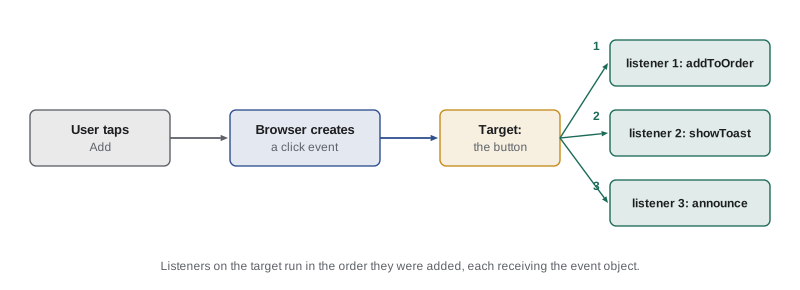
Note what the listener is: a function passed as an argument, to be called later. It is a callback, exactly as in JavaScript Programming II, and it is a closure, so it can use variables from the scope where it was written. The browser calls it, not your code, and it can be called any number of times or never.
Event targets are not only elements. The EventTarget interface that provides addEventListener is part of the DOM standard and is also available in Web Workers and Node.js, so the runner can show listeners working for real. Here a plain EventTarget stands in for a button, and dispatchEvent plays the part of the user.
const button = new EventTarget();
let soups = 0;

button.addEventListener('click', () => {
  soups += 1;
  console.log('Soup added; order has', soups);
});
button.addEventListener('click', (event) => {
  console.log('Second listener saw a', event.type, 'event');
});

button.dispatchEvent(new Event('click'));
button.dispatchEvent(new Event('click'));Soup added; order has 1 Second listener saw a click event Soup added; order has 2 Second listener saw a click event
What this code does
Two listeners are registered for the click type on the same target, and each dispatch calls both of them in the order they were added. The first listener is a closure over soups, so the count carries on from one click to the next. In a page, the browser does the dispatching whenever the user clicks.
The event object
Every listener receives an event object describing what happened. Some properties are shared by all events; others depend on the kind of event. A click is a MouseEvent, or the more detailed PointerEvent in browsers that follow the latest specification, with the position of the pointer and the button used; a key press is a KeyboardEvent with the key; an input event carries no data of its own, and the listener reads the field's value instead.
| Property or method | Meaning |
|---|---|
| type | The kind of event, such as click or keydown |
| target | The element where the event happened, which may be inside the listener's element |
| currentTarget | The element the running listener is attached to |
| timeStamp | When the event happened, in milliseconds since the page started |
| key | For keyboard events, the key pressed, such as Enter, Escape or a |
| clientX, clientY | For pointer events, the position in the visible window |
| preventDefault() | Stops the browser's own default action for the event |
| stopPropagation() | Stops the event travelling further through the tree (Lesson 6) |
The difference between target and currentTarget matters as soon as elements contain other elements. If the Add button holds an icon and the word Add, a click on the icon has the icon as its target, while currentTarget is still the button, because that is where the listener is attached. Lesson 6 builds on this distinction.
Common event types
| Event | Fires when | Typical use |
|---|---|---|
| click | An element is activated by mouse, touch, or Enter or Space on a focused button | Buttons and links |
| input | The value of a field changes, on every keystroke | Live search, character counts |
| change | A field's value is committed: a box loses focus, or a checkbox or select changes | Choices and settings |
| submit | A form is submitted | Checking and sending forms (Lesson 7) |
| keydown | A key is pressed | Keyboard shortcuts and controls |
| focus, blur | An element gains or loses focus (do not bubble) | Showing help for the current field |
| focusin, focusout | The same, but they bubble | Delegated focus handling |
| pointerdown, pointerup | A mouse button, finger or pen goes down or up | Drag and custom controls |
| DOMContentLoaded | The HTML has been parsed | Starting a classic script |
| load | The page and its images and styles have loaded | Measuring images |
The click event is more inclusive than its name suggests. On a button element it also fires when a keyboard user presses Enter or Space, and when a screen reader user activates the button. That is one of the strongest reasons to use real button elements for anything clickable, which Lesson 10 explains: a click listener on a button works for everyone, while a click listener on a div works only for mouse and touch users.
Keyboard events
For keys, listen for keydown and read event.key, which gives a readable name: 'Enter', 'Escape', 'ArrowUp', ' ' for the space bar, or the character typed, such as 'a' or 'A'. Older code reads keyCode or which, numbers that are deprecated and inconsistent across keyboards; you should recognize them but not write them. event.code gives the physical key position, which is useful for games but not for text. The modifier keys appear as event.shiftKey, ctrlKey, altKey and metaKey.
Mira's counter needs a few shortcuts for trainees using a keyboard with the tablet: plus and minus to change the quantity of the selected item, and Escape to clear the order. The decision about what a key means is ordinary logic, so she writes it as a pure function that a keydown listener can call.
function actionForKey({ key, ctrlKey = false }) {
  if (ctrlKey) return null;              // leave browser shortcuts alone
  switch (key) {
    case '+': case '=': case 'ArrowUp': return 'more';
    case '-': case 'ArrowDown': return 'less';
    case 'Escape': return 'clear';
    default: return null;
  }
}

const presses = [{ key: '+' }, { key: 'ArrowDown' }, { key: 'Escape' }, { key: 'a' }, { key: '+', ctrlKey: true }];
for (const p of presses) {
  console.log((p.ctrlKey ? 'Ctrl+' : '') + p.key, '->', actionForKey(p) ?? 'ignored');
}+ -> more ArrowDown -> less Escape -> clear a -> ignored Ctrl++ -> ignored
What this code does
The function receives an object shaped like a keyboard event and returns the name of an action, or null for keys it does not handle. The equals sign counts as plus because it is the same key without Shift on many keyboards. Keys pressed with Ctrl are ignored, so shortcuts such as Ctrl and plus for zooming still reach the browser.
document.addEventListener('keydown', (event) => {
  const action = actionForKey(event);
  if (!action) return;
  event.preventDefault();
  if (action === 'clear') clearOrder();
  else changeQuantity(selectedCode, action === 'more' ? 1 : -1);
});
What this code does
The listener passes the real keyboard event to the same function, because a KeyboardEvent has key and ctrlKey properties. If the key means nothing to the counter, the listener returns at once and the browser behaves normally. Otherwise it prevents the default action, so the arrow keys do not scroll the page, and performs the action.
Default actions and preventDefault
Many events have a default action, something the browser does by itself after the listeners have run. Clicking a link follows it; submitting a form sends it to the server and loads a new page; pressing the down arrow scrolls; pressing Space on a checkbox ticks it. A listener can cancel the default action by calling event.preventDefault(), as long as the event is cancelable. The event still happens and the listeners still run; only the browser's own behaviour is skipped.
const form = document.querySelector('#signup');
form.addEventListener('submit', (event) => {
  event.preventDefault();             // stay on this page
  const problems = checkSignup(form);
  if (problems.length) showProblems(problems);
  else sendSignup(form);
});
What this code does
Without preventDefault, submitting the form would send it to the address in its action attribute and load a new page. Preventing the default lets the script check the form and show any problems in place, as Lesson 7 develops. The decision of what to do next is left to helper functions.
Code that dispatches its own events can find out whether a listener cancelled the default: dispatchEvent returns false if any listener called preventDefault on a cancelable event. The order page can use this to let other parts of the page veto an action, such as stopping an order from being cleared while a payment is in progress.
const order = new EventTarget();
order.addEventListener('clear', (e) => {
  if (e.detail.paying) {
    e.preventDefault();
    console.log('Listener: cannot clear while paying');
  }
});

function tryClear(paying) {
  const ev = new CustomEvent('clear', { cancelable: true, detail: { paying } });
  const allowed = order.dispatchEvent(ev);
  console.log(allowed ? 'Order cleared' : 'Clear refused');
}

tryClear(false);
tryClear(true);Order cleared Listener: cannot clear while paying Clear refused
What this code does
A CustomEvent carries extra data in its detail property, here whether a payment is under way. The listener calls preventDefault when it should not be cleared, and because the event was created as cancelable, dispatchEvent returns false. The function that dispatched the event then knows not to go ahead.
Removing listeners
Listeners stay attached until they are removed or the element is discarded. removeEventListener(type, listener) removes one, but only if you pass the very same function object that was added. An arrow function written directly inside addEventListener cannot be removed this way, because there is no name to refer to it by; writing an identical arrow function again creates a different function.
const tip = new EventTarget();
const log = (e) => console.log('tip changed to', e.detail);

tip.addEventListener('change', log);
tip.addEventListener('change', (e) => console.log('anonymous saw', e.detail));

tip.removeEventListener('change', log);                                      // works
tip.removeEventListener('change', (e) => console.log('anonymous saw', e.detail)); // a different function

tip.dispatchEvent(new CustomEvent('change', { detail: 15 }));anonymous saw 15
What this code does
The named function log is removed because the same function object is passed to removeEventListener. The second removal does nothing: the arrow function written there looks identical but is a new object, so the original anonymous listener stays attached. When the event is dispatched, only the anonymous listener runs.
Two options make removal easier. once: true removes a listener automatically after its first call, which suits one-time actions such as dismissing a welcome note. signal connects listeners to an AbortController: calling the controller's abort method removes every listener registered with its signal in one step, however many there are and whether or not they have names.
const counter = new EventTarget();
const controller = new AbortController();
const { signal } = controller;

counter.addEventListener('order', () => console.log('total updated'), { signal });
counter.addEventListener('order', () => console.log('receipt updated'), { signal });
counter.addEventListener('order', () => console.log('welcome note closed'), { once: true });

counter.dispatchEvent(new Event('order'));
console.log('--- page leaves order mode');
controller.abort();
counter.dispatchEvent(new Event('order'));
console.log('nothing else ran');total updated receipt updated welcome note closed --- page leaves order mode nothing else ran
What this code does
Two listeners are tied to the controller's signal and one is registered with once. The first dispatch runs all three, and the once listener removes itself afterwards. Calling abort removes the two signal listeners together, so the second dispatch runs nothing at all.
The signal option is the cleanest way to manage listeners for a component that can be shown and hidden, such as the order summary drawer on the counter tablet: every listener it adds uses the same signal, and closing the drawer calls abort.
Other options and older styles
The options object has one more flag worth knowing. passive: true promises the browser that the listener will never call preventDefault, which lets it start scrolling immediately instead of waiting for the listener. Chrome and Firefox already treat touchstart, touchmove and wheel listeners on the window and document as passive by default. The capture option is about the order in which listeners run as an event travels through the tree, which is Lesson 6's subject.
Two older styles of attaching listeners are still common. Event handler properties, such as button.onclick = handler, allow only one handler per event, and assigning a second replaces the first. Inline handler attributes in the HTML, such as onclick="addSoup()", mix code into markup, run in a confusing scope and are blocked by a Content Security Policy that forbids inline script, which the Food Hub's site uses. Brightwater's code uses addEventListener only.
| Style | Several handlers per event | Options such as once and signal | Works under a strict Content Security Policy |
|---|---|---|---|
| addEventListener | Yes | Yes | Yes |
| onclick property | No; a new one replaces the old | No | Yes |
| onclick attribute in HTML | No | No | No |
Worked problem
Predicting listener output
A target has listener A added with { once: true }, listener B added normally and listener C added with the signal of controller k. The code dispatches the event, calls k.abort(), dispatches again, removes B with the same function, and dispatches a third time. Which listeners run each time?
Show solution
- First dispatch: A, B and C are all attached, so all three run, in the order they were added. A then removes itself because of once.
- k.abort() removes C, the only listener tied to that signal.
- Second dispatch: only B is still attached, so only B runs.
- B is removed with the same function object. Third dispatch: no listeners remain, so nothing runs.
Answer: A, B, C; then B; then nothing.
Keeping listeners small
Gareth's rule for listeners is that they should read the event, decide which action it means and call a function that does the work. The functions that do the work, such as addToOrder or actionForKey, take ordinary values and can be run and tested without a page; the listener is the thin layer of glue between the browser and the logic. Lesson 11 turns this rule into a structure for the whole counter page.
Try it yourself
Quantity from a key
Write nextQuantity(current, key). + or ArrowUp adds 1, - or ArrowDown subtracts 1, 0 sets the quantity to 0, and any other key leaves it unchanged.
The quantity must stay between 0 and 20. The starter applies a sequence of keys, starting from 0.
function nextQuantity(current, key) {
  // return the new quantity
  return current;
}

let q = 0;
for (const key of ['+', '+', 'ArrowUp', '-', 'x', 'ArrowDown', 'ArrowDown', 'ArrowDown', '+', '0']) {
  q = nextQuantity(q, key);
  console.log(key, q);
}
Try it yourself
A tiny event emitter
Complete makeEmitter(). on(type, fn) registers a listener and returns a function that removes it. emit(type, detail) calls every listener for that type, in order, with detail.
Use a Map from type to an array of functions. The starter registers two listeners, emits, removes one and emits again.
function makeEmitter() {
  const listeners = new Map();
  return {
    on(type, fn) {
      // register fn and return a function that removes it
      return () => {};
    },
    emit(type, detail) {
      // call every listener for type
    },
  };
}

const em = makeEmitter();
const off = em.on('add', (code) => console.log('order gets', code));
em.on('add', (code) => console.log('receipt shows', code));
em.emit('add', 'SOUP');
off();
em.emit('add', 'TEA');
em.emit('clear');
console.log('done');
Common mistakes
MistakeA click listener on a div works for keyboard users too.
Insteadclick fires from the keyboard only on elements such as buttons and links. Use a real button.
Mistakeevent.target is always the element the listener is attached to.
Insteadtarget is where the event happened; currentTarget is the element with the listener.
MistakeremoveEventListener('click', () => go()) removes a listener added with the same arrow function.
InsteadEach arrow function is a new object. Keep a reference, or use once or an AbortController signal.
MistakepreventDefault stops the other listeners from running.
InsteadIt cancels only the browser's default action. The listeners still run.
Mistakeevent.keyCode is the way to check which key was pressed.
InsteadkeyCode is deprecated. Use event.key for the meaning of the key.
Summary and key terms
- An event is a signal that something happened, represented by an event object dispatched to a target. addEventListener registers a listener function for a type of event; several listeners can share a target and run in order.
- The event object gives the type, the target where the event happened, the currentTarget with the listener and details such as the key. click, input, change, submit, keydown, focus and pointer events cover most interfaces, and click on a button also fires from the keyboard. preventDefault cancels the browser's default action for a cancelable event, and dispatchEvent returns false when that happens. removeEventListener needs the same function object; once removes a listener after one call, and an AbortController signal removes a group together. passive listeners promise not to cancel scrolling. addEventListener is preferred over handler properties and inline attributes.
- Listeners should be thin glue that calls ordinary functions.
- event
- A signal that something has happened, such as a click or a key press.
- event object
- The object passed to listeners, describing one occurrence of an event.
- event listener
- A function registered to be called when an event of a given type reaches a target.
- dispatch
- To send an event to its target so that the target's listeners are called.
- event target
- The object an event is dispatched to; elements, documents, windows and other objects can be targets.
- event-driven programming
- A style in which code waits for events and reacts to them.
- target
- The element on which an event actually happened.
- currentTarget
- The element whose listener is currently running.
- default action
- What the browser does by itself after an event, such as following a link.
- preventDefault
- A method that cancels the default action of a cancelable event.
- CustomEvent
- An event type for code-defined events, with extra data in its detail property.
- AbortController
- An object whose signal can be passed to listeners and whose abort method removes them all.
Practice problems
Work each problem on paper first, then reveal the answer to check.
What does the third argument of addEventListener hold?
Show answer
An options object, with flags such as once, signal, passive and capture.
Which event fires on every keystroke in a text field?
Show answer
input; change fires only when the value is committed.
Why might removeEventListener fail to remove a listener?
Show answer
It was given a different function object from the one that was added, such as a new arrow function.
What does form submission do if the submit listener calls preventDefault?
Show answer
The form is not sent and no new page loads; the script decides what happens.
Which property of a keydown event gives a readable key name?
Show answer
event.key, for example 'Escape' or 'Enter'.
Lesson quiz · 5 questions
Score 60% or more to complete this lesson.
Create a free account to save your progress, take quizzes and earn a certificate.