
JS-110 · Lesson 4 of 12 · 27 min
Creating and removing elements
▶ Video coming soon A video version of this lesson is on the way.
Changing existing elements covers the soup of the day, but Rosa's menu does not have a fixed number of items. On a good day the kitchen trainees make a second soup; in summer the youth garden sends salad greens and a salad appears; on a day when the bread delivery is late, the sandwiches vanish. Lucy's shift list has the same problem on a larger scale: the number of shifts changes every week. Pages like these cannot be written once in HTML. Their elements have to be made from data, and removed again when the data changes.
For the session planned for Thursday, January 21, 2027, Gareth sets Mira a goal: by the end, the menu on the counter tablet should be built entirely from an array of objects like the MENU array in her calculator, so that adding a dish means adding one line of data. Along the way she meets every method for creating, inserting, moving, copying and removing nodes.
Creating an element
document.createElement(tag) makes a new, empty element of the given type. The new element exists only in memory: it is not part of the page, so nobody can see it, until you insert it somewhere in the document. Before inserting it, you can set anything you like on it, using the methods from Lesson 3: its text, its attributes, its classes and its children.
const li = document.createElement('li');
li.dataset.code = 'SALAD';
li.className = 'menu-item';
const name = document.createElement('span');
name.className = 'name';
name.textContent = 'Garden salad';
li.append(name, ' ', '4.75');      // an element and two strings
document.querySelector('#menu').append(li);
What this code does
createElement makes the li and the span, which exist only in memory at first. append accepts any mix of nodes and strings, and turns each string into a text node, so the item gets the name span, a space and the price. The last line inserts the finished item at the end of the menu, and only then does it appear on the page.
Building each element in memory and inserting the finished result at the end is a good habit. The page changes once, instead of once for every attribute and child, and nobody sees a half-built item. It is also safe by construction: every piece of text goes in through textContent or as a string argument to append, so none of it is ever parsed as HTML.
Inserting: append, prepend, before, after
Modern DOM methods for inserting nodes are named after where the new nodes go. parent.append(...nodes) adds them as the last children, and parent.prepend(...nodes) as the first. node.before(...nodes) and node.after(...nodes) insert them as siblings, just before or just after a node. All four accept several arguments at once, and all four accept strings as well as nodes. node.replaceWith(...nodes) swaps a node for others, and parent.replaceChildren(...nodes) removes all of a parent's children and puts the given nodes in their place.
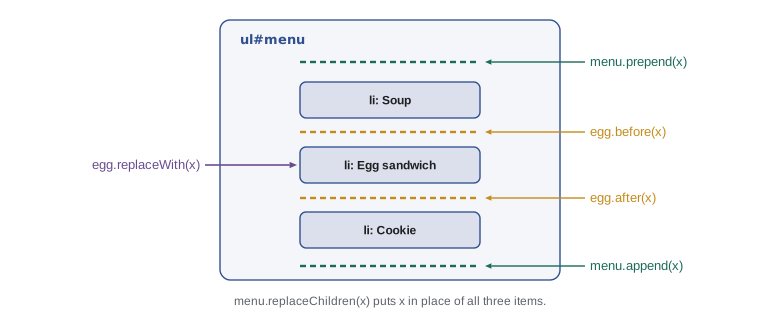
| Method | Called on | Puts the new nodes |
|---|---|---|
| append(...n) | The parent | After the last child |
| prepend(...n) | The parent | Before the first child |
| before(...n) | A child | Just before that child, as siblings |
| after(...n) | A child | Just after that child, as siblings |
| replaceWith(...n) | A child | In place of that child |
| replaceChildren(...n) | The parent | In place of all the children |
| appendChild(n), insertBefore(n, ref) | The parent | Older forms; one node at a time, no strings |
You will see appendChild and insertBefore in older code and in many tutorials. They still work in every browser. They take one node at a time and do not accept strings, and insertBefore needs the parent and a reference child, which makes it clumsy. The newer methods reached every major browser by 2017, and replaceChildren followed in 2020; they are now the normal choice.
Removing elements
node.remove() takes a node out of the document. The node object is not destroyed: if your code still holds a reference to it, it can be inserted again later, with its children and attributes intact. Once no code refers to it any more, the JavaScript engine's garbage collector frees its memory. To empty an element completely, call replaceChildren with no arguments, which is clearer than the older trick of setting innerHTML to an empty string.
const late = document.querySelectorAll('#menu [data-code="EGG"], #menu [data-code="WRAP"]');
late.forEach((item) => item.remove());   // the bread is late

const menu = document.querySelector('#menu');
menu.replaceChildren();                  // remove every item
What this code does
querySelectorAll finds both sandwich items, and remove takes each one out of the page. Because the NodeList is static, removing items does not disturb the loop. replaceChildren with no arguments clears the whole menu, ready to be rebuilt.
Moving and copying
A node can only be in one place in a document. Inserting a node that is already on the page moves it: the browser takes it out of its old position and puts it in the new one. That is often exactly what you want, for example to move a shift that has just filled up to the end of the list. When you want a copy instead, use node.cloneNode(true), where true means a deep copy that includes all descendants. A clone copies attributes and children but not event listeners, which Lesson 5 introduces.
const list = document.querySelector('.shift-list');
const garden = list.querySelector('[data-area="garden"]');
list.append(garden);                  // moves it to the end; no copy is made

const copy = garden.cloneNode(true);  // a deep copy, not yet on the page
copy.dataset.area = 'garden-sat';
garden.after(copy);
What this code does
Appending an element that is already in the list moves it from its old position to the end. cloneNode with true copies the element and everything inside it; the copy is changed and then inserted after the original. Ids are copied too, so a cloned element with an id needs a new one before it goes in.
The rule that a node lives in exactly one place is easy to model. In the sketch below, each node records its parent, and append first takes the node out of its old parent's children before adding it to the new parent. The real DOM does the same bookkeeping for you.
function makeEl(name) { return { name, parent: null, children: [] }; }

function append(parent, node) {
  if (node.parent) {
    const old = node.parent.children;
    old.splice(old.indexOf(node), 1);     // take it out of its old place
  }
  parent.children.push(node);
  node.parent = parent;
}
const names = (el) => el.children.map((c) => c.name).join(', ') || '(empty)';

const open = makeEl('open shifts');
const full = makeEl('full shifts');
const garden = makeEl('Garden');
append(open, makeEl('Kitchen'));
append(open, garden);
console.log('open:', names(open), '| full:', names(full));
append(full, garden);                       // moves, does not copy
console.log('open:', names(open), '| full:', names(full));open: Kitchen, Garden | full: (empty) open: Kitchen | full: Garden
What this code does
Each node keeps a reference to its parent, so append can find the node's old position and remove it before adding it to the new parent. After the second append the garden shift is in the full list and has gone from the open list. This is why inserting an element that is already on a page moves it rather than duplicating it.
Moving an element with append removes it and inserts it again, which resets some kinds of state: a playing video restarts, an iframe reloads and keyboard focus is lost. A newer method, parent.moveBefore(node, reference), moves a node while keeping that state. It shipped in Chrome and Edge 133 in February 2025 and in Firefox 144 in October 2025, but Safari does not support it yet, so code that uses it should check that it exists and fall back to insertBefore.
Templates
Building a complicated item with createElement takes many lines. The template element is a way to write the markup once in HTML and copy it whenever you need another item. The browser parses a template's contents but does not show them or run anything in them. A script takes the template's content, which is a document fragment, clones it and fills in the copy.
<template id="menu-item">
  <li class="menu-item">
    <span class="name"></span>
    <span class="price"></span>
    <button type="button" class="add">Add</button>
  </li>
</template>
What this code does
The template holds the structure of one menu item with empty name and price spans. Nothing inside it appears on the page until a script copies it. Designers can change the markup here without touching the script, as long as the classes the script looks for stay the same.
const tpl = document.querySelector('#menu-item');

function menuItem({ code, name, priceCents }) {
  const li = tpl.content.firstElementChild.cloneNode(true);
  li.dataset.code = code;
  li.querySelector('.name').textContent = name;
  li.querySelector('.price').textContent = (priceCents / 100).toFixed(2);
  li.querySelector('.add').setAttribute('aria-label', `Add ${name}`);
  return li;
}
What this code does
The function clones the li inside the template and fills in its data attribute, name, price and button label, all through safe text properties. It returns the finished element without inserting it, so the caller decides where it goes. Keeping creation separate from insertion makes the function easy to reuse for the menu and for the order summary.
Batching with document fragments
Inserting a hundred elements one at a time can make the browser redo layout up to a hundred times. A document fragment is a lightweight container that is not part of the page. You build the elements inside a fragment, then insert the fragment in one operation; the fragment itself disappears and its children take its place. In modern browsers, append with several arguments achieves the same effect, because it inserts all of them at once.
function renderMenu(menuEl, items) {
  const frag = document.createDocumentFragment();
  for (const item of items) frag.append(menuItem(item));
  menuEl.replaceChildren(frag);   // one change to the page
}

// equivalent with spread:
// menuEl.replaceChildren(...items.map(menuItem));
What this code does
Every item is built and added to the fragment, which is not on the page, so no layout happens while the loop runs. replaceChildren then removes the old items and inserts all the new ones in one step. The commented line does the same with spread syntax.
This is the pattern Mira ends up using for the whole menu: a function that takes the data and replaces the list's children with freshly built items. It is simple and predictable, because the page always shows exactly what the data says. Its weakness is that it throws away and rebuilds every element on each change, losing focus and any half-finished input. For a menu of eight items that does not matter, and Lesson 11 shows how to limit it when it does.
Building markup from data, safely, in the runner
The runner has no document, but the idea of building elements from data can still be tested there. A common approach in front-end code is to describe elements as plain objects first and turn them into real DOM nodes or HTML text in one place. Mira writes a tiny helper, h, that makes element descriptions, and a toHTML function that turns them into an HTML string with every piece of text escaped.
const esc = (s) => String(s).replaceAll('&', '&').replaceAll('<', '<')
.replaceAll('>', '>').replaceAll('"', '"');
function h(tag, attrs = {}, ...children) {
return { tag, attrs, children };
}
function toHTML(node) {
if (typeof node === 'string') return esc(node);
const attrs = Object.entries(node.attrs).map(([k, v]) => ` ${k}="${esc(v)}"`).join('');
return `<${node.tag}${attrs}>${node.children.map(toHTML).join('')}</${node.tag}>`;
}
const MENU = [
{ code: 'SOUP', name: 'Lentil soup', priceCents: 550 },
{ code: 'COOKIE', name: 'Oat & raisin cookie', priceCents: 150 },
];
const list = h('ul', { class: 'menu' },
...MENU.map((m) => h('li', { 'data-code': m.code }, m.name, ' ', (m.priceCents / 100).toFixed(2))));
console.log(toHTML(list));<ul class="menu"><li data-code="SOUP">Lentil soup 5.50</li><li data-code="COOKIE">Oat & raisin cookie 1.50</li></ul>
What this code does
h simply bundles a tag, its attributes and its children into an object, so the menu can be described with one call per element. toHTML walks that description recursively and escapes every text child and attribute value as it goes. The ampersand in the cookie's name comes out as &, so the same code is safe even if the menu data comes from outside.
In a browser, a matching function would call createElement and append instead of building a string, and many front-end libraries work this way. The point for now is the separation: the decision about what the menu should contain is made from the data, and turning that decision into nodes happens in one small, well-tested place.
Updating instead of rebuilding
When a list is long, or its items hold state such as focus or typed text, rebuilding it on every change is wasteful. The alternative is to compare the old data with the new and change only what is different: add elements for new items, remove elements for items that have gone and leave the rest alone. To compare, each item needs a stable key, a value that identifies it from one update to the next, such as the menu code or a shift's id.
function diffKeys(oldKeys, newKeys) {
  const before = new Set(oldKeys);
  const after = new Set(newKeys);
  return {
    add: newKeys.filter((k) => !before.has(k)),
    remove: oldKeys.filter((k) => !after.has(k)),
    keep: newKeys.filter((k) => before.has(k)),
  };
}

const monday = ['SOUP', 'EGG', 'WRAP', 'DRINK', 'COOKIE'];
const breadLate = ['SOUP', 'SOUP2', 'DRINK', 'COOKIE'];
console.log(diffKeys(monday, breadLate));{ add: [ "SOUP2" ], remove: [ "EGG", "WRAP" ], keep: [ "SOUP", "DRINK", "COOKIE" ] }What this code does
Turning each list of keys into a Set makes the question is this key in that list quick to answer. Keys that are new must have elements created, keys that are gone must have their elements removed, and keys in both lists keep their existing elements. Only three elements change, and the three kept items are left untouched, with their focus and state.
Worked problem
Counting DOM changes
The menu shows 5 items. Monday's data changes to the breadLate list above, which has 4 items. How many element insertions and removals does a full rebuild make, and how many does a keyed update make?
Show solution
- A full rebuild removes all 5 old elements and inserts 4 new ones: 5 + 4 = 9 changes.
- The keyed update compares keys. EGG and WRAP have gone: 2 removals.
- SOUP2 is new: 1 insertion. SOUP, DRINK and COOKIE are kept: 0 changes.
- The keyed update makes 2 + 1 = 3 changes, and the kept elements keep any focus or state.
Answer: 9 changes for a rebuild against 3 for a keyed update. With replaceChildren and a fragment, the rebuild still touches the page only once, so for short lists both approaches are fast enough.
insertAdjacentHTML and outerHTML
Two more methods appear often in older code. insertAdjacentHTML(position, html) parses a string as HTML and inserts it at one of four positions around an element, named beforebegin, afterbegin, beforeend and afterend. outerHTML is like innerHTML but includes the element itself, so setting it replaces the element. Both parse HTML, so the XSS rule from Lesson 3 applies in full: they are acceptable only for fixed markup or for strings in which every piece of outside data has been escaped.
const menu = document.querySelector('#menu');
menu.insertAdjacentHTML('beforeend', '<li class="note">Prices include tax</li>');  // fixed text: fine
menu.insertAdjacentHTML('beforeend', `<li>${escapeHTML(dish.name)}</li>`);       // escaped: fine
What this code does
The first call inserts markup written entirely by the developer, which is safe. The second includes a dish name that came from data, so the name is escaped before it goes into the string. Leaving out escapeHTML in the second line would open the page to cross-site scripting.
Gareth's advice is to treat any method whose name contains HTML as a warning sign. Each one is a place where a string becomes markup, and each one needs a moment's thought about where the string came from.
Try it yourself
Plan a keyed update
Write planUpdate(oldKeys, newKeys), which returns an array of steps as strings: first remove KEY for each old key that is not in the new list (in old order), then add KEY for each new key that was not in the old list (in new order).
Print each step on its own line, then the number of steps.
function planUpdate(oldKeys, newKeys) {
  // return the list of steps
  return [];
}

const steps = planUpdate(['SOUP', 'EGG', 'WRAP', 'COOKIE'], ['SOUP', 'SALAD', 'COOKIE', 'TEA']);
steps.forEach((s) => console.log(s));
console.log(steps.length, 'steps');
Common mistakes
MistakeA new element from createElement appears on the page straight away.
InsteadIt exists only in memory until you insert it with append, before or a similar method.
MistakeAppending an element that is already on the page makes a copy.
InsteadIt moves the element. Use cloneNode(true) to copy it.
MistakecloneNode copies event listeners too.
InsteadClones copy attributes and children but not listeners added with addEventListener.
Mistakeremove() deletes the element for good.
InsteadIt takes the element out of the document; while code still refers to it, it can be inserted again.
MistakeinsertAdjacentHTML is safe because it only adds content.
InsteadIt parses HTML just like innerHTML, so outside data must be escaped first.
Summary and key terms
- createElement makes a new element in memory, which appears only once it is inserted. append and prepend add nodes inside a parent, before and after add siblings, replaceWith swaps a node and replaceChildren replaces all of a parent's children; all accept several nodes and strings. remove takes a node out of the document.
- Inserting a node that is already on the page moves it, and cloneNode(true) makes a deep copy without listeners. moveBefore moves a node while keeping its state but is not yet in Safari.
- A template holds markup that scripts clone and fill in.
- Document fragments, or append with several arguments, insert many nodes in one change.
- Building elements from data in one place keeps pages predictable; rebuilding is simple, while comparing keys changes only what differs.
- Methods with HTML in their names parse strings and need escaped data.
- createElement
- A method that makes a new element of a given tag, not yet in the document.
- append
- A method that inserts nodes or strings after a parent's last child.
- replaceChildren
- A method that replaces all of a parent's children, or removes them when called with nothing.
- remove
- A method that takes a node out of the document.
- cloneNode
- A method that copies a node; with true, its descendants too.
- template element
- An element whose contents are parsed but not shown, used as a pattern for copies.
- document fragment
- A lightweight container outside the page, used to insert many nodes at once.
- moveBefore
- A newer method that moves a node while keeping state such as focus.
- key
- A stable value that identifies an item from one update to the next.
- keyed update
- Changing only the elements whose keys were added or removed, instead of rebuilding a list.
- insertAdjacentHTML
- A method that parses an HTML string and inserts it at a position around an element.
- garbage collection
- The engine's automatic freeing of objects that no code refers to any more.
Practice problems
Work each problem on paper first, then reveal the answer to check.
Where does parent.prepend(a, b) put a and b?
Show answer
Before the parent's first child, in the order a then b.
How do you remove every child of the element list?
Show answer
list.replaceChildren(), with no arguments.
What happens if you append an element that is already elsewhere on the page?
Show answer
It moves to the new position; it is not copied.
Why insert a fragment instead of each element separately?
Show answer
The page changes once, so layout runs once instead of once for each element.
What does a keyed update need from each item?
Show answer
A stable key, such as a code or id, that stays the same between updates.
Lesson quiz · 5 questions
Score 60% or more to complete this lesson.
Create a free account to save your progress, take quizzes and earn a certificate.