
JS-110 · Lesson 2 of 12 · 28 min
Selecting elements
▶ Video coming soon A video version of this lesson is on the way.
Lucy's first request is the simplest to describe. The Volunteer page lists the coming week's shifts, and she wants volunteers to be able to show only the shifts that still need people. Before any code can hide a shift, it has to find it: the list, each shift in the list, and the part of each shift that says how many places are left. Finding elements is the first step of nearly every piece of front-end code, and it is the subject of the session planned for Thursday, January 14, 2027.
"You learned CSS selectors to style things," Gareth tells Mira. "The good news is that JavaScript uses exactly the same selectors to find things. If you can write the rule, you can write the query." This lesson covers the methods that find elements, the selectors they accept, what they return when they find one element, many elements or nothing, and how to choose selectors that will not break when the design changes.
<section id="shifts">
  <h2>Shifts this week</h2>
  <ul class="shift-list">
    <li class="shift" data-area="kitchen" data-open="2">
      <h3>Kitchen prep</h3> <span class="places">2 places left</span>
    </li>
    <li class="shift full" data-area="grocery" data-open="0">
      <h3>Grocery sorting</h3> <span class="places">Full</span>
    </li>
    <li class="shift" data-area="garden" data-open="5">
      <h3>Youth garden</h3> <span class="places">5 places left</span>
    </li>
  </ul>
</section>
What this code does
Each shift is an li with the class shift, and a full shift also has the class full. The data-area and data-open attributes carry facts that scripts can read without parsing the visible text. The examples in this lesson select parts of this markup.
getElementById
The oldest and most direct method is document.getElementById, which returns the one element whose id attribute matches the string you pass, or null if there is none. An id must be unique within a page, so there is never more than one answer. The method is fast and clear, and it is still a good choice when the element you want has an id, such as a whole section or a form.
const section = document.getElementById('shifts');
console.log(section.tagName);           // SECTION
const missing = document.getElementById('shift');
console.log(missing);                   // null
What this code does
The first call finds the section, because its id is exactly shifts. The second finds nothing, because ids are matched exactly and no element has the id shift. getElementById takes the id without a hash sign, unlike a CSS selector.
The argument has no hash sign. getElementById takes the id itself, not a selector, so getElementById('#shifts') looks for an element whose id is literally #shifts, and finds nothing. That mistake is common enough that Gareth writes it on the whiteboard.
querySelector and querySelectorAll
The two methods used most in modern code are querySelector and querySelectorAll. Each takes a CSS selector as a string. querySelector returns the first element in document order that matches, or null. querySelectorAll returns every matching element, in document order, as a NodeList, which is empty if nothing matches. Both can be called on document, to search the whole page, or on any element, to search only inside it.
const list = document.querySelector('.shift-list');
const first = document.querySelector('.shift');          // Kitchen prep
const all = document.querySelectorAll('.shift');          // 3 items
const open = list.querySelectorAll('.shift:not(.full)');  // 2 items
const kitchen = list.querySelector('[data-area="kitchen"] .places');
console.log(all.length, open.length, kitchen.textContent);
What this code does
The first two calls return single elements: the list and the first shift in the page. querySelectorAll returns a NodeList of every shift, and calling it on the list itself limits the search to that list. The last selector combines an attribute selector with a descendant selector to find the places text inside the kitchen shift, so the line prints 3 2 and 2 places left.
Calling these methods on an element rather than on document is called scoping the query. It is faster, because the browser searches a smaller part of the tree, and it is safer, because it will not pick up a matching element in some other part of the page, such as a .shift in a sidebar. Gareth's rule is to find the component's outer element once and run every other query inside it.
A selector refresher
Any selector that works in a stylesheet works in these methods, and the same rules decide what matches. The table lists the ones front-end code uses most. Selectors can be combined: li.shift.full means an li with both classes, and #shifts > ul means a ul that is a direct child of the element with the id shifts. A comma separates alternatives, so h2, h3 matches either.
| Selector | Matches | Example |
|---|---|---|
| tag | Elements with that tag | li |
| .class | Elements with that class | .shift |
| #id | The element with that id | #shifts |
| [attr] | Elements that have the attribute | [data-open] |
| [attr="value"] | Elements whose attribute has exactly that value | [data-area="garden"] |
| A B | B anywhere inside A (descendant) | .shift .places |
| A > B | B directly inside A (child) | .shift-list > li |
| :not(X) | Elements that do not match X | .shift:not(.full) |
| :first-child, :last-child | Elements that are the first or last child of their parent | li:first-child |
| :checked, :disabled | Form controls in that state | input:checked |
Selectors in JavaScript are checked when the method runs. A selector with a syntax error, such as an unclosed bracket, makes querySelector throw a SyntaxError rather than return null, which is useful: it tells you the selector itself is broken, not that the page is missing an element. If an id or class contains characters that are special in selectors, such as a colon or a leading digit, pass it through CSS.escape before building the selector.
Worked problem
Predicting what a selector matches
Using the shift list above, how many elements do '.shift:not(.full) .places', 'li[data-open="0"]' and '.shift-list > h3' each match?
Show solution
- '.shift:not(.full) .places': the shifts that are not full are Kitchen prep and Youth garden, and each contains one .places span, so 2 elements match.
- 'li[data-open="0"]': only Grocery sorting has data-open equal to 0, so 1 element matches. Attribute values are compared as text, so data-open="00" would not match.
- '.shift-list > h3': the h3 elements are inside the li elements, not directly inside the list, so the child combinator finds 0 elements.
- querySelectorAll would return NodeLists of length 2, 1 and 0; querySelector would return the first match, the first match and null.
Answer: 2, 1 and 0. The last one is the classic mix-up between the descendant combinator (a space) and the child combinator (>).
Writing a tiny selector engine
To see what the browser does when it matches a selector, Mira writes a simplified matcher for single, simple selectors, using the plain-object tree from Lesson 1 with attributes added. Real engines match selectors from right to left and handle every combinator, but the core question is the same one asked for each element: does this element match?
function matches(el, selector) {
  if (el.type !== 'element') return false;
  if (selector.startsWith('#')) return el.attrs.id === selector.slice(1);
  if (selector.startsWith('.')) {
    const classes = (el.attrs.class || '').split(' ');
    return classes.includes(selector.slice(1));
  }
  return el.tag === selector;
}

const shift = { type: 'element', tag: 'li', attrs: { class: 'shift full', 'data-area': 'grocery' }, children: [] };
for (const s of ['li', '.shift', '.full', '.open', '#shifts', 'ul']) {
  console.log(s.padEnd(8), matches(shift, s) ? 'match' : 'no match');
}li match .shift match .full match .open no match #shifts no match ul no match
What this code does
The function looks at the first character of the selector to decide which kind it is. For a class selector it splits the class attribute on spaces, because an element can have several classes, and checks whether the wanted one is among them. The loop tries six selectors against one grocery shift that has the classes shift and full.
With a matcher, querySelectorAll is just a walk through the tree that collects every element that matches, in the order a reader would meet them in the HTML. That order, called document order, is a depth-first, parent-before-children walk, which is exactly what the recursive function below produces.
function matches(el, sel) {
  if (sel.startsWith('.')) return (el.attrs.class || '').split(' ').includes(sel.slice(1));
  return el.tag === sel;
}

function selectAll(root, sel, found = []) {
  for (const child of root.children) {
    if (child.type !== 'element') continue;
    if (matches(child, sel)) found.push(child);
    selectAll(child, sel, found);
  }
  return found;
}

const li = (cls, area) => ({ type: 'element', tag: 'li', attrs: { class: cls, 'data-area': area }, children: [] });
const list = { type: 'element', tag: 'ul', attrs: { class: 'shift-list' },
  children: [li('shift', 'kitchen'), li('shift full', 'grocery'), li('shift', 'garden')] };
const page = { type: 'element', tag: 'section', attrs: {}, children: [list] };

console.log(selectAll(page, '.shift').map((e) => e.attrs['data-area']));
console.log(selectAll(page, '.full').length);
console.log(selectAll(page, 'p').length);[ "kitchen", "grocery", "garden" ] 1 0
What this code does
selectAll visits each child, adds it to the results if it matches and then searches inside it, which gives document order. Like querySelectorAll, it searches only below the node it is given and never includes that node itself. When nothing matches, it returns an empty array rather than null.
Nothing found: null and empty lists
The two methods fail in different ways, and code must handle both. When querySelector finds nothing it returns null, and the next line that reads a property of the result throws a TypeError: Cannot read properties of null. When querySelectorAll finds nothing it returns an empty NodeList, so a loop over it simply does nothing. The first failure is loud and the second is silent; both are reasonable, as long as you know which one you will get.
const banner = document.querySelector('.reminder');
if (banner) {
  banner.hidden = false;
}

// optional chaining: do nothing when the element is missing
document.querySelector('.reminder')?.classList.add('shown');

// when the element must exist, fail with a clear message
const form = document.querySelector('#signup');
if (!form) throw new Error('Sign-up form #signup is missing from the page');
What this code does
The first pattern checks the result before using it, so a page without the banner is not an error. Optional chaining, the ?. operator from JavaScript Programming I, does the same in one line. The last pattern is for elements the script cannot work without: it throws an error that names the missing element instead of failing later with a vague TypeError.
Which pattern to use depends on whether the element is optional. Lucy's reminder banner appears only on some pages, so the script should quietly skip it. The sign-up script is useless without the form, so a clear error helps the next developer more than a silent failure would.
NodeList, HTMLCollection and arrays
querySelectorAll returns a NodeList, which looks like an array but is not one. It has a length, it can be indexed with square brackets, it can be used in a for...of loop and it has a forEach method. It does not have map, filter or reduce. When you need those, convert it with Array.from or with spread syntax, which you met in JavaScript Programming II.
const shifts = document.querySelectorAll('.shift');
shifts.forEach((li) => console.log(li.dataset.area));

const open = [...shifts].filter((li) => Number(li.dataset.open) > 0);
const names = Array.from(shifts, (li) => li.querySelector('h3').textContent);
console.log(open.length, names);
What this code does
forEach works directly on the NodeList. To filter, the NodeList is first spread into a real array. Array.from takes an optional mapping function as its second argument, which converts and maps in one step, giving the three shift names.
Older methods, getElementsByClassName and getElementsByTagName, return a different kind of list called an HTMLCollection. The important difference is that an HTMLCollection is live: it updates itself when the document changes, so an element added to the page later appears in it automatically, and an element whose class is removed disappears from it. The NodeList from querySelectorAll is static: it is a snapshot of the matches at the moment of the call.
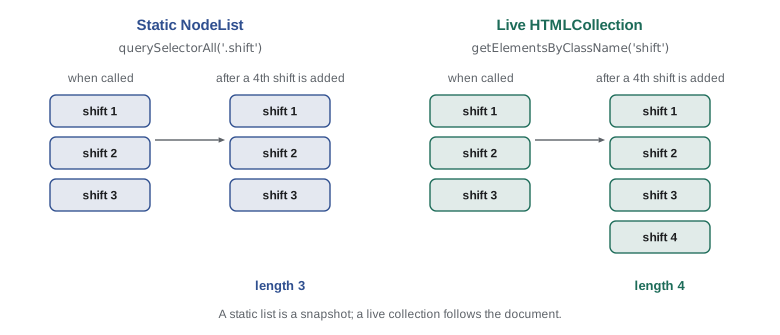
Live collections cause a classic bug. A loop that removes the class full from each element in getElementsByClassName('full') skips every second element, because each removal shrinks the collection while the loop's index keeps counting up. The model below shows the same effect with an array that is filtered again every time it is read, which is what a live collection does.
const shifts = [
  { name: 'Kitchen', classes: ['shift', 'full'] },
  { name: 'Grocery', classes: ['shift', 'full'] },
  { name: 'Garden', classes: ['shift', 'full'] },
  { name: 'Lunch', classes: ['shift', 'full'] },
];
// a "live" list: recalculated every time it is read
const live = { get items() { return shifts.filter((s) => s.classes.includes('full')); } };

for (let i = 0; i < live.items.length; i++) {
  const s = live.items[i];
  s.classes = s.classes.filter((c) => c !== 'full');
  console.log('cleared', s.name);
}
console.log('still full:', live.items.map((s) => s.name).join(', '));cleared Kitchen cleared Garden still full: Grocery, Lunch
What this code does
The getter rebuilds the list of full shifts every time it is read, just as a live collection does. Removing the class from the first item shrinks the list, so the item that was second moves to position 0 while the loop moves on to position 1. Only two of the four shifts are cleared, which is the bug; looping over a static list avoids it.
The fix is to loop over a static list instead: querySelectorAll, or Array.from(collection) taken before the loop starts. Most modern code avoids the live methods entirely for this reason, although you will meet them in older scripts and in performance-sensitive code where their speed matters.
Walking up with closest and testing with matches
Two element methods complete the toolkit. element.matches(selector) returns true if the element itself matches the selector. element.closest(selector) starts at the element and walks up through its ancestors, returning the first one that matches, or null if it reaches the top without a match. Because it checks the element itself first, closest('li') called on an li returns that li.
closest is the method that makes event delegation work in Lesson 6. When a volunteer clicks on the text inside a shift, the element clicked is the h3 or the span, not the li. closest('.shift') walks up from wherever the click landed to the shift that contains it.
function makeNode(tag, cls, parent = null) {
  return { tag, classes: cls ? cls.split(' ') : [], parent };
}
function closest(node, cls) {
  for (let n = node; n; n = n.parent) {
    if (n.classes.includes(cls)) return n;
  }
  return null;
}

const list = makeNode('ul', 'shift-list');
const shift = makeNode('li', 'shift full', list);
const heading = makeNode('h3', '', shift);

console.log(closest(heading, 'shift')?.tag);
console.log(closest(heading, 'shift-list')?.tag);
console.log(closest(shift, 'shift')?.tag);
console.log(closest(list, 'shift') ?? 'no match');li ul li no match
What this code does
Each node keeps a link to its parent, so closest can climb from a node to the top with a simple loop. It checks the starting node first, then each ancestor in turn, and returns the first one that has the class. From the list itself there is no shift above it, so the result is null and the last line prints the fallback text.
Choosing selectors that last
A script's selectors are a contract between the JavaScript and the HTML. If Sana redesigns the shift list and renames the class shift to shift-card for styling reasons, every script that selected .shift breaks, often silently. Teams avoid this by separating hooks for scripts from hooks for styles. Brightwater's convention is to select with ids for unique page sections and with data attributes for everything else, such as data-shift or data-action, and to keep classes for CSS.
| Selecting by | Good for | Risk |
|---|---|---|
| id | One unique section or form | Two elements with the same id; only the first is found |
| data attribute | Hooks that only scripts use | Few; designers know not to rename them |
| class | Styling | Renamed during a redesign, breaking scripts |
| tag or position | Quick experiments in the console | Breaks as soon as the markup changes |
| visible text | Never | Changes with every edit or translation |
The data attributes chosen as hooks also carry data. An element's dataset property maps each data-* attribute to a property with the data- removed and the rest written in camel case, so data-open becomes dataset.open and data-shift-id becomes dataset.shiftId. Values are always strings; convert them with Number when you need arithmetic, as the NodeList example did.
Try it yourself
Match a simple selector
Complete matches(el, selector) so that it handles three kinds of simple selector: #id, .class (an element can have several classes separated by spaces) and a tag name.
The starter tests one element against five selectors.
function matches(el, selector) {
  // handle #id, .class and tag selectors
  return false;
}

const el = { tag: 'li', attrs: { id: 'shift-7', class: 'shift open' } };
for (const s of ['li', '#shift-7', '.open', '.full', 'ul']) {
  console.log(s, matches(el, s) ? 'yes' : 'no');
}
Try it yourself
Open shifts from data attributes
Each object in shifts stands for an li element and has a dataset object, just like a real element, with string values. Complete openShifts(shifts) so that it returns the names of shifts with more than 0 open places, in order, joined with a comma and a space.
Remember that dataset values are strings.
const shifts = [
  { name: 'Kitchen prep', dataset: { area: 'kitchen', open: '2' } },
  { name: 'Grocery sorting', dataset: { area: 'grocery', open: '0' } },
  { name: 'Youth garden', dataset: { area: 'garden', open: '5' } },
  { name: 'Lunch counter', dataset: { area: 'lunch', open: '10' } },
];

function openShifts(list) {
  // return the names of shifts with open places
  return '';
}

console.log(openShifts(shifts));
Common mistakes
MistakegetElementById('#shifts') finds the element with the id shifts.
InsteadgetElementById takes the id itself, without a hash sign. The hash belongs only in selectors.
MistakequerySelector returns an empty list when nothing matches.
InsteadquerySelector returns null. Only querySelectorAll returns an empty NodeList.
MistakeA NodeList has map and filter.
InsteadIt has forEach and length but not the other array methods. Convert it with [...list] or Array.from(list).
Mistake'.shift-list > h3' finds headings anywhere inside the list.
InsteadThe > combinator matches direct children only. Use a space for any descendant.
MistakeStyling classes are the best hooks for scripts.
InsteadClasses change during redesigns. Use ids and data attributes as script hooks.
Summary and key terms
- Scripts find elements with the same selectors that CSS uses. getElementById returns the element with an id, or null. querySelector returns the first match in document order, or null, and querySelectorAll returns a static NodeList of every match, which is empty when nothing matches.
- Calling these methods on an element scopes the search to that element.
- A broken selector throws a SyntaxError.
- NodeLists have forEach but not map or filter, so convert them with spread or Array.from. getElementsByClassName and getElementsByTagName return live HTMLCollections that change as the page changes, which can make loops skip items. matches tests one element and closest walks up to the nearest matching ancestor.
- Ids and data attributes make stable script hooks, and dataset gives their values as strings.
- selector
- A pattern, written in CSS syntax, that describes which elements to match.
- querySelector
- A method that returns the first element matching a selector, or null.
- querySelectorAll
- A method that returns a static NodeList of every element matching a selector.
- NodeList
- An array-like list of nodes returned by querySelectorAll and childNodes.
- HTMLCollection
- An older, live, array-like list of elements returned by methods such as getElementsByClassName.
- live collection
- A list that updates itself automatically when the document changes.
- static list
- A snapshot of matches taken when a method was called.
- document order
- The order in which elements appear in the HTML: each parent before its children.
- scoping a query
- Calling a selection method on an element so that it searches only inside that element.
- closest
- A method that returns the element itself or its nearest ancestor that matches a selector.
- dataset
- An object giving the values of an element's data-* attributes, as strings.
- combinator
- The part of a selector that relates two parts, such as a space for descendants or > for children.
Practice problems
Work each problem on paper first, then reveal the answer to check.
What does querySelectorAll return when nothing matches?
Show answer
An empty NodeList, with length 0.
How do you filter the result of querySelectorAll?
Show answer
Convert it to an array first with [...list] or Array.from(list), then use filter.
Why can a loop over getElementsByClassName('full') skip items when it removes the class?
Show answer
The collection is live, so each removal shrinks it while the loop index keeps increasing.
What does el.closest('.shift') return when el is itself a .shift?
Show answer
el itself, because closest checks the starting element first.
What property gives the value of data-shift-id?
Show answer
element.dataset.shiftId, as a string.
Lesson quiz · 5 questions
Score 60% or more to complete this lesson.
Create a free account to save your progress, take quizzes and earn a certificate.