
JS-110 · Lesson 3 of 12 · 28 min
Changing content, attributes and styles
▶ Video coming soon A video version of this lesson is on the way.
The lunch counter's menu changes every morning. The soup of the day might be lentil on Monday and squash on Tuesday, the cookies sometimes run out by half past twelve, and when they do, Rosa wants the menu on the tablet to say so at once instead of trainees apologizing to each customer in turn. With Lesson 2's selectors Mira can find the menu items. The session planned for Tuesday, January 19, 2027, is about changing them: their text, their attributes and their appearance.
"There are three things you can change about an element," Gareth says, "what it says, what it is, and how it looks. Each has a safe way and a risky way. Today you learn both, so you know which one you are choosing."
<ul class="menu" id="menu">
  <li data-code="SOUP">
    <span class="name">Soup of the day</span>
    <span class="price">5.50</span>
  </li>
  <li data-code="COOKIE">
    <span class="name">Cookie</span>
    <span class="price">1.50</span>
    <span class="status" hidden>Sold out</span>
  </li>
</ul>
What this code does
Each menu item has a name, a price and, for items that can run out, a status label that starts hidden. The hidden attribute tells the browser not to display an element at all. Scripts change the text of the spans, the attributes of the items and the classes that control their look.
Changing text with textContent
The simplest and safest way to change what an element says is its textContent property. Reading it gives all the text inside the element and its descendants, joined together, with no tags. Setting it replaces everything inside the element with a single text node containing exactly the string you give. Whatever the string contains, even characters that look like HTML tags, it is shown as text and never interpreted as markup.
const soup = document.querySelector('[data-code="SOUP"] .name');
console.log(soup.textContent);          // Soup of the day
soup.textContent = 'Lentil soup';
console.log(soup.textContent);          // Lentil soup
soup.textContent = '<b>Squash</b> soup'; // shown literally, tags and all
What this code does
The first line finds the name span inside the soup item. Setting textContent replaces its contents with new text. The last line shows that markup in the string is not interpreted: the page shows the angle brackets and the letter b as ordinary characters.
A related property, innerText, also gives the text of an element but takes styling into account: it leaves out text that is hidden with CSS and adds line breaks where the layout puts them. Because it depends on layout, reading it can force the browser to work out the page's geometry, which is slower. Use textContent unless you specifically want the text as the user sees it.
innerHTML and why it is dangerous
innerHTML reads or sets the HTML inside an element as a string. Setting it makes the browser parse the string as HTML and replace the element's children with the result. That is convenient for building a large chunk of markup at once, and it is how a great deal of older code works. It is also one of the most common sources of security holes on the web.
The problem is data that comes from somewhere else. Suppose a volunteer types a note into a form and the page shows it with innerHTML. If the note contains an image tag with an onerror attribute holding a script, the browser runs that script on the Food Hub's page, with access to everything the page can do. This attack is called cross-site scripting, or XSS, and it has appeared in every edition of the OWASP Top Ten list of web application risks, since 2021 as part of its Injection category.
const note = getNoteFromForm(); // text typed by a visitor

// Unsafe: the note is parsed as HTML, so any markup in it runs
noteBox.innerHTML = '<p>' + note + '</p>';

// Safe: the note is always shown as text
const p = document.createElement('p');
p.textContent = note;
noteBox.replaceChildren(p);
What this code does
The first version glues untrusted text into an HTML string, so a note containing markup becomes real elements on the page, scripts included. The second version creates the paragraph with createElement, which Lesson 4 covers, and puts the note in it with textContent, so the note can only ever be text. replaceChildren removes whatever was in the box and puts the new paragraph there.
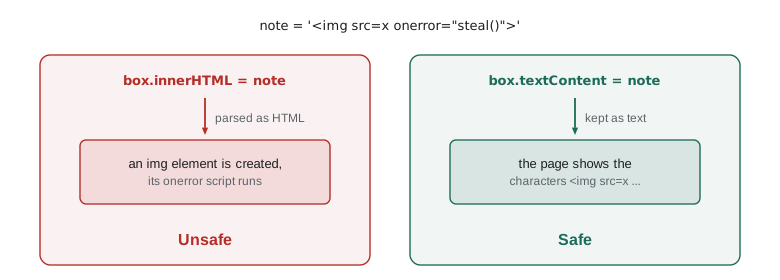
Brightwater's rule is short: never put untrusted data into innerHTML. Untrusted means anything the page did not write itself: form input, text from a server, the address bar, data in storage, even the Food Hub's own database, because someone may have typed something odd into it years ago. innerHTML is acceptable for fixed markup written in your own code, with no outside data in it.
When outside data must go inside an HTML string, for example in a template that builds a whole table at once, it must be escaped first. Escaping replaces the five characters that have special meaning in HTML with character references, so that the browser shows them instead of interpreting them.
function escapeHTML(text) {
return String(text)
.replaceAll('&', '&')
.replaceAll('<', '<')
.replaceAll('>', '>')
.replaceAll('"', '"')
.replaceAll("'", ''');
}
const note = 'Bring <b>gloves</b> & a hat';
const attack = '<img src=x onerror="alert(1)">';
console.log(escapeHTML(note));
console.log(escapeHTML(attack));
console.log(`<p title="${escapeHTML('Say "hi"')}">${escapeHTML(note)}</p>`);Bring <b>gloves</b> & a hat <img src=x onerror="alert(1)"> <p title="Say "hi"">Bring <b>gloves</b> & a hat</p>
What this code does
Each replaceAll swaps one special character for its character reference, starting with the ampersand so that the ampersands added by later steps are not escaped twice. The attack string becomes harmless text, because its angle brackets and quotes are no longer markup. Escaping the quote characters matters when the value goes inside an attribute, as the last line shows.
The browser platform is gaining a built-in answer. The Sanitizer API adds a method, element.setHTML(), that parses a string as HTML but removes anything that could run script before inserting it. Firefox shipped it in version 148 in February 2026 and Chrome and Edge in version 146 in March 2026, but Safari does not support it yet, so it is not yet a Baseline feature. Until it works in every browser the Food Hub's visitors use, the course uses textContent and escaping, which work everywhere.
Attributes and properties
Elements have attributes, written in the HTML, and properties, which belong to the element object in JavaScript. For most standard attributes the browser keeps a property in step with the attribute: the id attribute and the id property, the src attribute and the src property. But the two are not the same thing, and the differences matter.
const item = document.querySelector('[data-code="COOKIE"]');
item.getAttribute('data-code');        // 'COOKIE'
item.setAttribute('data-stock', '0');  // adds data-stock="0"
item.hasAttribute('data-stock');       // true
item.removeAttribute('data-stock');

const link = document.querySelector('a.donate');
link.getAttribute('href');             // '/donate'
link.href;                             // 'https://riverside-food-hub.example/donate'
What this code does
getAttribute, setAttribute, hasAttribute and removeAttribute work on any attribute, including custom data attributes, and always deal in strings. The last two lines show a difference between attribute and property: the href attribute holds exactly what was written, while the href property holds the full address the browser worked out from it. That address depends on the page the link is on.
The href difference comes from how the browser resolves a relative address against the page's own address. The URL class, which belongs to the standard JavaScript environment rather than to the DOM, does the same calculation, so the runner can show it.
const page = 'https://riverside-food-hub.example/programs/lunch';
for (const href of ['/donate', 'menu', '../volunteer', '#today', 'https://example.org/']) {
  console.log(href.padEnd(22), new URL(href, page).href);
}/donate https://riverside-food-hub.example/donate menu https://riverside-food-hub.example/programs/menu ../volunteer https://riverside-food-hub.example/volunteer #today https://riverside-food-hub.example/programs/lunch#today https://example.org/ https://example.org/
What this code does
Each relative address is resolved against the page's address, the way a browser fills in a link's href property. An address starting with a slash starts from the site's root, while one without a slash replaces only the last part of the page's path. A hash adds a fragment to the page itself, and a full address is left alone.
Form controls show the difference most clearly. The value attribute of an input is its default value, the one written in the HTML. The value property is its current value, whatever the user has typed. After a user types, input.getAttribute('value') still gives the original, while input.value gives what is in the box. The same holds for checked on checkboxes. In scripts you almost always want the property.
| To read or change | Use | Notes |
|---|---|---|
| Text inside an element | textContent | Safe; never parses HTML |
| Markup you wrote yourself | innerHTML | Never with untrusted data |
| A standard attribute such as id, src or alt | The property: el.id, el.src, el.alt | Properties may be resolved or converted |
| A custom or data attribute | getAttribute or dataset | Values are strings |
| A form field's current value | el.value, el.checked | The attribute keeps only the default |
| Whether an element is shown | el.hidden | A boolean property for the hidden attribute |
| Classes | el.classList | add, remove, toggle, contains, replace |
Boolean attributes
Some attributes have no value: their presence means true and their absence means false. hidden, disabled, checked, required and readonly are examples. Writing disabled="false" in HTML still disables a button, because the attribute is present, and that surprises many people. In JavaScript, use the boolean property, as in button.disabled = true, or the toggleAttribute method, which adds the attribute if it is missing and removes it if it is there, or forces one or the other when given a second argument.
const status = document.querySelector('[data-code="COOKIE"] .status');
status.hidden = false;                       // show "Sold out"
document.querySelector('#add-cookie').disabled = true;
status.toggleAttribute('hidden', true);      // hide it again
What this code does
Setting hidden to false removes the hidden attribute, so the Sold out label appears. Setting disabled to true adds the disabled attribute to the add button, so it can no longer be pressed. toggleAttribute with true as the second argument always adds the attribute, whatever its current state.
Classes and classList
Changing how an element looks is usually best done by changing its classes and letting the stylesheet do the rest. The classList property is the tool for that. It has methods to add and remove classes, to toggle a class on or off, to check whether a class is present and to replace one class with another. Older code sets the className string directly, which replaces every class at once and is easy to get wrong.
const cookie = document.querySelector('[data-code="COOKIE"]');
cookie.classList.add('sold-out');
cookie.classList.contains('sold-out');   // true
cookie.classList.toggle('sold-out');     // removes it, returns false
cookie.classList.toggle('sold-out', stock === 0); // on only when stock is 0
cookie.classList.replace('sold-out', 'low-stock');
What this code does
add and remove change one class without touching the others. toggle flips a class and returns whether the class is now present. With a second argument, toggle sets the class on when the condition is true and off when it is false, which is the cleanest way to keep a class in step with data.
The two-argument toggle is worth remembering. A line such as cookie.classList.toggle('sold-out', stock === 0) says exactly what the rule is, and running it again with the same data changes nothing, so it can be called after every update without bookkeeping. To understand the behaviour, Mira writes a model of classList that works on a class string.
function makeClassList(initial = '') {
  const set = new Set(initial.split(' ').filter(Boolean));
  return {
    add: (c) => { set.add(c); },
    remove: (c) => { set.delete(c); },
    contains: (c) => set.has(c),
    toggle(c, force) {
      const on = force === undefined ? !set.has(c) : Boolean(force);
      if (on) set.add(c); else set.delete(c);
      return on;
    },
    toString: () => [...set].join(' '),
  };
}

const cl = makeClassList('item');
cl.add('sold-out');
console.log(String(cl));
console.log(cl.toggle('sold-out'), String(cl));
console.log(cl.toggle('sold-out', true), String(cl));
console.log(cl.toggle('sold-out', true), String(cl));
console.log(cl.toggle('sold-out', 0 > 1), String(cl));item sold-out false item true item sold-out true item sold-out false item
What this code does
A Set holds the classes, so adding a class twice still keeps one copy, as classList does. Without a second argument, toggle flips the class; with one, it turns the class on or off to match the condition and returns the new state. Calling toggle with true twice leaves the class on both times, which is what makes the forced form safe to repeat.
Worked problem
Tracing classList calls
An element starts with class="item". The code runs add('low'), toggle('sold-out'), toggle('low'), toggle('sold-out', true) and replace('item', 'menu-item'). What is the class attribute after each step?
Show solution
- add('low'): the class is not present, so it is added. The attribute is item low.
- toggle('sold-out'): not present, so it is turned on. The attribute is item low sold-out.
- toggle('low'): present, so it is turned off. The attribute is item sold-out.
- toggle('sold-out', true): forced on; it is already on, so nothing changes. The attribute is still item sold-out.
- replace('item', 'menu-item'): item is swapped in place for menu-item. The attribute is menu-item sold-out.
Answer: The final class attribute is menu-item sold-out.
Inline styles and custom properties
Every element has a style property that reads and writes its inline style, the same as a style attribute in the HTML. CSS property names with hyphens become camel case: background-color becomes style.backgroundColor and font-size becomes style.fontSize. Values are strings, including the unit. Setting a property to an empty string removes it.
const banner = document.querySelector('.reminder');
banner.style.backgroundColor = '#fff7e0';
banner.style.paddingBlock = '0.75rem';
banner.style.removeProperty('padding-block');

// CSS custom properties (variables) are set with setProperty
document.documentElement.style.setProperty('--counter-accent', '#1c6b58');

const shown = getComputedStyle(banner).display; // the value actually used
What this code does
Inline styles are set through camel-case properties of style, each with a string value that includes its unit. CSS custom properties keep their double-hyphen names and are set with setProperty, here on the html element so that the whole page can use the new accent colour. getComputedStyle reports the value the browser is really using, after every stylesheet rule has been applied.
Inline styles have the highest priority of ordinary CSS, which makes them hard for the stylesheet to override and spreads design decisions into scripts, where designers cannot find them. Sana's request to the developers is to change classes, not styles, wherever possible. Inline styles are right for values that only the script can know, such as the width of a progress bar calculated from the number of places filled, and custom properties are a neat way to pass such a value to the stylesheet.
function progressStyle(filled, total) {
  const share = total === 0 ? 0 : Math.min(filled / total, 1);
  return `--filled: ${(share * 100).toFixed(1)}`;
}

for (const [filled, total] of [[3, 8], [8, 8], [10, 8], [0, 0]]) {
  console.log(`${filled}/${total}`.padEnd(6), progressStyle(filled, total));
}3/8 --filled: 37.5 8/8 --filled: 100.0 10/8 --filled: 100.0 0/0 --filled: 0.0
What this code does
The function turns the number of places filled into a custom property value that the stylesheet can use as a width. Math.min caps the share at 1, so an overbooked shift does not draw a bar wider than its box, and a shift with no places at all is treated as empty instead of dividing by zero. The string is built by the script, but the colours and sizes stay in the stylesheet.
Putting it together: marking an item sold out
By the end of the session Mira has one small function that does everything Rosa asked for when an item runs out. It shows the status label, marks the item with a class so that the stylesheet can grey it out, disables the item's add button and gives the button an accessible description of why it is disabled.
function setSoldOut(item, soldOut) {
  item.classList.toggle('sold-out', soldOut);
  item.querySelector('.status').hidden = !soldOut;
  const button = item.querySelector('button.add');
  button.disabled = soldOut;
  button.setAttribute('aria-label', soldOut
    ? `${item.dataset.name}, sold out`
    : `Add ${item.dataset.name}`);
}

setSoldOut(document.querySelector('[data-code="COOKIE"]'), true);
What this code does
The function takes an item element and a true or false value, and every line sets something to match that value, so calling it twice with the same value is harmless. The class, the hidden label, the disabled button and the button's accessible name all change together. The aria-label gives screen reader users the same information that sighted users get from the greyed-out look, a topic Lesson 10 covers in depth.
Try it yourself
Escape text for HTML
Complete escapeHTML(text) so that it replaces &, <, >, " and ' with &, <, >, " and '.
The ampersand must be replaced first. The starter prints three escaped strings.
function escapeHTML(text) {
  // replace the five special characters
  return text;
}

console.log(escapeHTML('Fish & chips'));
console.log(escapeHTML('<script>alert("hi")</script>'));
console.log(escapeHTML("Rosa's soup"));
Try it yourself
Toggle a class in a class string
Write toggleClass(className, cls, force), which takes a class attribute string and returns the new string after toggling cls, just as classList.toggle would.
If force is undefined, flip the class. Otherwise add it when force is true and remove it when false. Keep the other classes in their order and add a new class at the end.
function toggleClass(className, cls, force) {
  // return the new class string
  return className;
}

console.log(toggleClass('item low', 'sold-out'));
console.log(toggleClass('item sold-out low', 'sold-out'));
console.log(toggleClass('item', 'sold-out', false));
console.log(toggleClass('item sold-out', 'sold-out', true));
Common mistakes
MistakeinnerHTML is fine for showing what a visitor typed.
InsteadText from outside the page can contain markup that runs as script. Use textContent, or escape the text first.
MistakeThe value attribute holds what the user typed.
InsteadThe attribute holds the default; the value property holds the current contents.
Mistakedisabled="false" enables a button.
InsteadBoolean attributes are on when present, whatever their value. Set the disabled property to false or remove the attribute.
MistakeSetting className = 'sold-out' adds a class.
InsteadIt replaces every class. Use classList.add or classList.toggle.
Mistakestyle.background-color = 'red' sets the background.
InsteadHyphenated CSS names become camel case in JavaScript: style.backgroundColor.
Summary and key terms
- textContent reads and sets the text of an element and never interprets markup, so it is the safe way to show any data. innerHTML parses a string as HTML and must never receive untrusted data, because that allows cross-site scripting; when data must go into an HTML string, escape the five special characters first.
- The Sanitizer API's setHTML is arriving in browsers but is not yet supported everywhere.
- Attributes are written in HTML and properties belong to the element object; properties such as href and value may differ from their attributes.
- Boolean attributes are on when present and are best set through properties or toggleAttribute. classList adds, removes, toggles and checks classes, and toggle with a second argument keeps a class in step with a condition.
- The style property sets inline styles in camel case, setProperty sets custom properties, and getComputedStyle reads the value in use.
- Prefer changing classes to changing styles.
- textContent
- The text inside an element and its descendants; setting it replaces the contents with plain text.
- innerHTML
- The HTML inside an element as a string; setting it parses the string as markup.
- cross-site scripting (XSS)
- An attack in which untrusted data is inserted into a page as markup and runs as script.
- escaping
- Replacing characters that have special meaning with safe equivalents, such as < for <.
- character reference
- A code such as & or ' that stands for a character in HTML.
- Sanitizer API
- A browser API whose setHTML method inserts HTML after removing anything that could run script.
- attribute
- A name and value written on an HTML tag.
- property
- A value belonging to the element object in JavaScript.
- boolean attribute
- An attribute such as hidden or disabled that is on when present and off when absent.
- classList
- An element's list of classes, with methods to add, remove, toggle and test them.
- inline style
- A style set directly on one element, through the style attribute or property.
- custom property
- A CSS variable, with a name starting with two hyphens, that styles can read with var().
Practice problems
Work each problem on paper first, then reveal the answer to check.
Why is textContent safer than innerHTML for showing a name typed into a form?
Show answer
textContent always treats the string as text, so markup in it cannot become elements or run scripts.
Which character must be escaped first, and why?
Show answer
The ampersand, so that the ampersands in the other character references are not escaped again.
After a user types into an input, which gives what they typed: getAttribute('value') or value?
Show answer
The value property; the attribute keeps the default from the HTML.
What does classList.toggle('full', places === 0) do when places is 3?
Show answer
It removes the class full if present, and returns false.
How do you write the CSS property font-size through the style property?
Show answer
element.style.fontSize, with a string value such as '1.25rem'.
Lesson quiz · 5 questions
Score 60% or more to complete this lesson.
Create a free account to save your progress, take quizzes and earn a certificate.