
HSE-107 · Lesson 11 of 12 · 28 min
Office, computer and remote workstations
Office work looks safe compared with lifting cases or using a jackhammer, but millions of people spend most of their working day sitting at a computer, and many develop neck, shoulder, back, wrist and eye problems. The risks come not from heavy force but from static postures held for hours, awkward reaches to keyboards and mice, screens at the wrong height or distance, poor lighting and too little movement. The rise of remote and hybrid work has moved many workstations to kitchen tables, couches and spare bedrooms, often with laptops and no adjustable furniture. This lesson explains how to set up office, computer, sit-stand and remote workstations that support comfortable, neutral postures and regular movement.
Risks of computer work
The main ergonomic risks of computer work include:
- Static postures: sitting or holding the head, shoulders and arms still for long periods, which reduces blood flow and causes muscle fatigue, especially in the neck and upper back.
- Awkward postures: reaching forward to a keyboard or mouse, bending the wrists up or sideways while typing, raising the shoulders when the desk is too high, and bending or turning the neck to view a screen or documents.
- Repetition: thousands of keystrokes and mouse clicks a day, often with little variation.
- Contact stress: resting wrists or forearms on hard desk edges.
- Visual demands: screens too close, too far, too bright or reflecting glare, small text, and long periods of focusing at one distance, leading to eye strain, dry eyes, headaches and compensating head postures.
- Prolonged sitting: long uninterrupted periods of sitting are associated with discomfort and with wider health risks; movement throughout the day is important.
- Organizational factors: heavy workloads, deadlines, electronic monitoring and few breaks, which increase muscle tension and reduce movement.
Start with the chair
A good office chair is adjustable to fit the user and supports a variety of postures. Adjust it in this order:
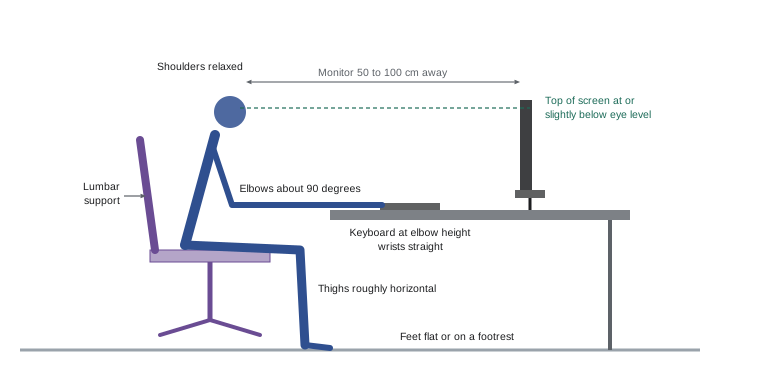
- Seat height: set it so that your feet rest flat on the floor with your thighs roughly horizontal and your knees at about the same height as your hips or slightly lower. If the desk is too high to allow this, raise the chair and use a footrest.
- Seat depth: you should be able to sit back against the backrest with a gap of about two to four finger widths between the front edge of the seat and the back of your knees. Use the seat slider or backrest adjustment.
- Backrest: adjust the height so the lumbar support fits the curve of your lower back, and set the tilt or recline so you can lean back slightly, which reduces load on the spine compared with sitting bolt upright.
- Armrests: set them low enough that your shoulders are relaxed, and close enough that they support your forearms lightly without pushing your elbows out. Armrests that are too high or too wide raise the shoulders; armrests that hit the desk keep you too far away. Remove or lower them if they get in the way.
Desk, keyboard and mouse
Once the chair is set, bring the work to you. The keyboard should be at about seated elbow height, so that your upper arms hang relaxed, your elbows are bent at about 90 degrees or slightly more, and your wrists are straight. Many standard desks are too high for this, which raises the shoulders and bends the wrists; an adjustable desk, a keyboard tray or raising the chair with a footrest can fix this.
- Place the keyboard directly in front of you, close enough that you do not reach forward. Use the keyboard flat or with a slight negative tilt; the small feet at the back of many keyboards bend the wrists upward and are often better left folded.
- Place the mouse right beside the keyboard at the same height. A compact keyboard without a numeric pad, or a keyboard with the number pad on the left, keeps the mouse closer. Alternate hands or use keyboard shortcuts to reduce mouse use.
- Keep wrists straight and floating while typing; palm supports are for resting during pauses, not for anchoring the wrists while typing.
- Keep frequently used items, such as the phone, documents and notepad, within easy reach, roughly within forearm reach while seated, and less frequently used items farther away.
- Use a headset for frequent phone calls instead of cradling the phone between the ear and shoulder.
Worked problem
Is the desk too high?
A worker sets her chair so that her feet are flat and thighs horizontal: the seat is then 45 cm above the floor. Her elbow height above the seat, with arms relaxed at her sides, is 23 cm. The fixed desk is 74 cm high and the keyboard adds about 3 cm. How far above her elbows is the home row of keys, and what are the options?
Show solution
- Seated elbow height above the floor: \( 45 + 23 = 68 \) cm.
- Home row height: \( 74 + 3 = 77 \) cm.
- The keys are about \( 77 - 68 = 9 \) cm above her elbows, so she must raise her shoulders or bend her wrists to type.
- Options: an adjustable keyboard tray mounted below the desk; raising the chair by about 9 cm and adding a footrest of the same height; or an adjustable-height desk lowered to about 65 cm.
Answer: The keys sit about 9 cm too high. A keyboard tray, a higher chair with a footrest, or a lower desk will bring them to elbow height.
Monitors
- Distance: place the monitor about an arm's length away, typically 50 to 100 cm (20 to 40 in), farther for larger screens. If you lean forward to read, enlarge the text rather than moving closer.
- Height: set the top of the screen at or slightly below eye level, so you look slightly down at the middle of the screen. People who wear bifocal or progressive lenses usually need the screen lower to avoid tipping the head back; computer glasses can help.
- Position: place the main monitor directly in front of you. With two monitors used equally, place them side by side with the join in front of you; if one is used mostly, put it in front and the other to the side.
- Tilt: tilt the screen back slightly so it faces your eyes.
- Text size and contrast: use text large enough to read comfortably without leaning forward, and dark text on a light background in a well-lit room.
- Documents: use a document holder placed beside the screen at the same height and distance, or between the keyboard and screen.
Lighting and eyes
Visual comfort affects posture: people lean toward screens they cannot read and twist away from glare. Typical recommendations for general office lighting are in the range of roughly 300 to 500 lux, with lower levels near screens than for paper-based tasks, and task lights for reading documents. Position monitors at right angles to windows to avoid glare from behind the screen or reflections on it, use blinds to control daylight, and avoid bright light sources in the field of view. Use the monitor brightness and contrast settings to match the room.
Focusing at a fixed distance for long periods tires the eyes and reduces blinking, leading to dry eyes. A common rule of thumb is the 20-20-20 rule: every 20 minutes, look at something about 20 feet (6 m) away for 20 seconds. Workers who use computers should have regular eye examinations and tell the eye care professional about their screen distance; some benefit from glasses prescribed for computer distance.
Sit-stand workstations and movement
Adjustable sit-stand desks let workers alternate between sitting and standing. Standing all day is not the goal: prolonged standing has its own risks, including leg and back discomfort and venous problems. The benefit comes from changing posture regularly. Practical guidance suggests changing position at least every 30 to 60 minutes, building up standing time gradually, and moving around when possible. When standing, set the desk so the keyboard is at standing elbow height and the monitor is raised accordingly; wear supportive footwear and consider an anti-fatigue mat.
Worked problem
Planning a sit-stand day
A worker has a 7.5-hour desk day and a new sit-stand desk. She wants to change position at least every 45 minutes, stand for about a third of the time, and take a 2-minute movement break each hour in addition to her lunch break. Sketch a simple plan and count the posture changes.
Show solution
- Standing time target: \( 7.5 \div 3 = 2.5 \) hours.
- One pattern: 45 minutes sitting, then 25 minutes standing, then a short walk, repeated. Each 70-minute block includes about 25 minutes standing.
- Number of blocks: \( 7.5 \times 60 \div 70 \approx 6.4 \), so about 6 blocks with about \( 6 \times 25 = 150 \) minutes, or 2.5 hours, standing.
- Posture changes: about two per block plus movement breaks, roughly 12 to 14 changes in the day.
- Use reminders, such as a calendar alert or software prompt, and adjust the pattern for comfort.
Answer: Alternating about 45 minutes sitting and 25 minutes standing gives about 2.5 hours standing and a dozen or more posture changes, plus movement breaks.
Movement breaks and task variety are important whatever the furniture. Get up for phone calls, walk to talk to colleagues, use printers away from the desk, stretch, and vary tasks between screen work and other work. Many people find software reminders helpful. Employers can support movement by designing work and meetings to include it and by avoiding constant monitoring of keystrokes and idle time that discourages breaks.
Laptops, tablets and phones
Laptops are designed for portability, not for long periods of use. Because the screen is attached to the keyboard, either the screen is too low, bending the neck, or the keyboard is too high, raising the shoulders and bending the wrists. For regular use of more than about an hour or two a day, use a laptop stand or docking station to raise the screen to eye level, with a separate keyboard and mouse, or connect the laptop to an external monitor. Tablets and phones encourage looking down for long periods and gripping with the thumbs; use stands, keep sessions short, and switch to a full workstation for longer tasks.
Remote and hybrid work
Remote workers often use dining chairs, kitchen tables, couches and beds as workstations, with laptops and no separate keyboard or monitor. They may work longer hours with fewer natural breaks, such as walking to meetings. A good remote work program includes a home workstation self-assessment checklist with photographs reviewed by a trained person, guidance on setting up the space, provision or reimbursement of key equipment such as an adjustable chair, external monitor, keyboard, mouse and laptop stand, training, a way to report discomfort, and follow-up assessments when needed. Hybrid workers who share desks at the office need to know how to adjust each workstation quickly.
In Canada, employers' OHS duties generally extend to employees working from home, although the details vary. The Canada Labour Code Part II applies to federally regulated employees working remotely, and provincial regulators such as WorkSafeBC state that employers have responsibilities for the health and safety of workers at home. In some provinces, the OHS act excludes certain work in private residences, so check how your jurisdiction treats telework. Workers' compensation boards generally accept claims for injuries at home that arise out of and in the course of employment. CSA Z412-2024 now includes guidance for home offices.
Office workstation standards
CSA Z412-2024, the fourth edition of the Canadian office ergonomics standard, sets out a process for applying ergonomics to office work, including workstation design and adjustment, the visual and acoustic environment, work organization and home offices, and is aligned with the management approach of CSA Z1004. It is not law unless referenced, but it is widely used as the benchmark for good practice in Canadian offices.
Checking a workstation
A quick workstation check covers the following points. Can the user sit back in the chair with feet supported and thighs roughly horizontal? Are the shoulders relaxed and the elbows close to the body at about 90 degrees? Are the wrists straight while typing and using the mouse? Is the mouse beside the keyboard? Is the top of the monitor at or slightly below eye level and at about arm's length? Is there glare on the screen? Are frequently used items within easy reach? Does the user take regular breaks and change position? Does the user report any discomfort? Problems found in the check should be fixed and the user asked about their comfort after a week or two.
Common mistakes
MistakeAdjusting the monitor before the chair.
InsteadSet the chair first, then bring keyboard, mouse and monitor to fit.
MistakeTyping with wrists resting on a hard desk edge.
InsteadKeep wrists straight and floating, with the keyboard at elbow height.
MistakeStanding all day at a sit-stand desk.
InsteadAlternate positions every 30 to 60 minutes and move often.
MistakeUsing a laptop on its own for full days.
InsteadUse a laptop stand or external monitor with a separate keyboard and mouse.
MistakeIgnoring home workstations.
InsteadProvide guidance, assessments and key equipment for remote workers.
Summary and key terms
- Computer work risks come from static and awkward postures, repetition, visual demands and prolonged sitting.
- Adjust the chair first: seat height, depth, backrest and armrests.
- Keep the keyboard at elbow height and the mouse beside it, with straight wrists.
- Place the monitor at arm's length with its top at or slightly below eye level.
- Control glare, use suitable lighting and follow the 20-20-20 rule for the eyes.
- Sit-stand desks help when users change position regularly; movement matters most.
- Remote workers need guidance, equipment and assessment as well as office workers.
- Seat depth
- Distance from the backrest to the front edge of the seat.
- Lumbar support
- Part of the backrest supporting the curve of the lower back.
- Footrest
- Platform supporting the feet when the chair is raised.
- Keyboard tray
- Adjustable platform holding the keyboard below desk height.
- Negative tilt
- Keyboard angled slightly away from the user to keep wrists straight.
- Glare
- Excessive brightness or reflection that reduces visibility.
- Lux
- Unit of illuminance, or light falling on a surface.
- Sit-stand workstation
- Desk that adjusts between sitting and standing heights.
- Docking station
- Device connecting a laptop to a monitor, keyboard and mouse.
- 20-20-20 rule
- Every 20 minutes, look 20 feet away for 20 seconds.
Practice problems
Work each problem on paper first, then reveal the answer to check.
What should you adjust first at a workstation?
Show answer
The chair.
How much gap should there be between the seat edge and the back of the knees?
Show answer
About two to four finger widths.
At what height should the keyboard be?
Show answer
About seated elbow height.
Seated elbow height is 66 cm and the keyboard is at 75 cm. What is the problem?
Show answer
The keyboard is 9 cm too high; the shoulders rise or wrists bend.
Where should the mouse be placed?
Show answer
Right beside the keyboard at the same height.
How high should the top of the monitor be?
Show answer
At or slightly below eye level.
Why should monitors be placed at right angles to windows?
Show answer
To avoid glare and reflections.
How often should sit-stand users change position?
Show answer
At least every 30 to 60 minutes.
How can a laptop be made suitable for long use?
Show answer
Raise the screen on a stand or use a monitor, with a separate keyboard and mouse.
Name three elements of a remote work ergonomics program.
Show answer
Self-assessment, guidance, equipment provision, training, reporting and follow-up.
Lesson quiz · 5 questions
Score 60% or more to complete this lesson.
Create a free account to save your progress, take quizzes and earn a certificate.