
GCP-210 · Lesson 5 of 12 · 19 min
Groups and access management
▶ Video coming soon A video version of this lesson is on the way.
Birchline's Exchange server has 412 distribution lists. Owen exported them the night before the fifth session and found lists with no members, lists whose only member had left in 2019, three different lists all called some variant of "all stores" and a list named temp-xmas-2016 that still receives mail. "Groups are where the mess accumulates," Sofia says. "In Google they also control access to files, settings and cloud projects, so the mess has consequences. Today we design them properly."
What a Google group is
A Google group is a directory object with its own email address and a list of members. Members can be users, other groups (a nested group), and, if settings allow, people outside the organization. Groups do several jobs at once, which is what makes them powerful and what makes them easy to misuse.
A group can be an email list: mail sent to all-stores@birchline.example goes to every member. It can be a shared inbox: with the Collaborative Inbox feature, members can take, assign and resolve conversations sent to the group, which suits help@ and orders@ addresses. It can be an access control list: a Drive folder, shared drive, calendar or site can be shared with the group, so access follows group membership. It can carry settings, as a configuration group (lesson 4). And because the directory is shared with Google Cloud, it can be granted IAM roles on cloud projects, which is how Farah's team controls who can deploy to production.
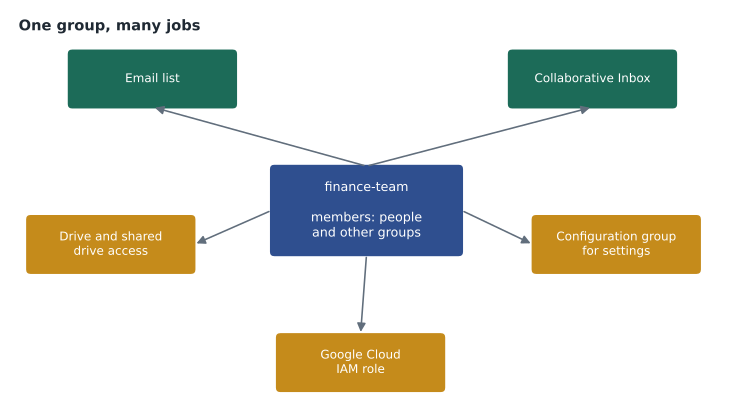
That flexibility is why naming and ownership matter. If finance-team is used both as a mailing list and to grant access to the payroll shared drive, adding a temporary contractor to receive the team's emails would also give them payroll files. Sofia's design separates the jobs.
Birchline's group naming scheme
The new scheme gives each group a prefix that says what it is for, so that nobody grants access to a mailing list by accident.
| Prefix | Purpose | Example | Who owns it |
|---|---|---|---|
| dl- | Distribution list for announcements and discussion | dl-all-stores@birchline.example | The department's communications lead |
| team- | Shared mailbox using Collaborative Inbox | team-help@birchline.example | The team manager |
| acl- | Access to Drive, shared drives, calendars or apps; no email use | acl-finance-payroll@birchline.example | The data owner, approved by IT |
| cfg- | Configuration group for Admin console settings | cfg-gemini-testers@birchline.example | IT |
| gcp- | Google Cloud IAM role assignments | gcp-shop-prod-deployers@birchline.example | The cloud team |
| sec- | Security-sensitive groups with the security label | sec-privileged-admins@birchline.example | Information security |
Of the 412 Exchange lists, only about 150 survive the review. Owen deletes the empty and orphaned ones, merges the three all-stores lists into dl-all-stores, and turns 12 shared mailboxes, which were full Exchange mailboxes shared by several people, into team- groups with Collaborative Inbox.
Creating a group and choosing its settings
Groups are created in Directory, Groups (or by users in the Google Groups app, if the account allows it, or by synchronization and the API). An administrator gives the group a name, an email address, a description and one or more owners, then chooses access settings. These decide who can do what, and the wrong defaults are the source of most group incidents.
| Setting | Typical choices | Birchline default |
|---|---|---|
| Who can contact group owners | Anyone, organization, members, managers | Organization |
| Who can view conversations | Anyone, organization, members, managers | Members (dl-), members (team-), none for acl- |
| Who can post | Anyone on the web, organization, members, managers and owners | Organization for dl-; anyone for customer-facing team- groups; nobody for acl- |
| Who can view members | Organization, members, managers | Members |
| Who can join | Anyone in the organization, ask to join, invited only | Invited only |
| Allow external members | On or off | Off, except approved partner groups |
Account-wide rules sit above individual groups. Under the Groups for Business settings in Apps, an administrator decides whether users can create groups, whether groups can have external members and receive mail from outside, and what the default settings are for new groups. Birchline lets only admins create groups during the migration, then plans to let staff create their own discussion groups later, with the default visibility set to members.
Roles inside a group
Each member has a role in the group: owner, manager or member. Owners can change the group's settings and membership and delete it. Managers can manage members and moderate messages but cannot change some settings or delete the group. Members simply belong. Group roles are separate from admin roles in the console: a store manager can own dl-store-12 without being any kind of Workspace administrator. Delegating ownership to the people who know who should be on a list is the best way to keep groups accurate, and it takes routine requests off the help desk.
Collaborative Inbox for shared mailboxes
In Exchange, the help desk shared a mailbox. In Workspace, the equivalent is a group with Collaborative Inbox turned on. Mail sent to team-help@birchline.example appears in the group, and each conversation can be assigned to a member, taken by a member, marked resolved or marked as needing no action. Members see who is handling what, which ends the familiar problem of two people answering the same request or nobody answering it.
A Collaborative Inbox is not a mailbox in a user's Gmail; members work in the Google Groups interface, or have the mail delivered to their own inbox as well, depending on their subscription setting. Some teams prefer mail delegation instead, in which one user grants others access to their own Gmail mailbox (GCP-211 covers delegation). Delegation suits an assistant managing an executive's mail; Collaborative Inbox suits a team handling a shared address.
Security groups and dynamic groups
Two special group types matter for access management.
A security group is a normal group with the security label applied. The label marks the group as one that controls access, which changes some behaviour: for example, Google restricts adding external members and other groups that are not security groups, and the label cannot be removed once applied. Security groups suit acl- and sec- groups, especially those used for Google Cloud permissions or sensitive data. Birchline applies the security label to every acl-, gcp- and sec- group.
A dynamic group has its membership calculated from a query on user attributes, rather than maintained by hand. A dynamic group whose query selects users in a particular OU, or with department equal to Finance, updates itself as people join, move and leave. Dynamic groups need an edition or Cloud Identity Premium licence that supports them, and the query language is documented by Google. They are ideal for lists that should exactly follow directory data, such as dl-all-head-office.
Dynamic group:   dl-all-store-managers@birchline.example
Membership query (in the form Google documents):
  user.org_unit_id == orgUnitId('/Stores/Store managers')
Expected members today: 40
Owen notices the overlap with lesson 4. Store managers are already an OU, so the dynamic group simply follows it. Where there is no OU, a dynamic group can follow an attribute instead: a query on department can build dl-finance without creating an OU for Finance. Dynamic groups therefore help keep the OU tree small.
Nested groups and how membership adds up
Groups can contain groups. dl-all-staff could contain dl-all-head-office, dl-all-stores and dl-all-warehouses rather than 1,100 individual users. Mail to the parent reaches members of every child group, and access granted to the parent applies to members of the children. Nesting reduces duplication but can hide who really has access. Before granting a nested group access to sensitive data, Sofia asks Owen to expand the full membership and read it.
# Expand nested group membership to see who a share really reaches.
groups = {
    "acl-finance-reports": ["group:dl-finance", "group:acl-auditors", "renee.gagnon-ross"],
    "dl-finance": ["dana.leclair", "marco.russo", "priya.shah", "group:dl-finance-contractors"],
    "dl-finance-contractors": ["contractor.ext1", "contractor.ext2"],
    "acl-auditors": ["auditor.north", "renee.gagnon-ross"],
}

def expand(name, seen=None):
    seen = seen or set()
    people = set()
    for member in groups.get(name, []):
        if member.startswith("group:"):
            child = member[6:]
            if child not in seen:
                seen.add(child)
                people |= expand(child, seen)
        else:
            people.add(member)
    return people

members = expand("acl-finance-reports")
print(len(members), "people can open the finance reports:")
for person in sorted(members):
print(" ", person)7 people can open the finance reports: auditor.north contractor.ext1 contractor.ext2 dana.leclair marco.russo priya.shah renee.gagnon-ross
What this code does
The groups are written as lists in which each member is either a person or another group. The expand function opens every group it meets, then every group inside that, and collects only the people, counting someone once even if they appear through two routes. The output is the full list of people who can actually open the finance reports, which reveals two contractors who reach the folder only because their list was nested inside the finance list.
The expanded list shows the problem the prefixes were meant to prevent: two contractors can open the finance reports because dl-finance-contractors was nested inside dl-finance, a mailing list, and dl-finance was nested inside the access group. The fix is to remove dl-finance from acl-finance-reports and add only the people (or a dynamic group of Finance employees) who should have access.
Owen adds one more check to the quarterly access review from lesson 9: for every acl-, gcp- and sec- group, the owner confirms the expanded membership, not just the direct members. A nested group that was harmless when it was added can grow later, and only the expanded list shows that.
Groups as the unit of access
Sharing files and granting permissions to groups rather than individuals is one of the most valuable habits in Workspace and Google Cloud administration. When a new analyst joins Finance, adding them to the right groups gives them every folder, calendar and app they need in one step; when they leave or move, removing them takes access away everywhere. Audits become a matter of reviewing group membership instead of hundreds of individual shares.
Groups are also how Birchline will give the help desk, store managers and regional leads the access they need without making them administrators. A shared drive for each store's documents will be shared with that store's acl- group, managed by the store manager as group owner. Lesson 9 covers the admin side, and GCP-211 covers shared drives.
Groups also need a retirement process. When a project ends or a team is reorganized, its groups linger unless someone removes them, which is how Exchange reached 412 lists. Birchline's rule is that every group has an owner and a review date in its description; once a year, Owen sends each owner a list of their groups with member counts and last-message dates, and any group the owner does not confirm is archived or deleted. Groups used for access are checked first, because an unused access group with members is a quiet risk: nobody remembers why those people can open the folder.
Common mistakes
MistakeUsing the same group as a mailing list and to grant access to sensitive files.
InsteadSeparate mailing-list groups from access groups, and use prefixes to make the purpose clear.
MistakeLetting anyone on the web post to an internal distribution list.
InsteadRestrict posting to the organization or members unless the group is meant to receive outside mail.
MistakeUsing a shared user account for a team address.
InsteadUse a group with Collaborative Inbox so each member works under their own account.
MistakeGranting access to a nested group without checking its full membership.
InsteadExpand nested membership before granting access, and use security groups for access control.
Worked problem
Replacing a shared mailbox
Birchline's online-order support team, eight people, shares the Exchange mailbox orders@birchline.example. Customers write to it, and the team needs to see who is answering each message. Two team members are temporary staff who leave in January. What should Owen set up?
Show solution
- Create a group team-orders@birchline.example (or keep the address orders@ as the group's address once the old mailbox is migrated) with the eight staff as members and the team lead as owner.
- Turn on Collaborative Inbox so that conversations can be assigned, taken and resolved.
- Because customers write in, set who can post to anyone on the web, and rely on Gmail's spam protection.
- Keep viewing conversations restricted to members, and do not allow external members.
- In January, the team lead removes the two temporary members; nobody needs to change a password or move a mailbox.
Answer: A Collaborative Inbox group, open for posting from outside, viewable only by members and owned by the team lead.
Summary and key terms
- A Google group has an email address and members, which can be users, other groups and sometimes external people.
- Groups serve as mailing lists, collaborative inboxes, access lists, configuration groups and Google Cloud IAM principals.
- Name groups by purpose and give each an owner.
- Access settings decide who can post, view, join and see members; account-wide settings decide who can create groups and whether external members are allowed.
- Group owners and managers can maintain membership without being Workspace admins.
- Collaborative Inbox replaces shared mailboxes.
- Security groups are labelled for access control and the label cannot be removed.
- Dynamic groups calculate membership from a query on user attributes.
- Nested groups simplify lists but must be expanded before granting access.
- Google group
- A directory object with an email address and members, used for mail, access and settings.
- Collaborative Inbox
- A group feature that lets members assign, take and resolve conversations sent to the group.
- Security group
- A group with the security label, intended for access control.
- Dynamic group
- A group whose membership is calculated from a query on user attributes.
- Nested group
- A group that is a member of another group.
- Group owner
- A member who can change the group's settings and membership.
- Distribution list
- A group used to send mail to all its members.
Practice problems
Work each problem on paper first, then reveal the answer to check.
Why does Birchline separate dl- and acl- groups?
Show answer
So that adding someone to a mailing list never gives them access to files or apps by accident.
What is the difference between Collaborative Inbox and mail delegation?
Show answer
Collaborative Inbox lets a team handle mail to a group address; delegation lets others access one user's own mailbox.
When is a dynamic group better than a manually maintained one?
Show answer
When membership should always match directory data, such as an OU or a department attribute.
Lesson quiz · 5 questions
Score 60% or more to complete this lesson.
Create a free account to save your progress, take quizzes and earn a certificate.