
GCP-210 · Lesson 1 of 12 · 20 min
The Google Workspace admin console
▶ Video coming soon A video version of this lesson is on the way.
On the second Thursday of November 2026, Owen Mitchell carries a coffee and a printed contract summary into a small meeting room at Birchline's head office in Toronto. In October, Birchline signed a Google Workspace contract through a reseller, and the plan is to move every one of its roughly 1,100 staff off the ageing Microsoft Exchange servers in the warehouse data room during 2027. Owen spent eight years on the IT team running servers, backups and the help desk, and he has spent the autumn learning Google Cloud. Now he will be the day-to-day Workspace administrator. His mentor is Sofia Marchetti, Birchline's collaboration and identity lead, who has run the company's Exchange and Active Directory for eleven years. "Everything we do in this course," Sofia says, "starts in one place. Let's open it."
This course is the first of four that prepare you for the Google Cloud Certified Associate Google Workspace Administrator exam. It covers the directory side of the job: domains, users, organizational units, groups, licences, directory synchronization, single sign-on, admin roles, device basics and migration. GCP-211 configures the services themselves (Gmail, Calendar, Drive, Meet, Chat and Gemini), GCP-212 covers security, data protection and troubleshooting, and GCP-193 prepares you for the exam itself.
What Google Workspace is
Google Workspace is Google's subscription suite of cloud applications for organizations: Gmail for email, Calendar, Drive and shared drives for files, Docs, Sheets and Slides for documents, Meet for video calls, Chat for messaging, and many others, including Gemini features built into the apps. Everything runs in Google's data centres. There are no mail servers to patch, no file servers to back up and no client licences to install on each computer; staff use a browser or the mobile apps, and the organization pays a monthly or yearly fee for each user.
What the organization still owns is the administration: who has an account, what each person may use, how sharing works, which devices may connect, what security rules apply and how data is retained. That work happens in the Google Admin console, the web application at admin.google.com where administrators manage the organization's account. Google calls the organization's account a customer account or a tenant; it is tied to the organization's primary domain, here birchline.example.
One directory for Workspace and Google Cloud
Owen already knows part of this account. When Birchline started on Google Cloud, Farah Qureshi set up Cloud Identity Free on birchline.example so that the cloud team could sign in with company accounts and so that Google Cloud had an organization resource. Cloud Identity is Google's identity service: user accounts, groups and security settings without the Workspace applications. When Birchline bought Workspace, the reseller added the Workspace subscription to that same customer account rather than creating a new one.
That matters more than it sounds. A Google customer account has one directory of users and groups. The same account that signs Owen in to the Google Cloud console will sign him in to Gmail. The same groups that grant access to Google Cloud projects can also be used to share a Drive folder or receive email. The organizational units that control Workspace settings also appear as the boundary for some Cloud Identity policies. Sofia draws it on the whiteboard: one directory in the middle, Workspace services on one side, Google Cloud on the other.
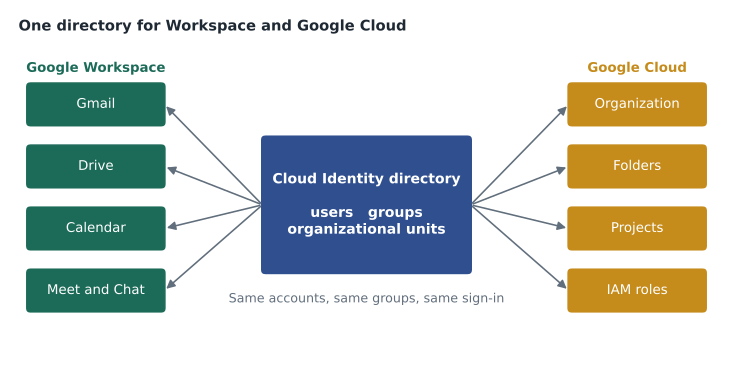
Two consequences follow. First, an account can exist without a Workspace licence: the cloud engineers' Cloud Identity Free accounts keep working and can be given Workspace licences later. Second, a careless change in the directory affects both worlds. Deleting a user to tidy up Workspace also removes that person's access to Google Cloud; moving a group changes who can reach cloud projects. Sofia's first rule for Owen is that nobody changes the directory without asking what else depends on it.
Signing in as an administrator
Any user can be made an administrator by assigning an admin role. The most powerful is super administrator (super admin), which can do everything in the console, including creating other admins, changing billing and deleting the account. Lesson 9 covers roles in depth; for now, Owen needs to know the habits that protect a super admin account.
Google's recommended practices are consistent: keep a small number of super admins (enough that one being unavailable does not lock the organization out, but not so many that the risk spreads), use a separate account for super admin work rather than the account you use for email every day, protect it with strong two-step verification, ideally a security key or passkey, and do routine work with a less powerful role. Birchline's plan follows that advice. Sofia and Owen each have an everyday account (sofia.marchetti and owen.mitchell) and a separate super admin account (sa-sofia and sa-owen) kept in a dedicated organizational unit called Admin accounts. A third super admin account, protected by two security keys stored in separate safes, is held for emergencies by Teresa Okonjo, the information security manager.
| Account | Used for | Protection |
|---|---|---|
| owen.mitchell@birchline.example | Email, documents, everyday help desk work with a limited admin role | Two-step verification with a passkey |
| sa-owen@birchline.example | Super admin tasks only, such as creating roles or changing billing | Two security keys; no mail forwarding; not used for browsing |
| sa-sofia@birchline.example | Super admin tasks only | Two security keys |
| sa-breakglass@birchline.example | Emergency access if the other admins are locked out | Two security keys in separate safes; every sign-in reviewed |
A tour of the Admin console
Sofia signs in with her super admin account and walks Owen through the console. The layout changes from time to time as Google adds features, so she teaches the shape of it rather than the exact position of every menu.
The home page shows cards for the most common tasks and a summary of the account: how many users, licence use, alerts that need attention and recent changes. Across the top is a search bar that finds users, groups, devices and settings by name, which is often the fastest way to anything. On the left is the main menu, organized into areas.
| Menu area | What you manage there | Covered in |
|---|---|---|
| Directory | Users, groups, organizational units, buildings and resources, directory sync | Lessons 3, 4, 5, 7 |
| Devices | Mobile devices, Chrome browsers and ChromeOS devices, computers, endpoint settings | Lesson 10; GCP-212 |
| Apps | Settings for Gmail, Drive, Calendar, Meet, Chat, Gemini and other Google services; web and mobile apps; Marketplace apps; SAML apps | GCP-211; lesson 8 |
| Generative AI | Gemini app and AI feature settings (in some console versions this appears under Apps) | GCP-211 |
| Security | Authentication, access and data controls, alert center, security center, rules | Lesson 8; GCP-212 |
| Reporting | Reports on apps, users and devices, audit and investigation logs, Email Log Search | GCP-212 |
| Billing | Subscriptions, licences, payment and invoices | Lesson 6 |
| Account | Account settings, domains, admin roles, data migration | Lessons 2, 9, 11 |
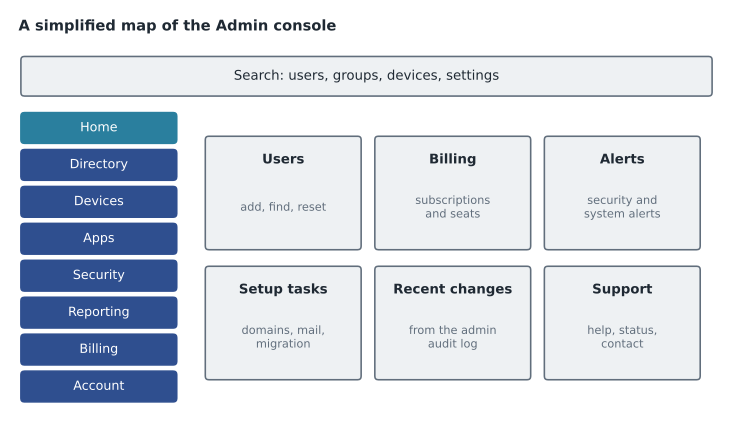
Most settings pages have the same pattern, and it is worth learning early. On the left of a settings page is the organizational unit tree, and often a Groups tab. You choose where a setting applies, top-level organization, a child organizational unit or a configuration group, and then change the setting. The page shows whether the value is inherited from a parent or overridden at this level. Lesson 4 is built around this pattern, because most surprises in Workspace administration come from changing a setting in the wrong place.
Changes do not always take effect instantly. Many settings apply within a few minutes, but Google's help pages often say a change can take up to 24 hours to reach everyone. Sofia's advice is to make a change, note the time in the change log, test it with a pilot account and only then tell users it is done.
Where to find help and status
Owen will not memorize the console, and nobody expects him to. He needs to know where answers live. The Google Workspace Admin Help centre (the help pages, now also published as the Workspace knowledge centre) documents every setting. The Google Workspace Status Dashboard shows whether a service is having an outage, which is the first thing to check when many users report the same problem at once. The Workspace Updates blog announces new features and changes, often with a rollout schedule, and the release calendar shows what is coming. From the console, admins can also contact Google support or the reseller, depending on how support is arranged in the contract.
Sofia adds a fifth source: Birchline's own change log, a shared spreadsheet where every admin records what was changed, where (which organizational unit or group), when, why and who approved it. The console keeps an admin audit log of changes, so the record exists anyway, but the change log captures the reason, which the audit log cannot.
The administrator's job in practice
Before the tour ends, Owen asks the obvious question: what will he actually spend his week doing? Sofia sketches a typical week after the migration, based on what she sees in Exchange and Active Directory today.
| Task | How often at Birchline | Where in the console |
|---|---|---|
| New staff accounts and leavers | About 15 starters and 12 leavers a week, more in spring and before the holidays | Directory, users (or sync from Active Directory) |
| Password resets and sign-in problems | About 40 a week across 40 stores | Directory, users; Security |
| Group changes: who receives which lists | About 10 a week | Directory, groups |
| Moving people between departments and stores | About 8 a week | Directory, users and organizational units |
| Settings changes requested by managers | A few a week, each tested on the pilot unit first | Apps, Security |
| Licence checks and billing questions | Monthly, with the CFO's team | Billing |
| Reviewing alerts and reports | Daily, ten minutes | Security, Reporting |
Much of that list is routine, and routine work should be automated or delegated. Birchline plans to create starters and leavers from Active Directory through synchronization (lesson 7), give the help desk a limited role that can reset passwords but not change settings (lesson 9), and let group owners manage their own membership (lesson 5). Owen's own time should go to the judgement calls: designing the organizational units, deciding settings, responding to alerts.
Tools beyond the console
The Admin console is not the only way to administer Workspace. For bulk and repeatable work, administrators use other tools, and the exam expects you to know when each fits.
CSV upload in the console lets you add or update many users at once from a spreadsheet; lesson 3 walks through it. The Admin SDK is a set of Google APIs, including the Directory API, that lets scripts and other systems create users, change groups and read reports. Google Apps Script, a JavaScript-based scripting platform built into Workspace, can call the same APIs from inside a spreadsheet. Third-party command-line tools built on these APIs are popular with administrators; they are not Google products, so organizations review them like any other software. And synchronization tools, Google Cloud Directory Sync and the newer cloud-based Directory Sync, keep the Google directory in step with an existing directory such as Active Directory.
POST https://admin.googleapis.com/admin/directory/v1/users
{
  "primaryEmail": "test.pilot01@birchline.example",
  "name": { "givenName": "Test", "familyName": "Pilot One" },
  "orgUnitPath": "/Pilot",
  "password": "(set by the provisioning system)",
  "changePasswordAtNextLogin": true
}
Owen will not write API calls in this course, but he should be able to read one. The request names the user's primary email address, given and family name, the organizational unit where the account will live and an initial password that must be changed at first sign-in. Every field corresponds to a box in the console's add-user form.
Common mistakes
MistakeCreating a new Google customer account for Workspace when the organization already has Cloud Identity on its domain.
InsteadAdd the Workspace subscription to the existing account so that Google Cloud and Workspace share one directory.
MistakeUsing a super admin account for everyday email and browsing.
InsteadKeep separate super admin accounts, use them only for super admin tasks and protect them with security keys.
MistakeChanging a setting at the top-level organization to fix one department's request.
InsteadCheck which organizational unit or group the setting should apply to, and change it there.
MistakeExpecting every change to take effect immediately.
InsteadAllow time for propagation, test with a pilot account and record the change.
Worked problem
Choosing where to look
On the Monday after the pilot starts, four things happen before ten o'clock: (a) every pilot user reports that Gmail is slow to load; (b) Owen needs to know whether a new Chat feature announced last week has reached Birchline yet; (c) a store manager asks who changed the Drive sharing setting for the stores; (d) Owen needs to add 14 pilot users at once. Where should he look or what should he use for each?
Show solution
- Many users with the same symptom at the same time suggests a service problem, so check the Google Workspace Status Dashboard first.
- New features and rollout timing are announced on the Workspace Updates blog and release calendar.
- Who changed a setting, and when, is recorded in the admin audit log under Reporting; Birchline's change log should say why.
- Adding 14 users at once is a bulk task: a CSV upload in the console (or synchronization once it is running).
Answer: Status Dashboard for (a), the Workspace Updates blog for (b), the admin audit log plus the change log for (c) and a CSV upload for (d).
Summary and key terms
- Google Workspace is a subscription suite of cloud apps; the organization's job is administration.
- Administration happens in the Google Admin console at admin.google.com.
- A customer account has one directory of users, groups and organizational units, shared with Google Cloud and Cloud Identity in the same account.
- Super admins can do everything, so keep few of them, use separate accounts for super admin work and protect them with security keys.
- The console's main areas are Directory, Devices, Apps, Security, Reporting, Billing and Account.
- Settings pages let you choose an organizational unit or group and show whether a value is inherited or overridden.
- Changes may take time to propagate.
- Help, the Status Dashboard and the Workspace Updates blog are the main sources of information.
- CSV uploads, the Admin SDK, Apps Script and sync tools handle bulk and repeatable work.
- Google Admin console
- The web application at admin.google.com where administrators manage a Google Workspace or Cloud Identity account.
- Customer account
- The organization's Google account (tenant), tied to its primary domain and holding one directory.
- Cloud Identity
- Google's identity service that provides users, groups and security policies without the Workspace apps.
- Super administrator
- The admin role with full control of the account, including other admins and billing.
- Admin audit log
- The log of changes made by administrators in the Admin console.
- Status Dashboard
- Google's public page showing the current status of Workspace services.
- Admin SDK
- Google's set of administration APIs, including the Directory API for users and groups.
Practice problems
Work each problem on paper first, then reveal the answer to check.
Birchline already uses Cloud Identity Free for Google Cloud. Why add Workspace to the same account rather than a new one?
Show answer
So that one directory of users and groups serves both Workspace and Google Cloud, with one sign-in per person and no duplicate accounts.
Why does Birchline keep separate super admin accounts?
Show answer
An everyday account is exposed to phishing and mistakes; a separate, key-protected super admin account used only for admin work limits that risk.
A user reports that a setting changed ten minutes ago has not reached them. What should you consider first?
Show answer
Propagation time: many changes take minutes, some up to 24 hours, so confirm the change was made in the right place and test again later.
Lesson quiz · 5 questions
Score 60% or more to complete this lesson.
Create a free account to save your progress, take quizzes and earn a certificate.