
GCP-210 · Lesson 10 of 12 · 19 min
Device management basics
▶ Video coming soon A video version of this lesson is on the way.
At the tenth session Sofia empties a box onto the table: a store's shared tablet, a store manager's company phone, Owen's own personal phone and a head office laptop. "Every one of these will open Birchline's email next year," she says. "Some belong to us and some don't. Some are used by one person and some by twenty. Device management is how we decide what each one is allowed to do, and what we can do to it when it goes missing." This lesson covers the basics; GCP-212 goes further into endpoint security.
Why manage devices
Workspace data lives in Google's cloud, but people reach it from devices, and devices get lost, stolen, shared, sold and left unlocked. Device management in Workspace lets administrators see which devices access company data, require basic protections such as a screen lock, separate company data from personal data, and remove company data from a device when needed. It is managed in the Admin console under Devices, with policies applied by OU or group like any other setting.
Managing devices is always a balance. Too little control, and a lost phone with an open Gmail app is a data breach. Too much, and staff refuse to put company email on their own phones, or use workarounds that are worse. The Workspace approach is to offer levels of management and let the organization choose per OU.
Three levels of mobile management
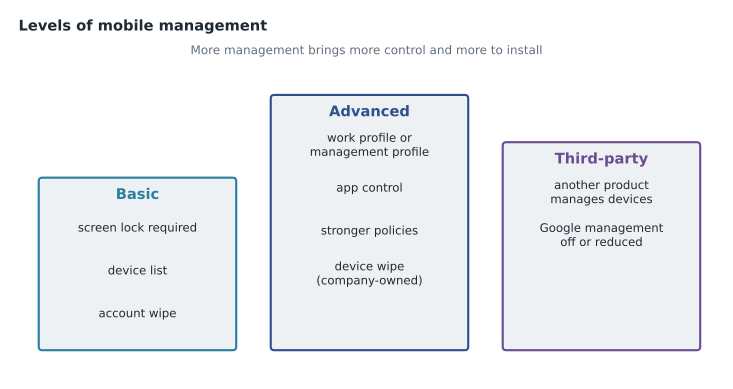
For phones and tablets, the Admin console offers basic, advanced and third-party management (names and details follow Google's current console).
Basic mobile management works without installing a management app or profile. It lets administrators require a screen lock or passcode on devices that sync Workspace data, see a list of devices accessing the account and, if a device is lost, sign the user out of the device or wipe the account, removing the Workspace account and its data from the device without touching personal data. Basic management is quick to roll out and acceptable to most staff on personal phones.
Advanced mobile management adds much stronger controls in exchange for installing management on the device. On Android, this typically uses a work profile, which keeps work apps and data in a separate container on personal phones, or full management of company-owned devices. On iOS and iPadOS, it uses an Apple management profile, and for company-owned Apple devices, Apple's enrolment programs. Administrators can enforce passcode strength and encryption, block compromised devices, approve or distribute apps, configure Wi-Fi and, for company-owned devices, wipe the whole device.
Third-party management means the organization uses a separate mobile device management product (an MDM or unified endpoint management system) and turns Google's own mobile management off or down. Organizations choose this when they already manage devices for other systems with another tool.
| Basic | Advanced | Third-party | |
|---|---|---|---|
| Install on device | Nothing | Work profile, management profile or device policy app | The other vendor's agent |
| Screen lock requirement | Yes | Yes, with strength rules | Configured in that product |
| See devices with access | Yes | Yes, with more detail | In that product |
| Remove Workspace data from a lost device | Account wipe | Account wipe; full device wipe on company-owned devices | In that product |
| Separate work and personal apps | No | Yes (work profile on Android, managed apps on iOS) | Depends on the product |
| Typical fit | Personal phones, light requirements | Company-owned devices; stricter personal-device rules | Organizations with an existing MDM |
Company-owned and personal devices
The second axis is ownership. A company-owned device belongs to the organization: the store tablets, store managers' phones and head office laptops. Birchline can manage these fully, including wiping the whole device. A personal device, used under a bring your own device (BYOD) policy, belongs to the employee, and Birchline's control must stop at its own data. Wiping a personal phone completely would destroy someone's photos and messages, which no policy should allow.
Workspace supports this distinction. Administrators can register company-owned devices in advance by uploading their serial numbers or identifiers, so that the console knows which devices belong to the organization and can apply stricter rules to them. Personal devices are treated as personal unless enrolled otherwise, and account wipe is the normal tool for them.
| Device | Owner | Users | Birchline policy |
|---|---|---|---|
| Store shared tablet | Birchline | All staff on a shift | Advanced management, company-owned, short sessions, no personal accounts |
| Store manager phone | Birchline | One manager | Advanced management, company-owned, full wipe if lost |
| Head office laptop | Birchline | One person | Managed as a computer (Windows or ChromeOS) and through Chrome browser policies |
| Staff personal phone | Employee | One person | Basic management: screen lock required, account wipe only |
| Contractor personal laptop | Contractor | One person | Browser access only, with restrictions from GCP-212 (context-aware access) |
Setting policies by organizational unit
Device policies follow the OU tree, which is another reason lesson 4 gave stores their own OU. Birchline turns on advanced management for /Stores (shared tablets) and /Stores/Store managers (company phones), and basic management for /Head office and /Warehouses/Warehouse office, where most mobile access is from personal phones. /Contractors gets no mobile sync at all; contractors work in the browser. As always, the change is tried on /Pilot first, where the IT team enrols their own phones and the spare store tablet.
Two settings deserve care. Device approvals can require an administrator to approve each new device before it syncs data. It is useful for company-owned fleets but creates a help desk queue if applied to personal phones. And policies that require a stronger passcode take effect on the device at the next sync; users with weak passcodes are prompted to change them, which generates calls on the first morning unless staff are warned.
Shared devices in stores
The store tablets are the hardest case. Twenty staff on different shifts use the same tablet to check schedules, read announcements and answer customer questions with the product catalogue. Each person must sign in as themselves, so that their actions are attributed correctly, but none of them should leave their account signed in for the next person. Birchline's plan combines a short session length for /Stores (lesson 8), advanced management that keeps the tablets locked to approved apps, and a sign-out routine at the end of each shift. Frontline licences are designed for this pattern of use.
Offboarding a device
When someone leaves or loses a device, the administrator's options depend on ownership and management level. The Admin console's device list shows each device, its user, last sync time and status, with actions available for each.
| Situation | Action |
|---|---|
| Employee leaves; personal phone with basic management | Account wipe (removes Workspace data); suspend the user |
| Store manager loses a company phone | Full device wipe on the company-owned device; then block it and replace it |
| Employee leaves; company phone returned | Remove the user, reset the device for its next user |
| Device reported stolen but may be found | Sign the user out and block the device first; wipe if it is not found |
| Employee suspects their account was used on an unknown phone | Review the device list, sign out all sessions and reset the password |
Offboarding devices is part of the leaver checklist from lesson 3. In production, synchronization suspends the user when Active Directory disables them, which stops new sign-ins, but data already on a device may remain until the account is wiped from it. Owen adds a step: for every leaver with a company device or a device holding Workspace data, perform the account or device wipe on the last day.
Computers and Chrome browsers
Mobile phones are only part of the picture. Workspace also manages ChromeOS devices (Chromebooks) fully, can manage Windows computers through Windows device management features, and can apply Chrome browser policies on any platform through Chrome Enterprise Core (Chrome browser cloud management), which is managed from the same Admin console.
For Birchline, the browser is where most Workspace use will happen, so Chrome browser management matters. Browsers are enrolled with an enrolment token deployed through Birchline's existing Windows management tools, and then appear in the console under Devices, Chrome, Managed browsers, in an OU. Administrators can then apply policies: which extensions may be installed (allow, block or force-install, by OU or group), whether users must sign in to the browser, how updates are applied, whether passwords may be saved and much more. Birchline will force-install its password manager extension and block extensions that can read all website data unless approved.
Chrome policy plan for /Stores (managed browsers on store PCs)
  Browser sign-in:            force sign-in with a birchline.example account
  Extensions:                 block all except the approved list
  Force-installed:            Birchline password manager
  Updates:                    automatic, within the standard release channel
  Incognito mode:             disabled
  Password saving:            disabled (password manager only)
Chrome browser policies are a large topic, and the exam treats them as their own area. In this course, Owen needs the basics: enrol browsers, put them in the right OU and control extensions. GCP-212 covers endpoint verification and context-aware access, which use device information to decide who can reach company data.
Knowing what you have
Device management is also an inventory. The console's device lists show each mobile device, computer and managed browser with its user, model, operating system version, last sync and management state, and the lists can be filtered and exported. Birchline's monthly device review looks for devices that have not synced for 60 days (often replaced phones that should be removed), devices running operating system versions too old to receive security updates, and company-owned devices that are not registered. Reports under Reporting show device activity over time, which GCP-212 uses for investigations.
What staff will see
Sofia ends with communication. Staff accept device management when they understand it, so Birchline's announcement will explain what basic management means on a personal phone in plain words: a screen lock is required, IT can see the phone's model and operating system, and IT can remove the Birchline account if the phone is lost or the person leaves, but IT cannot see personal photos, messages, browsing or location, and cannot wipe the phone itself. The same announcement explains that company tablets and phones are fully managed and may be wiped.
Finally, Sofia reminds Owen that device management is shared work. The endpoint team that manages Windows laptops today will keep doing so through its existing tools, while Workspace device settings control how those laptops and their browsers reach Google services. The two teams agree who owns which setting, record it in a short table in the change log and review it after each migration wave, so that a policy is never set in one tool and silently contradicted in the other. For the store tablets, the store operations team owns the list of approved apps, and IT owns the management settings that enforce it, which keeps business decisions with the business and technical decisions with IT.
Common mistakes
MistakeApplying full device wipe to personal phones.
InsteadUse account wipe on personal devices; full wipe is for company-owned devices.
MistakeTurning on device approvals for every personal phone without planning.
InsteadUse approvals for company-owned fleets, or staff the help desk for the queue.
MistakeAssuming suspending a user removes data already on their phone.
InsteadSuspension stops new access; wipe the account or device to remove data already synced.
MistakeForgetting the browser.
InsteadEnrol Chrome browsers and control extensions, because most Workspace use happens there.
Worked problem
Choosing a management level
A store manager in Region 2 asks why she cannot read Birchline email on her personal tablet at home, while her colleague in head office reads email on his personal phone. She also asks what IT can do to her personal tablet if she installs Birchline's management. How should Owen answer?
Show solution
- Store managers are in /Stores/Store managers, where Birchline requires advanced management, because store managers handle more sensitive data and normally use company phones.
- Head office is in /Head office, where basic management applies to personal phones: a screen lock is required and IT can only remove the Birchline account.
- If she installs management on her personal tablet with a work profile, Birchline can manage the work profile and its apps and data, and remove the work profile, but cannot see or wipe her personal apps and files.
- Alternatively, she can use her company phone, or request an exception through a configuration group if the business approves.
Answer: Different OUs have different device policies; with a work profile, Birchline controls only the work side of her personal tablet.
Summary and key terms
- Device management lets administrators see devices that access company data, require protections and remove company data.
- Basic mobile management needs nothing installed and offers screen lock, a device list and account wipe.
- Advanced management installs a work profile or management profile and adds app control, stronger policies and full wipe for company-owned devices.
- Third-party management uses another product.
- Distinguish company-owned devices, which can be fully managed and wiped, from personal devices, where control stops at company data.
- Apply device policies by OU, try them on a pilot first and plan for shared devices.
- Wipe accounts or devices as part of offboarding.
- Manage Chrome browsers by enrolling them and controlling extensions.
- Basic mobile management
- Agentless management with screen lock requirements, a device list and account wipe.
- Advanced mobile management
- Management that installs a profile or app and adds stronger controls and device wipe.
- Work profile
- A separate container for work apps and data on an Android device.
- Account wipe
- Removing a user's Workspace account and data from a device, leaving personal data.
- Device wipe
- Resetting an entire company-owned device to factory settings.
- Company-owned device
- A device registered as belonging to the organization.
- BYOD
- Bring your own device: staff use personal devices for work.
- Chrome Enterprise Core
- Google's cloud management for Chrome browsers from the Admin console.
Practice problems
Work each problem on paper first, then reveal the answer to check.
What can Birchline do to a personal phone under basic management?
Show answer
Require a screen lock, see the device, sign the user out and wipe the Birchline account; not wipe the phone or see personal data.
Why does suspending a leaver not fully protect data on their phone?
Show answer
Data already synced stays on the device until the account or device is wiped.
Which Chrome browser policy did Birchline choose for extensions at stores?
Show answer
Block all except an approved list, and force-install the password manager.
Lesson quiz · 5 questions
Score 60% or more to complete this lesson.
Create a free account to save your progress, take quizzes and earn a certificate.