
NET-103 · Lesson 8 of 12 · 27 min
Networking configuration on Linux
▶ Video coming soon A video version of this lesson is on the way.
A server that cannot talk to the network is useless, and a server that talks to the network carelessly is dangerous. Ridge-web has to answer customers' web requests from anywhere, accept roast log uploads from the Raspberry Pi in the roastery, reach Ubuntu's update servers and send order confirmation emails, while refusing everything else. Behind each of those jobs sits a stack of settings: network interfaces, addresses, routes, name resolution, listening ports and firewall rules. When something breaks, an administrator who knows how to inspect each layer can find the fault in minutes instead of hours.
This lesson builds on the networking ideas from NET-101 and shows how they appear on a Linux machine: naming and inspecting interfaces, addresses and routes, configuring a static address with netplan and NetworkManager, name resolution, seeing which programs listen on which ports, testing connectivity layer by layer, and a first look at the host firewall.
Interfaces
Each network connection on a Linux machine is an interface. The loopback interface, lo, with the address 127.0.0.1, lets a machine talk to itself, which is how nginx passes requests to the shop on 127.0.0.1 port 8000 without them ever leaving the server. Physical and virtual network cards get names too. Older systems called them eth0, eth1 and so on, in the order the kernel found them, which could change between boots. Modern systems use predictable names based on where the device sits in the hardware: enp1s0 is an Ethernet device on PCI bus 1, slot 0; ens3 is a device in slot 3; wlan0 or wlp2s0 is wireless.
The ip command, from the iproute2 package, inspects and changes interfaces, addresses and routes. It replaced the older ifconfig and route commands, which you will still see in old guides. Its subcommands can be shortened, so ip a is ip address and ip r is ip route, and -br gives brief output.
> ip -br link
lo               UNKNOWN        00:00:00:00:00:00 <LOOPBACK,UP,LOWER_UP>
ens3             UP             52:54:00:8a:3c:11 <BROADCAST,MULTICAST,UP,LOWER_UP>
> ip -br addr
lo               UNKNOWN        127.0.0.1/8 ::1/128
ens3             UP             10.20.0.5/24 fe80::5054:ff:fe8a:3c11/64
> ip route
default via 10.20.0.1 dev ens3 proto dhcp src 10.20.0.5 metric 100
10.20.0.0/24 dev ens3 proto kernel scope link src 10.20.0.5
Ridge-web has one network interface, ens3, with the private address 10.20.0.5 in the network 10.20.0.0/24. The /24 is the prefix length: the first 24 bits of the address identify the network and the last 8 identify the host, so this network holds addresses 10.20.0.1 to 10.20.0.254. The address starting fe80 is an IPv6 link-local address, which every IPv6-capable interface creates automatically for talking on its own network segment. The cloud provider maps the public address 203.0.113.25 to this private one at its edge, which is why the public address does not appear on the interface itself.
Routes and the default gateway
The routing table tells the kernel where to send each packet. The second route says that addresses in 10.20.0.0/24 are directly reachable through ens3. The first, the default route, says that everything else goes via the gateway 10.20.0.1, the provider's router, which forwards it onward toward the internet. When the kernel has a packet to send, it picks the most specific route that matches the destination, and falls back to the default.
Python's ipaddress module understands addresses, networks and prefixes, which makes it easy to check which of several routes a destination would use, exactly the decision the kernel makes for every packet.
import ipaddress

routes = {
    "10.20.0.0/24": "direct on ens3",
    "10.30.0.0/16": "via 10.20.0.9 (backup network)",
    "0.0.0.0/0": "via 10.20.0.1 (default gateway)",
}
networks = [(ipaddress.ip_network(net), how) for net, how in routes.items()]

for dest in ["10.20.0.7", "10.30.4.2", "91.189.91.81", "127.0.0.1"]:
    addr = ipaddress.ip_address(dest)
    if addr.is_loopback:
        print(f"{dest:13} loopback, never leaves the machine")
        continue
    matches = [(net, how) for net, how in networks if addr in net]
    net, how = max(matches, key=lambda m: m[0].prefixlen)   # most specific wins
    print(f"{dest:13} {str(net):13} {how}")

net = ipaddress.ip_network("10.20.0.0/24")
print(net.num_addresses - 2, "usable host addresses, broadcast", net.broadcast_address)10.20.0.7 10.20.0.0/24 direct on ens3 10.30.4.2 10.30.0.0/16 via 10.20.0.9 (backup network) 91.189.91.81 0.0.0.0/0 via 10.20.0.1 (default gateway) 127.0.0.1 loopback, never leaves the machine 254 usable host addresses, broadcast 10.20.0.255
Configuring addresses: netplan and NetworkManager
Changes made with commands such as ip addr add last only until the next reboot, so they are useful for testing but not for real configuration. Permanent settings live in configuration files, and which files depends on the distribution. Ubuntu Server uses netplan: you describe the network in a YAML file under /etc/netplan, and netplan generates the settings for the underlying service, usually systemd-networkd on servers. Red Hat-family systems, and desktops generally, use NetworkManager, controlled with the nmcli command.
Ridge-web gets its address by DHCP from the cloud provider, which is normal for cloud servers. The Raspberry Pi in the roastery is different: ridge-web's firewall will allow uploads only from known addresses, and Kai needs to find the Pi at the same address every day, so it needs a fixed address. Raspberry Pi OS uses NetworkManager, so Jordan configures it with nmcli. For comparison, the netplan file below shows how the same static setup would look on an Ubuntu server.
# /etc/netplan/50-static.yaml  (an Ubuntu machine with a fixed address)
network:
  version: 2
  ethernets:
    eth0:
      dhcp4: false
      addresses: [192.168.10.40/24]
      routes:
        - to: default
          via: 192.168.10.1
      nameservers:
addresses: [192.168.10.1, 9.9.9.9]> sudo netplan try
Do you want to keep these settings?
Press ENTER before the timeout to accept the new configuration
Changes will revert in 118 seconds
> nmcli connection modify "Wired connection 1" ipv4.method manual ipv4.addresses 192.168.10.40/24 ipv4.gateway 192.168.10.1 ipv4.dns "192.168.10.1 9.9.9.9"
> nmcli connection up "Wired connection 1"
> nmcli -g IP4.ADDRESS device show eth0
192.168.10.40/24The netplan try command is a lifesaver on remote machines. It applies the new configuration and waits two minutes for you to press Enter. If you have made a mistake that cuts off your SSH connection, you cannot press Enter, and netplan rolls back automatically, restoring your access. Use netplan apply only once a configuration is known to work. YAML is strict about indentation, which must use spaces, never tabs, and a wrong indent can break the whole file.
Host names and name resolution
People use names, networks use addresses, and name resolution turns one into the other. A machine's own name is set with hostnamectl set-hostname ridge-web and stored in /etc/hostname. When a program looks up a name, Linux first checks /etc/hosts, a simple local list of addresses and names, then asks DNS servers. On Ubuntu, a local service called systemd-resolved handles DNS lookups and caches the answers; /etc/resolv.conf points programs at its stub address, 127.0.0.53, and resolvectl status shows the real DNS servers behind it.
> cat /etc/hosts
127.0.0.1 localhost
127.0.1.1 ridge-web
10.20.0.8 db-replica
> resolvectl status ens3 | grep "DNS Servers"
       DNS Servers: 10.20.0.2
> dig +short shop.ridgeline.example
203.0.113.25
> getent hosts db-replica
10.20.0.8       db-replica
The dig command asks DNS servers directly and shows exactly what they answer, which makes it the right tool for checking DNS records. The getent hosts command looks names up the way ordinary programs do, through /etc/hosts and then DNS, so it reveals the answer the shop application will actually get. When those two disagree, an entry in /etc/hosts is usually the reason, and forgotten hosts entries cause some of the most puzzling faults in networking.
Ports and listening services
An address gets a packet to the right machine; a port gets it to the right program. A program that offers a service listens on a port: the SSH server on 22, nginx on 80 for HTTP and 443 for HTTPS, PostgreSQL on 5432. The ss command, socket statistics, lists sockets, and ss -tulpn shows the listening TCP and UDP ports with numeric addresses and the program behind each, when run with sudo.
> sudo ss -tulpn
Netid State  Local Address:Port  Peer Address:Port Process
udp   UNCONN 127.0.0.53%lo:53         0.0.0.0:*     users:(("systemd-resolve",pid=601,fd=13))
tcp   LISTEN       0.0.0.0:22         0.0.0.0:*     users:(("sshd",pid=880,fd=3))
tcp   LISTEN       0.0.0.0:80         0.0.0.0:*     users:(("nginx",pid=1101,fd=6))
tcp   LISTEN       0.0.0.0:443        0.0.0.0:*     users:(("nginx",pid=1101,fd=7))
tcp   LISTEN     127.0.0.1:5432       0.0.0.0:*     users:(("postgres",pid=1204,fd=6))
tcp   LISTEN     127.0.0.1:8000       0.0.0.0:*     users:(("gunicorn",pid=1388,fd=5))
The local address column matters as much as the port. A service listening on 0.0.0.0 accepts connections on every interface, including from the internet, while one listening on 127.0.0.1 accepts connections only from the machine itself. On ridge-web, SSH and nginx face the world, as intended, while PostgreSQL and the shop's gunicorn listen only on the loopback address. That is a deliberate design: customers reach the shop only through nginx, and the database cannot be reached from outside at all, firewall or no firewall. Checking this list after installing any new software is one of the simplest security habits there is.
Reading ss output with a program lets you turn that habit into an automatic check. The listing below separates services exposed to the network from those bound to loopback.
ss = """tcp LISTEN 0.0.0.0:22 0.0.0.0:* users:(("sshd",pid=880,fd=3))
tcp LISTEN 0.0.0.0:80 0.0.0.0:* users:(("nginx",pid=1101,fd=6))
tcp LISTEN 0.0.0.0:443 0.0.0.0:* users:(("nginx",pid=1101,fd=7))
tcp LISTEN 127.0.0.1:5432 0.0.0.0:* users:(("postgres",pid=1204,fd=6))
tcp LISTEN 127.0.0.1:8000 0.0.0.0:* users:(("gunicorn",pid=1388,fd=5))
tcp LISTEN 0.0.0.0:6379 0.0.0.0:* users:(("redis-server",pid=2210,fd=6))"""

ALLOWED_PUBLIC = {22, 80, 443}
for line in ss.splitlines():
    local, process = line.split()[2], line.split()[4]
    host, port = local.rsplit(":", 1)
    name = process.split('"')[1]
    if host in ("127.0.0.1", "[::1]"):
        print(f"{name:13} port {port:5} local only")
    elif int(port) in ALLOWED_PUBLIC:
        print(f"{name:13} port {port:5} public, expected")
    else:
print(f"{name:13} port {port:5} PUBLIC AND NOT EXPECTED, check this")sshd port 22 public, expected nginx port 80 public, expected nginx port 443 public, expected postgres port 5432 local only gunicorn port 8000 local only redis-server port 6379 PUBLIC AND NOT EXPECTED, check this
The last line catches something real. When a developer tried a caching server on ridge-web, the package's default listened on every interface. Redis on an open port with no password has been the entry point for many break-ins, and the check found it the same day. Jordan changed its configuration to bind to 127.0.0.1, and the firewall would have blocked it anyway, but defense in depth means not relying on a single control.
Testing connectivity, layer by layer
When a connection fails, test from the bottom up, the same layered approach NET-101 used. Is the interface up and does it have an address? Can you reach the gateway? Can you reach a well-known address beyond it? Does the name resolve? Is the service listening, and can you connect to its port? Each step rules out a layer, and the first step that fails shows where to look.
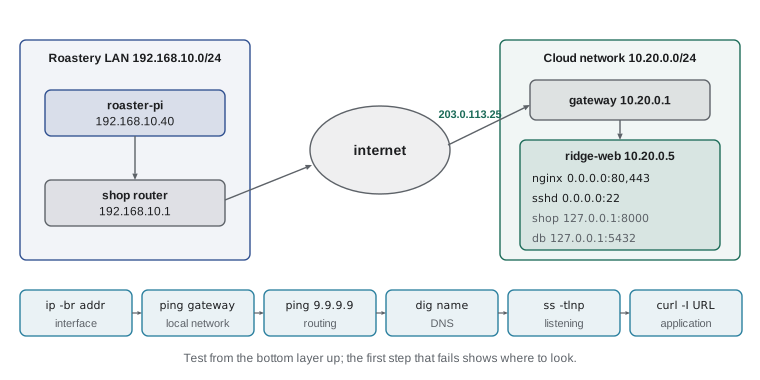
| Layer checked | Command | What success looks like |
|---|---|---|
| Interface and address | ip -br addr | The interface is UP and has the expected address |
| Local network and gateway | ping -c 3 10.20.0.1 | Replies with low, steady times |
| Routing beyond the gateway | ping -c 3 9.9.9.9 and tracepath 9.9.9.9 | Replies; the path shows each hop |
| Name resolution | dig +short archive.ubuntu.com, getent hosts name | An address comes back |
| Service listening | sudo ss -tlnp | The port appears with the right program |
| Application | curl -I http://127.0.0.1:8000/ and curl -I https://shop.ridgeline.example/ | An HTTP status line such as HTTP/1.1 200 OK |
| Raw TCP port | nc -zv 10.20.0.5 5432 | succeeded, or refused if nothing listens there |
Two cautions apply. Some networks block ping, so a failed ping to an outside host does not always mean the route is broken; try a TCP connection with curl or nc too. And curl is the best single test of a web service, because it exercises DNS, routing, the firewall, the listening service and the application in one go, and its -v option shows each stage of the conversation.
A first look at the firewall
Ubuntu includes a host firewall that the kernel's netfilter subsystem enforces. Writing its rules directly, with nftables or the older iptables, is powerful but complex, so Ubuntu provides ufw, the uncomplicated firewall, a simpler front end. Its default policy, once enabled, is to refuse incoming connections and allow outgoing ones, and you add rules for the services you want to offer. Lesson 12 tightens these rules as part of hardening.
> sudo ufw allow from 198.51.100.17 to any port 22 proto tcp
> sudo ufw allow from 192.168.10.0/24 to any port 22 proto tcp
> sudo ufw allow 80/tcp
> sudo ufw allow 443/tcp
> sudo ufw enable
Command may disrupt existing ssh connections. Proceed with operation (y|n)? y
Firewall is active and enabled on system startup
> sudo ufw status numbered
     To                         Action      From
     --                         ------      ----
[ 1] 22/tcp                     ALLOW IN    198.51.100.17
[ 2] 22/tcp                     ALLOW IN    192.168.10.0/24
[ 3] 80/tcp                     ALLOW IN    Anywhere
[ 4] 443/tcp                    ALLOW IN    Anywhere
Order matters when you enable a firewall on a remote server: add the rule that allows your own SSH connection before enabling it, or you will lock yourself out and need the provider's console to recover. ufw's warning when you enable it is a reminder of exactly that. Note also that the roastery's rule allows its whole network, because the shop's internet connection reaches ridge-web from the router's single public address, which Jordan learns when the first upload is refused; lesson 10 explains how that was fixed with the router's real public address.
Worked problem
The roaster-pi cannot upload
After the Pi was given its fixed address, Kai reports that roast logs stopped appearing on ridge-web at 06:40. Work through the layers from the Pi to find the fault.
Show solution
- On the Pi: ip -br addr shows eth0 UP with 192.168.10.40/24, as configured. The interface layer is fine.
- ping -c 3 192.168.10.1 gets replies, so the local network and router are fine.
- ping -c 3 9.9.9.9 also works, so routing to the internet is fine.
- dig +short shop.ridgeline.example returns nothing. getent hosts shows no answer either. Name resolution has failed.
- nmcli -g ipv4.dns connection show shows 192.168.1.1, an address Kai copied from an old note about his home router; nothing answers there on the roastery network.
- Set ipv4.dns to 9.9.9.9 and 149.112.112.112, bring the connection up again, and dig answers 203.0.113.25. The next upload at 06:50 succeeds.
Answer: Testing layer by layer showed the interface, local network and routing working and pointed to a wrong DNS server setting on the Pi.
Try it yourself
Same network?
Write same_network(a, b, prefix) that returns True if the two IPv4 addresses a and b are in the same network when the prefix length is prefix, for example same_network("10.20.0.5", "10.20.0.200", 24). Use the ipaddress module.
import ipaddress

def same_network(a, b, prefix):
    return a == b


print(same_network('10.20.0.5', '10.20.0.200', 24))
Try it yourself
Read ip -br addr
Write ipv4_addresses(text) that reads the output of ip -br addr and returns a dictionary mapping each interface name to its first IPv4 address with prefix, such as 10.20.0.5/24. Interfaces with no IPv4 address map to None.
def ipv4_addresses(text):
    return {}


print(ipv4_addresses('ens3 UP 10.20.0.5/24 fe80::1/64'))
Try it yourself
Unexpected listeners
Write unexpected(ss_text, allowed) that reads lines of ss -tlnp output (no header) and returns a sorted list of ports, as ints, that listen on an address other than 127.0.0.1 or [::1] and are not in the set allowed.
def unexpected(ss_text, allowed):
    return []
Common mistakes
MistakeConfiguring addresses with ip addr add and expecting them to survive a reboot.
InsteadPut permanent settings in netplan or NetworkManager; use ip commands only for testing.
MistakeApplying a netplan change on a remote server with netplan apply straight away.
InsteadUse netplan try, which rolls back automatically if you lose your connection.
MistakeEnabling the firewall before allowing SSH.
InsteadAdd the rule for your own SSH connection first, then enable ufw.
MistakeAssuming a service that listens on 0.0.0.0 is safe because of the firewall.
InsteadBind internal services such as databases to 127.0.0.1 so they cannot be reached from outside at all.
MistakeConcluding the network is down because ping fails.
InsteadSome networks block ping; test TCP with curl or nc as well.
MistakeForgetting old entries in /etc/hosts.
InsteadCheck /etc/hosts when a name resolves to an unexpected address; compare getent hosts with dig.
Summary and key terms
- Interfaces have predictable names such as ens3 or enp1s0; lo is the loopback interface at 127.0.0.1.
- ip -br addr, ip link and ip route show addresses, interfaces and the routing table; the most specific route wins.
- Permanent settings go in netplan files on Ubuntu servers or NetworkManager (nmcli) elsewhere; netplan try rolls back mistakes.
- Names resolve through /etc/hosts and then DNS; systemd-resolved caches answers, dig queries DNS directly and getent shows what programs see.
- ss -tulpn lists listening ports and their programs; services bound to 127.0.0.1 are reachable only locally.
- Test connections layer by layer: address, gateway, routing, DNS, listening service, application.
- ufw manages the host firewall; allow SSH before enabling it.
- interface
- A network connection on a machine, physical or virtual.
- loopback
- The virtual interface that lets a machine talk to itself, at 127.0.0.1.
- prefix length
- The number of bits that identify the network, written after a slash, as in /24.
- default gateway
- The router that receives packets for destinations with no more specific route.
- netplan
- Ubuntu's YAML-based network configuration system.
- NetworkManager
- A network configuration service controlled with nmcli, common on desktops and RHEL.
- name resolution
- Turning a host name into an address, through /etc/hosts and DNS.
- listening socket
- A port on which a program waits for incoming connections.
- ufw
- The uncomplicated firewall, Ubuntu's simple front end to the kernel firewall.
Practice problems
Work each problem on paper first, then reveal the answer to check.
How many usable host addresses does a /24 network have?
Show answer
254: 256 addresses minus the network address and the broadcast address.
Which command shows the default gateway?
Show answer
ip route (look for the default via line).
PostgreSQL listens on 127.0.0.1:5432. Can a computer on the internet connect to it?
Show answer
No; it accepts connections only from the machine itself.
dig returns the right address but the shop app connects somewhere else. What should you check?
Show answer
/etc/hosts, because programs check it before DNS; compare with getent hosts.
Why is netplan try safer than netplan apply on a remote server?
Show answer
It rolls the change back after two minutes unless you confirm it, so a mistake cannot lock you out for good.
Write a ufw rule that allows HTTPS from anywhere.
Show answer
sudo ufw allow 443/tcp
Lesson quiz · 5 questions
Score 60% or more to complete this lesson.
Create a free account to save your progress, take quizzes and earn a certificate.