
NET-103 · Lesson 10 of 12 · 29 min
Secure shell, keys and remote administration
▶ Video coming soon A video version of this lesson is on the way.
Every lesson so far has assumed that Jordan can type commands on ridge-web, a machine in a data center far from the roastery. The tool that makes that possible is SSH, the secure shell. It gives an encrypted command line on a remote machine, copies files securely, carries other connections inside an encrypted tunnel and lets scripts run commands on many servers. It is also the front door that attackers try first, as the thousands of failed logins in lesson 9 showed. This lesson covers how SSH works, how to log in with keys instead of passwords, how to copy files and tunnel connections, and how Sam and Jordan lock the front door so that only the right keys from the right places can open it.
How SSH works
SSH was created in 1995 by Tatu Ylönen, a researcher in Finland, after a password-sniffing attack on his university's network. Before it, administrators used telnet and rlogin, which sent everything, including passwords, across the network as plain text that anyone on the path could read. SSH encrypts the whole session. Today nearly every Linux and Unix system, network device and cloud server uses OpenSSH, the free implementation maintained by the OpenBSD project. The server program is sshd, which listens on TCP port 22, and the client is ssh.
A connection has three stages. First, client and server agree on encryption and create shared session keys, using a key exchange that an eavesdropper cannot reproduce. Second, the server proves its identity with its host key, so the client knows it is talking to the real ridge-web and not an impostor. Third, the user proves their identity, with a password or, much better, with a key. Only then does the shell start.
> ssh jordan@203.0.113.25
The authenticity of host '203.0.113.25 (203.0.113.25)' can't be established.
ED25519 key fingerprint is SHA256:q7Zp3XvN0bJk2cR8tYw1uF5sLmA9eH4gD6iK0oPzT2E.
This key is not known by any other names.
Are you sure you want to continue connecting (yes/no/[fingerprint])? yes
jordan@203.0.113.25's password:
Welcome to Ubuntu 24.04.1 LTS (GNU/Linux 6.8.0-48-generic x86_64)
jordan@ridge-web:~>
The question about authenticity matters more than most people realize. On the first connection the client has never seen the server's host key, so it shows the key's fingerprint and asks whether to trust it. If you answer yes without checking, an attacker sitting between you and the server could present their own key and read everything. Sam reads ridge-web's real fingerprint from the provider's console with ssh-keygen -lf /etc/ssh/ssh_host_ed25519_key.pub and gives it to Jordan to compare. Once accepted, the key is saved in ~/.ssh/known_hosts, and if it ever changes, SSH refuses to connect with a loud warning, because that is exactly what an interception would look like. A changed host key after a server rebuild is normal; a changed key for no reason is a reason to stop and investigate.
Key-based authentication
Passwords can be guessed, reused, phished and typed into the wrong window. SSH keys avoid all of that. A key pair is two linked files: a private key that never leaves your computer and a public key that you copy to any server you want to log in to. When you connect, the server sends a challenge that only the holder of the private key can answer correctly, and the private key itself never crosses the network. A stolen copy of the public key is useless to an attacker.
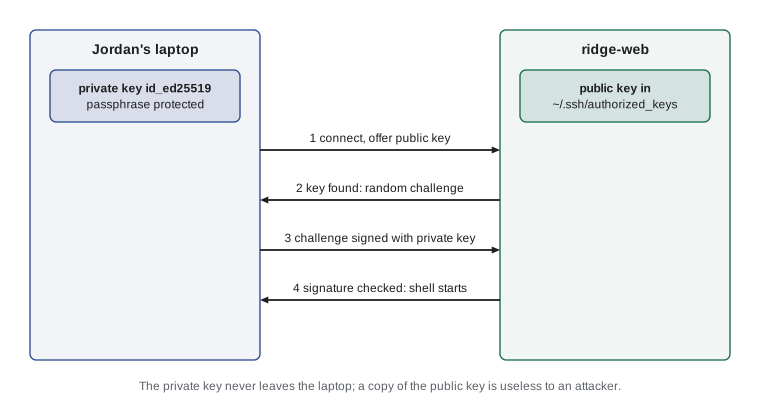
> ssh-keygen -t ed25519 -C "jordan@laptop"
Generating public/private ed25519 key pair.
Enter file in which to save the key (/home/jordan/.ssh/id_ed25519):
Enter passphrase (empty for no passphrase):
Enter same passphrase again:
Your identification has been saved in /home/jordan/.ssh/id_ed25519
Your public key has been saved in /home/jordan/.ssh/id_ed25519.pub
> ssh-copy-id jordan@203.0.113.25
Number of key(s) added: 1
> ssh jordan@203.0.113.25
Enter passphrase for key '/home/jordan/.ssh/id_ed25519':
jordan@ridge-web:~>
Ed25519 is the modern key type: small, fast and strong. RSA keys of 3072 bits or more are also acceptable, while older DSA keys are no longer supported. The passphrase encrypts the private key on disk, so a stolen laptop does not hand over the server. Typing the passphrase every time would be tedious, so an ssh-agent holds the unlocked key in memory for the session; most desktops start one automatically, and ssh-add adds a key to it. The ssh-copy-id command appends the public key to ~/.ssh/authorized_keys on the server, one key per line.
SSH is strict about permissions, for good reason. If ~/.ssh or authorized_keys can be written by anyone but the owner, sshd ignores the keys, because another user could add their own. The directory must be 700 and the files 600 or 644 for public ones, the modes from lesson 4. When key login mysteriously fails, the server's auth.log usually says why, often with a line about bad ownership or modes.
> ls -la ~/.ssh
drwx------ 2 jordan jordan 4096 Nov  4 10:02 .
-rw------- 1 jordan jordan  411 Nov  4 10:02 authorized_keys
> cat ~/.ssh/authorized_keys
ssh-ed25519 AAAAC3NzaC1lZDI1NTE5AAAAIJ8kq2u7mNfV3xL0cR5pTzW9yE1bH6sD4gA2oK8iU0Pq jordan@laptop
ssh-ed25519 AAAAC3NzaC1lZDI1NTE5AAAAIM2vQ8sW4tY7uR1oP3lK9jH6gF5dS0aZ2xC8vB4nM7Le jordan@phone
Each line of authorized_keys is a key type, the key itself and a comment, which is free text. Good comments, naming the person and the device, make it easy to remove the right key when a laptop is lost or a person leaves: delete that one line and that key stops working at once, with no passwords to change anywhere.
The client configuration file
Typing ssh jordan@203.0.113.25 with options every time grows old quickly. The client reads ~/.ssh/config, where each Host block gives a short name its address, user, key and options. After that, ssh ridge-web is enough, and scp, rsync and other tools understand the same names.
# ~/.ssh/config on Jordan's laptop
Host ridge-web
    HostName 203.0.113.25
    User jordan
    IdentityFile ~/.ssh/id_ed25519

Host roaster-pi
    HostName 192.168.10.40
    User jordan
    ProxyJump ridge-web-office

Host *
    ServerAliveInterval 60
The Host * block applies to every connection; ServerAliveInterval sends a small message every minute so that idle sessions are not dropped by routers along the way. ProxyJump connects through another machine first, which is how administrators reach machines that are not directly reachable from where they sit, often through a single well-protected jump host, also called a bastion. Because the format is regular, scripts can read it too, as the listing below does to list known hosts.
config = """Host ridge-web
    HostName 203.0.113.25
    User jordan
    IdentityFile ~/.ssh/id_ed25519

Host roaster-pi
    HostName 192.168.10.40
    User jordan

Host *
    ServerAliveInterval 60"""

hosts, current = {}, None
for line in config.splitlines():
    line = line.strip()
    if not line or line.startswith("#"):
        continue
    key, value = line.split(None, 1)
    if key.lower() == "host":
        current = hosts.setdefault(value, {})
    else:
        current[key] = value

for name, settings in hosts.items():
print(f"{name:11} {settings.get('User', '-'):7} {settings.get('HostName', '(any)')}")ridge-web jordan 203.0.113.25 roaster-pi jordan 192.168.10.40 * - (any)
Copying files and running remote commands
SSH carries more than interactive shells. Adding a command after the host name runs that command remotely and returns its output, which makes quick checks easy: ssh ridge-web uptime. Three tools copy files over SSH. scp copies files like cp, with host: in front of remote paths. sftp gives an interactive file transfer session. rsync, the most capable, copies only the parts of files that changed, preserves permissions and times, and can resume interrupted transfers, which makes it ideal for backups and repeated uploads.
> ssh ridge-web "df -h /srv | tail -n 1"
/dev/vdb1        98G   41G   53G  44% /srv
> scp ridge-web:/srv/backups/roastlog-2026-11-09.sql.gz ~/offsite/
> rsync -avz --delete ~/shop-images/ ridge-web:/srv/ridgeline/shop/static/products/
sending incremental file list
sunrise-blend.jpg
sent 412,118 bytes  received 1,204 bytes  165,328.80 bytes/sec
The Raspberry Pi in the roastery uploads the roast log the same way, with rsync over SSH every ten minutes from a scheduled job, which lesson 11 sets up. It uses a dedicated account on ridge-web, roastsync, and a key with no passphrase, because no person is there to type one. A key without a passphrase is a risk if the Pi is ever stolen, so Sam limits what that key can do on the server side, as shown below.
Tunnels: port forwarding
SSH can carry other network connections through its encrypted session, a feature called port forwarding. With local forwarding, a port on your own computer is connected, through SSH, to a port on or near the server. Ridge-web's PostgreSQL listens only on 127.0.0.1, so it cannot be reached from outside, which is exactly right. When Anita needs to run a report against the roast log database from her desktop tool, Jordan sets up a tunnel instead of opening the database to the network.
> ssh -N -L 5433:127.0.0.1:5432 ridge-web
# In another window, connect to the database through the tunnel:
> psql -h 127.0.0.1 -p 5433 -U anita roastlog
The -L option reads local port, then the address and port as seen from the server, so traffic to port 5433 on Anita's machine arrives at 127.0.0.1:5432 on ridge-web, encrypted on the way. The -N option means do not open a shell, just hold the tunnel. Remote forwarding, with -R, works the other way round, exposing a port on your machine to the server; it is powerful and occasionally abused, so a hardened server may disable it.
Hardening the SSH server
With keys working for everyone who needs access, Sam turns off what attackers rely on. The SSH server's settings are in /etc/ssh/sshd_config, and Ubuntu also reads files in /etc/ssh/sshd_config.d, where local changes belong so that package updates do not overwrite them. The first value set for a setting wins, which is why local files are read first.
# /etc/ssh/sshd_config.d/10-ridgeline.conf
PermitRootLogin no
PasswordAuthentication no
KbdInteractiveAuthentication no
PubkeyAuthentication yes
AllowGroups sudo roastsync
MaxAuthTries 3
LoginGraceTime 30
X11Forwarding no
AllowTcpForwarding local| Setting | Effect |
|---|---|
| PermitRootLogin no | Nobody can log in directly as root; administrators log in as themselves and use sudo |
| PasswordAuthentication no | Only keys are accepted, so password guessing cannot succeed |
| KbdInteractiveAuthentication no | Closes the other password-style login method |
| AllowGroups sudo roastsync | Only members of these groups may log in over SSH at all |
| MaxAuthTries 3, LoginGraceTime 30 | Fewer attempts per connection and less time to complete login |
| X11Forwarding no | No graphical forwarding, which a server does not need |
| AllowTcpForwarding local | Allows local tunnels like Anita's but not remote forwarding |
Changing SSH settings on a remote server is the classic way to lock yourself out, so Sam follows a strict routine. He keeps his current session open, checks the configuration's syntax with sudo sshd -t, reloads the service, and then opens a second, new connection to prove that he can still get in. Only when the new session works does he close the old one. If the test fails, the old session is still there to fix the mistake.
> sudo sshd -t
> sudo systemctl reload ssh
# in a NEW terminal, keeping the old session open:
> ssh ridge-web
jordan@ridge-web:~>
> ssh -o PubkeyAuthentication=no ridge-web
jordan@203.0.113.25: Permission denied (publickey).
The last command forces the client not to offer a key, to prove that the server really refuses passwords. On Ubuntu 24.04 the service is called ssh, and it may be started on demand by systemd socket activation, so check with systemctl status ssh. Finally Sam replaces the firewall rule that allowed SSH from the whole roastery network with one for the roastery router's public address, 198.51.100.62, and checks that fail2ban's sshd jail is active, so that any address that still manages to reach port 22 and fails repeatedly is banned for an hour.
Restricting what a key can do
An authorized_keys line can carry options in front of the key that limit how it may be used. Sam uses them for the roaster-pi's upload key, so that even if someone stole the Pi, the key would work only from the roastery's address, only for rsync uploads, and never for an interactive shell, tunnels or anything else.
# /home/roastsync/.ssh/authorized_keys
from="198.51.100.62",restrict,command="rrsync -wo /srv/ridgeline/roastlog/incoming" ssh-ed25519 AAAAC3NzaC1lZDI1NTE5AAAAIK4rT8pW2sY6uQ9oN1mJ3hG7fD5aS0zX8cV2bL4kE9Rw roaster-pi
The from option limits the source address. The restrict option turns off every optional feature, such as port forwarding and terminals, in one word. The command option forces this key to run only the given command, whatever the client asks for; rrsync is a helper shipped with rsync that allows rsync transfers into one directory, here write-only. This pattern, giving each automated job its own key with the narrowest possible permissions, is good practice for every automated connection.
Keys also need looking after over time. Keep a list of which keys are installed where, review it when people leave or devices are replaced, and remove old keys promptly. Larger organizations go further and issue short-lived SSH certificates from a central authority, so that access expires automatically, but the principle is the same: every way in should be known, named and justified.
Worked problem
Jordan loses his phone
Jordan's phone, which had an SSH app with a key for ridge-web, is lost on the bus. What should he do, and how quickly does it take effect?
Show solution
- The phone's key is protected by the phone's lock and the app's passphrase, but treat it as compromised anyway.
- Log in from the laptop: ssh ridge-web.
- Edit ~/.ssh/authorized_keys and delete the line whose comment is jordan@phone; check for the same key in any other account or server, guided by the key list.
- The change takes effect immediately for new connections; no restart is needed.
- Check /var/log/auth.log for any login with that key since the phone was lost, by its fingerprint, which ssh-keygen -lf shows.
- Record the change in the key list and create a new key on the replacement phone.
Answer: Delete the phone's line from authorized_keys at once, check auth.log for its use, and update the key list.
Try it yourself
Hosts from an SSH config
Write ssh_hosts(text) that reads an SSH client configuration and returns a dictionary mapping each Host name to a dictionary of its settings. Setting names keep their original spelling. Ignore comments and blank lines; lines are a keyword, whitespace, then a value.
def ssh_hosts(text):
    return {}
Try it yourself
Audit sshd_config
Write sshd_findings(text) that reads sshd configuration lines and returns a list of findings in this order: root login allowed unless PermitRootLogin is no or prohibit-password, and password login allowed unless PasswordAuthentication is no. Keywords are case-insensitive, the FIRST value given for a keyword wins (as in sshd), and an unset PasswordAuthentication counts as allowed, while an unset PermitRootLogin counts as prohibit-password.
def sshd_findings(text):
    return []
Try it yourself
Review authorized_keys
Write key_report(text) that reads an authorized_keys file and returns a list of (comment, type, restricted) tuples, one per key line. A line may start with options (such as from="...",restrict) before the key type; the key type is the word that starts with ssh- or ecdsa-, the comment is everything after the key itself, and restricted is True if the line had options in front of the type.
def key_report(text):
    return []
Common mistakes
MistakeAnswering yes to a new host key without checking its fingerprint.
InsteadCompare the fingerprint with one obtained another way, such as the provider's console.
MistakeIgnoring a changed host key warning by deleting known_hosts.
InsteadFind out why the key changed; only remove the old entry, with ssh-keygen -R, once you know it is legitimate.
MistakeDisabling password login before checking that key login works.
InsteadTest key login first, keep a session open, and test again in a new session after reloading.
MistakeLoose permissions on ~/.ssh or authorized_keys.
InsteadUse 700 for the directory and 600 for authorized_keys and private keys.
MistakeOpening a database port to the internet for one user.
InsteadUse an SSH tunnel and keep the database bound to 127.0.0.1.
MistakeGiving automated jobs unrestricted keys.
InsteadRestrict each automation key with from, restrict and command options.
Summary and key terms
- SSH encrypts remote sessions; sshd listens on port 22 and OpenSSH is the standard implementation.
- The server proves itself with a host key; check its fingerprint the first time and treat unexpected changes seriously.
- Key pairs replace passwords: the private key stays on your machine, the public key goes in ~/.ssh/authorized_keys.
- Ed25519 keys with a passphrase, held in an ssh-agent, are the modern standard; permissions on ~/.ssh must be strict.
- ~/.ssh/config gives hosts short names and settings; ProxyJump reaches machines through a jump host.
- scp, sftp and rsync copy files over SSH; rsync sends only changes and suits backups and uploads.
- Local port forwarding (-L) reaches internal services, such as a database, without exposing them.
- Harden sshd with PermitRootLogin no, PasswordAuthentication no and AllowGroups, testing with sshd -t and a second session.
- Options in authorized_keys restrict automated keys by source, command and features.
- SSH
- Secure Shell, a protocol for encrypted remote login, commands and file transfer.
- sshd
- The SSH server program.
- host key
- The key a server uses to prove its identity to clients.
- fingerprint
- A short hash of a key, used to check it by eye.
- key pair
- A private key kept secret and a matching public key shared with servers.
- authorized_keys
- The file listing public keys allowed to log in to an account.
- ssh-agent
- A program that holds unlocked private keys in memory for a session.
- jump host (bastion)
- A hardened machine through which administrators reach internal machines.
- port forwarding
- Carrying another network connection through an SSH session.
- rsync
- A tool that copies files efficiently by sending only what changed.
Practice problems
Work each problem on paper first, then reveal the answer to check.
Which file on the server lists the public keys that may log in as jordan?
Show answer
/home/jordan/.ssh/authorized_keys
What command creates a modern SSH key pair with a comment?
Show answer
ssh-keygen -t ed25519 -C "name@device"
Write the command that forwards local port 8080 to port 8000 on ridge-web's loopback address.
Show answer
ssh -N -L 8080:127.0.0.1:8000 ridge-web
Why does Sam keep his existing session open while reloading sshd?
Show answer
If the new settings lock him out, the old session still works and he can fix the mistake.
What does the restrict option in authorized_keys do?
Show answer
Turns off optional features such as port forwarding, terminals and agent forwarding for that key.
After a server rebuild, SSH warns that the host key changed. What should you do?
Show answer
Confirm the new fingerprint through another channel, then remove the old entry with ssh-keygen -R host and reconnect.
Lesson quiz · 5 questions
Score 60% or more to complete this lesson.
Create a free account to save your progress, take quizzes and earn a certificate.