
NET-103 · Lesson 7 of 12 · 29 min
Storage, partitions and file systems
▶ Video coming soon A video version of this lesson is on the way.
Disks fill up, and when they do, services fail in strange ways: databases refuse to write, logs stop, people cannot log in, and the shop shows errors that seem to have nothing to do with storage. A large share of real-world server outages come back to storage, either a disk that ran out of space or one that was set up so that it did not reappear after a reboot. On ridge-web, the first problem Sam anticipates is that the 80 gigabyte system disk will not hold years of roast logs, product photos and nightly backups. He orders a separate 100 gigabyte volume from the cloud provider, and Jordan's task is to prepare it and attach it at /srv so that all of Ridgeline's data lives there.
This lesson covers how Linux names disks and partitions, partition tables, file systems and how to create them, mounting and the /etc/fstab file that makes mounts permanent, how to check free space, and logical volumes, which make storage flexible.
Block devices
Storage devices appear in /dev as block devices, files that let the kernel read and write fixed-size blocks of data. Their names tell you how the device is connected. SATA and SAS disks, and USB sticks, appear as /dev/sda, /dev/sdb and so on. NVMe solid-state drives appear as /dev/nvme0n1, meaning controller 0, namespace 1. Virtual machines often use the virtio driver, whose disks appear as /dev/vda and /dev/vdb. Partitions add a number: /dev/sda1, /dev/vda2, or with a p for NVMe, /dev/nvme0n1p1.
The lsblk command lists block devices as a tree, showing each disk, its partitions, their sizes and where they are mounted. It is the first command to run when working with storage, because it shows at a glance what exists and what is in use. Running it after the cloud provider attached the new volume shows the new disk, vdb, with no partitions and no mount point.
> lsblk
NAME    MAJ:MIN RM  SIZE RO TYPE MOUNTPOINTS
vda     253:0    0   80G  0 disk
├─vda1  253:1    0  512M  0 part /boot/efi
└─vda2  253:2    0 79.5G  0 part /
vdb     253:16   0  100G  0 disk
> lsblk -f
NAME   FSTYPE FSVER LABEL UUID                                 FSAVAIL FSUSE% MOUNTPOINTS
vda
├─vda1 vfat   FAT32       7A1C-3F02                             505.8M     1% /boot/efi
└─vda2 ext4   1.0         0b2d4f6e-5d7a-4c1e-9a58-0f3e2a71c9d4   61.2G    18% /
vdb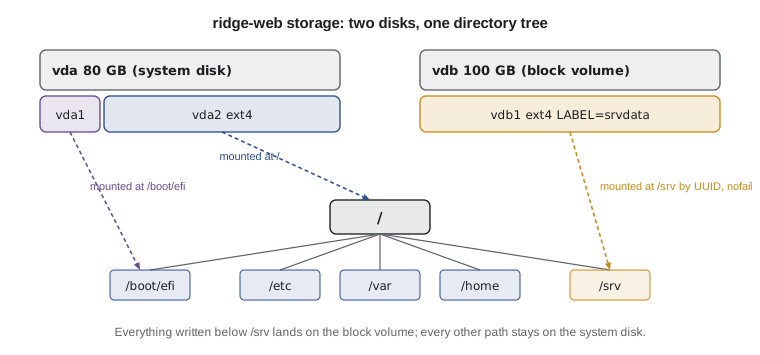
With -f, lsblk adds the file system type, label and UUID of each partition. The small vfat partition at /boot/efi is the EFI system partition, which the machine's firmware reads at boot, and it must use the FAT format that firmware understands. The large ext4 partition is the root file system. The new disk shows no file system at all yet.
Partition tables
Before a disk can be used it is usually divided into partitions, separate regions that act like independent disks. The layout is recorded in a partition table at the start of the disk. The old MBR format, from 1983, allows only four primary partitions and disks up to 2 terabytes. The modern GPT format, part of the UEFI standard, allows 128 partitions, disks far larger than anyone yet makes, and keeps a backup copy of the table at the end of the disk. New systems use GPT.
Partitions are created with fdisk, gdisk or parted. fdisk works interactively: you press n for a new partition, accept or type a size, p to print the table and w to write it. Because a mistake here can wipe the wrong disk, always check the device name with lsblk first and twice. For a data volume like vdb, a single partition spanning the whole disk is the normal choice.
> sudo parted /dev/vdb --script mklabel gpt mkpart srvdata ext4 0% 100%
> lsblk /dev/vdb
NAME   MAJ:MIN RM  SIZE RO TYPE MOUNTPOINTS
vdb    253:16   0  100G  0 disk
└─vdb1 253:17   0  100G  0 part
File systems
A partition is just a stretch of blocks. A file system organizes those blocks into files and directories, keeps track of free space, stores permissions and timestamps in inodes and protects the structure against crashes. Making a file system on a partition is called formatting, done with the mkfs family of commands, and it destroys whatever was on the partition before.
| File system | Strengths | Typical use |
|---|---|---|
| ext4 | Mature, reliable, fast recovery after crashes, can grow and shrink | Default on Debian and Ubuntu; general purpose |
| XFS | Excellent with very large files and parallel writes; can grow but not shrink | Default on RHEL; large data volumes |
| Btrfs | Snapshots, checksums, compression, built-in volume management | Default on Fedora and openSUSE desktops |
| ZFS | Checksums, snapshots, RAID and compression in one system | Storage servers; installed separately on Linux |
| vfat (FAT32) | Understood by firmware and every operating system | EFI system partition, USB sticks |
| swap | Not a file system; space the kernel uses when memory is full | Swap partitions or swap files |
Most of these are journaling file systems: before changing the file system's structure they write a note of what they are about to do in a journal, so after a power cut or crash they can finish or undo the change in seconds instead of checking the whole disk. Sam chooses ext4 for the new volume, because it matches the root file system and is the best-tested choice on Ubuntu, and gives it the label srvdata so that it is easy to recognize.
> sudo mkfs.ext4 -L srvdata /dev/vdb1
mke2fs 1.47.0 (5-Feb-2023)
Creating filesystem with 26213888 4k blocks and 6553600 inodes
Allocating group tables: done
Writing inode tables: done
Creating journal (131072 blocks): done
Writing superblocks and filesystem accounting information: done
> sudo blkid /dev/vdb1
/dev/vdb1: LABEL="srvdata" UUID="e4f1c2a8-9b3d-4e6f-8a17-2c5d9e0b7f31" TYPE="ext4" PARTLABEL="srvdata"
Note that mkfs created 6.5 million inodes. Each file needs one inode, so a file system can run out of inodes even with gigabytes free, if it holds millions of tiny files. It is rare, but when a disk says it is full while df shows space available, check inode use with df -i.
Mounting
A file system becomes usable when it is mounted, attached at a directory called the mount point. Everything below that directory then lives on the new file system. Because ridge-web already has data in /srv, Jordan first mounts the new volume somewhere temporary, copies the existing data across with rsync, which preserves owners, permissions and timestamps, and only then mounts it at /srv.
> sudo mkdir /mnt/newsrv
> sudo mount /dev/vdb1 /mnt/newsrv
> sudo systemctl stop ridgeline-shop
> sudo rsync -aHAX /srv/ /mnt/newsrv/
> sudo umount /mnt/newsrv
> sudo mv /srv /srv.old && sudo mkdir /srv
> sudo mount /dev/vdb1 /srv
> findmnt /srv
TARGET SOURCE    FSTYPE OPTIONS
/srv   /dev/vdb1 ext4   rw,relatime
The umount command detaches a file system, and it refuses if any process still has a file open there; lsof or fuser show which. The findmnt command shows what is mounted where, more neatly than the plain mount command. After checking that the shop works from the new volume, Jordan can delete /srv.old to reclaim the space on the system disk.
Making mounts permanent: /etc/fstab
A mount made with the mount command lasts only until the next reboot. Permanent mounts are listed in /etc/fstab, the file systems table, which systemd reads at boot. Each line has six fields: what to mount, where, the file system type, mount options, a field once used by the dump backup tool, and the order in which fsck checks file systems at boot.
# /etc/fstab
# <file system>                            <mount point> <type> <options>          <dump> <pass>
UUID=0b2d4f6e-5d7a-4c1e-9a58-0f3e2a71c9d4  /             ext4   errors=remount-ro  0      1
UUID=7A1C-3F02                             /boot/efi     vfat   umask=0077         0      1
UUID=e4f1c2a8-9b3d-4e6f-8a17-2c5d9e0b7f31  /srv          ext4   defaults,nofail    0      2
/swap.img                                  none          swap   sw                 0      0
Two choices on that line matter. First, the volume is named by its UUID, not by /dev/vdb1. Device names are given out in the order the kernel finds devices, and they can change when disks are added or removed; a UUID belongs to the file system itself and never changes. Second, the nofail option tells the system to finish booting even if the volume is missing. Without it, a detached cloud volume would leave the server stuck at boot, unreachable over the network, which is one of the most common ways administrators lock themselves out.
> sudo umount /srv
> sudo mount -a
> findmnt --verify
Success, no errors or warnings detected
> df -h /srv
Filesystem      Size  Used Avail Use% Mounted on
/dev/vdb1        98G  6.1G   87G   7% /srv
Always test a new fstab entry before rebooting. mount -a mounts everything listed that is not already mounted, so an error appears now, while you are still logged in, rather than at the next boot. findmnt --verify checks the whole file for mistakes. Sam's rule is never to reboot after editing fstab without running both.
The fstab format is simple enough to check with a program. Ridgeline's audit script in lesson 12 flags any line that names a device rather than a UUID or label, and any extra volume without nofail.
fstab = """# <file system> <mount point> <type> <options> <dump> <pass>
UUID=0b2d4f6e-5d7a-4c1e-9a58-0f3e2a71c9d4 / ext4 errors=remount-ro 0 1
UUID=7A1C-3F02 /boot/efi vfat umask=0077 0 1
/dev/vdb1 /srv ext4 defaults 0 2
/swap.img none swap sw 0 0"""

for line in fstab.splitlines():
    if not line.strip() or line.startswith("#"):
        continue
    source, target, fstype, options, dump, passno = line.split()
    problems = []
    if source.startswith("/dev/"):
        problems.append("uses a device name, use UUID= or LABEL=")
    if target not in ("/", "/boot/efi", "none") and "nofail" not in options.split(","):
        problems.append("no nofail, a missing volume would stop the boot")
print(f"{target:10} {'OK' if not problems else '; '.join(problems)}")/ OK /boot/efi OK /srv uses a device name, use UUID= or LABEL=; no nofail, a missing volume would stop the boot none OK
How much space is left?
Two commands answer the question every administrator asks daily. df, disk free, reports the size, used space, available space and use for each mounted file system. du, disk usage, adds up the space used by files and directories, which is how you find what is filling a disk. Both take -h for sizes in K, M and G.
> df -h
Filesystem      Size  Used Avail Use% Mounted on
/dev/vda2        78G   14G   61G  19% /
/dev/vda1       511M  6.1M  505M   2% /boot/efi
/dev/vdb1        98G   95G  3.0G  97% /srv
tmpfs           392M  1.1M  391M   1% /run
> sudo du -sh /srv/* | sort -h
2.1G    /srv/ridgeline
4.7G    /srv/www-cache
88G     /srv/backups
> sudo du -h --max-depth=1 /srv/backups | sort -h | tail -n 3
The output tells a story. Months later, the Use column for /srv reaches 97, and du shows that backups use 88 GB. The clean-up job that should delete backups older than fourteen days has stopped working. Lesson 11 shows how the backup script was fixed. Note also that sizes from df and du rarely match exactly: df counts space reserved for root and for file system structures, and a deleted file that a process still holds open keeps using space until the process closes it, a classic trap with logs, covered in lesson 9.
Because df's output is a fixed table, monitoring scripts read it all the time. The listing below converts human-readable sizes to bytes and flags any file system at or above a warning level.
df = """Filesystem Size Used Avail Use% Mounted
/dev/vda2 78G 14G 61G 19% /
/dev/vda1 511M 6.1M 505M 2% /boot/efi
/dev/vdb1 98G 95G 3.0G 97% /srv"""

UNITS = {"K": 1024, "M": 1024 ** 2, "G": 1024 ** 3, "T": 1024 ** 4}

def to_bytes(size):
    if size[-1] in UNITS:
        return int(float(size[:-1]) * UNITS[size[-1]])
    return int(size)

for line in df.splitlines()[1:]:
    fs, size, used, avail, use, mount = line.split()
    level = int(use.rstrip("%"))
    flag = "  <-- over 90, act now" if level >= 90 else ""
print(f"{mount:10} {to_bytes(avail) / 1024 ** 3:6.1f} GiB free{flag}")/ 61.0 GiB free /boot/efi 0.5 GiB free /srv 3.0 GiB free <-- over 90, act now
Logical volumes
Partitions are rigid: once a disk is divided, growing a partition usually means moving others out of the way. The Logical Volume Manager, LVM, adds a flexible layer. Disks or partitions become physical volumes (PVs). Physical volumes are pooled into a volume group (VG). From that pool you carve logical volumes (LVs), which behave like partitions but can be grown, shrunk, moved between disks and snapshotted while in use. Ubuntu's installer uses LVM by default on physical servers for exactly this reason.
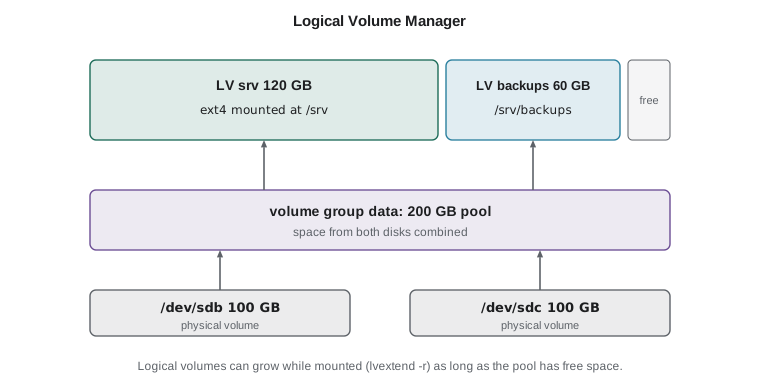
> sudo pvcreate /dev/sdb /dev/sdc
> sudo vgcreate data /dev/sdb /dev/sdc
> sudo lvcreate -L 120G -n srv data
> sudo mkfs.ext4 /dev/data/srv
> sudo lvextend -r -L +20G /dev/data/srv
  Size of logical volume data/srv changed from 120.00 GiB to 140.00 GiB.
  Filesystem at /dev/mapper/data-srv is mounted on /srv; on-line resizing required
The -r option of lvextend resizes the file system along with the volume, so the extra space is usable at once, without unmounting. On a cloud server, flexibility often comes from the provider instead: a block volume can be enlarged in the dashboard, after which growpart enlarges the partition and resize2fs the ext4 file system, also while mounted. Ridgeline's volume is simple enough that Sam does not use LVM on it.
Two related ideas complete the picture. Swap is disk space the kernel uses as overflow when memory runs short; Ubuntu's cloud images create a swap file, /swap.img, and free -h shows how much is in use. Constant swapping slows a server badly and means it needs more memory. RAID combines several disks so that the failure of one does not lose data; on cloud servers the provider handles this underneath, but on physical servers it is set up with the mdadm tool or a hardware controller. Neither replaces backups, which protect against deletion, corruption and ransomware as well as hardware failure.
Worked problem
Planning space for five years of backups
Each nightly backup of the roast log and orders database is about 4.2 GB compressed and grows by roughly 0.1 GB a month. Ridgeline keeps 14 daily backups on ridge-web, plus copies off the server. Will the 100 GB volume hold the backups along with 8 GB of shop data and product images growing by 0.5 GB a month, if no more than 80 of every 100 gigabytes should be used?
Show solution
- Usable target: 80 of 98 GB is about 78 GB.
- In five years (60 months) one backup grows to about 4.2 + 60 x 0.1 = 10.2 GB, so 14 backups need about 143 GB at the end.
- Shop data grows to about 8 + 60 x 0.5 = 38 GB.
- Total after five years: about 181 GB, far above 78 GB. The volume is enough for roughly the first year and a half.
- Options: keep only 7 daily backups locally and move older ones to cheaper off-site storage, compress more, or enlarge the volume when monitoring shows it reaching the warning level.
Answer: Not for five years. Keep fewer local backups, ship older ones off-site and enlarge the volume when monitoring warns.
Try it yourself
Sizes to bytes
Write to_bytes(size) that converts sizes as written by df -h and du -h, such as 512, 6.1M, 14G or 1.5T, into a whole number of bytes. K, M, G and T mean powers of 1024.
def to_bytes(size):
    return int(size)


print(to_bytes('6.1M'))
Try it yourself
Which file systems need attention?
Write needs_attention(df_text, limit) that reads df -h output (with its header line) and returns a list of the mount points whose Use% figure is at or above limit, in the order they appear.
def needs_attention(df_text, limit):
    return []
Try it yourself
Check an fstab line
Write fstab_problems(line) that takes one line of /etc/fstab and returns a list of problems: device name if the first field starts with /dev/, and no nofail if the mount point is not /, /boot/efi or none and the options do not include nofail. Return an empty list for comments and blank lines.
def fstab_problems(line):
    return []
Common mistakes
MistakeRunning fdisk or mkfs on the wrong device.
InsteadCheck with lsblk first and twice; mkfs destroys what is on the partition.
MistakeNaming disks by /dev/sdX or /dev/vdX in /etc/fstab.
InsteadUse UUID= or LABEL=, which never change when disks are added or reordered.
MistakeAdding a data volume to fstab without nofail.
InsteadAdd nofail so that a missing volume cannot stop the server from booting.
MistakeRebooting after editing fstab without testing it.
InsteadRun sudo mount -a and findmnt --verify first.
MistakeMounting a new volume over a directory that already holds data.
InsteadThe old data is hidden, not merged; copy it onto the new volume first, as with /srv.
MistakeTreating RAID or snapshots as backups.
InsteadKeep real backups, including copies off the server.
Summary and key terms
- Disks appear as block devices such as /dev/sda, /dev/nvme0n1 or /dev/vda; partitions add a number.
- lsblk shows disks, partitions and mount points; blkid shows UUIDs and labels.
- GPT partition tables replace MBR; partitions are made with fdisk, gdisk or parted.
- mkfs creates a file system; ext4 is Ubuntu's default and XFS is RHEL's.
- mount attaches a file system at a directory; /etc/fstab makes mounts permanent and should use UUIDs and nofail for extra volumes.
- Test fstab with mount -a and findmnt --verify before rebooting.
- df shows free space per file system, df -i shows inodes, and du finds what uses the space.
- LVM pools disks into volume groups and carves logical volumes that can grow while mounted.
- block device
- A device file through which storage is read and written in blocks.
- partition
- A region of a disk that acts as a separate disk.
- GPT
- The GUID Partition Table format used on modern disks.
- file system
- The structure that organizes a partition's blocks into files and directories.
- journaling
- Recording planned changes first so that a file system recovers quickly after a crash.
- mount point
- The directory at which a file system is attached.
- /etc/fstab
- The file listing file systems to mount at boot.
- UUID
- A unique identifier stored in a file system, used to name it reliably.
- logical volume (LV)
- A flexible volume carved from a volume group in LVM.
- swap
- Disk space the kernel uses as overflow when memory is full.
Practice problems
Work each problem on paper first, then reveal the answer to check.
Which command shows each disk, its partitions and where they are mounted?
Show answer
lsblk (add -f for file system types and UUIDs).
Why is UUID=... safer than /dev/vdb1 in /etc/fstab?
Show answer
Device names can change when disks are added or reordered; the UUID belongs to the file system and does not change.
A disk reports no space left on device, but df -h shows 20 GB free. What should you check?
Show answer
Inode use with df -i; the file system may have run out of inodes.
Write a command that shows the five largest directories directly under /var.
Show answer
sudo du -h --max-depth=1 /var | sort -h | tail -n 5
What does nofail do in an fstab entry?
Show answer
It lets the system finish booting even if that file system cannot be mounted.
What three LVM layers sit between disks and a file system?
Show answer
Physical volumes, a volume group and logical volumes.
Lesson quiz · 5 questions
Score 60% or more to complete this lesson.
Create a free account to save your progress, take quizzes and earn a certificate.