
NET-103 · Lesson 2 of 12 · 29 min
Navigating the file system
▶ Video coming soon A video version of this lesson is on the way.
Windows users are used to drive letters: C: for the system disk, D: for a second drive, E: for a USB stick. Linux has none of them. Every file on a Linux system, on every disk, partition and network share, sits somewhere in one single tree of directories that starts at a directory called root, written as a single forward slash. Learning the shape of that tree, and how to move around it quickly, is the first practical skill of Linux administration. Jordan's first task on ridge-web is simply to find his way around: where the configuration files live, where the logs are written, and where the Ridgeline shop and roast log should go.
This lesson covers the standard layout of a Linux file system, absolute and relative paths, the commands for moving and looking around, the different kinds of file Linux knows about, and how to find files when you do not know where they are. It ends with links, which let one file appear in more than one place.
One tree, starting at the root
The top of the tree is the root directory, /. Everything else hangs below it: /etc holds configuration, /home holds users' personal directories, /var holds data that changes, such as logs, and so on. Extra disks do not get letters; instead they are attached, or mounted, at a directory somewhere in the tree. When Sam adds a second disk to ridge-web in lesson 7, it will be mounted at /srv, and from then on anything written below /srv lands on the new disk without any program needing to know. Users and programs see one continuous tree.
The word root has two meanings in Linux, which confuses newcomers. The root directory is /, the top of the tree. The root user is the superuser from lesson 1, whose home directory is /root, a directory below /. Context usually makes the meaning clear: change to root means change to the directory /, while become root means take on the superuser's privileges.
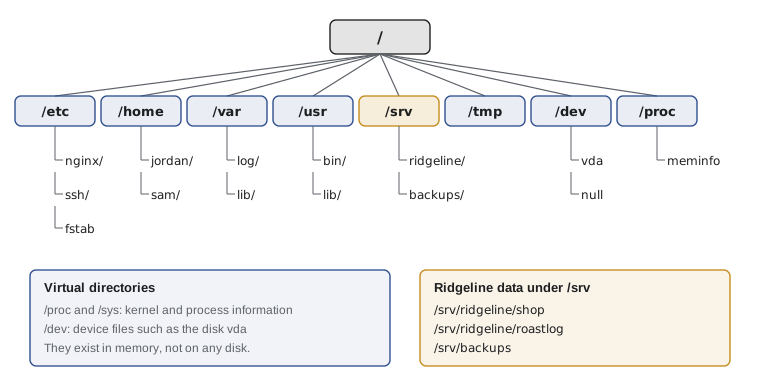
Where things go is not left to chance. The Filesystem Hierarchy Standard, usually shortened to FHS, describes the purpose of each top-level directory, and nearly all distributions follow it closely. Once you know it, you can walk up to any Linux server, from a Raspberry Pi to a cloud database cluster, and know where to look.
| Directory | Purpose | Examples on ridge-web |
|---|---|---|
| / | Root of the whole tree | Everything below |
| /etc | System-wide configuration files, mostly plain text | /etc/nginx/, /etc/ssh/sshd_config, /etc/fstab |
| /home | Personal directories for ordinary users | /home/jordan, /home/sam |
| /root | Home directory of the root user | Root's own files |
| /usr | Installed programs, libraries and documentation (read-only in normal use) | /usr/bin/python3, /usr/share/doc |
| /bin, /sbin, /lib | Essential commands and libraries; on modern distributions links into /usr | /bin/ls is the same file as /usr/bin/ls |
| /var | Variable data that grows and changes | /var/log/, /var/lib/postgresql/, /var/cache/apt/ |
| /tmp | Temporary files, cleared at reboot | Scratch files created by programs |
| /srv | Data served by this machine | /srv/ridgeline/shop, /srv/backups |
| /opt | Optional add-on software installed outside the package manager | A vendor's monitoring agent |
| /boot | The kernel and the files needed to start the system | vmlinuz, initrd.img |
| /dev | Device files that represent hardware | /dev/vda (the disk), /dev/null |
| /proc, /sys | Virtual files that expose kernel and process information | /proc/cpuinfo, /proc/meminfo |
| /mnt, /media | Places to mount disks temporarily or removable media | A USB stick at /media/usb |
| /run | Runtime data for services since the last boot | Process ID files, sockets |
Some of these directories are not real files on any disk. The kernel creates /proc and /sys in memory to let programs read information about the running system as if it were files, so cat /proc/meminfo shows memory use and each running process has a numbered directory under /proc. The /dev directory holds device files: writing to /dev/vda writes to the raw disk, and anything written to /dev/null disappears. This idea, that almost everything on Linux can be reached through the file tree, is often summed up as everything is a file, and it is why the same tools work on configuration, logs, devices and kernel settings alike.
Sam sets out Ridgeline's own layout in line with the standard. The shop application goes in /srv/ridgeline/shop, roast log exports from the roastery go in /srv/ridgeline/roastlog, and nightly database backups go in /srv/backups. Configuration for the services lives in /etc, logs go to /var/log, and nobody keeps work files in /tmp, which is emptied at every reboot.
Where am I? Absolute and relative paths
A path names a file or directory by the route to it through the tree. An absolute path starts at the root with a slash and lists every directory on the way down, separated by slashes: /srv/ridgeline/roastlog/roast_log.csv. It means the same thing no matter where you are. A relative path does not start with a slash and is read from the current working directory, the directory your shell is in at the moment. If you are in /srv/ridgeline, the relative path roastlog/roast_log.csv names the same file.
Three short names make relative paths flexible. A single dot means the current directory, two dots mean the parent directory one level up, and a tilde at the start means your home directory. So from /srv/ridgeline/shop, the path ../roastlog goes up to /srv/ridgeline and back down into roastlog, and ~/notes.txt means /home/jordan/notes.txt when Jordan types it. Every directory contains entries for . and .., which is why ls -a shows them.
> pwd
/home/jordan
> cd /srv/ridgeline
> pwd
/srv/ridgeline
> cd shop
> cd ../roastlog
> pwd
/srv/ridgeline/roastlog
> cd -
/srv/ridgeline/shop
> cd
> pwd
/home/jordan
The pwd command, print working directory, shows where you are. The cd command, change directory, moves you: cd with an absolute or relative path goes there, cd with nothing after it goes home, cd ~ also goes home, and cd - returns to the previous directory, which is handy when you are switching back and forth between a configuration directory and a log directory. Many prompts show the current directory too, but pwd always gives the full answer.
Python's standard library can work out where a relative path leads, which is a good way to check your understanding. The posixpath module handles paths in the Linux style whatever system it runs on, and its normpath function tidies away the dots.
import posixpath

cwd = "/srv/ridgeline/shop"
for rel in ["../roastlog", "./static/logo.png", "../../backups", "../../../etc/nginx"]:
    full = posixpath.normpath(posixpath.join(cwd, rel))
    print(f"{rel:22} -> {full}")

print(posixpath.isabs("/var/log"), posixpath.isabs("var/log"))
print(posixpath.split("/srv/backups/roastlog-2026-11-03.sql.gz"))../roastlog -> /srv/ridgeline/roastlog
./static/logo.png -> /srv/ridgeline/shop/static/logo.png
../../backups -> /srv/backups
../../../etc/nginx -> /etc/nginx
True False
('/srv/backups', 'roastlog-2026-11-03.sql.gz')Looking around with ls
The ls command lists what is in a directory, by default the current one. On its own it shows names only, and hides names that begin with a dot, which by convention are configuration files such as .bashrc or .ssh that you do not want cluttering every listing. Its options turn it into a detailed inspection tool.
| Command | What it shows |
|---|---|
| ls | Names in the current directory, hidden files excluded |
| ls -a | All names, including hidden ones that start with a dot |
| ls -l | Long format: type, permissions, links, owner, group, size, date, name |
| ls -lh | Long format with sizes in K, M and G instead of bytes |
| ls -lt | Long format, newest first, which is ideal for log directories |
| ls -ltr | Oldest first, so the newest file ends up next to the prompt |
| ls -R | The directory and everything below it |
| ls -ld /srv | Details of the directory itself rather than its contents |
> ls -lh /srv/backups
total 61M
-rw-r----- 1 postgres postgres 4.1M Nov  1 02:30 roastlog-2026-11-01.sql.gz
-rw-r----- 1 postgres postgres 4.1M Nov  2 02:30 roastlog-2026-11-02.sql.gz
-rw-r----- 1 postgres postgres 4.2M Nov  3 02:30 roastlog-2026-11-03.sql.gz
...
> ls -la /home/jordan
total 32
drwxr-x--- 4 jordan jordan 4096 Nov  3 09:40 .
drwxr-xr-x 9 root   root   4096 Oct 30 11:02 ..
-rw------- 1 jordan jordan  812 Nov  3 09:41 .bash_history
-rw-r--r-- 1 jordan jordan 3771 Oct 30 11:02 .bashrc
drwx------ 2 jordan jordan 4096 Oct 30 11:05 .ssh
drwxr-xr-x 2 jordan jordan 4096 Nov  2 15:12 scripts
Each long-format line packs in a lot. The first character is the file type: a dash for an ordinary file, d for a directory, l for a symbolic link. The next nine characters are the permissions, covered in lesson 4. Then come the number of hard links, the owning user, the owning group, the size, the time of the last change and the name. Reading these lines fluently is a skill you will use every day.
What kind of file is it?
Linux does not rely on file name extensions the way Windows does. A file called backup.sql.gz is compressed because of what is inside it, not because of its name, and a script called check is still a script without .sh on the end. The file command looks inside a file and reports what it really is, and stat shows its full metadata, including all three timestamps.
> file /srv/backups/roastlog-2026-11-03.sql.gz /etc/fstab /usr/bin/ls /bin
/srv/backups/roastlog-2026-11-03.sql.gz: gzip compressed data, from Unix
/etc/fstab:   ASCII text
/usr/bin/ls:  ELF 64-bit LSB pie executable, x86-64, dynamically linked
/bin:         symbolic link to usr/bin
> stat /etc/fstab
  File: /etc/fstab
  Size: 657        Blocks: 8          IO Block: 4096   regular file
Access: (0644/-rw-r--r--)  Uid: (    0/    root)   Gid: (    0/    root)
Modify: 2026-10-28 14:06:12.000000000 +0000
Note that /bin is a symbolic link to usr/bin. Older Linux systems split essential commands into /bin and others into /usr/bin, a relic of the days when /usr might be on a separate, slower disk. Modern distributions have merged them, and keep /bin as a link so that old scripts that refer to /bin/sh still work.
| First character in ls -l | Type | Example |
|---|---|---|
| - | Regular file | /etc/fstab |
| d | Directory | /var/log |
| l | Symbolic link | /bin -> usr/bin |
| b | Block device (storage) | /dev/vda |
| c | Character device (stream) | /dev/null, /dev/tty |
| s | Socket (local network endpoint) | /run/postgresql/.s.PGSQL.5432 |
| p | Named pipe | Rare; used between programs |
Finding files
Sooner or later you need a file and do not know where it is: the configuration for a service you did not install yourself, a log a vendor mentions, a file someone saved somewhere in /srv. The find command searches a directory tree and tests each entry against conditions you give it. It is one of the most powerful commands on the system, and also one of the slowest when pointed at the whole tree, so narrow the starting directory whenever you can.
> find /etc -name "*.conf" -newer /etc/hostname
/etc/nginx/nginx.conf
/etc/fail2ban/jail.d/defaults-debian.conf
> find /var/log -type f -size +100M
/var/log/ridgeline/shop-debug.log
> find /srv/backups -name "roastlog-*.sql.gz" -mtime +14
/srv/backups/roastlog-2026-10-18.sql.gz
> find /home -user jordan -type d
/home/jordan
/home/jordan/.ssh
/home/jordan/scripts
The tests read naturally once you know them. -name matches the name against a pattern in which * means any characters, and the pattern is quoted so that the shell passes it to find unchanged. -type f means regular files and -type d directories. -size +100M means larger than 100 megabytes, and -mtime +14 means last modified more than fourteen days ago, which is exactly the test a backup clean-up needs. Tests can be combined, and find can act on what it finds, for example deleting old backups with -delete, which is why you should always run the command without the action first and check the list.
Two other tools help. The locate command searches a prebuilt index of file names and answers instantly, though the index is updated only once a day, so new files do not appear straight away. The which command shows which program will run when you type a command name, by searching the directories in your PATH, a list of directories the shell looks through for commands; lesson 11 explains PATH in more detail.
Worked problem
Tracking down a mystery log
Theo reports that the shop felt slow this morning. Sam suspects the shop app is writing a large log somewhere, but the developer who set up the app is not available. How can Jordan find recently changed large files without searching the whole tree?
Show solution
- Logs belong under /var/log, and the shop's own files are under /srv/ridgeline, so start there rather than at /.
- Search for regular files larger than 100 MB: find /var/log /srv/ridgeline -type f -size +100M.
- Narrow to files changed in the last day by adding -mtime -1, and show sizes with -exec ls -lh {} + or by passing the names to ls -lh.
- The result is /var/log/ridgeline/shop-debug.log at 2.3 GB, changed one minute ago and growing.
- Before deleting anything, check which process is writing it; lessons 6 and 9 show how, and the real fix is a log rotation rule rather than deleting the file by hand.
Answer: find /var/log /srv/ridgeline -type f -size +100M -mtime -1 finds the shop's debug log quickly without scanning the whole tree.
Links: one file, several names
A directory entry is really just a name that points to the file's data, which the file system keeps track of in a record called an inode. Because of that, one file can have more than one name. A hard link is a second directory entry that points to the same inode: both names are equally real, and the data is deleted only when the last name is removed. Hard links cannot cross from one file system to another and cannot point to directories.
A symbolic link, or symlink, is a small file that contains a path to another file. Opening the symlink opens the file it points to. Symlinks can point to directories and across file systems, which makes them far more common. If the target is moved or deleted, the symlink is left dangling, pointing at nothing. Ubuntu's nginx package uses symlinks to switch websites on and off: each site's configuration lives in /etc/nginx/sites-available, and a symlink to it in /etc/nginx/sites-enabled turns it on.
> sudo ln -s /etc/nginx/sites-available/ridgeline-shop /etc/nginx/sites-enabled/
> ls -l /etc/nginx/sites-enabled/
lrwxrwxrwx 1 root root 41 Nov  3 10:12 ridgeline-shop -> /etc/nginx/sites-available/ridgeline-shop
> ln /srv/ridgeline/roastlog/roast_log.csv /srv/ridgeline/roastlog/latest.csv
> ls -li /srv/ridgeline/roastlog/
393221 -rw-rw---- 2 kai roasters 48211 Nov  3 10:00 latest.csv
393221 -rw-rw---- 2 kai roasters 48211 Nov  3 10:00 roast_log.csv
The -i option of ls shows inode numbers, and both hard-linked names share the number 393221 and show a link count of 2. The symbolic link, by contrast, has its own entry and shows its target after an arrow. In practice administrators use symbolic links almost all the time and hard links rarely.
Try it yourself
Where does this path lead?
Write a function resolve(cwd, path) that returns the absolute path that path leads to when the current directory is cwd. Handle absolute paths, . and .., and a leading ~, which means /home/jordan. Going up from / stays at /. Work it out with a list of path parts rather than with posixpath, so you see how it is done.
def resolve(cwd, path):
    # Start from cwd (or from / or the home directory) and walk through the parts
    return cwd


print(resolve('/srv/ridgeline/shop', '../roastlog'))
Try it yourself
What is this directory for?
Complete purpose(path) so that it returns the purpose of the top-level directory a path sits in, using the dictionary FHS. For example /var/log/nginx/access.log is in /var, so the answer is variable data. Return unknown for a top-level directory that is not in the dictionary, and root for / itself.
FHS = {'etc': 'configuration', 'home': 'user files', 'var': 'variable data', 'usr': 'installed programs',
       'srv': 'served data', 'tmp': 'temporary files', 'dev': 'devices', 'proc': 'kernel information'}

def purpose(path):
    return 'unknown'


print(purpose('/var/log/nginx/access.log'))
Common mistakes
MistakeLooking for drive letters or assuming a second disk appears somewhere separate.
InsteadEvery disk is mounted somewhere in the one tree; df and lsblk, covered in lesson 7, show where.
MistakeSaving important files in /tmp.
Instead/tmp is cleared at reboot; keep data under /srv or /home and configuration under /etc.
MistakeConfusing the root directory / with the root user's home /root.
InsteadThe root directory is the top of the tree; /root is just a home directory below it.
MistakeRunning find from / when the file is surely under /etc or /var.
InsteadStart find in the narrowest likely directory; it is far faster and gives fewer permission errors.
MistakeAdding -delete to a find command before checking what it matches.
InsteadRun the command without -delete first, read the list, and only then add the action.
MistakeAssuming a file's extension tells you what it is.
InsteadUse file to check the real contents.
Summary and key terms
- Linux has one directory tree starting at /, and every disk is mounted somewhere inside it.
- The Filesystem Hierarchy Standard gives each top-level directory a purpose: /etc for configuration, /var for changing data, /home for users, /srv for served data and so on.
- /proc, /sys and /dev are virtual: they expose the kernel, processes and devices as files.
- Absolute paths start with /; relative paths start from the current directory, with . for here, .. for the parent and ~ for home.
- pwd shows where you are, cd moves you, and ls with -l, -a, -h, -t and -d shows what is there.
- file identifies a file by its contents, and stat shows its metadata.
- find searches a tree by name, type, size, age and owner; check its results before acting on them.
- Hard links are extra names for the same inode; symbolic links are small files that point to a path.
- root directory
- The top of the directory tree, written /.
- Filesystem Hierarchy Standard (FHS)
- The standard that defines the purpose of Linux's top-level directories.
- mount
- To attach a disk or file system at a directory in the tree.
- absolute path
- A path that starts at / and names every directory on the way down.
- relative path
- A path read from the current working directory.
- current working directory
- The directory a shell or program is in at the moment.
- hidden file
- A file whose name starts with a dot and is left out of ls listings by default.
- inode
- The file system record that holds a file's metadata and the location of its data.
- hard link
- An additional directory entry that points to the same inode.
- symbolic link
- A small file that contains the path of another file or directory.
Practice problems
Work each problem on paper first, then reveal the answer to check.
You are in /var/log/nginx. Write the shortest relative path to /var/log/auth.log.
Show answer
../auth.log
Which directory would you check first for the SSH server's configuration, and why?
Show answer
/etc, because system-wide configuration lives there; the file is /etc/ssh/sshd_config.
What does ls -ltr show, and why is it handy for logs?
Show answer
A long listing sorted oldest first, so the most recently changed file appears at the bottom, right above the prompt.
Write a find command that lists regular files under /srv/backups older than 30 days.
Show answer
find /srv/backups -type f -mtime +30
A symlink points to a file that has been deleted. What happens when you open the symlink?
Show answer
It fails with no such file or directory, because the link is dangling.
Why does cat /proc/meminfo work even though no such file exists on any disk?
Show answer
The kernel creates /proc in memory and generates the contents when the file is read.
Lesson quiz · 5 questions
Score 60% or more to complete this lesson.
Create a free account to save your progress, take quizzes and earn a certificate.