
MSBA-204 · Lesson 3 of 12 · 18 min
Sensitivity labels and label policies
▶ Video coming soon A video version of this lesson is on the way.
In the readiness plan, Teodor and the privacy officer had agreed a five-label taxonomy: Public, General, Confidential, Confidential / Clinical and Highly Confidential. Agreeing on names and meanings was the easy part. Administering labels means configuring what each one does in each place it can be used, deciding who receives which labels, setting defaults, and adding automation without creating chaos. The plan called for publishing labels to IT and the privacy team first, in early 2027. In November 2026 Teodor built the whole configuration and published it to a test policy covering only himself, two test accounts and Ama, so that every setting could be tried before anyone else saw a label.
Label scopes
Each sensitivity label has one or more scopes, chosen when the label is created or edited. The scope controls where the label appears and which settings are available:
| Scope | Where the label is used | Typical settings |
|---|---|---|
| Files and other data assets | Office files, PDFs and files in SharePoint and OneDrive; items in some other data sources | Encryption, content marking, auto-labeling conditions |
| Emails | Messages in Outlook and Outlook on the web | Encryption, Do Not Forward or Encrypt-Only, marking |
| Meetings | Calendar items and Teams meetings | Lobby, recording and chat options (some need Teams Premium) |
| Groups and sites | Microsoft 365 groups, Teams and SharePoint sites | Privacy, guest access, external sharing, access from unmanaged devices |
Labels that protect containers are a separate setting from labels that protect items. Applying Confidential / Clinical to a team makes the team private and blocks guests; it does not label the files inside the team, which still need their own labels, by default label, by auto-labeling or by a library default. Teodor made sure the clinical director understood this, because "the team is labeled" was easy to misread as "the files are protected".
Before labels can be applied to groups and sites, the tenant must enable sensitivity label support for Microsoft 365 groups in Microsoft Entra ID and synchronize labels to Entra ID. Corvallin had done this during the readiness work. Labels for Office files in SharePoint and OneDrive also need to be turned on so that the services can read encrypted files for search, co-authoring and eDiscovery, and so that Copilot can respect them; and co-authoring for files with sensitivity labels is a tenant setting that lets several people edit an encrypted file at once.
Encryption: assign now or let users decide
A label can encrypt content using the Azure Rights Management service. There are two models.
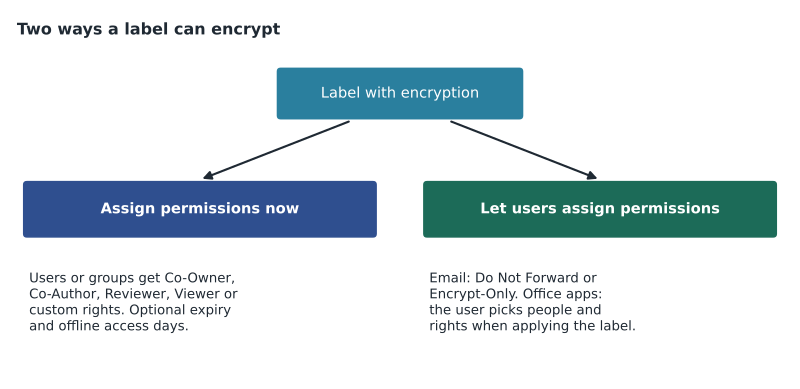
| Setting | Assign permissions now | Let users assign permissions |
|---|---|---|
| Who decides access | The administrator, in the label | The person applying the label, when they apply it |
| Permission levels | Co-Owner, Co-Author, Reviewer, Viewer or custom rights per user or group | Do Not Forward or Encrypt-Only for email; custom permissions in Office apps |
| Content expiration | Optional: never, on a date, or a number of days after labeling | Not set in the label |
| Offline access | Days a user can open content without reconnecting | Set by the service defaults |
| Best for | Content whose audience is known, such as clinical records | Email to changing audiences, such as a one-off message to a family |
For Confidential / Clinical, Teodor used assign permissions now: the Clinical Staff group received Co-Author, the Billing group received Viewer with the EXTRACT right removed so billing staff could read but not copy text, and the privacy officer received Co-Owner. Microsoft documents that Copilot can return content from an encrypted, labeled item only if the user has both the VIEW and EXTRACT usage rights, so billing staff would also not get Copilot summaries of clinical documents, which was exactly what the privacy officer wanted. Offline access was set to seven days, so a nurse with a laptop and no signal in a rural home could still open a file opened that week.
For email, the Confidential label used let users assign permissions with Do Not Forward, so a case manager could send a message to a family member that could not be forwarded. Encrypt-Only encrypts without restricting forwarding and is useful when recipients need to pass a message on.
Worked problem
Choosing encryption for a shared referral
Case managers send referral packages to an external physiotherapy clinic that changes staff often. The clinic must be able to open and print the documents but should not forward them to others. Which encryption approach fits, and what is the trade-off?
Show solution
- Assigning permissions now to named clinic staff would break whenever the clinic hired someone.
- Assigning permissions now to everyone in the clinic's domain is possible and stable, but grants every clinic employee access.
- A label that lets users assign permissions, used with Do Not Forward on the email carrying the documents, limits access to the recipients the case manager chooses.
- Record the choice and its trade-off for the privacy officer: per-message control versus a domain-wide grant.
Answer: Either a domain-wide assignment or user-assigned Do Not Forward; the decision depends on whether the privacy officer accepts every clinic employee having access.
Content marking
Labels can add headers, footers and watermarks to documents and email. Corvallin used a footer, "Confidential / Clinical - Corvallin Home Care", on clinical documents and a diagonal watermark only on Highly Confidential, which was reserved for a handful of HR and legal files. Marking makes the classification visible on paper, which matters in a home-care setting where printed care plans sit on a client's kitchen table.
Priority, sublabels and downgrades
Labels are listed in priority order, from least to most sensitive. Priority is used whenever the service must compare labels: when Copilot creates content from several labeled sources it applies the highest-priority label among them, when a user lowers a label they can be asked for a justification, and auto-labeling will not replace a higher-priority manual label with a lower one. Sublabels group related labels under a parent, such as Confidential / Internal only and Confidential / Clinical; users choose a sublabel, not the parent.
Label policies
Labels do nothing until they are published with a label policy to users or groups. A label policy chooses which labels those users see and sets behavior:
| Policy setting | What it does | Corvallin choice |
|---|---|---|
| Default label for documents | Applied to new and unlabeled documents when edited | General |
| Default label for email | Applied to new messages | General |
| Default label for meetings and sites | Applied to new calendar items or containers | General for meetings; none for sites (set by the team request process) |
| Require justification to remove or lower a label | Users must give a reason, which is audited | On |
| Mandatory labeling | Users must label before saving or sending | Off at first; revisit after six months |
| Custom help page | Link shown in the label menu | The intranet page explaining each label |
More than one policy can apply to a user; settings from the highest-priority policy win where they conflict. Corvallin planned two: a policy for all staff with the five labels, and a second policy for the privacy team that also offered a Privacy Investigation sublabel. Changes to label policies can take up to a day or so to reach apps, which is one reason Teodor tested with a narrow pilot first.
# Security & Compliance PowerShell: review labels and the test policy
Connect-IPPSSession -UserPrincipalName teodor.admin@corvallincare.example
Get-Label | Sort-Object Priority | Format-Table Priority, DisplayName, ContentType
Get-LabelPolicy -Identity "LBL-Pilot-IT" | Format-List Labels, ExchangeLocation, Settings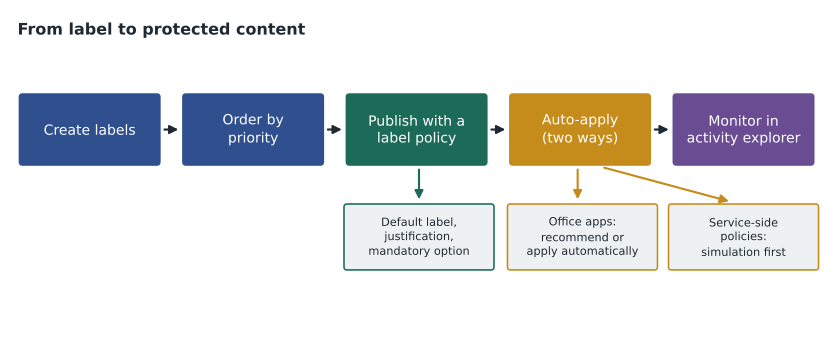
Automatic labeling: two different mechanisms
Purview can apply labels automatically in two ways, and administrators must not confuse them.
| Client-side labeling in Office apps | Service-side auto-labeling policies | |
|---|---|---|
| Where it runs | In Word, Excel, PowerPoint and Outlook while the user works | In SharePoint, OneDrive and Exchange, on content at rest or in transit |
| How it is configured | In the label itself, as auto-labeling conditions | As separate auto-labeling policies |
| Options | Recommend a label, or apply it automatically | Apply the label to matching content |
| Requires the user | Yes; it acts when the file is open | No; it labels files nobody has opened |
| Testing | Pilot with a narrow label policy | Must run in simulation first and show matched items |
Teodor used both. The Confidential / Clinical label recommended itself in Office apps when the care plan trainable classifier or the client ID type at high confidence matched, so staff learned what the label was for. A service-side auto-labeling policy for the Branch 3 Operations site and the old scheduling exports labeled files nobody would ever open again. He ran the policy in simulation for a week and reviewed the matched items with the privacy officer: two hundred and seventy correct matches, eight false positives from a training binder, which he removed by excluding that folder. Only then did he turn the policy on. Service-side auto-labeling does not overwrite a manually applied label of higher priority, and it labels files in place without the user's involvement, so it is the right tool for cleaning up old content.
Monitoring labels
Activity explorer shows label activity: labels applied, changed or removed, and the justifications given for downgrades. Teodor's weekly check during the pilot was a simple filter for downgrades from Confidential / Clinical. In the first week there were three, all by him while testing. The plan was to keep the same check after rollout, because a pattern of downgrades from one user is often the first sign of either a confusing label or a person avoiding protection.
Labels and Copilot
Labels affect how Microsoft 365 Copilot treats content, which made their configuration part of the Copilot readiness plan. Copilot honors encryption: it can use an encrypted item only if the user has VIEW and EXTRACT rights. When Copilot creates new content from labeled sources, such as a summary drafted in Word from two documents, the new content inherits the highest-priority label among the sources. Copilot Chat responses that reference labeled items show the label. And the DLP policy for the Microsoft 365 Copilot location, from lesson 4, can stop Copilot from processing items with chosen labels at all. Together these mean the label taxonomy is also, in effect, Corvallin's rule book for what Copilot may read.
| Label | Encryption | Copilot behavior |
|---|---|---|
| Public | None | Used freely |
| General | None | Used for any user who can open the item |
| Confidential | Email: user-assigned Do Not Forward | Used for users with access; new content inherits Confidential |
| Confidential / Clinical | Assigned: clinical staff Co-Author, billing Viewer without EXTRACT | Used for clinical staff; billing staff get no summaries |
| Highly Confidential | Assigned to named HR and legal staff only | Planned for exclusion with the Copilot DLP policy |
Testing a label before publishing it widely
Teodor's test plan for each label had the same steps. Apply it manually to a Word file, an Excel file, a PDF and an email from the desktop apps and the web apps. Check the marking appears. Open the file as a user who should have access and as one who should not. Try to copy text as a Viewer. Ask Copilot, using the test account licensed for the pilot, to summarize the file. Downgrade the label and confirm the justification prompt appears and is audited in activity explorer. Then repeat on a phone. The phone test found the only real problem: an old version of a mobile PDF viewer on one test device could not open encrypted PDFs, which went into the rollout notes as a known issue for the help desk.
| Test | Expected result | Outcome |
|---|---|---|
| Clinical staff test account opens a Confidential / Clinical file | Opens and edits | Passed |
| Billing test account copies text from the same file | Copy blocked | Passed |
| Copilot summary as the billing account | No content returned from the file | Passed |
| Label downgrade from Confidential / Clinical to General | Justification required and audited | Passed |
| Encrypted PDF on an older mobile viewer | Opens | Failed; documented as a known issue |
One more decision concerned PDFs. Many referral packages left Corvallin as PDFs, and labeled PDFs need a viewer that supports sensitivity labels to open encrypted content. Teodor confirmed that the apps on Corvallin's managed laptops and phones did, and added a line to the referral instructions telling external partners which free viewers could open protected PDFs.
Common mistakes
MistakeAssuming a labeled team protects the files inside it.
InsteadContainer labels set team and site controls; files need their own labels.
MistakeTurning on a service-side auto-labeling policy without simulation.
InsteadRun simulation, review matches with the content owner, then turn it on.
MistakeGiving everyone Viewer and forgetting EXTRACT.
InsteadDecide whether readers should copy text or get Copilot summaries; EXTRACT controls both.
MistakePublishing all labels to everyone on day one.
InsteadPilot with a narrow label policy and expand once settings are proven.
Summary and key terms
- Label scopes decide where a label can be used: files, email, meetings, and groups and sites.
- Encryption can assign permissions now or let users assign them; VIEW and EXTRACT affect copying and Copilot.
- Priority order governs downgrades, auto-labeling and labels inherited by new content.
- Label policies publish labels to users and set defaults, justification and mandatory labeling.
- Client-side auto-labeling acts in Office apps; service-side auto-labeling policies label content at rest and must start in simulation.
- Label scope
- The places a label can be applied, such as files, email, meetings or containers.
- Assign permissions now
- Encryption where the administrator sets who can access labeled content.
- Do Not Forward
- A user-assigned email protection that prevents recipients forwarding, copying or printing.
- Label priority
- The order of labels from least to most sensitive, used to compare labels.
- Label policy
- The publishing object that makes labels available to users and sets defaults.
- Service-side auto-labeling
- Policies that label content in SharePoint, OneDrive and Exchange without user action.
Practice problems
Work each problem on paper first, then reveal the answer to check.
Which usage right must a user have, besides VIEW, for Copilot to return content from an encrypted file?
Show answer
EXTRACT.
Where are client-side auto-labeling conditions configured?
Show answer
In the label itself.
What must an auto-labeling policy run in before it is turned on?
Show answer
Simulation mode.
Lesson quiz · 5 questions
Score 60% or more to complete this lesson.
Create a free account to save your progress, take quizzes and earn a certificate.