
MSBA-204 · Lesson 2 of 12 · 18 min
Sensitive information types and classifiers
▶ Video coming soon A video version of this lesson is on the way.
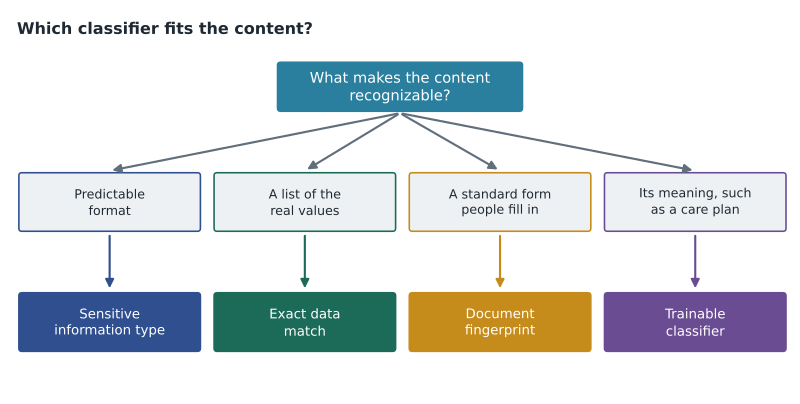
Every Purview protection Teodor planned depended on one question: can the service recognize the content? A DLP policy that cannot find health card numbers protects nothing, and an auto-labeling policy that mistakes invoice numbers for client IDs annoys everyone and teaches staff to override warnings. Microsoft Purview offers several ways to recognize sensitive content. This lesson covers how they work, how to build and test custom ones, and how to choose among them. Most of these tools are found in the portal under Information Protection, then Classifiers, and they are shared by DLP, sensitivity labels, retention labels, insider risk and communication compliance.
The readiness plan already showed why this matters. A data explorer scan had found about 340 files containing health card numbers outside clinical sites. Some were genuine problems, such as a scheduling export copied to a branch operations site. Others were false positives: a pharmacy vendor's order numbers happened to look like health card numbers. Before Corvallin could block anything, Teodor had to make classification accurate.
Anatomy of a sensitive information type
A sensitive information type (SIT) is a pattern-based classifier. Microsoft provides hundreds of built-in SITs for national identifiers, financial numbers and health identifiers in many countries, and administrators can create custom ones. Each SIT has one or more patterns, and each pattern has:
| Part | What it is | Corvallin example |
|---|---|---|
| Primary element | The thing being matched: a regular expression, a keyword list, a keyword dictionary or a built-in function | The client ID format: CL followed by six digits |
| Supporting elements | Extra evidence that must appear nearby | Keywords such as client ID, chart number, care plan |
| Character proximity | How close the supporting evidence must be to the primary element | 300 characters, the usual default |
| Confidence level | High, medium or low, depending on how much evidence matched | High with a keyword and the pattern; low with the pattern alone |
| Additional checks | Optional validators, such as excluding specific values or checking a checksum | Exclude the test ID CL000000 used in training documents |
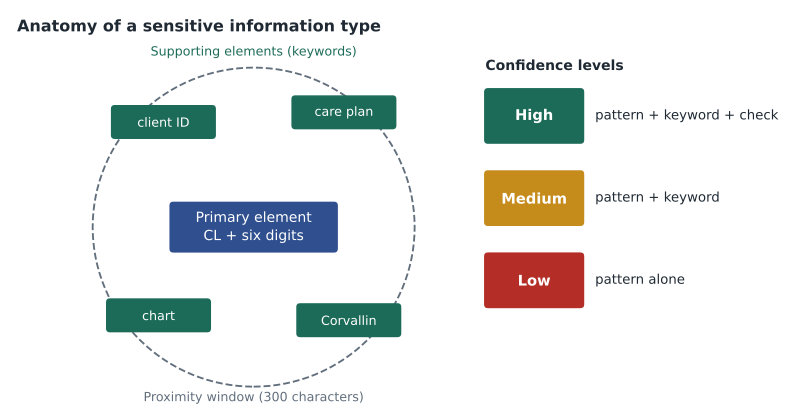
Confidence levels let policies trade sensitivity for accuracy. A DLP rule that blocks email can require high confidence so that only well-supported matches trigger it, while a policy that only shows a tip can accept medium confidence. Built-in SITs usually define all three levels, and Microsoft publishes each built-in definition, including its keywords and proximity, in the sensitive information type entity definitions reference. Teodor read the definition before relying on any built-in type, because knowing that a type needs a nearby keyword for high confidence explains why a spreadsheet column of bare numbers might match only at low confidence.
Building and testing a custom SIT
Corvallin's client ID was not a built-in type, so Teodor created one under Classifiers, then Sensitive info types, then Create sensitive info type. He named it Corvallin Client ID, added a pattern with a regular expression for CL and six digits, and gave it two confidence levels: high when the pattern appeared within 300 characters of a keyword from a list (client ID, client number, chart, care plan, Corvallin), and low for the pattern alone. He excluded CL000000, which appeared in every training document.
# Regular expression for the primary element (word boundaries prevent matching inside longer strings)
(?i)(?<![A-Z0-9])CL[0-9]{6}(?![0-9])

# Supporting keyword list, case-insensitive
client ID; client number; chart; care plan; Corvallin
Then he tested. The SIT page has a Test option that accepts a sample file and shows the matches and their confidence. Teodor built a test folder with three kinds of documents: true positives (real-looking care plans with fake client IDs), near misses (invoice numbers starting CL from a cleaning supplier, part numbers in a medical-supply catalog) and clean documents. The first version matched the supplier invoices at low confidence, which was expected; the high-confidence pattern ignored them, which was the point. He wrote down the results so that later, when a DLP rule fired on something odd, he could compare it with the tested behavior.
Regular expressions in Purview have limits. Microsoft documents restrictions on expression complexity, lookarounds and length to keep scanning fast, and a badly written expression can be rejected or can time out on large files. Simple patterns with clear word boundaries and supporting keywords work better than clever expressions that try to do everything in one pattern.
Worked problem
Tuning a noisy built-in type
A DLP policy using a built-in health number type fires on the pharmacy vendor's order confirmations, which contain ten-digit order numbers. The vendor's emails always contain the words order confirmation. What are Teodor's options?
Show solution
- Check the confidence level the rule requires; raise it to high so bare numbers without health keywords do not match.
- Add an exception to the DLP rule for messages from the vendor's domain that contain the phrase order confirmation, if the privacy officer agrees the risk is low.
- If the built-in type is still too broad, copy it to a custom SIT and add an additional check that excludes the vendor's number prefix.
- Retest with saved examples of both the vendor emails and genuine health information.
Answer: Require high confidence first, then add a narrow exception or a custom copy with an exclusion, and retest with saved examples.
Keyword dictionaries
Some content is recognized by vocabulary rather than format. A keyword dictionary is a large list of terms, such as medication names or diagnosis terms, that can be the primary element of a custom SIT or a supporting element. Dictionaries are easier to maintain than long keyword lists inside a pattern, and they can be updated by uploading a new file. Corvallin built a small dictionary of terms that appear in clinical notes, such as wound assessment, medication administration record and palliative, and used it as supporting evidence for the client ID type.
Exact data match
Exact data match (EDM) classification compares content with real values from a table the organization supplies, rather than with a pattern. It is the most accurate method when the organization has a list of the actual sensitive values, such as client records with names, client IDs, dates of birth and health card numbers. The workflow has several parts:
| Step | What happens |
|---|---|
| Define the schema | List the columns in the sensitive information source table and mark which are searchable |
| Create the EDM classifier | Choose a primary element column and the other columns that must appear nearby for a match |
| Hash and upload the data | The table is hashed on a secure computer with the EDM upload agent and only hashes are uploaded to Microsoft |
| Refresh on a schedule | Upload updated data as clients are admitted and discharged |
| Use the EDM type | Reference it in DLP, auto-labeling and other policies like any other SIT |
Because EDM matches real values, it virtually eliminates false positives such as the pharmacy order numbers: a ten-digit number matches only if it is an actual client's health card number and a second field, such as the client's surname, appears nearby. The cost is operational. Someone must export the client table from the scheduling system, hash it and upload it regularly, and the hashing computer must be protected. Teodor and the privacy officer agreed to pilot EDM for the client list in 2027, after the simpler controls were working, and recorded who would own the weekly refresh.
Document fingerprinting
Many sensitive documents start from a standard form. Document fingerprinting turns a blank form into a SIT that matches documents based on that form. Corvallin's client consent form, intake assessment and incident report all came from templates, so fingerprints of the blank forms let policies recognize completed copies even when they contained no client ID. Microsoft supports partial and exact matching thresholds for fingerprints, so a policy can match a completed form that shares most of the template's text.
Named entities
Named entity SITs recognize categories such as person names, physical addresses and medical terms using dictionaries and machine learning rather than a fixed format. They are useful as supporting evidence: a ten-digit number near a person's name and a medical condition is far more likely to be personal health information than a number on its own. Microsoft recommends combining named entities with other evidence rather than using them alone, because "a person's name" by itself appears in almost every document.
Trainable classifiers
Some content cannot be described by a pattern at all. A care plan, a resume or a legal agreement is recognized by its meaning and structure. Trainable classifiers use machine learning to recognize such documents. Microsoft provides pretrained classifiers for common categories, such as resumes, source code, financial and legal documents, and several kinds of offensive or threatening language used by communication compliance. Organizations can also create custom trainable classifiers by supplying seed content: a set of positive examples stored in a SharePoint folder. The classifier is trained on those examples, then tested against a mixed sample, where reviewers confirm or reject its predictions before it is published.
| Classifier type | Good for | Limitations |
|---|---|---|
| Built-in SIT | Standard identifiers with known formats | False positives on similar-looking numbers |
| Custom SIT | Organization-specific identifiers such as client IDs | Needs careful patterns and testing |
| Keyword dictionary | Vocabulary such as clinical or legal terms | Common words cause noise unless combined with other evidence |
| Exact data match | Lists of real sensitive values | Requires regular secure uploads of the source table |
| Document fingerprint | Completed copies of standard forms | Only as good as the template; free-form documents are missed |
| Named entities | Names, addresses, medical terms as supporting evidence | Too broad on their own |
| Trainable classifier | Document types recognized by meaning | Needs good examples and review; slower to set up |
Corvallin trained a custom classifier for care plans using a set of de-identified examples prepared by the clinical director's team. Marguerite insisted on de-identification: the seed content would sit in a SharePoint folder for training, and there was no reason for it to contain real client information. The first round of testing showed the classifier confusing care plans with visit schedules, which share headings. Adding more visit schedules as reviewed negatives during testing improved it, and the published classifier became a condition in the Confidential / Clinical auto-labeling policy described in the next lesson.
Where classifiers are used and how to see their effect
Once defined, classifiers appear in every Purview policy that inspects content. To see what they find across the tenant, administrators use data explorer, which lists items by location for each SIT, trainable classifier and label, and activity explorer, which shows what people did with labeled or sensitive content. Seeing the actual content of items in data explorer requires a separate, more privileged content viewer role, which Corvallin gave only to the privacy officer.
A classification register
By the end of November Teodor had a short register of every classifier Corvallin relied on: its name, type, owner, the date it was last tested and the policies that used it. Built-in types appeared too, with a note of the confidence level each policy required. The register answered questions that would otherwise take an afternoon of clicking: if the client ID format changed when the scheduling vendor upgraded its system, which DLP rules, labels and retention labels would need retesting? The answer was four policies and one auto-labeling rule, and the register listed them.
| Classifier | Type | Owner | Used by |
|---|---|---|---|
| Corvallin Client ID | Custom SIT | Teodor | Health card DLP policy, Confidential / Clinical recommendation, client record auto-apply |
| Health card number (built-in, high confidence) | Built-in SIT | Teodor | Health card DLP policy, endpoint rule |
| Clinical terms | Keyword dictionary | Clinical director's team | Supporting evidence for the client ID type |
| Consent form | Document fingerprint | Ansel | Consent form retention label |
| Care plan | Custom trainable classifier | Clinical director's team | Confidential / Clinical recommendation |
The register also recorded what Corvallin had decided not to use. The built-in passport and bank account types matched almost nothing in the tenant and were left out of policies, which kept DLP alerts focused on the information Corvallin actually held.
Common mistakes
MistakeUsing a built-in SIT at low confidence to block email.
InsteadRequire high confidence for blocking rules and keep low confidence for monitoring.
MistakeWriting a complex regular expression that tries to cover every format.
InsteadUse simple patterns with supporting keywords, and several patterns if needed.
MistakeTraining a classifier on real client documents.
InsteadUse de-identified or synthetic seed content stored in a restricted folder.
MistakePublishing a custom SIT without testing near misses.
InsteadTest with true positives, near misses and clean files, and record the results.
Summary and key terms
- Sensitive information types pair a primary element with supporting evidence within a proximity window to produce high, medium or low confidence.
- Custom SITs should be simple, tested against near misses and documented.
- Exact data match compares content with hashed real values and gives the fewest false positives.
- Document fingerprinting recognizes completed copies of standard forms.
- Trainable classifiers recognize document types by meaning and need good seed content and review.
- Sensitive information type (SIT)
- A pattern-based classifier made of a primary element, supporting elements, proximity and confidence levels.
- Confidence level
- High, medium or low, reflecting how much evidence supports a match.
- Keyword dictionary
- A large, maintainable list of terms used as a primary or supporting element.
- Exact data match (EDM)
- Classification that matches content against hashed values from an uploaded table.
- Document fingerprinting
- A SIT created from a blank form that matches completed copies of it.
- Trainable classifier
- A machine learning classifier that recognizes a kind of document from examples.
Practice problems
Work each problem on paper first, then reveal the answer to check.
Which part of a SIT pattern sets how close a keyword must be to the matched number?
Show answer
The character proximity setting.
Which classification method is most accurate when you have a list of the real sensitive values?
Show answer
Exact data match.
What do you supply to train a custom trainable classifier?
Show answer
Seed content: positive examples in a SharePoint folder, then reviewed test results.
Lesson quiz · 5 questions
Score 60% or more to complete this lesson.
Create a free account to save your progress, take quizzes and earn a certificate.