
MSAZ-340 · Lesson 5 of 12 · 21 min
Defender for Office 365
▶ Video coming soon A video version of this lesson is on the way.
Incident B from Ama's second shift, the buyer's account with a new inbox rule, began with a single email. At 07:51 on Tuesday, October 20, 37 Harrow & Finch mailboxes received a message that looked like a shared document notice from a well-known file-sharing service, inviting them to view a supplier's revised price list. Marek Novak, a buyer in the lumber category, clicked the link at 08:09, saw a sign-in page that looked exactly like Microsoft's, and entered his password and his multifactor code. By 08:30 someone in another country had signed in to his mailbox and created a rule. This lesson explains how Defender for Office 365 protects mail and collaboration content, and how Ama used it to investigate and clean up.
Layers of email protection
Every Exchange Online mailbox is protected by Exchange Online Protection, or EOP, which filters connections, malware, spam, bulk mail and basic phishing and spoofing. Defender for Office 365 adds layers on top. Safe Attachments opens attachments in a sandbox before delivery and blocks those that behave maliciously; with dynamic delivery, the message arrives at once with a placeholder while the attachment is checked. Safe Links rewrites URLs in email, Teams and Office applications and checks them at the moment of the click, not just at delivery, which matters because attackers often make a link malicious only after the message has passed the filters. Anti-phishing policies add impersonation protection for chosen users and domains, mailbox intelligence that learns each user's normal contacts, and spoof intelligence. Zero-hour auto purge, or ZAP, removes messages from mailboxes after delivery when a later verdict finds them malicious.
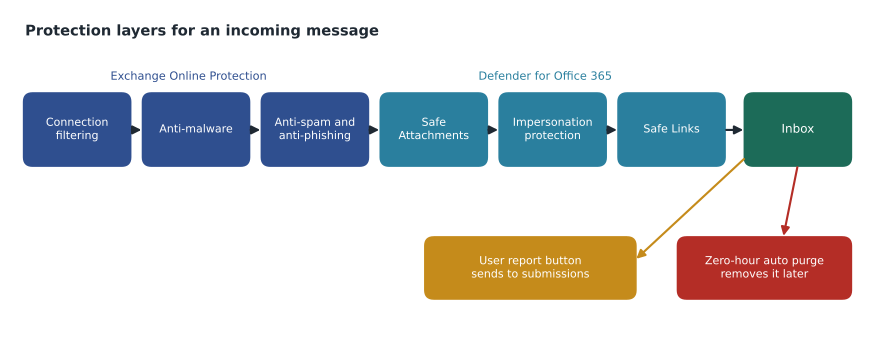
Microsoft's preset security policies, called Standard and Strict, bundle recommended settings for all of these, and Microsoft updates them as threats change. Built-in protection gives Safe Links and Safe Attachments to everyone not covered by another policy. Harrow & Finch applies the Standard preset to all users and the Strict preset to the finance team, the executives and the buyers, who handle money and supplier relationships and are the most frequent targets. Custom policies exist only where a preset cannot express a need, such as the list of supplier domains to protect from impersonation.
| Feature | License | What it does at Harrow & Finch |
|---|---|---|
| Exchange Online Protection | All Exchange Online mailboxes | Baseline spam, malware and spoofing protection |
| Safe Attachments with dynamic delivery | Defender for Office 365 Plan 1 | Sandbox checks on attachments; placeholder while scanning |
| Safe Links | Plan 1 | Time-of-click URL checks in mail, Teams and Office apps |
| Impersonation protection | Plan 1 | Protects 18 executives and buyers, and 40 supplier domains |
| Threat Explorer and automated investigation | Plan 2 (in Microsoft 365 E5) | Investigation and remediation of messages |
| Attack simulation training | Plan 2 | Phishing simulations planned from January 2027 |
Why the message got through
Ama's first question was why the filters had let the message in. The email entity page, which shows everything Defender knows about one message, answered it. The message came from a genuine account at a small accounting firm that had itself been compromised, so it passed sender authentication: SPF, DKIM and DMARC all succeeded. It carried no attachment. Its only link pointed to a real file-sharing site, which at delivery hosted an innocent-looking document. Thirty-two minutes after delivery the document was edited to contain a link to the fake sign-in page. Safe Links checked the first link at the click, found the file-sharing page clean, and let Marek through; the malicious hop was one page further on. By 08:40 Microsoft's systems had reclassified the campaign, and ZAP began removing the message from inboxes.
Nadia used the case to make a point she believes every analyst should absorb: filters reduce the volume of attacks that reach people, but they cannot catch everything, because attackers test their messages against the same filters. Detection after delivery, fast response and well-trained users are not optional extras.
Investigating with Threat Explorer
Threat Explorer in Plan 2, and the simpler real-time detections view in Plan 1, let analysts search mail flow by sender, recipient, subject, URL, file hash, delivery action, detection technology and many other properties, across about the last 30 days. The URL clicks view shows who clicked a link and whether Safe Links allowed or blocked the click. The campaigns view groups messages Microsoft identifies as part of the same campaign. From Explorer, an analyst can select messages and take actions such as soft delete, hard delete, move to junk or move to the deleted items folder, which then run as remediation actions tracked in the action center.
delivered = 37          # mailboxes that received the message at 07:51
zapped = 31            # removed by zero-hour auto purge after reclassification
read_before_zap = 9    # opened before ZAP removed them
clicked = 2            # clicked the link (Marek and one other user)
entered_password = 1   # Marek

left_after_zap = delivered - zapped
print(f"Still in mailboxes after ZAP: {left_after_zap}")
print(f"Opened before removal: {read_before_zap} of {delivered} ({read_before_zap / delivered * 100:.0f} in 100)")
print(f"Clicked: {clicked}; entered credentials: {entered_password}")
print(f"Messages Ama must remediate by hand: {left_after_zap}")Still in mailboxes after ZAP: 6 Opened before removal: 9 of 37 (24 in 100) Clicked: 2; entered credentials: 1 Messages Ama must remediate by hand: 6
What this code does
The program starts from the 37 delivered copies, subtracts the 31 that zero-hour auto purge removed, and shows how many were opened before removal and how many people clicked or entered credentials. The output shows 6 copies still in mailboxes, which Ama needed to remove herself, 9 opened before removal (about 24 in 100), 2 clicks and 1 person who entered a password.
Why had ZAP missed six messages? Explorer showed that those six users had moved the message out of the inbox into personal folders before ZAP ran, and the remaining copies sat in folders where the policy's action at that time did not apply. Ama selected the six in Explorer and soft-deleted them, a remediation that Nadia approved in the action center. The URL clicks view showed the second user who had clicked, a store manager, had been stopped by Safe Links at the second hop once the verdict changed, and had not entered anything.
The compromised mailbox
The alerts that made up incident B told the rest of the story. Entra ID Protection raised an atypical sign-in for Marek from an unfamiliar country with a session token, a sign of an adversary-in-the-middle attack in which the fake page relays the real sign-in and steals the resulting session cookie, so multifactor authentication is satisfied once and reused. Defender for Cloud Apps raised a suspicious inbox manipulation rule alert: every message containing the words invoice, payment or bank was moved to the RSS Feeds folder and marked as read. That technique, hiding replies from suppliers so the real user does not see them, is used in business email compromise, where an attacker inserts themselves into a payment conversation.
To check what the attacker had actually done in the mailbox, Ama turned to Microsoft Purview Audit, which records mailbox and other Microsoft 365 activity. She searched Marek's account for the hours after 08:09 and found the New-InboxRule operation, a MailItemsAccessed record showing 46 messages read through the attacker's session, and no messages sent. Purview content search, part of eDiscovery, let Carmen Ortiz's privacy team see which of those 46 messages contained personal information, which mattered for the breach assessment. The SC-200 outline also names Microsoft Graph activity logs, which record calls to the Graph API and can show an attacker using a stolen token through scripts rather than the web interface; at Harrow & Finch those logs go to the Sentinel workspace, covered in MSAZ-341.
# Exchange Online PowerShell used to confirm and remove the rule (shown as text)
Get-InboxRule -Mailbox "marek.novak@harrowfinch.example"
Remove-InboxRule -Mailbox "marek.novak@harrowfinch.example" -Identity "RSS sync"
Get-InboxRule -Mailbox "marek.novak@harrowfinch.example"
Campaigns and the email entity page
Two views in Defender for Office 365 Plan 2 helped Ama see the attack as more than one message. The campaigns view groups messages that Microsoft's systems identify as one campaign, even when senders, subjects and links vary, and shows how many reached inboxes, how many were clicked and which users were targeted most. The email entity page, opened from any message in Explorer or an alert, gathers that one message's headers, authentication results, delivery path, attachments, URLs with their verdicts, and the actions taken on it. Nadia's habit is to open the email entity page for the first message in a campaign and read the authentication and delivery sections line by line, because the reason a message got through usually sits there in plain sight.
For the price-list message the campaign view showed that 212 organizations had received variants of it that week, most from compromised accounts at small professional firms. That changed how Ama wrote the incident: Harrow & Finch had not been singled out, but it had been caught in a broad campaign, which meant the same senders might try again with a new lure.
Worked problem
Containing a compromised mailbox
Marek's session token is in the attacker's hands. The attacker has read 46 messages and created a hiding rule, but has not yet sent mail. What should the team do, and in what order?
Show solution
- Revoke Marek's sessions in Microsoft Entra ID so the stolen token stops working. Without this, a password reset alone leaves the attacker's session alive.
- Reset his password and require him to register multifactor authentication again, preferably with a phishing-resistant method such as a passkey.
- Remove the inbox rule and check for others, mail forwarding, delegated access and newly registered devices or applications.
- Check the sent items and the audit log for messages sent by the attacker; none were found.
- Warn the suppliers in the conversations the attacker read, by phone, not by replying to email, that any request to change bank details must be confirmed by phone.
- Ask the privacy officer to assess the 46 messages for personal information.
- Record everything in the incident and classify it as a true positive, compromised account.
Answer: Revoke sessions, reset the password with stronger authentication, remove the rule and any other persistence, check for sent mail, warn suppliers by phone, assess the data read, and record the case.
Carmen's assessment concluded that the 46 messages contained business contact details but none of the personal information that Iowa's breach notification law covers, such as Social Security or financial account numbers, so no notice was required. She recorded the assessment in the company's incident register on counsel's advice. Dana Whitcombe, the chief financial officer, used the case to restate a rule for accounts payable that no bank detail change is accepted by email alone.
User reports and submissions
Users are a detection source. The built-in Report button in Outlook sends a suspicious message to the security team's reporting mailbox, to Microsoft, or both, depending on the user reported settings. Reported messages appear on the submissions page, where analysts review them, see Microsoft's verdict, and can mark them and notify the user. Automated investigation runs on user-reported phishing in Plan 2, and Security Copilot has a phishing triage agent that can review reported messages and explain its verdict. At Harrow & Finch, reports go to both the security mailbox and Microsoft, and Ama reviews the submissions page at the start of each shift. On October 20, three users had reported the price-list message before Marek clicked; nobody had been watching the queue that early. Nadia moved the review to 07:30.
The submissions page is also how analysts report Microsoft's mistakes. A good message wrongly quarantined, or a phishing message wrongly delivered, can be submitted to Microsoft for analysis, and the tenant allow and block list can hold a temporary allow or block while Microsoft reviews it. Allows should be rare and should expire, for the same reason as allow indicators on endpoints.
Quarantine and Teams
Messages held by policy go to quarantine, where quarantine policies decide what users can do with their own held messages, such as release, request release or only view. Harrow & Finch lets users request release of spam but not of phishing or malware, which only the security team can release after review. Defender for Office 365 also protects Microsoft Teams: Safe Links checks URLs in Teams messages, Safe Attachments covers files in SharePoint, OneDrive and Teams, and users can report suspicious Teams messages. ZAP for Teams can remove malicious chat messages after delivery.
Common mistakes
MistakeA message that passes SPF, DKIM and DMARC is safe.
InsteadAuthentication shows the message came from the domain it claims; that domain may itself be compromised.
MistakeResetting a password ends an attacker's access.
InsteadA stolen session token keeps working until sessions are revoked.
MistakeZAP removes every copy of a malicious message.
InsteadMessages moved to other folders or delivered before policies apply may remain; check in Explorer.
MistakeSafe Links protection ends at delivery.
InsteadSafe Links checks at the time of click, but a malicious page one hop further on may still be reached until verdicts change.
Summary and key terms
- Exchange Online Protection is the baseline; Defender for Office 365 adds Safe Attachments, Safe Links, impersonation protection, ZAP and investigation tools.
- Preset Standard and Strict policies bundle Microsoft's recommended settings.
- Threat Explorer searches mail, URL clicks and campaigns and starts remediation actions.
- Adversary-in-the-middle phishing steals session tokens; revoke sessions as well as resetting passwords.
- Purview Audit and content search show what was read or changed in a mailbox; Graph activity logs show API use.
- User reports and the submissions page are a detection source and a way to correct Microsoft's verdicts.
- Exchange Online Protection (EOP)
- The built-in filtering for Exchange Online mailboxes against spam, malware and spoofing.
- Safe Links
- Time-of-click checking of URLs in email, Teams and Office applications.
- Safe Attachments
- Sandbox analysis of attachments before or during delivery.
- Zero-hour auto purge (ZAP)
- Removal of messages from mailboxes after delivery when a new verdict finds them malicious.
- Business email compromise (BEC)
- Fraud in which an attacker uses or imitates a business mailbox to redirect payments or data.
- Adversary-in-the-middle phishing
- A fake sign-in page that relays a real sign-in and steals the session token.
Practice problems
Work each problem on paper first, then reveal the answer to check.
Why did the price-list message pass the filters?
Show answer
It came from a genuine compromised account, passed authentication, had no attachment, and its link only became malicious after delivery.
How many copies did Ama remediate by hand?
Show answer
Six, because users had moved them to other folders before ZAP ran.
Why revoke sessions before resetting the password?
Show answer
The attacker holds a session token that a password reset alone does not invalidate.
Which tool showed the 46 messages the attacker read?
Show answer
Microsoft Purview Audit, through MailItemsAccessed records.
Why warn suppliers by phone?
Show answer
The attacker read the email conversations, so replies by email could be intercepted or imitated.
Lesson quiz · 5 questions
Score 60% or more to complete this lesson.
Create a free account to save your progress, take quizzes and earn a certificate.