
MSAZ-340 · Lesson 4 of 12 · 21 min
Device investigation and response actions
▶ Video coming soon A video version of this lesson is on the way.
At 10:42 on Thursday, November 5, an alert fired on a laptop at the Ames distribution center: suspicious PowerShell command line. The laptop, AMS-DC-LT07, belonged to Oskar Lind, a receiving clerk who used it to print bills of lading. Defender Antivirus had quarantined one file twenty minutes earlier, and automated investigation was still running. Nadia handed the case to Ama and sat back. This lesson follows that investigation: how to read a device's page and timeline, what response actions are available, and how to decide which to use.
The device page
Every onboarded device has a page that gathers what Defender for Endpoint knows about it. The overview shows the device's risk level, which reflects active alerts, and its exposure level, which reflects unpatched vulnerabilities and weak settings. It lists logged-on users, the device group, tags, the operating system and the health of the sensor and antivirus. Tabs show the device's incidents and alerts, its timeline, security recommendations, software inventory, discovered vulnerabilities, missing updates and installed browser extensions. Response actions sit in a menu along the top.
Ama read the overview first. Risk level high, exposure level medium. One logged-on user, Oskar. Antivirus in active mode with current signatures, tamper protection on, sensor active. Two alerts: the quarantined file, called freight-label-pro.exe, and the PowerShell command line. The software inventory showed a free label-printing utility installed that morning from a download site, which nobody in IT had approved.
The device timeline
The timeline lists every event the sensor recorded, newest first, with filters for event type, such as process, file, network, registry, logon or script events, and for time range. Each event can be expanded to show its details: the process tree that led to it, command lines, file hashes, signer, network destination. Events tied to alerts are marked, and an analyst can flag events of interest so they stand out later and appear in a flagged events view. The timeline can be exported for a report.
Nadia showed Ama the habit that makes the timeline usable: start at the first alert, then move outward in both directions. Look backward for how the attacker or the program got there, and forward for what it did next. On Oskar's laptop the story took ten minutes to read.
| Time | Event | Detail | MITRE ATT&CK technique |
|---|---|---|---|
| 10:14 | File created | freight-label-pro.zip downloaded by the browser from a file-sharing site | User execution |
| 10:16 | Process started | freight-label-pro.exe started by Explorer from the Downloads folder | User execution |
| 10:16 | Process started | The installer started PowerShell with an encoded command | Command and scripting interpreter: PowerShell |
| 10:17 | Scheduled task created | A task named to look like a printer updater, running at each logon | Scheduled task |
| 10:21 | File quarantined | Defender Antivirus quarantined a second file dropped in the user's AppData folder | — |
| 10:22 | Network connection blocked | PowerShell tried to reach an address on the web; blocked by network protection | Application layer protocol |
| 10:42 | Alert | Suspicious PowerShell command line | — |
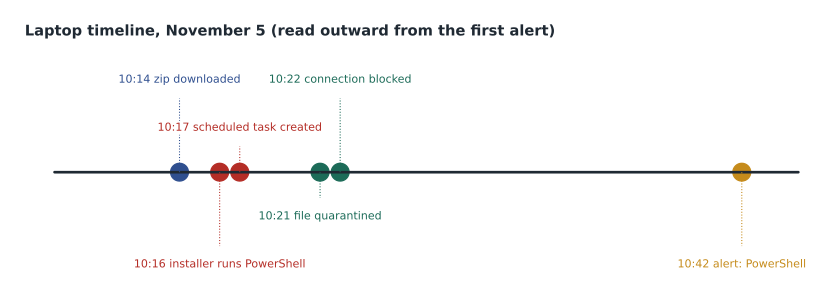
Security Copilot's script analysis turned the encoded command into a readable description: it fetched a second file and set up the scheduled task so the program would start each time Oskar logged on. Nadia had Ama confirm that with the decoded text before accepting it. The second file was the one antivirus had quarantined, and the network connection had been blocked. The question was whether anything else had run, whether the scheduled task was still there, and whether the same utility had reached any other device.
Response actions on a device
Defender for Endpoint offers a set of actions that can be taken from the device page, from an incident, or through automation. Each action is recorded in the action center with who took it, when, and its result.
| Action | What it does | When to use it |
|---|---|---|
| Isolate device | Cuts the device off the network except for the Defender service; selective isolation can allow chosen tools such as Outlook and Teams | Active malicious activity or likely lateral movement |
| Contain device | Tells onboarded devices to block communication with a device that is not onboarded | An unmanaged device is involved in an attack |
| Restrict app execution | Allows only Microsoft-signed programs to run | Untrusted code keeps running and isolation is too disruptive |
| Run antivirus scan | Starts a quick or full scan | Confirm there is nothing else on disk |
| Collect investigation package | Gathers a zip of forensic data: autoruns, installed programs, network connections, processes, scheduled tasks, event logs and more | Need a snapshot for analysis or records |
| Initiate live response session | Opens a remote shell to collect files, run approved scripts and remediate | Need hands-on investigation or a fix automation cannot make |
| Initiate automated investigation | Starts AIR on the device | Alert arrived without an investigation, or new evidence appeared |
| Stop and quarantine file | Stops the process and quarantines the file on all devices where it is found | A malicious file is identified |
| Add indicator | Blocks or allows a file, address or certificate across devices | Prevent recurrence elsewhere |
The choice is a trade-off between stopping harm and disrupting work, and the attacker's likely position decides it. Isolation is the strongest common action and the one most often overused: a receiving clerk's laptop isolated for a day means bills of lading are printed somewhere else, which is an inconvenience, while an isolated point-of-sale server closes tills. Nadia's rule is simple. If there is evidence of ongoing attacker control, isolate first and ask questions second. If the threat looks blocked and contained, collect evidence and verify before disrupting.
Worked problem
Choosing actions for the clerk's laptop
The second file was quarantined and its network connection blocked, but the scheduled task may still exist and the installer ran PowerShell. There is no sign of a successful connection to the attacker's address or of activity on other devices yet. Which actions should Ama take, and in what order?
Show solution
- Collect an investigation package first, while the device is in its current state, so the scheduled tasks, autoruns and network connections are preserved.
- Check the action center: automated investigation had already recommended removing the scheduled task and the installer, pending approval because the Distribution device group is set to semi-automatic.
- Approve the pending remediation, then start a full antivirus scan to look for anything else on disk.
- Add a block indicator for the installer's file hash, with an alert, so it cannot run on any other device.
- Hunt for the hash and the download site across all devices; the query found one other device that had downloaded the zip but never ran it.
- Isolation is not needed: there is no evidence of ongoing control. If the scan or the package shows anything more, isolate then.
Answer: Collect the package, approve the pending remediation, run a full scan, block the hash, and hunt for the same file elsewhere; isolate only if more evidence appears.
The full scan came back clean. The investigation package confirmed that the scheduled task was gone after remediation and that no other persistence had been added. Ama deleted the unrun zip on the second device through live response, then wrote up the case with the decoded command, the timeline and the actions, and classified it as a true positive, malware. Nadia added one more task to the incident: ask Grace Oduya's team why a distribution center laptop allowed software from the web to be installed at all. The answer, an old local administrator exception for printer drivers, went into the hardening list.
Live response
Live response opens a remote command shell on a device through the Defender service, without needing network access to it, which is why it works even on an isolated device. Basic commands list processes, files, connections, registry keys, scheduled tasks and services, and can collect a file with the getfile command. Advanced commands, available to roles that have them, can run PowerShell scripts from the tenant's live response library, upload files to the device with putfile, and remediate items. Running unsigned scripts is a separate setting. Every command is logged, and the session's output is kept with the action.
# Basic live response commands Ama used on November 5 (shown as text)
processes
scheduledtasks
connections
getfile "C:\Users\olind\Downloads\freight-label-pro.zip"
library
run Remove-UnapprovedApp.ps1 -parameters "-Name FreightLabelPro"
Because live response is powerful, Harrow & Finch limits advanced commands to the responder role, keeps its script library in a reviewed repository, and requires a comment on the incident explaining any script that changes a device. Ama could list processes and collect files on her own; the removal script needed Nadia's role, so Nadia ran it while Ama watched.
Evidence and entity pages
Files, IP addresses, URLs, users and other entities have their own pages, reachable from any alert or incident. A file page shows the file's prevalence in the organization and worldwide, its signer, its verdict from Microsoft's analysis, the devices where it was observed and the alerts it is part of, and it offers actions such as stop and quarantine, add indicator, download for analysis and deep analysis, which runs the file in a sandbox and reports its behavior. An IP address or URL page shows which devices communicated with it, when, and any threat intelligence about it. A user page shows the devices the user signed in to, their alerts and their risk.
Prevalence is the first thing Nadia checks on a file page. A file seen on one device in the organization and a handful worldwide is unusual and worth attention; a file seen on 400 company devices and millions worldwide is probably a common program, and an alert on it may be a false positive or abuse of a legitimate tool. In Oskar's case the installer had been seen on two devices in the organization and fewer than a hundred worldwide, which matched a small malicious campaign rather than a popular utility.
# Two event lists: the device timeline and the user's sign-ins, merged into one story
device = [("10:14", "zip downloaded"), ("10:16", "installer ran PowerShell"),
          ("10:17", "scheduled task created"), ("10:21", "second file quarantined"),
          ("10:22", "network connection blocked")]
identity = [("08:02", "Oskar signed in to the laptop"), ("10:30", "Oskar signed in to email on his phone")]

story = sorted([(t, "device", e) for t, e in device] + [(t, "identity", e) for t, e in identity])
for t, src, e in story:
    print(f"{t}  {src:<8}  {e}")

first, last = story[0][0], story[-1][0]
h1, m1 = map(int, first.split(":")); h2, m2 = map(int, last.split(":"))
print(f"Window covered: {(h2 * 60 + m2) - (h1 * 60 + m1)} minutes")08:02 identity Oskar signed in to the laptop 10:14 device zip downloaded 10:16 device installer ran PowerShell 10:17 device scheduled task created 10:21 device second file quarantined 10:22 device network connection blocked 10:30 identity Oskar signed in to email on his phone Window covered: 148 minutes
What this code does
The program takes two lists of timed events, one from the laptop and one from the clerk's sign-ins, labels each with its source, and sorts them together by time. It then works out how many minutes separate the first and last events. The output shows the sign-in at 08:02, the five device events in order, and the phone sign-in at 10:30, a window of 148 minutes, which is how an analyst builds one storyline from several sources.
Releasing and undoing actions
Every action that can be taken can be undone or released, and knowing how is part of the job. A device is released from isolation from its page, which also records who released it. Quarantined files can be restored if they turn out to be legitimate. Indicators can be edited, given an expiry or deleted. App restriction can be removed. Before undoing anything, Nadia expects the analyst to write in the incident why the action is no longer needed, because the record of why a device was released is as important as the record of why it was isolated.
Common mistakes
MistakeIsolate every device with an alert.
InsteadIsolate when there is evidence of ongoing attacker control; otherwise collect evidence and verify first, because isolation disrupts work.
MistakeLive response needs network access to the device.
InsteadIt runs through the Defender service and works even on isolated devices.
MistakeAn investigation package is only needed for court cases.
InsteadIt preserves autoruns, tasks, connections and logs in their current state, which helps any investigation.
MistakeA file seen on hundreds of devices is always safe.
InsteadHigh prevalence suggests a common program, but attackers also abuse legitimate tools; check behavior and context.
Summary and key terms
- The device page shows risk and exposure, users, alerts, timeline, recommendations and software.
- Read the timeline outward from the first alert: backward for how it started, forward for what followed.
- Response actions include isolate, contain, restrict app execution, antivirus scan, investigation package, live response, stop and quarantine file and indicators.
- Choose actions by the attacker's likely position: isolate for ongoing control, verify first when the threat looks contained.
- Live response gives a logged remote shell; advanced commands and unsigned scripts are restricted by role and setting.
- Entity pages show prevalence, verdicts and related devices for files, IPs, URLs and users.
- Every action can be undone; record why.
- Device timeline
- The list of events the sensor recorded on a device, with filters and details for each.
- Device isolation
- Disconnecting a device from the network except for the Defender service.
- Investigation package
- A zip of forensic data collected from a device, such as autoruns, tasks, connections and logs.
- Live response
- A remote shell on a device through Defender for Endpoint for investigation and remediation.
- Prevalence
- How widely a file has been seen, in the organization and worldwide.
- Deep analysis
- Running a file in a sandbox to report its behavior.
Practice problems
Work each problem on paper first, then reveal the answer to check.
What did the encoded PowerShell command do on the clerk's laptop?
Show answer
It fetched a second file and created a scheduled task to start the program at each logon.
Why was the laptop not isolated?
Show answer
The second file was quarantined and its connection blocked, and there was no evidence of ongoing control.
Which action blocks a device that is not onboarded?
Show answer
Contain device, which tells onboarded devices to block communication with it.
Why collect the investigation package before remediation?
Show answer
To preserve the device's current state, including tasks, autoruns and connections.
How long was the window in the merged storyline?
Show answer
148 minutes, from 08:02 to 10:30.
Lesson quiz · 5 questions
Score 60% or more to complete this lesson.
Create a free account to save your progress, take quizzes and earn a certificate.