
MSAZ-340 · Lesson 3 of 12 · 21 min
Defender for Endpoint: onboarding and configuration
▶ Video coming soon A video version of this lesson is on the way.
Nadia's first question about any environment is how much of it the team can actually see. A detection that fires on 95 devices in 100 sounds good until the attacker happens to land on one of the other five. On Thursday, October 22, she asked Ama to produce a single table: every kind of device the company owns, how it is meant to be onboarded to Defender for Endpoint, and how many have actually reported in. This lesson explains what onboarding means, the main ways to do it, and the settings that decide how well Defender for Endpoint protects the devices once they are in.
What onboarding does
Onboarding a device to Defender for Endpoint registers it with the tenant and turns on the EDR sensor, which records process, file, network, registry and other activity and sends it to the service for detection and hunting. On current versions of Windows and Windows Server the sensor is built into the operating system and onboarding simply configures it with the tenant's onboarding package. On macOS, Linux, Android and iOS, and on older Windows Server versions such as 2012 R2 and 2016, onboarding installs Microsoft's agent first, using what Microsoft calls the modern unified solution for those servers. Once a device is onboarded, it appears in the device inventory with its health state, risk level, exposure level and sensor status.
Onboarding is separate from antivirus. Microsoft Defender Antivirus is the next-generation protection component. It can run in active mode as the main antivirus, or in passive mode alongside a third-party product, in which case it still scans and reports but does not block. Harrow & Finch replaced its old antivirus in 2025, so Defender Antivirus runs in active mode everywhere. Nadia still checks the mode as part of every investigation, because a device in passive mode with EDR in block mode turned off may have seen a threat and done nothing about it.
Onboarding methods
Microsoft supports several ways to deploy the onboarding package, and most organizations use more than one. Microsoft Intune is the usual choice for laptops and desktops managed in the cloud, through an endpoint detection and response policy. Group Policy and Configuration Manager suit domain-joined devices managed on premises. A local script is useful for testing and for a handful of devices, not for production at scale. Servers in Azure, in other clouds and on premises can be onboarded through Microsoft Defender for Cloud, which integrates Defender for Endpoint into its Defender for Servers plans and can deploy the sensor automatically; on-premises and other-cloud servers first need Azure Arc. Virtual desktop infrastructure has its own scripts that handle non-persistent machines so that each new session does not appear as a new device.
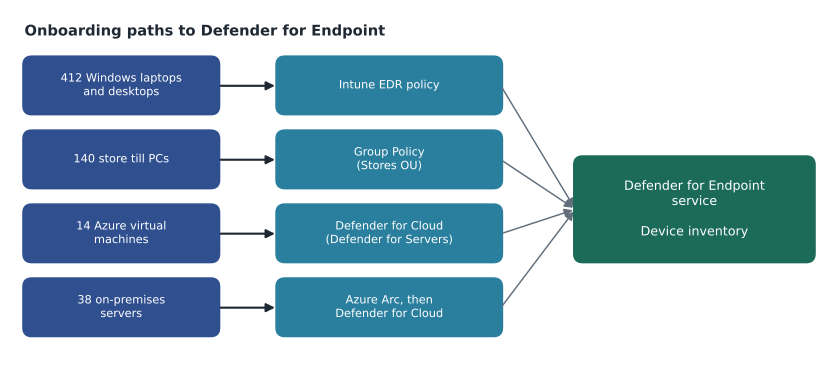
| Device type | Count | Onboarding method | Reported in (October 22) |
|---|---|---|---|
| Windows laptops and desktops | 412 | Intune EDR policy | 398 |
| Store till PCs (Windows IoT Enterprise) | 140 | Group Policy, Stores organizational unit | 136 |
| Azure virtual machines | 14 | Defender for Cloud, Defender for Servers Plan 2 | 14 |
| On-premises servers | 38 | Azure Arc, then Defender for Cloud | 35 |
fleet = {
    "Windows clients": (412, 398),
    "Till PCs": (140, 136),
    "Azure VMs": (14, 14),
    "On-premises servers": (38, 35),
}
total = sum(n for n, _ in fleet.values())
seen = sum(s for _, s in fleet.values())
for name, (n, s) in fleet.items():
    print(f"{name:<20} {s:>3} of {n:>3}  missing {n - s:>2}  ({s / n * 100:.1f} in 100)")
print(f"{'All devices':<20} {seen:>3} of {total:>3} missing {total - seen:>2} ({seen / total * 100:.1f} in 100)")Windows clients 398 of 412 missing 14 (96.6 in 100) Till PCs 136 of 140 missing 4 (97.1 in 100) Azure VMs 14 of 14 missing 0 (100.0 in 100) On-premises servers 35 of 38 missing 3 (92.1 in 100) All devices 583 of 604 missing 21 (96.5 in 100)
What this code does
The program takes the number of devices of each type and the number that have reported to Defender for Endpoint, and works out how many are missing and what share are covered. It then does the same for all devices together. The output shows that 583 of 604 devices are reporting, about 96.5 in every 100, and that 21 are missing: 14 laptops and desktops, four till PCs and three servers.
The numbers looked healthy, but Nadia wanted names, not percentages. The 14 missing laptops turned out to be a mix: eight were in storage waiting to be reissued, four belonged to people on leave who had not connected for weeks, and two had failed the Intune policy because of an old antivirus remnant. The four till PCs had been replaced in a store refit and the new ones were in the wrong organizational unit. The three servers were the old reporting servers due to be retired, which Renata's team had skipped on purpose. Each gap got an owner and a date, and the retired servers got a written exception signed by Sunil.
Finding devices that are not onboarded
Defender for Endpoint's device discovery uses onboarded devices to find other devices on the network, either passively, by listening to network traffic, or in standard mode, by actively probing. Discovered devices that could be onboarded appear in the inventory as can be onboarded, which is how Ama found two old Windows laptops in the Ames distribution center that nobody had listed. Network devices such as routers and switches, and Internet of Things devices such as cameras, also appear, giving the team a view of the attack surface beyond managed computers. Discovery should be configured carefully, with exclusions for sensitive networks, because active probing of fragile devices such as old payment terminals can cause problems.
Advanced features
Defender for Endpoint has a page of tenant-wide advanced features that switch on or off capabilities the rest of the course relies on. Nadia walked Ama through the ones Harrow & Finch has on and why.
| Advanced feature | Setting at Harrow & Finch | Why it matters |
|---|---|---|
| Automated investigation | On | Lets automated investigation run when alerts fire (lesson 8) |
| Live response | On; unsigned scripts allowed for responders only | Gives a remote shell on a device for investigation |
| Allow or block file | On | Lets analysts block a file hash across all devices |
| Custom network indicators | On | Lets analysts block domains, URLs and IP addresses |
| Tamper protection | On | Stops attackers or users from turning off protection |
| EDR in block mode | On | Lets EDR block malicious artifacts even when antivirus missed them |
| Restrict correlation to within scoped device groups | Off | Keeps cross-group correlation, which suits one small SOC |
| Web content filtering | On | Blocks categories such as malicious and adult sites |
Tamper protection is the one Nadia calls non-negotiable. Ransomware operators routinely try to turn off security tools before they encrypt anything. With tamper protection on, changes to key Defender settings made locally, through the registry, PowerShell or Group Policy, are ignored; only the central management tools can change them. When an investigation shows an attempt to disable protection, the alert itself is valuable: it tells the analyst that someone with administrative rights on that device is trying to hide.
Rules settings and indicators
The rules section of the settings covers indicators, alert tuning rules and other tenant-wide rules. Indicators of compromise let the team define file hashes, certificates, IP addresses, domains and URLs with an action: allow, audit, warn, block, or block and remediate for files. An indicator applies to all devices or to selected device groups, can expire automatically, and can generate an alert when matched. Ama added her first indicator during the Tuesday buyer incident: a block on the fake sign-in page's domain, scoped to all devices, set to expire after 90 days, with an alert so the team would know if anyone else tried to reach it.
Allow indicators need more care than blocks. An allow indicator for a file hash or a certificate stops Defender from flagging that item anywhere it applies, so a mistake creates a blind spot. Harrow & Finch allows only the signing certificate of its point-of-sale vendor, after the vendor's update caused false positives on the till PCs, and records the business reason in the indicator's description.
Security policies and attack surface reduction
Attack surface reduction rules block behaviors that attackers commonly use and legitimate software rarely needs, such as Office applications creating child processes, scripts launching downloaded executables, credential theft from the Windows local security authority subsystem, or executables running from email. Each rule can be set to not configured, audit, warn or block. Microsoft's guidance, which Nadia follows, is to start in audit mode, review what would have been blocked in the ASR report and in advanced hunting, add the narrowest possible exclusions for legitimate software, then move to block. Warn mode, which lets a user override the block after a prompt, is useful for rules where some users have genuine needs.
Harrow & Finch manages ASR rules, antivirus settings, firewall settings and EDR settings as Intune endpoint security policies for clients and through Defender for Endpoint security settings management for servers that are not enrolled in Intune, which lets the Defender portal apply Intune policies to them. The point Nadia stressed is that a device should get each setting from exactly one place. Two policy sources fighting over the same setting produce a device whose real configuration nobody can predict.
Worked problem
Moving an ASR rule from audit to block
The rule that blocks Office applications from creating child processes ran in audit mode for two weeks. Advanced hunting showed 63 audit events, all on head office devices. Fifty-eight came from a finance team Excel workbook whose macro starts a reporting tool; five came from users opening a supplier's invoice attachments. What should the team do before switching the rule to block?
Show solution
- Group the events by file and process. The 58 finance events share one workbook and one child process; the five supplier events each launch a different script.
- Check the supplier attachments. If any were malicious, open an incident; the rule has just shown its value. (They were all caught by Defender for Office 365, so no further action was needed.)
- For the finance workbook, ask the owner whether the macro can be replaced. If not, add a per-rule exclusion for the reporting tool's exact path, not a broad folder exclusion.
- Move the rule to block for a pilot group, such as IT staff, then for all head office devices, watching the ASR report for new blocks.
- Record the exclusion's owner and review date.
Answer: Exclude only the finance reporting tool by exact path, pilot the block on a small group, then roll it out, keeping the exclusion documented and reviewed.
Custom data collection
The SC-200 outline now includes configuring custom data collection in Defender for Endpoint. By default the sensor collects what Microsoft's detections need, and some events are sampled or summarized. Custom data collection rules let a team collect additional event types or more detail for chosen devices, sending the results to the hunting tables or a Sentinel workspace, at the cost of more data and possibly more ingestion charges. Nadia's advice is to start from a question you cannot answer today, collect only what answers it, and scope collection to the devices that matter. The feature was new enough that she told Ama to check its current status and options on Microsoft Learn before relying on it.
Device groups
Device groups divide the inventory into sets that can have their own automation level, their own role-based access, and their own policy scope. Membership is defined by rules on device name, domain, tags or operating system. Harrow & Finch has six: Servers, Finance, Executives, Stores, Distribution and Head office, the catch-all for everything else. The automation level for each group, which decides whether automated investigation remediates on its own or waits for approval, is covered in lesson 8. For now the important point is that groups are evaluated in rank order, and a device joins only the first group whose rules it matches, so a narrow group such as Executives must rank above a broad one such as all head office devices.
Common mistakes
MistakeOnboarding a device installs Defender Antivirus.
InsteadOnboarding turns on the EDR sensor; antivirus is a separate component that can run in active or passive mode.
MistakeA local script is fine for onboarding the whole fleet.
InsteadUse Intune, Group Policy, Configuration Manager or Defender for Cloud at scale; scripts are for tests and a few devices.
MistakeMove ASR rules straight to block to get protection sooner.
InsteadStart in audit, review the events, add narrow exclusions, then pilot and roll out block.
MistakeA device can safely receive the same setting from several policy tools.
InsteadEach setting should come from one source, or the device's real configuration becomes unpredictable.
Summary and key terms
- Onboarding registers a device and turns on the EDR sensor; Defender Antivirus runs separately in active or passive mode.
- Methods include Intune, Group Policy, Configuration Manager, local scripts, VDI scripts and Defender for Cloud for servers.
- Coverage must be measured by device, with an owner for every gap.
- Device discovery finds unmanaged devices that can be onboarded.
- Advanced features such as tamper protection, EDR in block mode, live response and indicators are tenant-wide switches.
- Indicators allow, audit, warn or block files, certificates, IPs, domains and URLs.
- ASR rules should move from audit to block after reviewing events and adding narrow exclusions.
- Device groups set automation level and access, and are matched in rank order.
- EDR sensor
- The component that records device activity and sends it to Defender for Endpoint.
- Passive mode
- A Defender Antivirus mode in which it scans and reports but does not block, used alongside another antivirus.
- Tamper protection
- A setting that stops local changes to key Defender security settings.
- Indicator of compromise
- A file hash, certificate, IP address, domain or URL with an action such as allow or block.
- Attack surface reduction rule
- A rule that blocks a behavior commonly used in attacks, such as Office creating child processes.
- Device group
- A rule-based set of devices with its own automation level and access.
Practice problems
Work each problem on paper first, then reveal the answer to check.
Which onboarding method does Harrow & Finch use for on-premises servers?
Show answer
Azure Arc, then Defender for Cloud with Defender for Servers.
What share of devices had reported in on October 22?
Show answer
583 of 604, about 96.5 in 100.
Why should ASR rules start in audit mode?
Show answer
To see what would be blocked and add narrow exclusions before blocking breaks legitimate work.
What does tamper protection stop?
Show answer
Local changes to key Defender settings through the registry, PowerShell, Group Policy or the user interface.
Why must the Executives device group rank above a broad head office group?
Show answer
A device joins only the first group whose rules it matches.
Lesson quiz · 5 questions
Score 60% or more to complete this lesson.
Create a free account to save your progress, take quizzes and earn a certificate.