
MSAZ-102 · Lesson 8 of 12 · 18 min
The Azure portal, Cloud Shell, CLI and PowerShell
▶ Video coming soon A video version of this lesson is on the way.
By the second week of November, Theo had used the Azure portal for two months and could find almost anything in it. He was also tired of clicking. Every Friday he opened each of the twelve test virtual machines in turn to check whether it was running, and every Monday he did it again to start the ones the developers needed. "Anything you do twice by hand, you should script the third time," Renata said, and spent an hour showing him the three other ways to manage Azure: Cloud Shell, the Azure CLI and Azure PowerShell. By the end of the hour, the Friday check was a single command.
One control plane, many tools
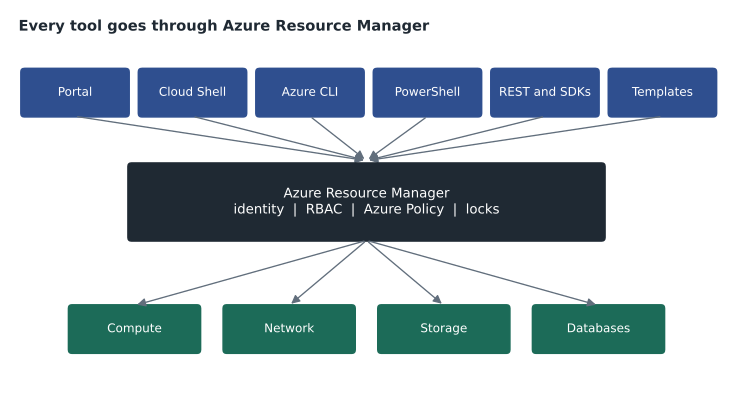
Every way of managing Azure resources goes through the same service: Azure Resource Manager (ARM). When you create a virtual machine in the portal, run a CLI command, use PowerShell, call the REST API or deploy a template, the request goes to Resource Manager, which checks your identity with Microsoft Entra ID, checks your permissions with role-based access control, evaluates Azure Policy, checks for locks, and then passes the request to the service that does the work. Because every tool goes through the same front door, the same rules apply whichever tool you use, and a change made in one tool is visible in all the others.
The Azure portal
The Azure portal is a web-based console for building, managing and monitoring Azure resources. It runs in any modern browser, requires no installation and presents each service with forms, wizards, charts and links to related resources. It is the easiest way to learn Azure, to explore what settings exist and to see the state of many resources at once. Most people who manage Azure use the portal every day, even if they automate most changes.
The portal is customizable. Users can create dashboards that pin charts, lists and resources together, such as a dashboard showing the health of the head office VPN, the StockLine VMs and the current month's costs. Dashboards can be shared with colleagues and controlled with role-based access. The portal also shows notifications for running operations, an activity log of who did what to each resource, a search bar that finds resources, services and documentation, and an Export template option on many resources that shows the infrastructure-as-code definition of what was created. For people on the move, the Azure mobile app lets administrators check resources, view alerts and run quick actions from a phone.
The portal's weakness is repetition. It is good at doing one thing at a time and poor at doing the same thing to fifty resources, or doing it exactly the same way every week. Clicking through forms also leaves no reusable record of the steps taken. For those jobs, command-line tools are better.
Azure Cloud Shell
Azure Cloud Shell is an interactive, browser-based shell for managing Azure. It opens from an icon in the portal or from its own web address, and gives you a choice of Bash or PowerShell. Cloud Shell runs on a temporary host that Azure provides for each session, with the Azure CLI, Azure PowerShell and many other common tools already installed and already signed in with your account. There is nothing to install and nothing to keep up to date.
To keep files between sessions, Cloud Shell mounts a small file share from an Azure Files storage account, which you choose or create the first time you use it. The host itself is free; the storage account is billed at normal storage rates. A session ends after a period of inactivity, about 20 minutes, and the host is discarded, so anything outside the mounted storage is lost. Cloud Shell suits quick tasks, scripts you run occasionally, and working from a computer where you cannot install tools.
The Azure CLI
The Azure CLI is a cross-platform command-line tool for managing Azure. It runs on Windows, macOS and Linux and in Cloud Shell, and its commands all begin with az followed by a group and an action, such as az vm list or az group create. The CLI is popular with people who work in Bash and other Unix-style shells, and its commands are easy to combine into scripts. Output can be shown as JSON, a table, plain text or other formats, and a query option lets you pick out just the fields you need.
az login
az account set --subscription hf-nonprod
az vm list --show-details --query "[].{name:name, group:resourceGroup, power:powerState}" --output tableaz vm deallocate --resource-group rg-stockline-test-cus --name vm-stockline-test1
az vm start --resource-group rg-stockline-test-cus --name vm-stockline-test1Pay attention to the word deallocate. As lesson 1 explained, stopping a VM from inside the operating system can leave it allocated and billing; az vm deallocate releases the compute hardware and stops the compute charge. Theo's Friday check became a script that lists every VM tagged env = test, deallocates those not tagged keep-running and writes the results to the change log.
Azure PowerShell
Azure PowerShell is a set of modules, together called the Az module, that add commands for Azure to PowerShell. PowerShell commands are called cmdlets and follow a verb-noun pattern, such as Get-AzVM, New-AzResourceGroup and Stop-AzVM. PowerShell runs on Windows, macOS and Linux and in Cloud Shell. Unlike Bash, PowerShell passes objects between commands rather than text, which makes it easy to filter, sort and transform results in a pipeline. Administrators who already use PowerShell for Windows Server, Active Directory or Microsoft 365 often prefer it for Azure.
Connect-AzAccount
Set-AzContext -Subscription "hf-nonprod"
Get-AzVM -Status | Where-Object PowerState -eq "VM running" | Select-Object Name, ResourceGroupName, PowerStateStop-AzVM -ResourceGroupName "rg-stockline-test-cus" -Name "vm-stockline-test1" -ForceIn Azure PowerShell, Stop-AzVM deallocates the VM by default; a separate option keeps it allocated. Small differences like this are one reason to test scripts on test resources first.
Choosing a tool
The CLI and PowerShell can do almost everything the portal can, and some things it cannot. The choice between them is mostly about the person and the environment. Someone who works in Linux and Bash every day will probably reach for the CLI; someone who manages Windows and Microsoft 365 with PowerShell will probably use Azure PowerShell. Both are fully supported, both work in Cloud Shell, and many teams use both. For applications, Azure also offers a REST API and software development kits (SDKs) for languages such as Python, .NET, Java and JavaScript, which developers use to manage resources from code.
| Tool | Strengths | Typical use at Harrow & Finch |
|---|---|---|
| Azure portal | Visual, discoverable, dashboards, no installation | Exploring, one-off changes, checking health and costs |
| Azure mobile app | Alerts and quick actions from a phone | On-call checks outside office hours |
| Cloud Shell | Browser-based, tools preinstalled and signed in | Quick scripts from any computer |
| Azure CLI | Cross-platform, concise, good in Bash scripts | Scheduled shutdown scripts, pipeline steps |
| Azure PowerShell | Object pipeline, familiar to Windows administrators | Reports and bulk changes by the server team |
| REST API and SDKs | Full programmatic control from code | Developer tools and integrations |
Command-line tools also create a record. A script can be stored in version control, reviewed by a colleague and run the same way every time. That leads naturally to the idea of describing the resources themselves in files rather than commands, which is the subject of lesson 10. Renata's rule for Skylight was that anything done in production more than once must be in a script or template stored in the team's repository, and the portal is for looking and for emergencies.
Safe habits on the command line
Command-line tools act fast and do not ask many questions, so a few habits help. Always check which subscription you are working in before running a change; az account show and Get-AzContext tell you. Use the What-if or confirmation options where commands offer them. Test scripts in the nonproduction subscription first. Use tags in scripts to select resources rather than names typed by hand. And remember that locks and policies still apply: a script that tries to delete a locked resource group will fail, which is exactly what should happen.
Theo's first scripted Friday check ran on November 6. It found three VMs running that should have been off and one VM that a developer had tagged keep-running for a load test. The script deallocated the three and reported the fourth, and the developer turned it off himself the next Monday.
Command-line tools can also return results as JSON for other programs to use. Theo's script saves the VM list as JSON, and a short Python step turns it into the weekly summary for Dana, estimating what the running test VMs would cost over a weekend at an illustrative hourly rate.
import json
# Saved output of: az vm list --show-details --query "[].{name:name, power:powerState, tags:tags}"
data = json.loads('''[
 {"name": "vm-stockline-test1", "power": "VM running",     "tags": {"env": "test"}},
 {"name": "vm-stockline-test2", "power": "VM deallocated", "tags": {"env": "test"}},
 {"name": "vm-web-test1",       "power": "VM running",     "tags": {"env": "test", "keep-running": "yes"}},
 {"name": "vm-files-trial",     "power": "VM running",     "tags": {"env": "test"}}
]''')
rate, weekend_hours = 0.40, 64      # illustrative rate per hour; Friday evening to Monday morning
to_stop = [v["name"] for v in data if v["power"] == "VM running" and "keep-running" not in v["tags"]]
print("Deallocate:", ", ".join(to_stop))
print(f"Weekend compute avoided: {len(to_stop) * rate * weekend_hours:.2f} dollars")Deallocate: vm-stockline-test1, vm-files-trial Weekend compute avoided: 51.20 dollars
What this code does
Reads saved output from an Azure command that lists virtual machines with their power state and tags, which is in JSON format. It picks out the test machines that are running and are not tagged to keep running, as candidates to stop for the weekend, and estimates the compute cost avoided. This shows how command output can be filtered to automate a cost-saving task.
Signing in and staying secure
Every tool signs in with Microsoft Entra ID, so the same protections apply. Harrow & Finch requires multifactor authentication for all access to Azure management, whichever tool is used, through a conditional access policy. When Theo runs az login on his laptop, a browser window opens for him to sign in with his password and his authenticator app; Connect-AzAccount does the same for PowerShell. Cloud Shell uses the session he already has in the portal.
Scripts that run on a schedule, such as the Friday shutdown, should not use a person's account at all. Instead they run as a managed identity or a service principal with only the permissions they need: the shutdown script's identity can start and deallocate VMs in the nonproduction subscription and nothing else. That way, the script keeps working when Theo is on holiday, and a mistake in it cannot touch production. Renata reviews these identities and their permissions every quarter along with the human accounts.
The same rule applies to people on the command line. Theo uses his ordinary account for reading and a separate privileged account, activated only when needed through Microsoft Entra Privileged Identity Management, for changes to production. The extra step takes a minute and means that a stolen laptop session cannot change production on its own. It also leaves a clear record of when elevated access was used and why.
Worked problem
Which tool?
Three tasks come up: (1) a store manager's laptop cannot reach a file share and Theo wants to look at the storage account's network settings for the first time; (2) every Friday, all test VMs without a keep-running tag must be deallocated; (3) Theo is at a family event on Saturday when an alert arrives and wants to see whether the StockLine VM is running.
Show solution
- (1) Exploring settings for the first time suits the Azure portal.
- (2) A repeated bulk change suits a script with the Azure CLI or Azure PowerShell, run on a schedule.
- (3) A quick check away from a computer suits the Azure mobile app.
Answer: The portal for exploring, a CLI or PowerShell script for the repeated job, and the mobile app for the weekend check.
Common mistakes
MistakeThinking the CLI bypasses Azure Policy or locks.
InsteadEvery tool goes through Azure Resource Manager, so the same rules apply.
MistakeRunning a change without checking the current subscription.
InsteadCheck with az account show or Get-AzContext first.
MistakeExpecting files saved in Cloud Shell's home folder to vanish.
InsteadThey persist on the mounted file share; only the temporary host is discarded.
MistakeShutting down VMs from inside the OS to save money.
InsteadDeallocate them through Azure so the compute charge stops.
Summary and key terms
- All Azure management tools send requests through Azure Resource Manager, which applies authentication, RBAC, policy and locks.
- The Azure portal is a customizable web console with dashboards, an activity log and template export, and the Azure mobile app gives quick access from a phone.
- Cloud Shell is a browser-based Bash or PowerShell session with tools preinstalled and a mounted file share for persistence.
- The Azure CLI uses az commands and suits Bash scripting; Azure PowerShell uses verb-noun cmdlets and object pipelines.
- Both run on Windows, macOS and Linux, and suit repeatable, scripted work.
- Azure Resource Manager
- The management layer every Azure tool uses to create and manage resources.
- Azure portal
- The web console for building, managing and monitoring Azure resources.
- Dashboard
- A customizable, shareable portal page of charts, lists and resources.
- Cloud Shell
- A browser-based Bash or PowerShell environment with Azure tools preinstalled.
- Azure CLI
- A cross-platform command-line tool whose commands begin with az.
- Azure PowerShell
- The Az modules that add Azure cmdlets to PowerShell.
- Cmdlet
- A PowerShell command named in verb-noun form.
Practice problems
Work each problem on paper first, then reveal the answer to check.
Which two shells can you choose in Cloud Shell?
Show answer
Bash and PowerShell.
Do changes made with the Azure CLI follow Azure Policy?
Show answer
Yes. All tools go through Azure Resource Manager.
What is the command pattern for Azure CLI commands?
Show answer
az followed by a command group and an action, such as az vm list.
Lesson quiz · 5 questions
Score 60% or more to complete this lesson.
Create a free account to save your progress, take quizzes and earn a certificate.