
MSAZ-102 · Lesson 3 of 12 · 18 min
Cost Management, budgets and tags
▶ Video coming soon A video version of this lesson is on the way.
An estimate predicts spending; it does not control it. After the October surprise, Renata wanted three things in place before any more workloads moved: a way for anyone responsible for an Azure resource to see what it costs, an early warning when spending runs ahead of plan, and a way to tell which part of the company each cost belongs to. On November 4, 2026, she and Theo spent the afternoon setting up all three with Microsoft Cost Management and a company-wide tag standard. Dana joined for the last hour, because she would be the one reading the reports.
Microsoft Cost Management
Microsoft Cost Management is the set of tools in the Azure portal for analyzing, monitoring and optimizing cloud spending. It is included at no extra charge for Azure usage. It works with the same billing data that produces the invoice, but presents it in ways that help people act on it: by service, by resource, by location, by tag and over time. Cost data usually appears within hours of the usage, though some services report less often, so Cost Management is good for tracking trends during the month rather than seeing each minute of usage.
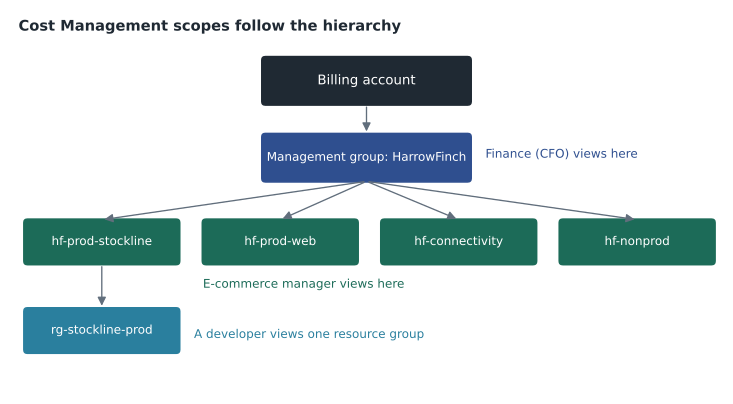
Cost Management works at a scope, the level of the hierarchy whose costs you want to see. Scopes include the billing account and its billing profiles, management groups, subscriptions and resource groups. Dana looks at the whole HarrowFinch management group; Marcus Feldt, the e-commerce manager, looks only at the hf-prod-web subscription; a developer might look at a single resource group. Access to cost data follows Azure role-based access control, so someone with the Cost Management Reader role on a subscription can see its costs without being able to change any resources.
Cost analysis
Cost analysis is the main view for exploring spending. It shows the accumulated cost for the current period with a forecast of where the month is likely to end, based on spending so far. You can group and filter by service name, resource, resource group, location, meter, tag and more, and switch between charts and tables. Saved views let each team return to the same report quickly. Theo created a view called Skylight by service that groups the HarrowFinch costs by service name and highlights the five largest.
Cost analysis showed the October picture clearly once it was grouped by resource. The top items were the test virtual machines that had run through a long weekend, the premium SSD disks, the VPN gateway and the outbound data transfer from the restore test. None of those were mysterious once they had names attached, and each had an owner who could decide what to do.
Cost Management also supports exports, which write cost data on a schedule to a storage account as files. Finance teams use exports to load Azure costs into their own reporting systems. Keiko Tanabe, the data analyst who owns sales reporting, set up a daily export so that cloud costs could sit beside other operating costs in the company's monthly reports. Cost Management also links to cost recommendations from Azure Advisor, such as resizing or shutting down underused virtual machines and buying reservations, which lesson 11 covers in more detail.
Budgets
A budget sets a spending target for a scope over a period, such as a month, a quarter or a year, and sends alerts when costs reach thresholds you define. Thresholds can be based on actual costs, which have already been incurred, or forecasted costs, which predict that the period will exceed the threshold before it does. A forecast alert gives more warning; an actual alert confirms what has happened. Alerts can email people directly or trigger an action group in Azure Monitor, which can send texts, call a webhook or run automation.
A budget is a monitoring tool, not a spending cap. When a budget is exceeded, Azure does not stop resources; it sends alerts. This is deliberate, because shutting down production systems automatically when a number is reached would usually cause far more harm than the extra cost. Organizations that want automatic action can attach automation through an action group, for example to deallocate test virtual machines in a nonproduction subscription when its budget is reached. Some subscriptions based on credits, such as free trials and some subscriptions for Visual Studio subscribers, have a spending limit that disables resources when the credit runs out, but ordinary pay-as-you-go and enterprise subscriptions do not.
| Budget | Scope | Amount (illustrative, monthly) | Alerts |
|---|---|---|---|
| Skylight production | Workloads > Production management group | 18,000 dollars | Forecast at four fifths; actual at the full amount |
| Nonproduction | hf-nonprod subscription | 3,000 dollars | Actual at half and at four fifths; automation at the full amount |
| Connectivity | hf-connectivity subscription | 2,500 dollars | Actual at the full amount |
| Web | hf-prod-web subscription | 4,000 dollars | Forecast at the full amount to Marcus Feldt |
Cost Management has other alert types too. Credit alerts warn organizations with an Enterprise Agreement when their prepaid credit is being used up. Department spending quota alerts warn when a department in an Enterprise Agreement reaches a set amount. Anomaly alerts warn when daily spending changes unexpectedly compared with its usual pattern, which can catch a runaway process or a forgotten resource quickly. Renata turned on anomaly alerts for every subscription, reasoning that the October weekend would have produced one.
az consumption budget create \
  --budget-name budget-nonprod-monthly \
  --category cost \
  --amount 3000 \
  --time-grain monthly \
  --start-date 2026-12-01 \
  --end-date 2027-11-30
Theo wrote a small forecast script to show Dana how a forecast alert works. If the nonproduction subscription has spent a certain amount by a given day, a simple straight-line forecast predicts the month's total. Cost Management uses a more sophisticated model, but the idea is the same.
budget = 3000            # illustrative monthly budget in dollars
days_in_month = 31
spent = {5: 410, 10: 860, 15: 1390}   # spending so far on day 5, 10 and 15

for day, amount in spent.items():
    forecast = amount / day * days_in_month
    share = forecast / budget
    status = "over budget" if share > 1 else ("above four fifths" if share > 0.8 else "on track")
print(f"Day {day:2d}: spent {amount:5d}, forecast {forecast:7.0f} dollars -> {status}")Day 5: spent 410, forecast 2542 dollars -> above four fifths Day 10: spent 860, forecast 2666 dollars -> above four fifths Day 15: spent 1390, forecast 2873 dollars -> above four fifths
What this code does
Takes the money spent so far on days 5, 10 and 15 of the month and projects it forward at the same daily rate to forecast the month's total. Each forecast is compared with the budget and labeled on track, above four fifths of the budget, or over budget. This mirrors how a forecast-based budget alert warns you before the budget is actually spent.
Tags
Costs grouped by service tell you what is expensive. They do not tell you who should pay for it, which application it belongs to or whether it is production. Azure answers those questions with tags: name and value pairs, such as env = prod or owner = theo.marchand, attached to resources, resource groups and subscriptions. Tags have no effect on how a resource works. They are metadata for people and tools, and their most common uses are cost reporting, organizing resources, automation and governance.
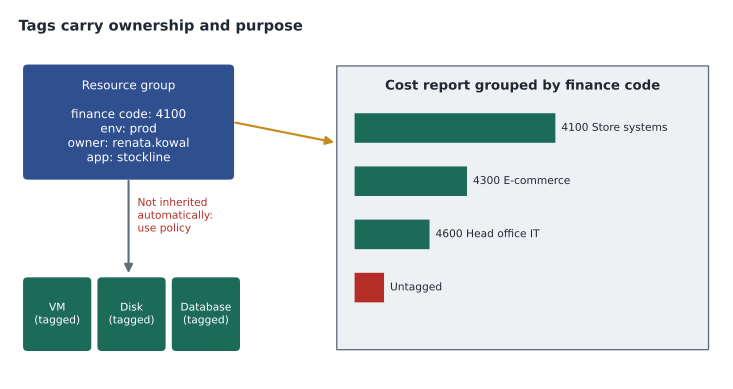
Harrow & Finch agreed a short tag standard on November 4. Every resource group and every resource that costs money must carry four tags. cost-center identifies the department that pays, using the finance system's codes. env is one of prod, test or dev. owner is the email address of the person responsible. app names the application, such as stockline or web. Two optional tags, data-class and review-date, support security reviews and clean-up. Renata kept the standard short on purpose: "If we ask for twenty tags, people will fill them in wrong."
| Tag rule | Detail |
|---|---|
| Where tags can go | Resources, resource groups and subscriptions; not management groups |
| How many | Up to 50 name and value pairs on each resource, resource group or subscription |
| Inheritance | Resources do not automatically inherit tags from their resource group or subscription |
| Case | Tag names are not case-sensitive in operations; tag values are |
| Content | Stored as plain text, so never put passwords or other secrets in tags |
| Support | Most resource types support tags; a few do not |
The point about inheritance trips up many newcomers. Putting a cost-center tag on a resource group does not put it on the resources inside. If costs are to be grouped by that tag, each resource needs it, or Cost Management must be told to apply it. There are two ways to close the gap. Azure Policy can add or copy tags to resources automatically when they are created or updated, which lesson 5 shows. Cost Management also has a tag inheritance setting that applies subscription and resource group tags to the cost records of their resources, so reports work even when individual resources are missing the tag.
az tag update \
  --resource-id /subscriptions/00000000-0000-0000-0000-000000000000/resourceGroups/rg-stockline-prod-cus \
  --operation Merge \
  --tags cost-center=4100 env=prod owner=renata.kowal@harrowfinch.example app=stockline
Tags also support operations beyond cost. Automation can find every VM tagged env = dev and shut it down at night. Security reviews can list everything tagged data-class = confidential. Clean-up scripts can list resources whose review-date has passed. Each of these depends on tags being accurate, which is why enforcement through policy matters more than the standard itself.
Putting it together: a cost routine
By the end of the afternoon, Harrow & Finch had a routine. Each workload owner gets a saved cost analysis view and a budget with alerts. Anomaly alerts watch every subscription. Every month, Theo reviews the top ten cost items and the Advisor cost recommendations, and Dana receives a one-page summary built from the daily export. Every quarter, the estimates from lesson 2 are compared with actual spending. Renata called this the FinOps habit, after the practice of financial operations for the cloud, in which engineering and finance share responsibility for cloud spending instead of treating it as somebody else's problem.
Who looks at costs, and how often
Cost data is only useful if the right people see it at the right time. Harrow & Finch decided who would look at what. Workload owners, such as Marcus Feldt for the website, check their saved cost analysis view every week and receive their budget alerts directly. The platform team, Renata and Theo, review the whole estate every week, looking for new resources with no owner, unexpected growth and anomaly alerts. Dana receives the monthly summary and the quarterly comparison with the estimates. Each group sees the scope it is responsible for, through Cost Management Reader access, and nobody needs permission to change resources just to see what they cost.
Renata also asked for one habit from everyone who creates resources: check the cost analysis view for your resource group a day after creating something new. Many expensive surprises, such as a VM created in a larger size than intended or a premium tier chosen by default, show up in the first day's costs and are easy to fix before a whole month passes.
Worked problem
Budget alerts in practice
The nonproduction budget is 3,000 dollars a month with actual-cost alerts at half and four fifths. On the 12th, actual spending is 1,620 dollars. Which alerts have fired, and what does a straight-line forecast predict for a 30-day month?
Show solution
- Half the budget is 1,500 dollars; 1,620 is above it, so the first alert has fired.
- Four fifths of the budget is 2,400 dollars; 1,620 is below it, so the second has not.
- Forecast: 1,620 divided by 12 days is 135 dollars a day; 135 times 30 is 4,050 dollars.
Answer: Only the half-budget alert has fired, but the forecast of about 4,050 dollars suggests the month will exceed the budget. A forecast alert would already be warning.
Common mistakes
MistakeExpecting a budget to stop resources when it is exceeded.
InsteadBudgets send alerts; add automation through an action group if action is needed.
MistakeTagging a resource group and assuming its resources are tagged.
InsteadTags do not inherit by default; use Azure Policy or Cost Management tag inheritance.
MistakePutting confidential details in tags.
InsteadTags are plain text visible to many people; never store secrets in them.
MistakeGiving everyone Contributor so they can see costs.
InsteadUse Cost Management Reader or Reader at the right scope.
Summary and key terms
- Microsoft Cost Management, included with Azure, lets people analyze spending at a scope such as a management group, subscription or resource group, with forecasts, saved views and scheduled exports.
- Budgets set spending targets with alerts on actual or forecast costs but do not stop resources; credit, quota and anomaly alerts add other warnings.
- Tags are name and value pairs on resources, resource groups and subscriptions that support cost reporting, organization and automation; they do not inherit automatically, are limited to 50 per item, and should never hold secrets.
- Cost Management
- Azure tools for analyzing, monitoring and optimizing cloud costs.
- Scope
- The level, such as a subscription or resource group, whose costs are being viewed or budgeted.
- Cost analysis
- The Cost Management view for exploring and forecasting spending.
- Budget
- A spending target for a scope and period that triggers alerts at thresholds.
- Forecast alert
- An alert raised when costs are predicted to reach a threshold.
- Tag
- A name and value pair attached to an Azure resource, resource group or subscription.
- Tag inheritance
- A Cost Management setting that applies parent tags to cost records of child resources.
Practice problems
Work each problem on paper first, then reveal the answer to check.
Does Azure stop a subscription's resources when its budget is exceeded?
Show answer
No, budgets only alert; actions must be added through automation.
Can you place tags on a management group?
Show answer
No. Tags can be placed on resources, resource groups and subscriptions.
Name two uses of tags other than cost reporting.
Show answer
Organizing resources, automation, security reviews or governance.
Lesson quiz · 5 questions
Score 60% or more to complete this lesson.
Create a free account to save your progress, take quizzes and earn a certificate.